Keywords: Triggers, Trigger, InterAction Triggers, Standalone Triggers, CSV, Contacts Module, automation.
Update: Following a request from clients we now automatically select a newly-created filter from the triggers screen. If you are on the triggers screen and you create a filter you no longer need to select that filter from the drop down, it is selected for you.
Overview
Please note, this article is meant for clients using Vuture as Standalone (CSV or Contacts Module), as well as with InterAction.
Triggers allow the user to create rules that, given certain conditions, perform a certain action. For example an email send can be triggered by a recipient clicking a link.
In this article, you will find a description of each Trigger Type and Action that can be used with Standalone and/or InterAction, as well as, step-by-step use cases.
Before continuing this article, please make sure you've reviewed an Overview of Triggers here .
Related: Triggers FAQ
Contents
Trigger Types
Date Trigger
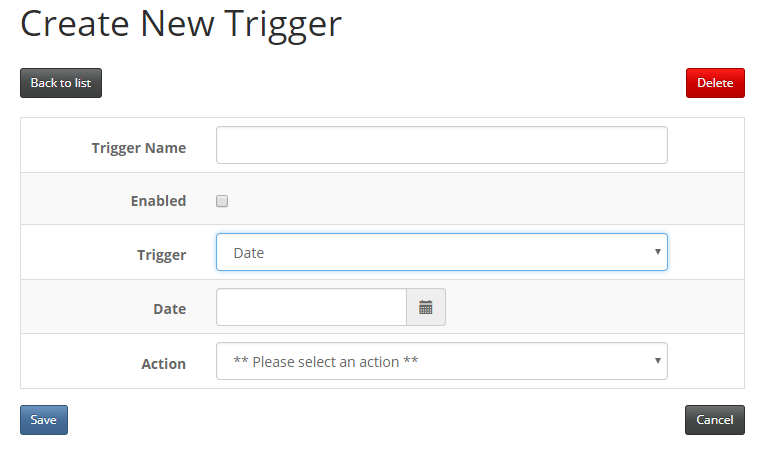
The "Date" Trigger is fired when the specified date is reached or passed.
Actions that work with the "Date" Trigger:
- Send Email
- Publish a Page
- Move a Page
- Enable Triggers
- Disable Triggers
- 'Send to set recipients' and 'Send email with higher conversation rate' - To be used for A/B testing only.
Use Cases for a "Date" Trigger:
Recurring Trigger
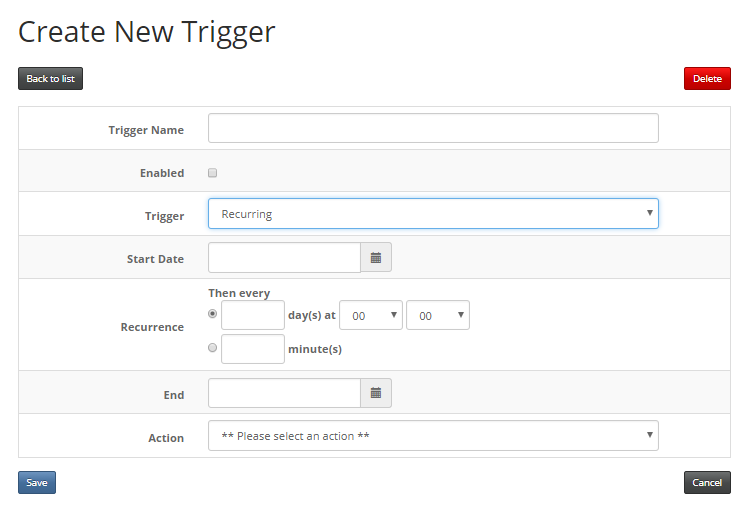
The "Recurring" Trigger is fired on its starting date as well as every x number of days, hours or minutes until it reaches its end date. An example of how you would use this trigger is to "sweep" a marketing list daily to see if anyone new has been added to the list. If they have, the trigger would send an email to them.
Warning: Please make sure you enter an end date at which the trigger should stop firing. If you want the trigger to run for a extended period of time, you can add a date far ahead in the future. If you do not enter an end date, it will result in the trigger not working/disabling itself right away. This is because the end date (if it is left empty) defaults to the same as the start date.
Note: If you set a Send Email recurring trigger to fire every 25 minutes, it will check to see if an email needs to be sent at 25 minute intervals. This will continue all day and all night and over the weekend, until you have indicated the trigger should stop. This means you could receive Email Send Confirmation emails every 25 minutes. See the note here about the new option to either switch off these notification emails or to only receive a notification when the trigger finds a new recipient to send to.
Actions that work with the "Recurring" Trigger:
Use Cases for a "Recurring" Trigger:
Email Opened Trigger
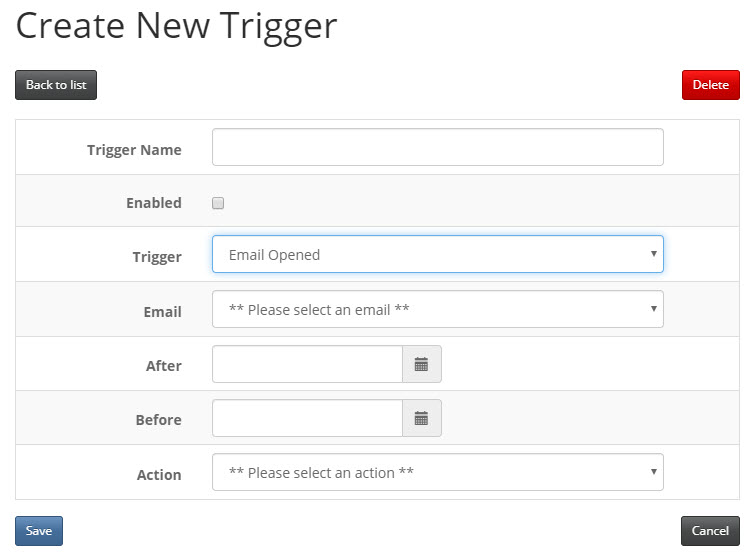
Fires when the chosen email is opened. You also have the choice of specifying that the Trigger will only fire x days after the email is opened, and at a certain time.
Actions that work with "Email Opened" Trigger:
- Remove from list
- Add to list
- Send Email to Matches
- Update Field (Compatible with InterAction only)
Use Cases for "Email Opened" Trigger:
Please note, for this trigger to work your Account Manager must enable the email open queue at "Admin.System.Email.Recordemailopenqueue"
Link Clicked Trigger
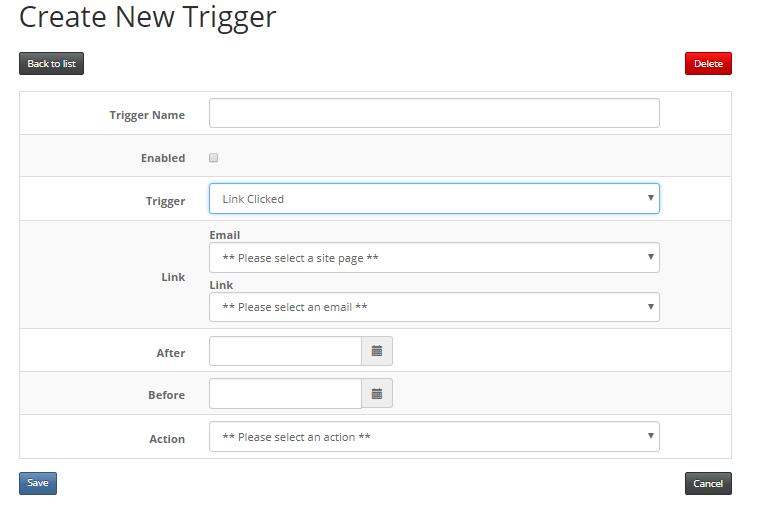
The "Link Clicked" Trigger fires when a chosen link, inside a chosen email, is clicked. Like the "Email Opened" Trigger, you also have the choice of defining that the Trigger will only fire x days after the email is opened, and at a certain time.
Actions that works with "Link Clicked" Trigger:
- Send Email to Matches
- Note, this will send an email only to contacts who clicked on the link in the original email they received.
- Send Email
- Note, this will send an email to everyone, regardless of whether they clicked on the link in the original email they received.
- Redirect To
- Remove from List
- Add to List
- Update Field (InterAction Only)
Use Cases for a 'Link Clicked' Trigger:
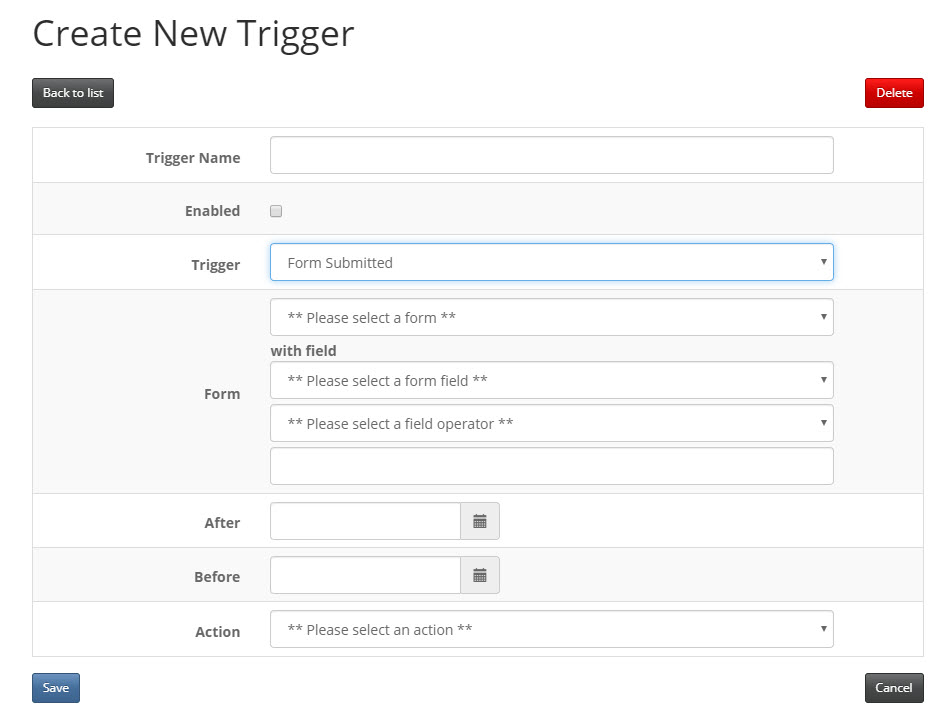
The "Form Submitted" Trigger fires when a certain form is submitted and a certain field meets a certain condition. The condition will depend on the field type. An example of how you would use this trigger is: "If a contact submits the RSVP form, and the RSVP field value is Yes, then send the confirmation email".
Please note: If you do not see any forms in the drop-down when selecting the "Form Submitted" trigger, please navigate to each of your forms and remove any RSVP field that was there by default from the template. Then go to the "Add a new field" tab and add back in the RSVP field - for InterAction, select the list for this specific event and the RSVP Additional field - then save the form, Publish > Publish now. When returning to the Triggers screen, you should now see the form(s) listed in the drop-down upon selecting the "Form Submitted" trigger.
Like the "Email Opened" Trigger, you also have the choice of defining that the Trigger will only fire x days after the email is opened, and at a certain time. This is so you can allow a period of time for the contact to read the landing page and perhaps click to download the calendar file before triggering the confirmation email to arrive in their inbox.
When using the "Add to list" or "Remove from list" trigger actions against this condition, the form must be Prefilled. If you would like to Add a contact to a list following a form submission, you can do this by using an additional field specific to that list.
Actions that work with "Form Submitted" Trigger:
- Redirect To
- Remove from list (Prefilled form only)
- Add to list (Prefilled form only)
- Send to Email Matches (Prefilled form only)
- Send Notification (Blank form only)Send notification action will not move the email over to the sent folder. If you need to know whether the email was sent, you can use the Trigger history.
- Enable Triggers
- Disable Triggers
Use Cases for "Form Submitted" Trigger:
Please note: If you wish to use Dynamic Content or personalized data from additional fields on your Confirmation Emails, you must use a recurring trigger, set to 1 hour increments, instead of a Form Submitted Trigger. This will give Vuture and InterAction enough time to send the data back and forth for Blank RSVP Form Submissions.
Email Not Opened Trigger
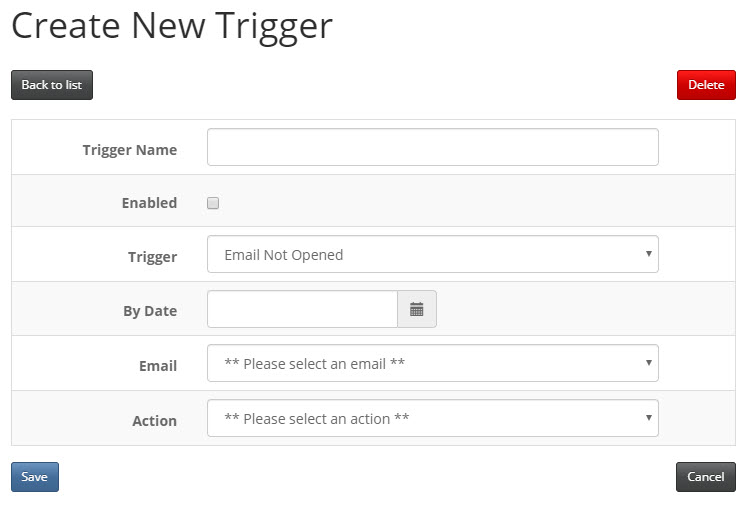
The "Email Not Opened" Trigger fires when a an email has not been opened by a time defined by the user. For example if the email is not opened by next Tuesday, choose to resend the mail.
Actions that work with "Email Not Opened" Trigger:
- Send Email to Matches
- Update Field (InterAction Only)
- Enable Triggers
- Disable Triggers
Use Cases for "Email Not Opened" Trigger:
Link Not Clicked Trigger
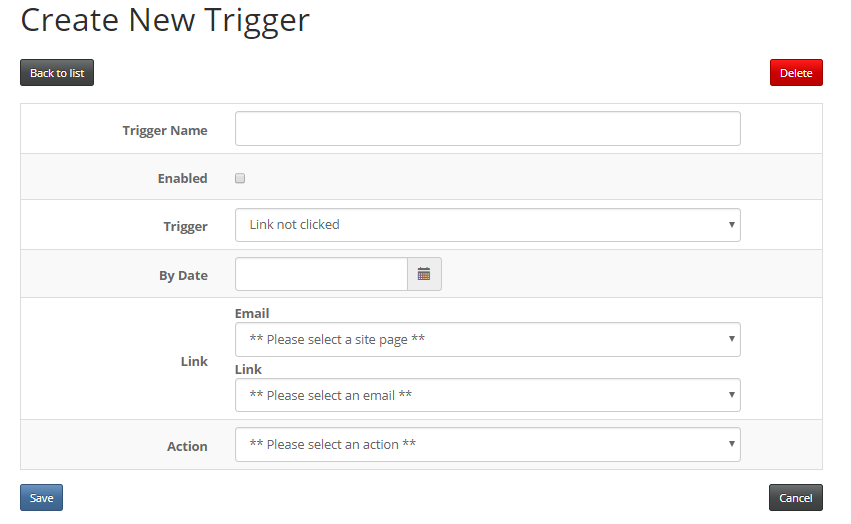
The "Link Not Clicked" Trigger fires when a specified link within a selected email has not been clicked by a defined date.
Actions that work with "Link Not Clicked" Trigger:
- Send Email to Matches
- Update Field InterAction Only
- Enable Triggers
- Disable Triggers
Use Cases for "Link Not Clicked Trigger":
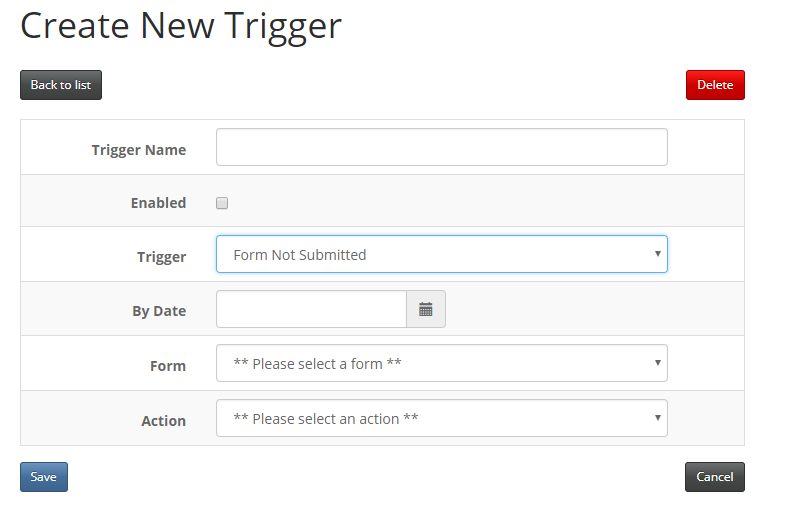
The "Form Not Submitted" Trigger fires if a form has not been filled in by a specified time and date.
Warning: The Form Not Submitted trigger will email everyone on the list connected to the form who has not submitted the form even if you have not emailed them. You should therefore ensure that you only use this trigger when you have mailed the same full list as setup in the trigger, without filtering.
The mailing list selected in this trigger must be the same list that you originally mailed and linked through to the form. For this reason this trigger will NOT work for Blank Forms since they are not connected to a list and all contacts on the list in the trigger will end up being mailed.
Actions that work with "Form Not Submitted" Trigger:
- Send Email to Matches
- Update Field (InterAction Only)
- Enable Triggers
- Disable Triggers
Use Cases for "Form Not Submitted" Trigger:
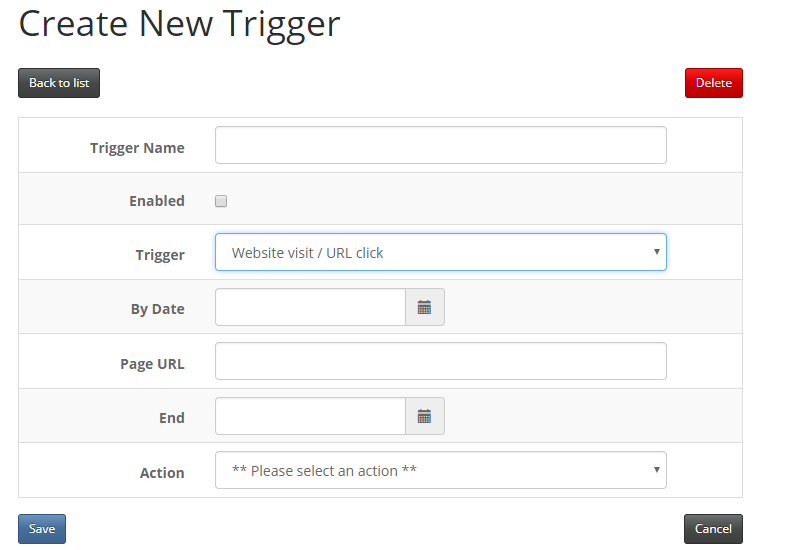
URL Visited Trigger
The "URL Visited" Trigger fires when a chosen URL, with web-tracking enabled, is visited. This trigger will allow certain actions to be made against the person who has visited the website, within a specified period of time, for example: Add them to a named marketing list.
Important: To make use of this trigger you must have the Web-tracking component enabled.
Actions that work with "URL Visited" Trigger:
- Add to List
- Update Field (InterAction Only)
Trigger Completed Trigger
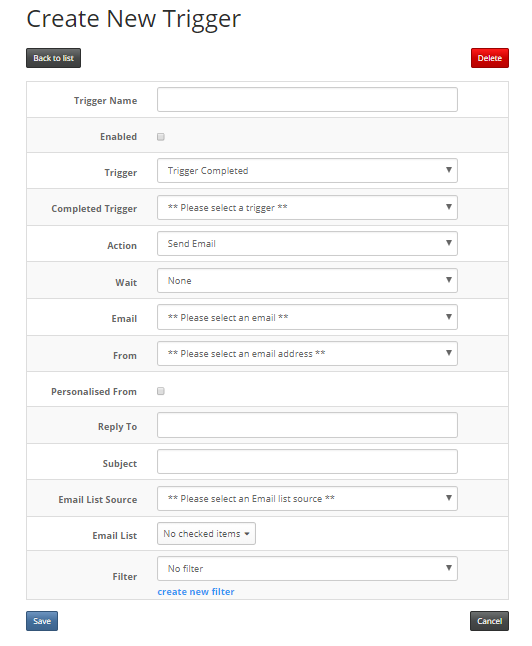
The Trigger Completed trigger enables you to fire a new email once a previous "Date -> Send Email" trigger has been fired and finished sending. There is currently development taking place around A/B Testing. This new trigger will form part of the A/B Testing process and will allow you to send an email to a portion of a list only after a previous trigger has sent an email to a different portion of that list.
This new trigger currently only works when a previous Date -> Send Email trigger has completed. This article will be updated again when further development on A/B Testing has taken place.
Actions that work with "Trigger Completed" Trigger:
- Send to Recipients
- Send Email with Higher Conversion Rate
- Send Email
Use Cases for "Trigger Completed" Trigger:
Trigger Actions
Not all triggers can fire all actions.
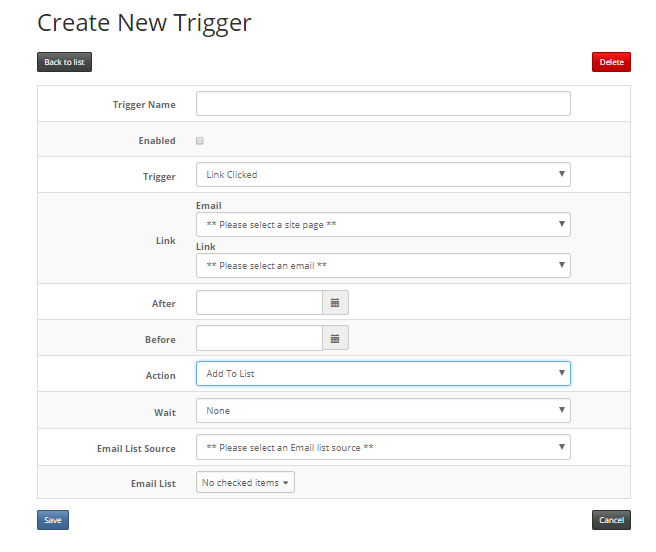
Add to List Action
This action adds the user to an email list. You will have to provide the list source (a Vuture list or an external CRM like InterAction) and the list name.
Triggers that work with "Add to List" Action:
- Email Opened
- Link Clicked
- Form Submitted (Prefilled Form)
- URL Visited (Web Tracking required)
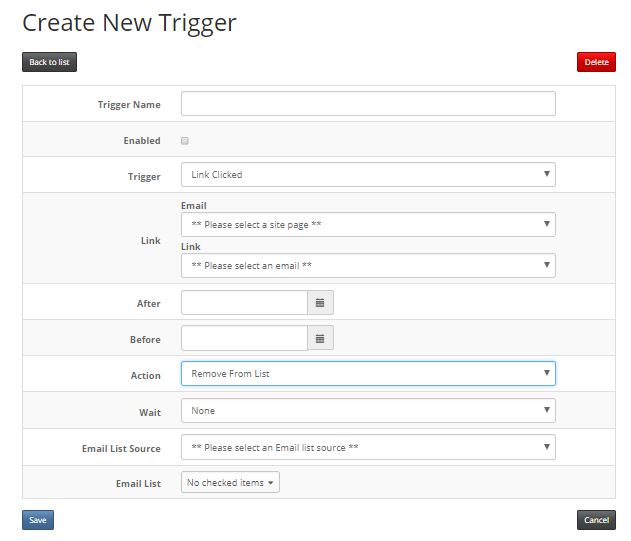
Remove from List Action
Does the opposite to "Add to List". It removes the user from a defined email list. You have to provide the list source (Vuture list or an external system like InterAction) and the list name.
Triggers that work with "Remove from List" Action:
- Email Opened
- Link Clicked
- Form Submitted (Prefilled Form)
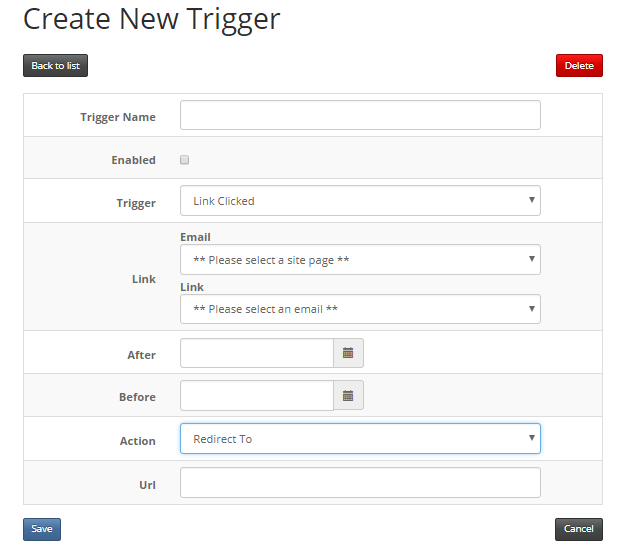
Redirect To Action
Redirects the user to a certain page, defined by its URL. An example of how you would use this is: "If the contact clicks link x then redirect them to page xx".
Triggers that work with "Redirect To" Action:
- Link Clicked
- Form Submitted (Prefilled & Blank Forms)
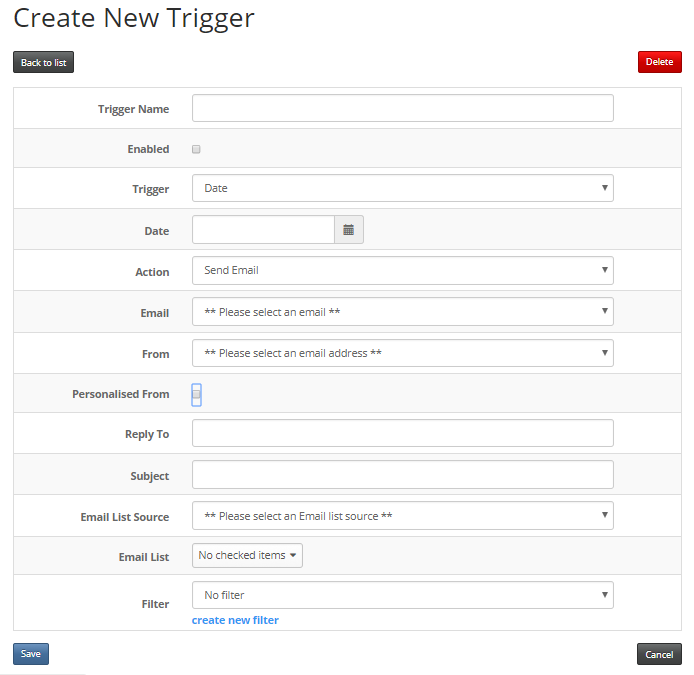
Send Email Action
Sends an email to a list which can also optionally have a filter applied before the send. This is available for both Date and Recurring triggers. You will need to specify the email to be sent, the From address, the Subject, the list source and list name and the content type. You can optionally specify that the send uses a personalised From, the Reply To address and a filter. The personalised from will use the Name and Email of the FROM user.
If you need to create a new filter for use in this trigger you can now go directly to the filter creation screen by clicking on "create new filter".
Please note, the email selected should be published before the trigger is set to fire. If it isn't published at the point of triggering, the trigger will stop, the email will not be sent. You will receive an email prompting to publish the email and restart the trigger.
Triggers that work with "Send Email" Action:
- Date
- Recurring
- Link Clicked (Please note: A filter cannot be applied on a Link Clicked trigger, the 'Send Email' action will send an email to everyone, regardless of whether they clicked on the link in the original email)
- Trigger Completed
Using filters to setup a triggered email reminders
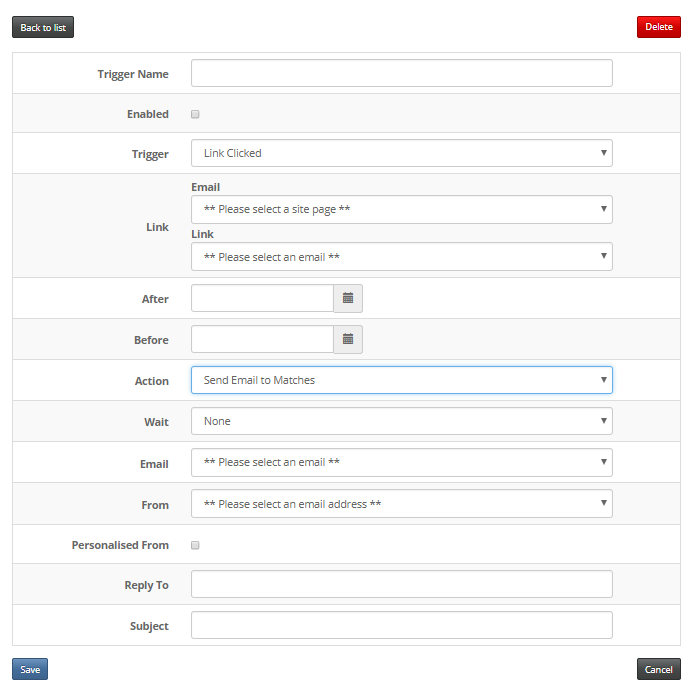
Send Email to Matches Action
This action sends an email to the person whose email address is matched by the Trigger (e.g. the person that opened a certain email). This only works for Triggers that have that information, i.e. they must be on a email list that you sent to.
If you need to send a trigger for a form submission not connected to an email send, e.g. a blank form or a website form, then you should use the Send Notification Action. You must also provide the email to be sent, the person from whom the email should come and the subject of that email.
Please note, the email selected should be published before the trigger is set to fire. If it isn't published at the point of triggering, the trigger will stop, the email will not be sent. You will receive an email prompting to publish the email and restart the trigger.
Triggers that work with "Send Email to Matches" Action:
- Email Opened
- Link Clicked
- Form Submitted (Prefilled Form only)
- Email Not Opened
- Link Not Clicked
- Form Not Submitted
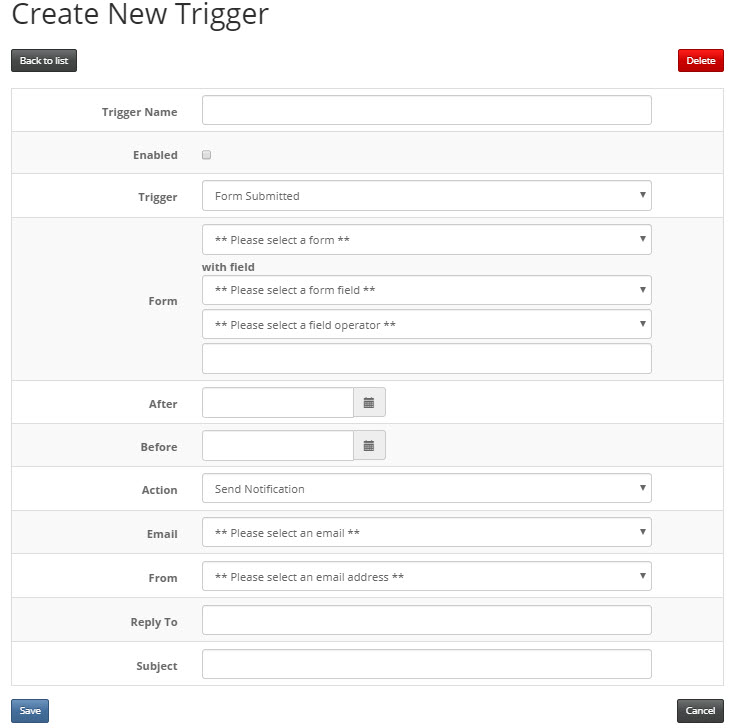
Send Notification Action
Important: Send Notification trigger needs to be enabled in "Admin.System.Triggers.Send Notification Enabled". Please contact Vuture Support or your Account Manager to enable this.
Send notification action will not move the email over to the sent folder. If you need to know whether the email was sent, you can use the Trigger history.
This trigger action allows you to send an email based purely on a form submission and does not require that the person submitting the form clicked through to it from a link in an email send.
The email is sent when a matching form submission trigger occurs. You can choose the email to be sent along with its From address, Subject and Reply-to address.
The email will be sent to the email address field added to the form submission.
The email can be personalised with the fields {First Name}, {Last Name} and {Company} which will be pulled directly from the form submission rather than from InterAction.
Triggers that work with "Send Notification" Action:
- Form Submitted (Blank Form only)
Update Field Action (InterAction only)
Important: To make use of this trigger you must have InterAction.
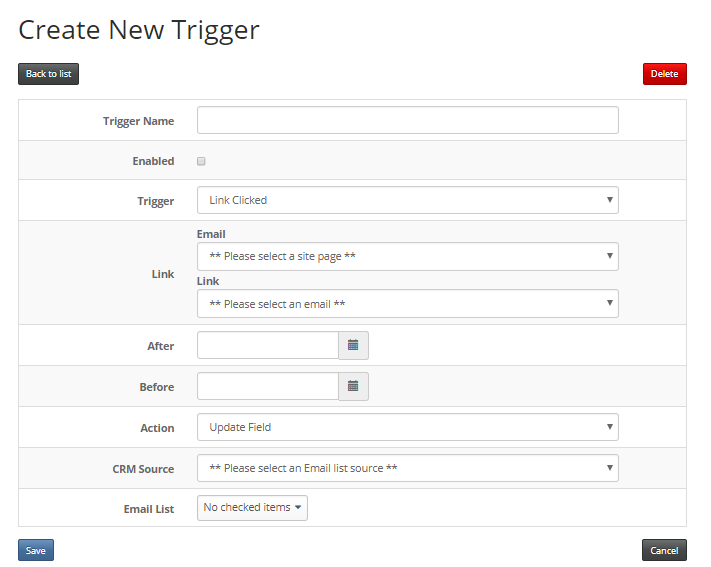
This action adds a value to an additional field within an email list for the contact. You will have to provide the list source (InterAction), list name, additional field and value.
Triggers that work with "Update Field" Action:
- Email Opened
- Link Clicked
- Email Not Opened
- Link Not Clicked
- Form Not Submitted (Prefilled form only)
- URL Visited (requires Web Tracking)
Publish Page Action
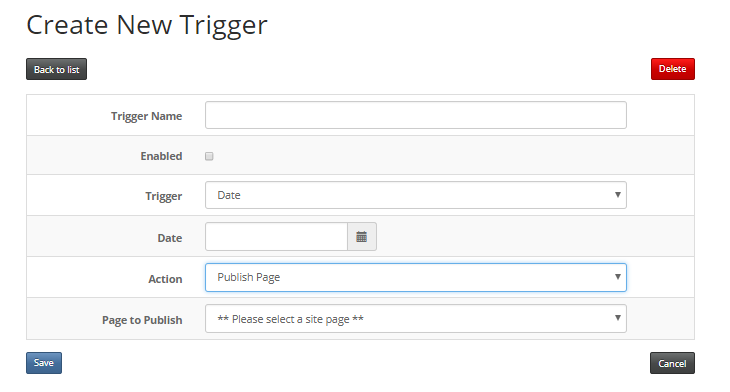
This action publishes a selected page. The user must provide the page to publish when creating the trigger.
Triggers that work with "Publish Page" Action:
Move Page Action
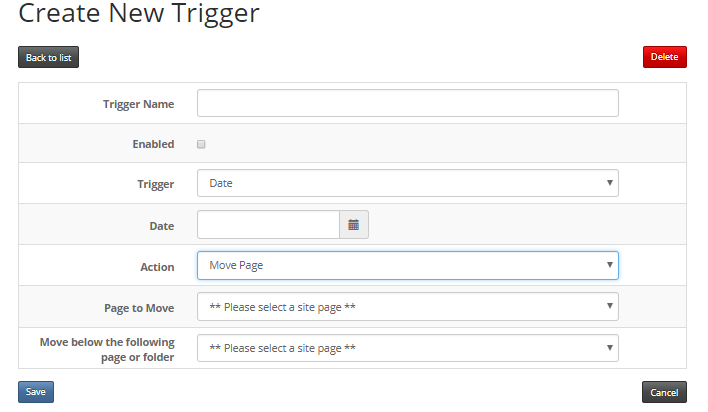
It moves a selected page to a different folder in the campaign. The user must provide the page to be moved as well as destination when creating the trigger.
Triggers that work with "Move Page" Action:
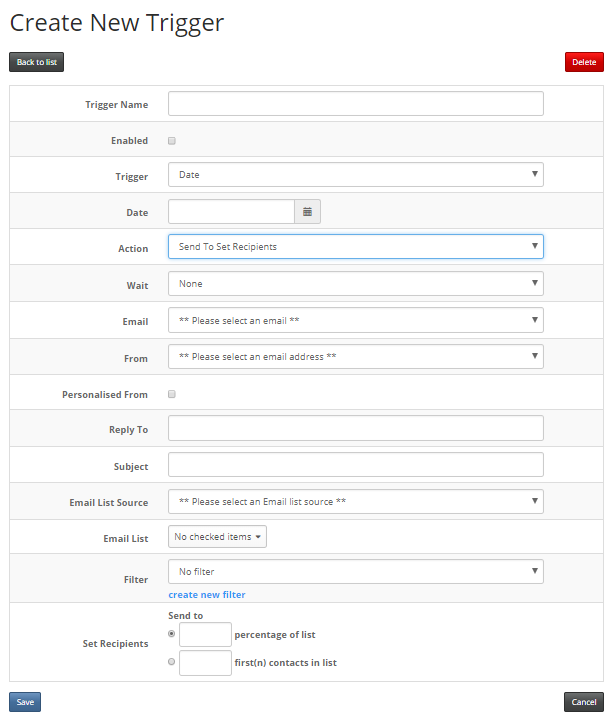
Send to Set Recipients Action (For A/B Testing)
This new trigger action allows you to send a mailing to a randomised section of a list rather than to the whole list. You can choose whether to send the mailing to a set number of recipients from the list or to a certain percentage of the list.
The selection of recipients will be randomised and it will suppress any unsubscribes. You can select this action only when the condition is either "Date" or "Trigger Completed".
Triggers that work with "Send to Set Recipients" Action:
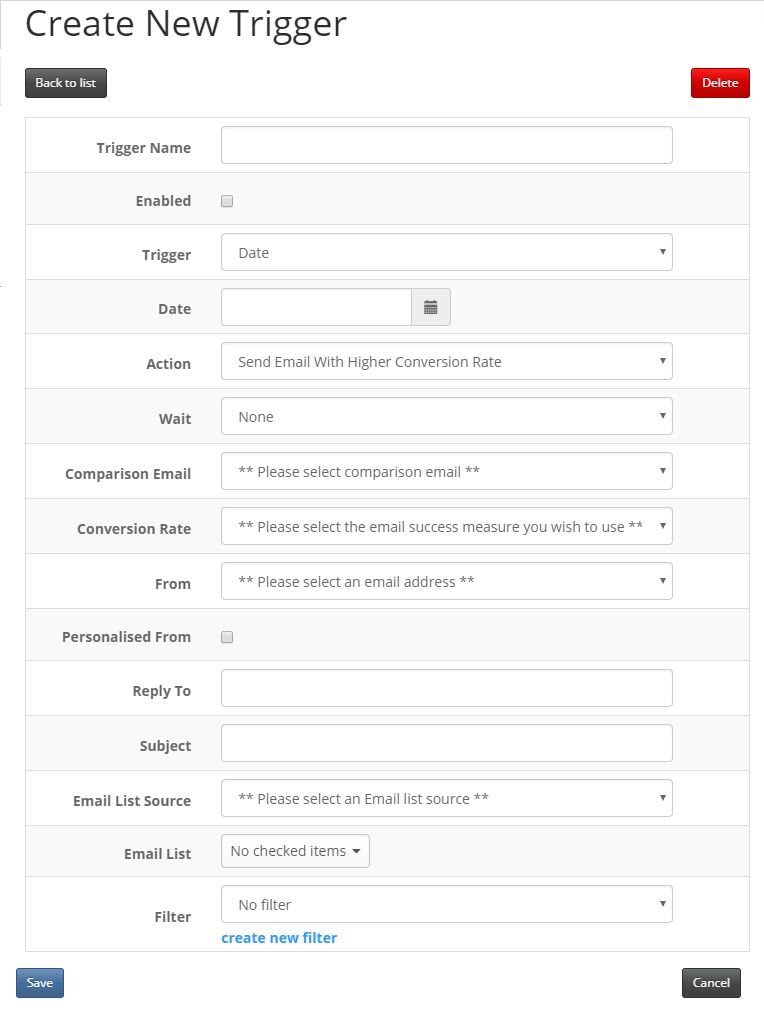
Send Email with Higher Conversion Rate Action (For A/B Testing)
Triggered by Date or Trigger Completed actions, you can use this trigger to complete your
A/B testing and send one of the two (or more) linked emails which has the highest engagement. Selecting an email from the "Comparison Email" drop down list, the system will compare the metrics in only the emails previously linked to this email (see:
Link Email Pages)and deduce a highest engaged email for you, based on either the number of Opens or Links Clicked
Triggers that work with "Send Email with Higher Conversion Rate" Action:
Enable Triggers / Disable Triggers Action
This enables or disables all the Triggers in the campaign.
Triggers that can be used with "Enable Triggers" and "Disable Triggers" Actions:
- Date
- Link Clicked
- Form Submitted
- Email Not Submitted
- Link Not Clicked
- Form Not Submitted
Sending to Multiple Lists (InterAction Only)
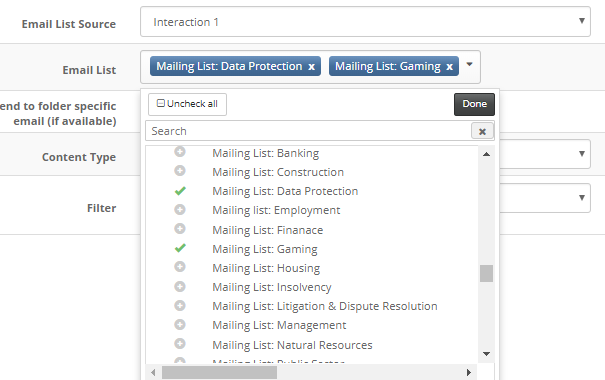
If you are sending to an InterAction list and have Send to Multiple Lists enabled you will also be able to select multiple lists to send to when creating a Send Email trigger.