Keywords: duplicate, de-duplicate, link
If you would like to send out two or more different emails to a set of contacts, and want each contact to receive only one of them, you can choose to link the two (or more) emails in a Vuture campaign, before sending any out. Linked emails will then work in a similar way to the "Send More" functionality. The second mailing that is sent will ignore any contacts who received the previously sent, linked emails.
This feature is automatically available for all Vuture clients. However, to see the Email Options screen you may need to ask your Account Manager to enable Admin.Roles.Email.Options. for your Role.
Please note: when scheduling an email, you must link the pages before scheduling the send. It's possible to link after the first send has gone out.
Scenarios
Q. When might you choose to use Linked Emails instead of Send More?
A. If you want each batch to have something different about the email, e.g. Subject Line, From Address, or something in the content, but you want to make sure no-one gets it twice.
It may prove to be useful for sending the same email to different CRMs, or to Standalone and CRM ,with deduping.
It may also be quicker if you have already sent to a large list.
It may be useful when sending different language versions and you are not sure if people are uniquely in each language list
Prerequisites
The only prerequisite is having the Email module. Plus, Both emails do have to be in the same campaign, but you can use multiple lists.
When scheduling emails, you must link the pages before scheduling the send.
This feature forms part of the A/B testing functionality. You can also use it when you are merging crms, or simply working with different lists and crms.
To set this up:
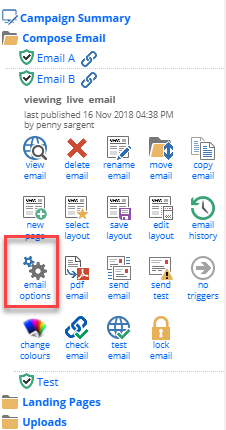
Go to the email you want to link
Click on Email Options
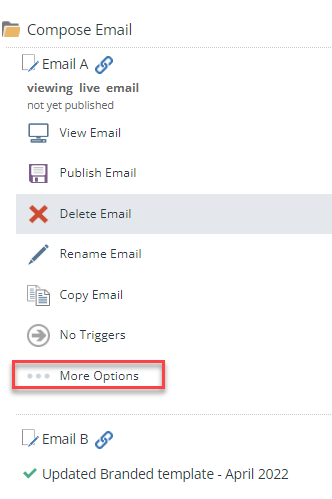
In the new (2024) Campaign Editor go to More Options, Email Options
In the Email Options screen click on Linked Site Pages
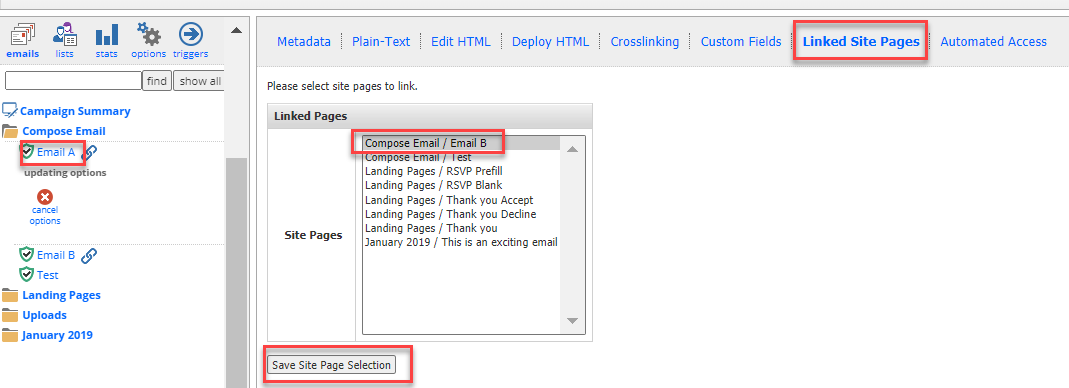
Select the name of the second email page you want to link to the first email
Click Save Site Page selection.
In the example above, I have clicked (in Email A) to the Email Options icon. I have selected Linked Site Pages. Then selected Email B to link to Email A and then clicked on Save Site Page Selection.
Changed your mind?
If you want to Unlink a selection of emails, click on Link Site Pages as above but then Control + Click to unselect the email and Save.
How does Linking work?
When the second email is selected to be sent, the Send Email screen will load every contact in the list whose email address was not sent the first email. For example, set up two email pages:
- Invitation to Monday's event
- Invitation to Tuesday's event
Link "Invitation to Monday's event" with "Invitation to Tuesday's event" so that contacts who receive the former won't receive the latter.
Send "Invitation to Monday's event" to 15 out of 100 contacts in mailing list "Events".
Select "Invitation to Tuesday's event" . Go to the Send Email screen, you will see 85 contacts. Based on their email addresses, none of the first 15 contacts will be eligible to be sent the second mailing.
A more complicated scenario...
Imagine you have three email pages:
- Invitation to Monday's event
- Invitation to Tuesday's event
- Invitation to Next Month's event
You have linked "Invitation to Monday's event" with "Invitation to Tuesday's event".
And you have also linked "Invitation to Tuesday's event" to "Invitation to Next Month's event" but not to "Invitation to Monday's event" as you will want to invite Monday's invitees to next month's event but not Tuesday's invitees.
Send "Invitation to Monday's event" to 15 out of 100 contacts in mailing list "Events".
When you select "Invitation to Tuesday's event" and go to the Send Email screen, you will see 85 contacts. Based on their email addresses, none of the first 15 contacts will be eligible to be sent the second mailing. From these 85 you select 10 contacts. When you want to send the third mailing "Invitation to Next Month's event" you can choose from 90 contacts as the 10 contacts who were sent "Invitation to Tuesday's event" mailing will be suppressed based on their email addresses, but as the first mailing "Invitation to Monday's event" wasn't linked to the third mailing "Invitation to Next Month's event" then the 15 contacts who were sent the first mailing won't be suppressed from the third mailing.
In the above examples, I have used the same list, however, as the suppression looks at email addresses, it will suppress contacts across multiple lists.
If you are unsure about a scenario you are working on, please test the use case before setting up a live send.
Reporting
You can compare the metrics from your linked emails by looking in the Send Email History Screen. You will see all emails that are linked to the selected one, along with number of opens and links clicked.

