Add a personalised QR code to an event notification, registration or confirmation email so contacts can check in without giving or spelling out their name. At the event, the contact shows the QR code on their smartphone and your team scans it with a QR code reader. Their details are picked up automatically and they are marked as Attended. This reduces waiting time and typing at the check-in desk.
Before you start
You will need:
- InterAction integrated with Vuture's Events app. This process is not currently available for any other integrated CRM.
- The Email module and the Events app.
- A prefilled RSVP form. A blank form doesn't know the contact's InterAction ID, so this process doesn't work with blank forms. If you need to work with blank forms, please contact Support.
- A QR code reader or scanner for your team to use at the event. Vuture can't recommend specific hardware, but QR code reader apps are easy to download to most smartphones.
- For Option B only: the HTML role and some HTML knowledge. The HTML role is not enabled for all users by default.
Set these up first:
- Create your invitation campaign as normal, including the confirmation email that will contain each contact's personalised QR code.
- Create the event in the Events app.
Build your QR code line
You will build one line of code. Open Notepad, or another plain-text editor (on a Mac, use TextEdit in plain-text mode), and follow these steps.
- Paste this template into your editor:
<img src="https://api.qrserver.com/v1/create-qr-code/?data=YOUR-EVENT-API-URL/contact/{IA:ContactId}/attend.json&size=200x200" alt="QR code" width="200" height="200" />
- Find your event URL. Open your campaign and go to the Summary tab. Scroll down to the Events App V4 panel and click the Event url link (Image 1). The event opens in the Events app (Image 2). Copy the URL from your browser's address bar (Image 3). It will look like this:
https://sites-example.vuture.net/version4/event/292
- Add api/ straight after version4/ in the URL you copied. The example above becomes:
https://sites-example.vuture.net/version4/api/event/292
- In the template, replace YOUR-EVENT-API-URL with your URL from step 3. Leave everything else as it is, including {IA:ContactId}. The system replaces this with each contact's InterAction ID when the email is generated. The finished line will look like this, with your own address and event number:
<img src="https://api.qrserver.com/v1/create-qr-code/?data=https://sites-example.vuture.net/version4/api/event/292/contact/{IA:ContactId}/attend.json&size=200x200" alt="QR code" width="200" height="200" />
- Copy the whole line.
Changing the size: 200x200 is the size of the QR code in pixels. You can change it to make the QR code bigger or smaller. We recommend keeping it square, so if you change size=200x200, change width and height to match.
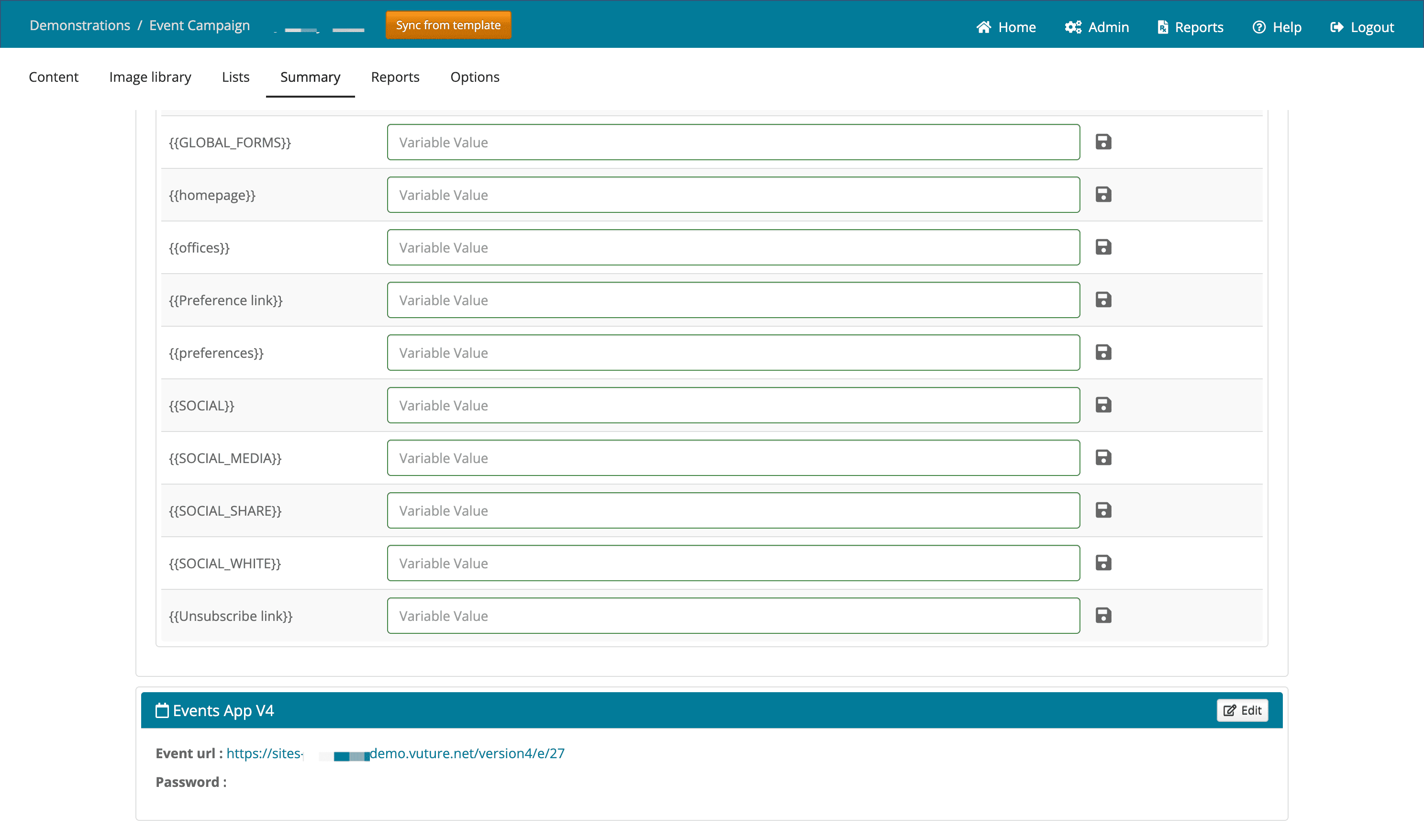 Image 1 – The Events App V4 panel on the campaign's Summary tab, showing the Event url link
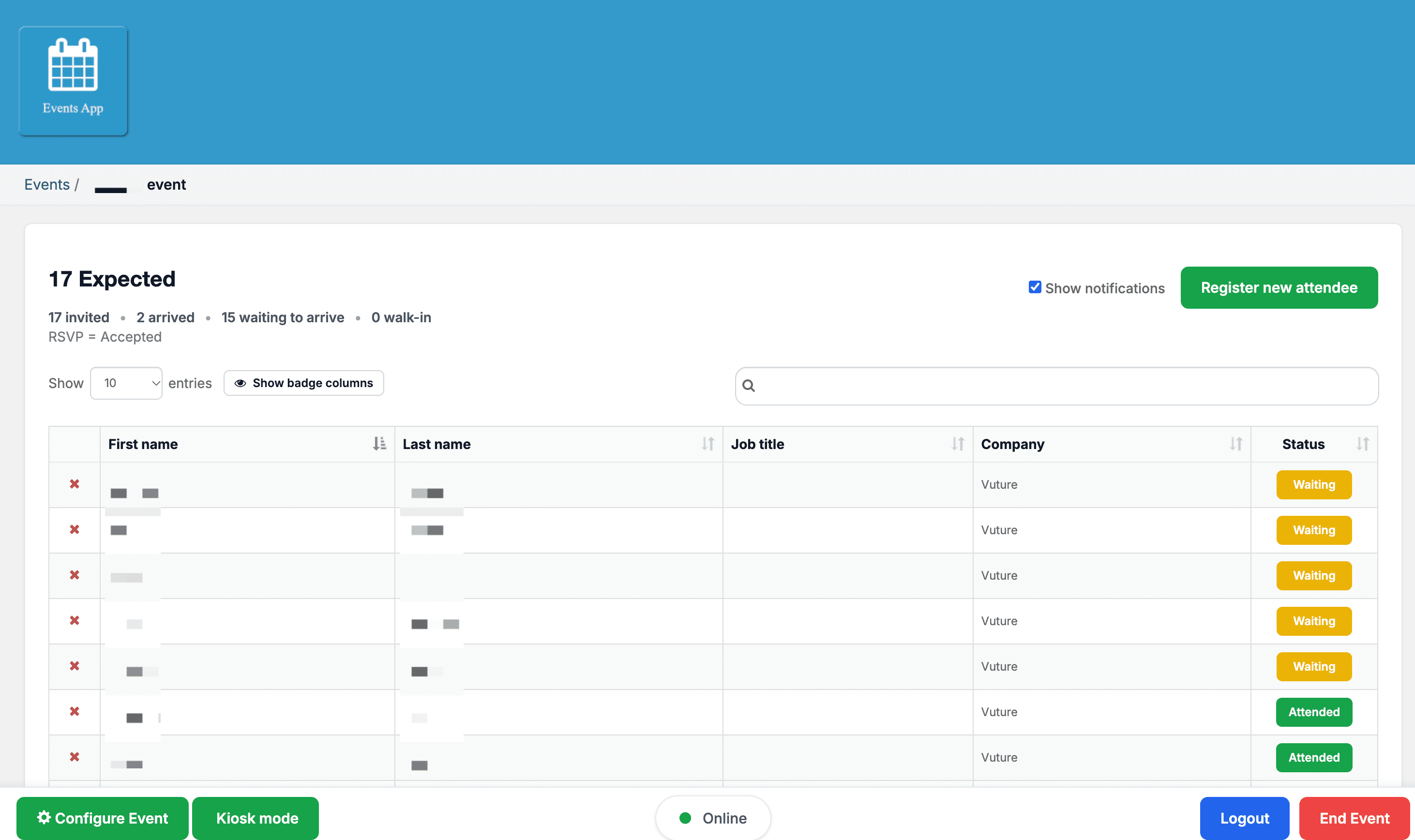 Image 2 – The event open in the Events app
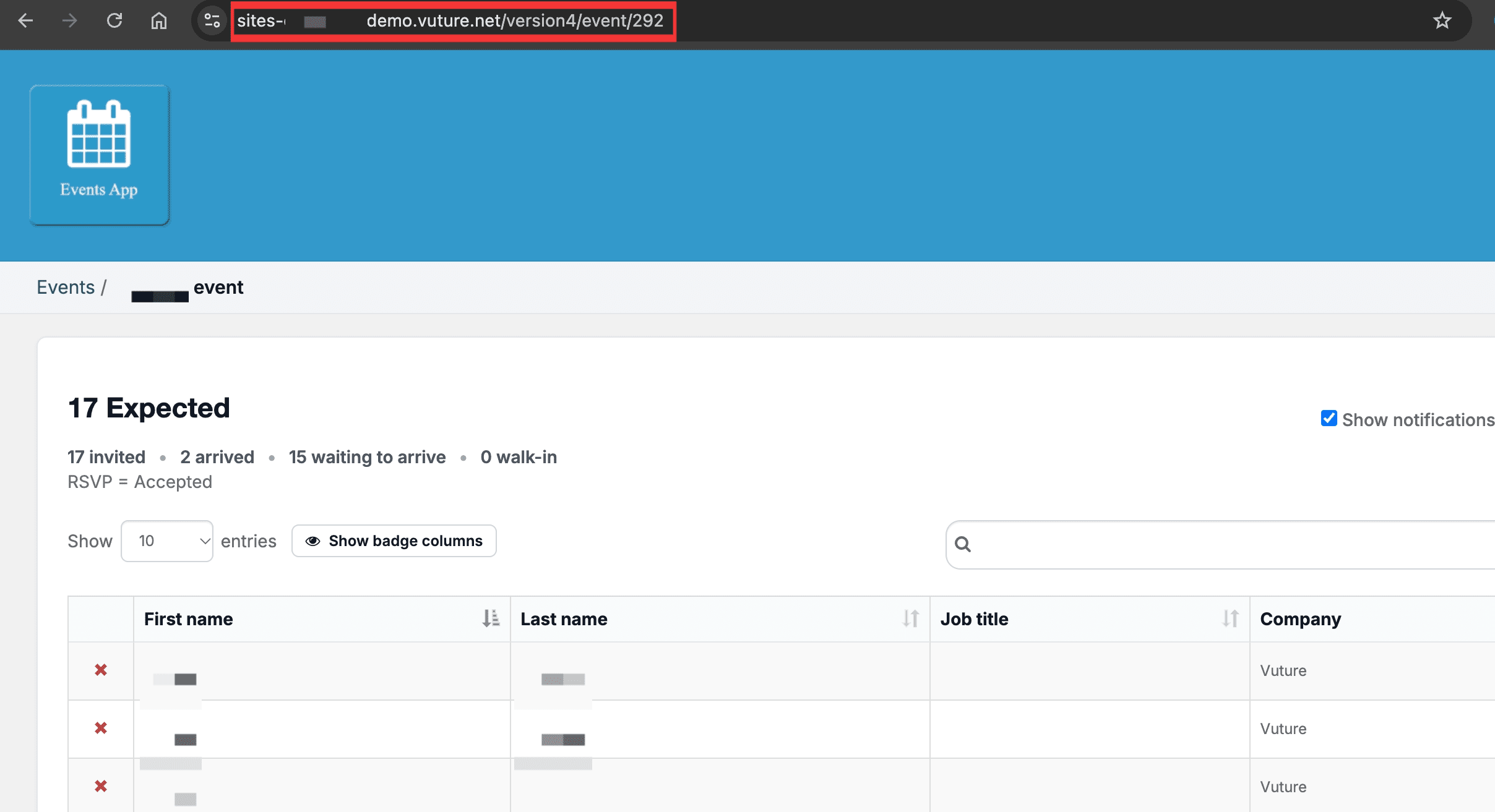 Image 3 – The event URL in the browser address bar
Add the QR code to your email
There are two ways to do this. Option A is the one we recommend and doesn't need the HTML role. Option B is an alternative for users who have the HTML role.
Option A: Use a Campaign Variable
- Go to the Summary tab of your campaign.
- Create a Campaign Variable called QR Code.
- Paste in the line you copied (Ctrl+V, or Cmd+V on a Mac), then save the variable (Image 4).
- Return to the Content tab and type {{QR Code}} wherever you want the QR code to appear in the confirmation email.
- Click View Email to see the QR code in place. The QR code usually doesn't appear in edit mode, so you need to use View Email or View Page to see it.
Option B: Add the code directly in the email's HTML
Note: This method requires the HTML role, which is not enabled for all users by default. Only use it if you are confident reading and writing HTML.
Step 1 – Mark where the QR code will go. Open the confirmation email in the text editor and type a placeholder where you want the QR code to appear, for example Put QR Code here. You will replace this text later. Click Save content.
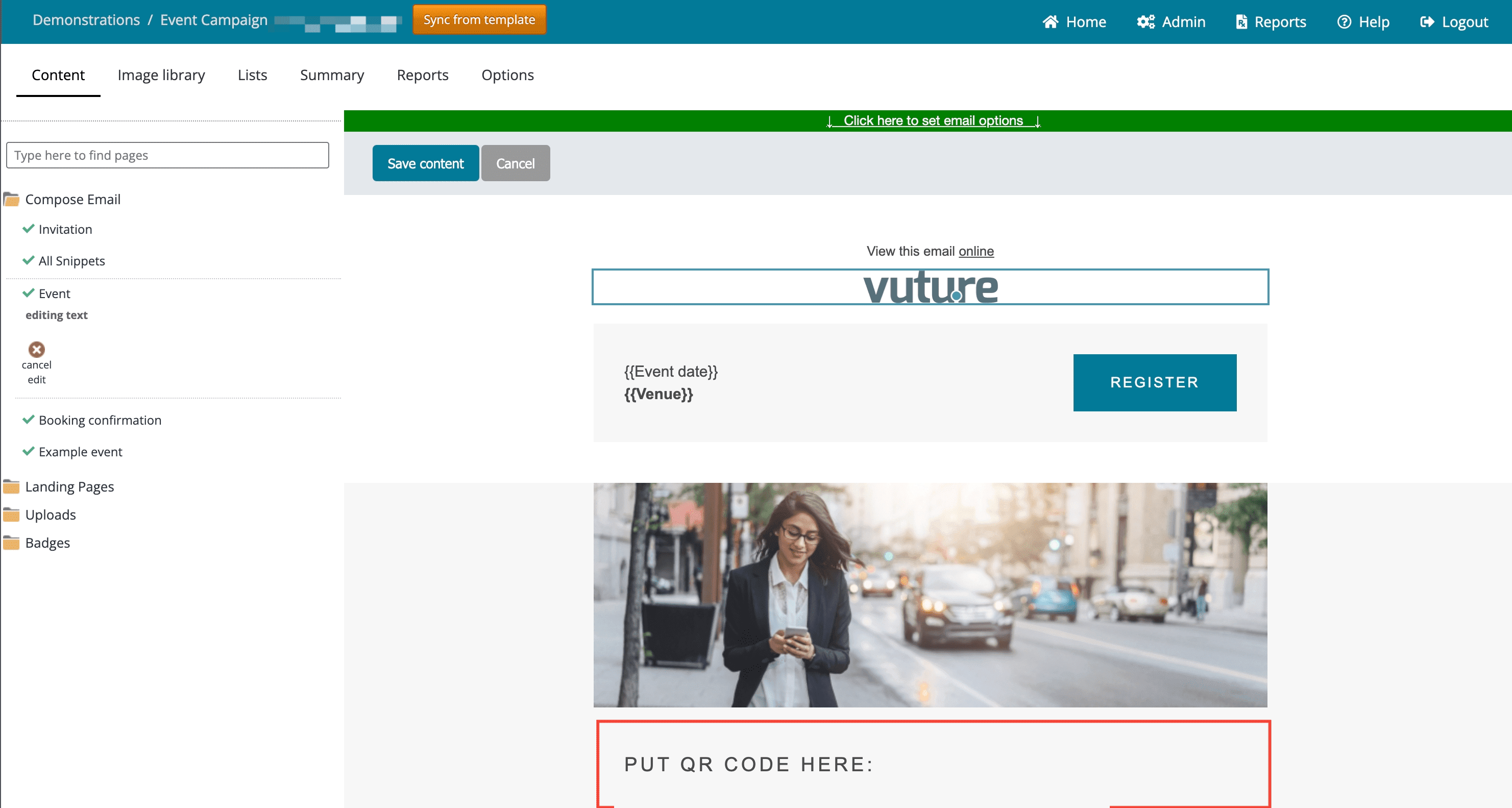 Image 5 – Placeholder text marking where the QR code will go
Step 2 – Open the email's HTML. In the left-hand page list, under your email, click Email Options, then select the Edit HTML tab. Don't use the Source Code icon in the text editor, because the code won't save from there.
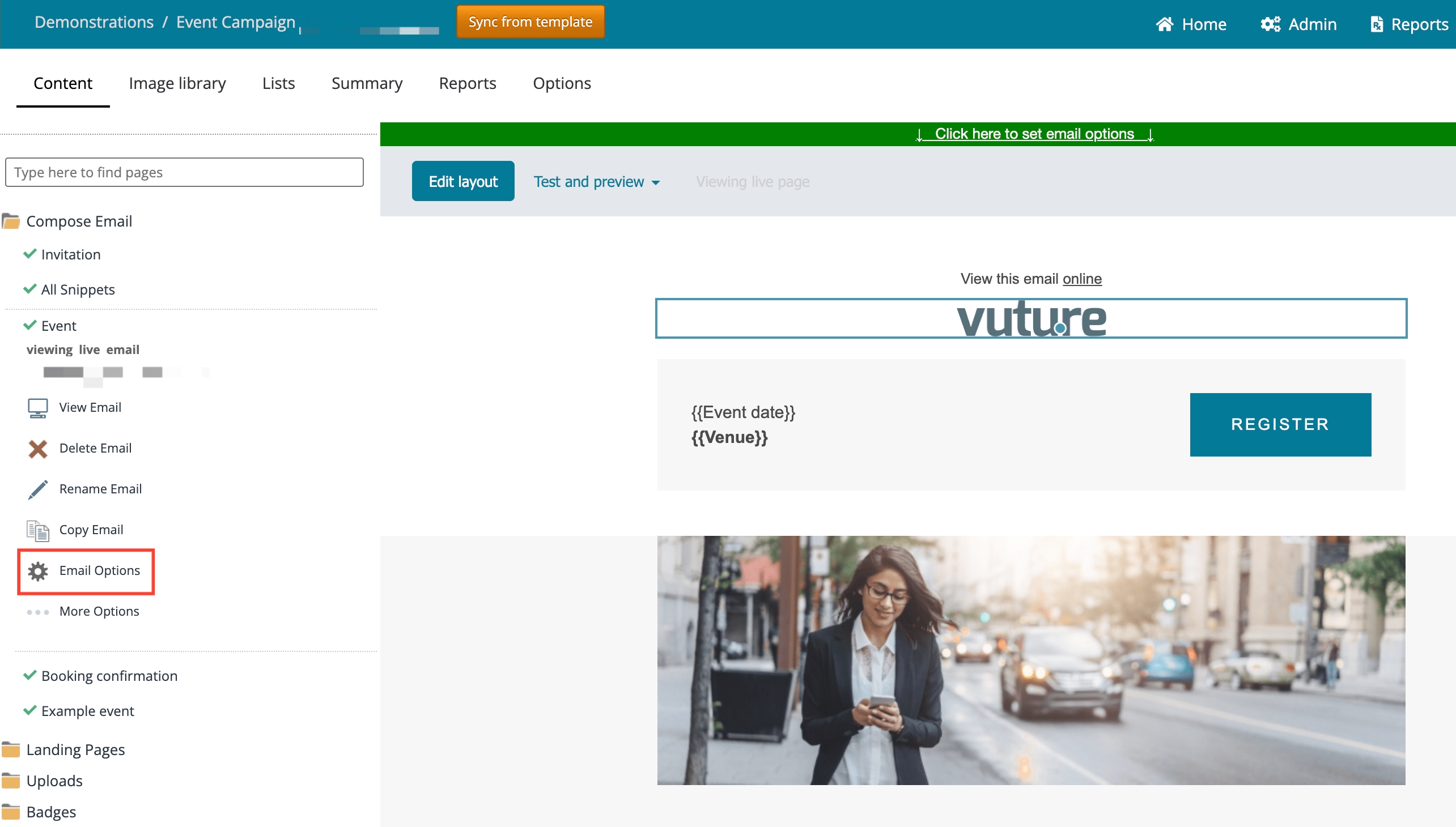 Image 6 – Email Options in the left-hand menu
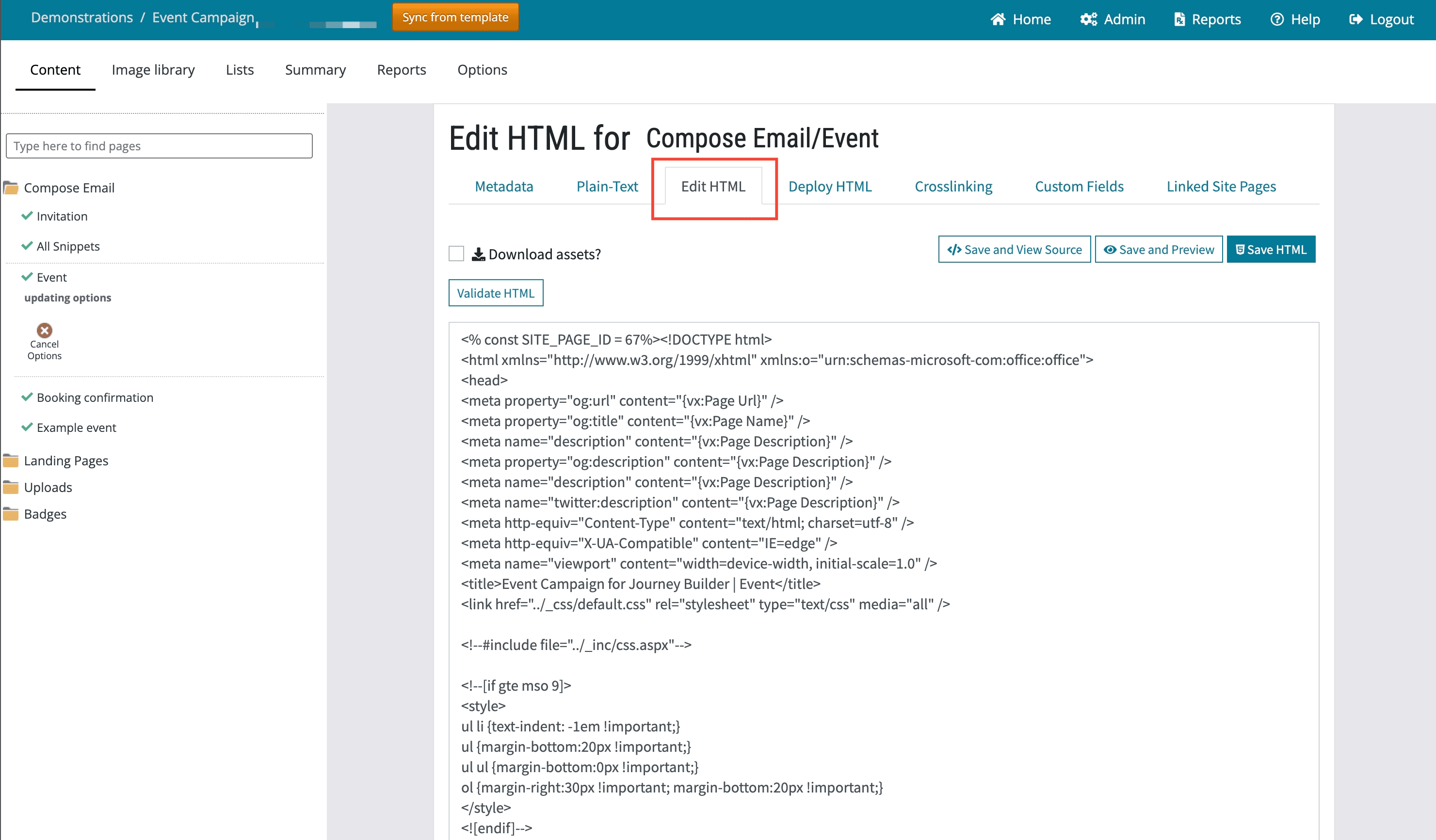 Image 7 – The Edit HTML tab
Step 3 – Find your placeholder. Scroll down, or press Ctrl+F (Cmd+F on a Mac), and search for your placeholder text.
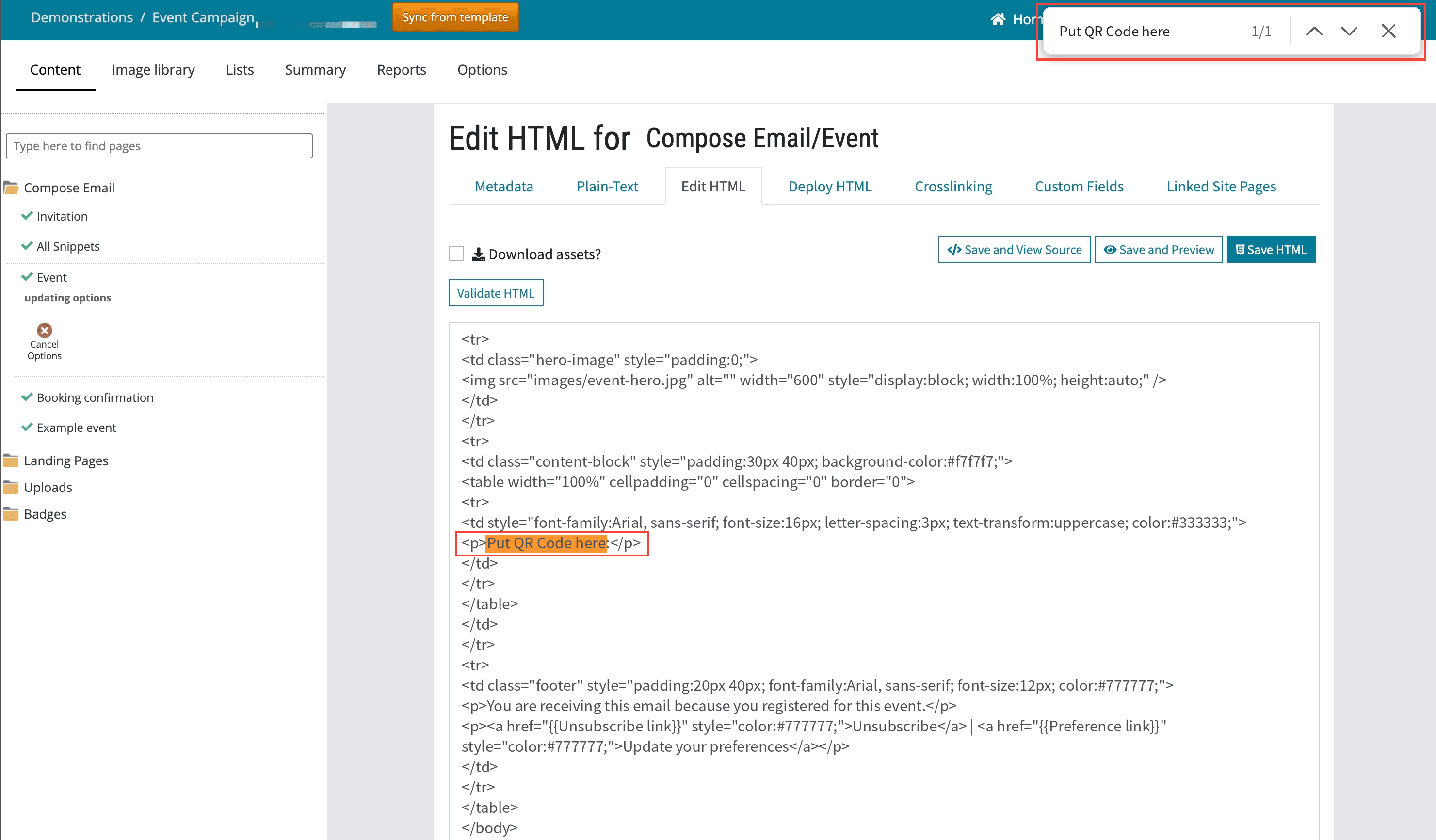 Image 8 – Searching the HTML for the placeholder text
Step 4 – Paste in the QR code line. Highlight the placeholder words and paste the full line you copied over them, so the line replaces all of the placeholder text.
Step 5 – Save. Scroll back to the top of the page and click Save HTML.
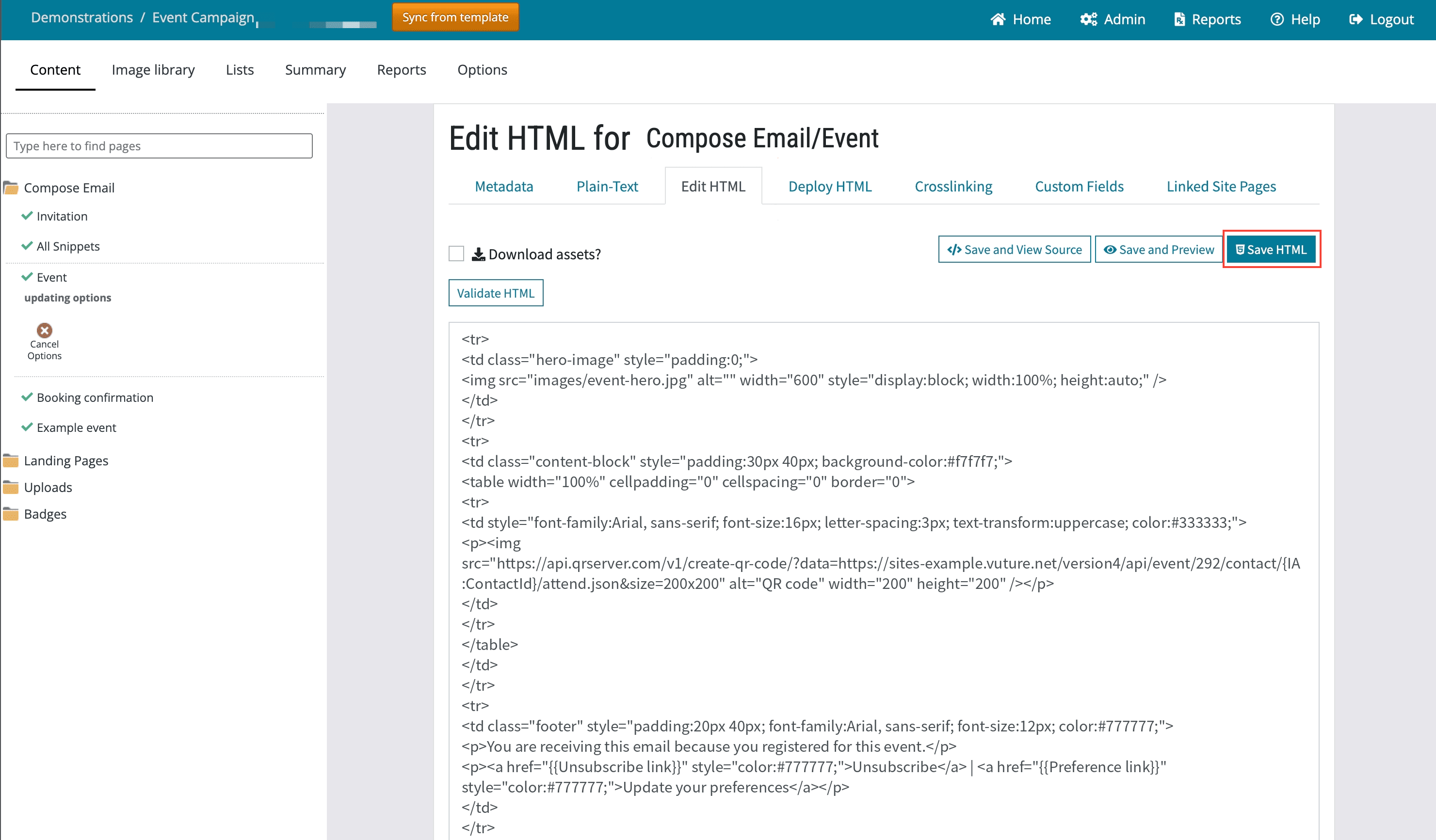 Image 9 – The QR code line in place of the placeholder, ready to save
Step 6 – Check the result. You'll be returned to the email. The QR code may flash briefly and then disappear. To see it, click View Email.
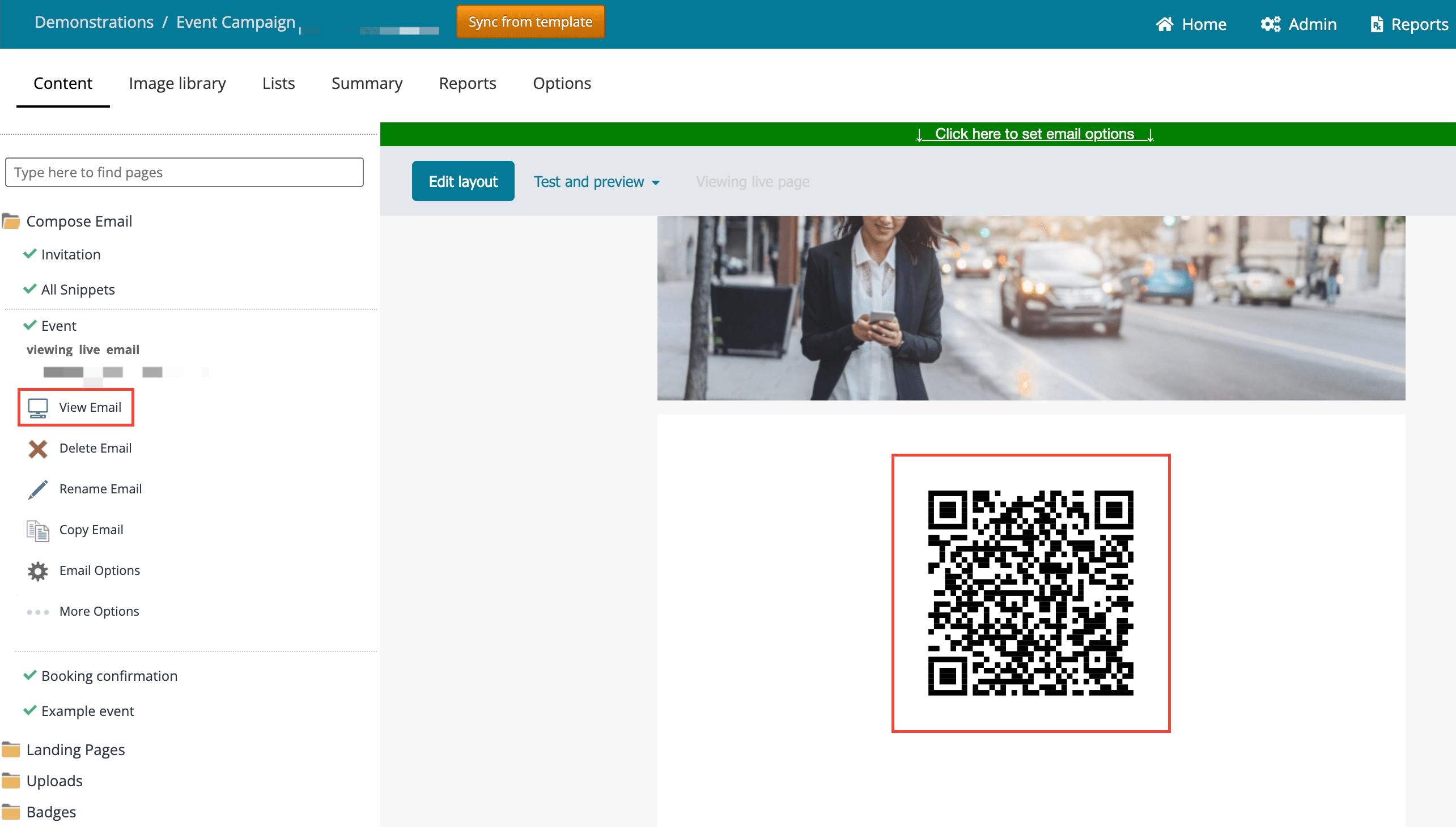 Image 10 – The QR code in the email, shown using View Email
Test it before you send
Before sending to your contacts, send yourself a test email and scan the QR code with your phone to check it works. Scanning marks the contact as Attended, so use a test contact rather than a real attendee.
At the event
When contacts arrive, they hold up the confirmation email on their smartphone. Scan the QR code with your QR code reader. Their details are picked up automatically and they are marked as Attended.
FAQs
Q. I typed the {{QR Code}} variable onto my page. After using View Email to see the QR code, I went back to the editing screen and the variable has disappeared. Why?
A. If the setting Admin.System.EditOptions.Replace Variables is enabled, the Campaign Editor replaces variables with their values while you edit. The QR code only displays in View Email, so in the editor you see a blank space where you typed {{QR Code}}. The variable is still there and will work when the email is sent.
Q. How does the system know which event to mark the contact as Attended for?
A. The event number in the URL you added links the QR code directly to the correct event.
Q. How does the system know who the contact is?
A. The line contains {IA:ContactId}. When the confirmation email is generated, this is replaced with the contact's InterAction ID, so every contact gets their own QR code.
