Keywords: confirmation on send; sending email; confirmation to sending user; who bounced?; who was suppressed?
Update for 2021 - Email Send Confirmation is now also available online - if you have the latest version of the Monthly Statistics page. Click here for more information.
Overview
This Help Desk Article walks you through the email send confirmation you'll receive from Vuture after sending an email. It applies to emails sent using all CRMs and none.
Content
What is the Send Confirmation Email?
Every time a non-test email is sent from the system, a confirmation email can be sent to the user that clicked the sent button.
This is normally enabled by default. If it is not enabled on your system then contact Vuture Support and ask for Admin.Settings.Emails.Send Confirmation Email to be switched on.
Once enabled, a confirmation report is delivered by email to the user that sent the mailing, once all of the emails have been processed and queued for delivery.
If the send is a scheduled send (Send Later) the confirmation is sent after all the emails have been processed and added to the queue for future delivery.
Details on what's included
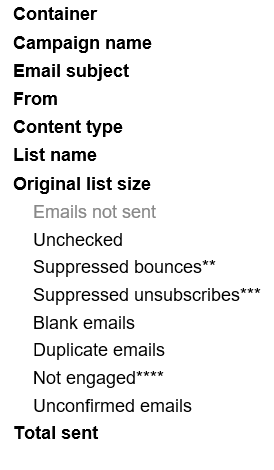
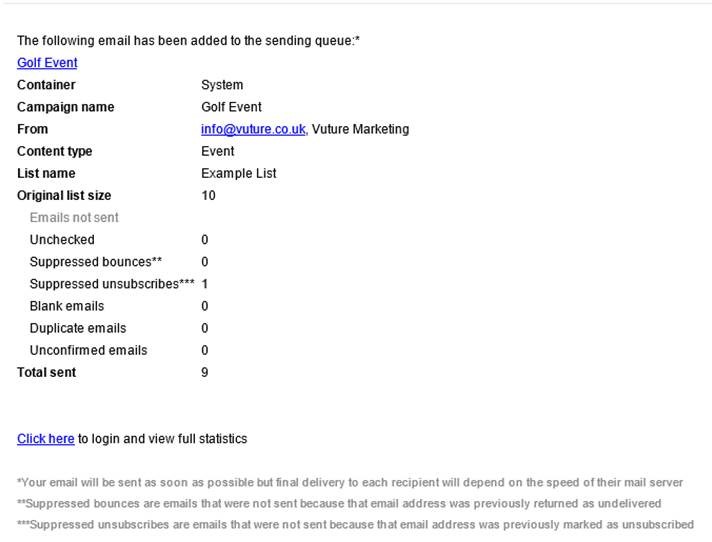
The confirmation includes the the following information:
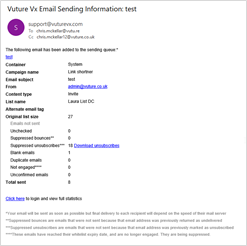
Email name: name of the email with a link to the online version of the email
Container: which container the email was created in
Campaign name: campaign the email was sent from
Subject line: the subject line included on the email
From: email address and display name the email was sent from
Content type: content type of the sent email
List name: name of the list/folder the email was sent to.
Original list size: total count of contacts in the selected list or lists
Unchecked: number of contacts manually unchecked from the send screen
Suppressed bounces: number of contacts not sent to because they are in the bounce suppression folder
Suppressed unsubscribes: number of contacts not sent to because they are in unsubscribe suppression lists
Blank emails: number of contacts not sent to because they have a blank email address
Duplicate emails: number of contacts not sent to because they had duplicates of email addresses that already received this mailing (note if you are doing a "send more" this also checks contacts that previously received this mailing)
Unconfirmed emails: (for users of the Alumni module only) the number of contacts suppressed from Alumni mailings because they have not yet confirmed their email (this is an optional feature that allows you to suppress Alumni contacts who have not yet confirmed their email address)
Total sent: final number of contacts that the email was sent to
Click here: this link takes you to the send history screen for this mailing, prompting you to log in if you are not already logged in
The three downloadable reports (Suppressed Bounces, Suppressed unsubscribes and Not Engaged) can contain contact information as well as the email address. That is, First name, Last name, Title, Job Title, Company, ContactId (the ID will be the unique CRM-specific ID in each case).
Downloadable Reports:
Download Bounces
This will download a list of all contacts who were suppressed on send due to hitting the consecutive bounce threshold. Any contacts who are not already marked as suppressed due to the bounce rule on send are not included in this list, and may go on to bounce for this mailing.
Download Unsubscribes
Unsubscribes are any contacts marked as such in the contact status field in Vuture, or who are marked as unsubscribed in CRM.
Download Suppressed
Suppressed contacts are those who have opted out of the particular email type set for your mailing. They may be subscribed to other topics.
Download Not engaged
This will give you a list of contacts who have been suppressed using the Email Whitelist tool. You can read more about this here.
If you have Not Engaged contacts in your mailing list, at the foot of this email there will be a sentence beginning with **** which will clarify whether or not these not engaged contacts are being suppressed, or only monitored.
This will work for all CRMs but to see the contact information in these reports as well as the email address, the following prerequisites apply:
Prerequisites: Your Customer Success Manager should:
Enable 'Admin.System.Emails.Check Whitelist On Send'
Enable 'Admin.System.Emails.Log Suppressed Emails'
Enable 'Admin.System.Emails.Suppressed Emails Log To Include Contact Info'
Note: Disabling this config will exclude contact information columns and only show email address.
NOTE: The confirmation email is sent from the registered Vuture Support email which defaults to support@vuturevx.com. This is so you can reply to the sending confirmation if you have a question for support about the mailing. If you have an out office message on when sending an email this auto-reply can generate a support ticket. If this causes a problem then your Customer Success Manager or Vuture Support can change this email address at "Admin.System.General.Support Contact" - please ensure you whitelist the email address that it is changed to.
Links to download a list of suppressed contacts for each of the suppression items in the confirmation email can be enabled by checking the configuration setting "Admin.System.Emails.Log Suppressed Emails".
Once enabled all confirmation emails will include links to CSV downloadable files containing the email addresses of the suppressed contacts. Please note that the CSV is generated at the point of sending, so when turning on this config, it will not historically generate the CSV for past sends.
For InterAction only
By default these lists just include email address but by enabling the configuration setting "Admin.System.Emails.Suppressed Emails Log To Include Contact Info" the lists will also include first name, last name, company and title. Note this additional contact info is only available for InterAction lists.
You will also need to go to Admin.Services and for each InterAction instance that is to be configured for a scheduled download click on Edit and set the schedule. In the example below the "Task Interval" of "hour;05:00;12" means that the download will happen every 12 hours starting at 5am (this is 5am and 5pm each day). Note that the time is in the local Vuture server time. Set "Task Enabled" To "True" and click "Update". Please note not to enable the daily download unsubscribe in the IA settings unless the client wants the sends to use the daily download rather than real time.
Since this generates a high volume of data, these lists are only retained for 90 days by default. This retention value can be changed using the configuration setting "Admin.System.Emails.Suppressed Email Logs Retention Days".
Please contact your Customer Success Manager or Vuture Support to enable this functionality.
Add users to also receive Send Confirmation Emails
When a Vuture user sends an email from the platform, they will receive a Confirmation email message stating the list they selected, the number of sends, number and types of suppressions, etc. This email can go out to other specified email addresses if required. The additional email addresses can be added on a per container basis.
To set this up for a container you will need to have access to the Admin area of Vuture.
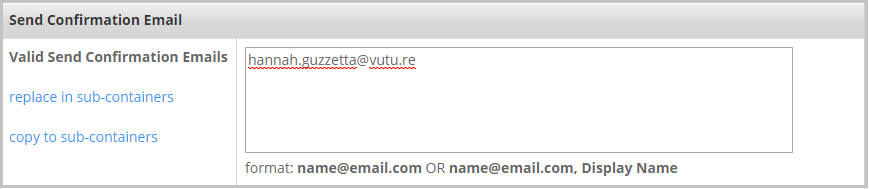
Go to Admin.Containers&Users, select the container and go to the "Container Settings" tab. There, you can add one or more additional email addresses for those who should receive the Send Confirmation Email Messages as sends go out from the selected container.
The specified Valid Send Confirmation Emails will receive an emailed Confirmation Message for each of the mailings sent from the given container. They will show as CC'd and the Vuture user who sent the mailing will be the principal recipient.
Why is this important?
Some Vuture clients like to make more than one user aware when a mailing has gone out. This feature will allow clients to keep others informed and up to date on the size and frequency of mailings leaving the platform, specifically focused on a per container basis.
Email Send Confirmation Email – available online
Prerequisite
Ask your Customer Success Manager to enable Admin.Roles.Pre-release.Enable updated spacelab pages automatically
This feature is only available on the latest, spacelab, version of the Monthly Stats page.
Why did we do this?
When sending an email campaign from your Vuture platform, the user who clicks the Send icon automatically receives the Send Confirmation email from Vuture. This Send Confirmation email contains details of who the mail was sent to and all the suppressions invoked. This email can also be automatically cc’d to other users if required, set by Container. However, an email can be difficult to keep track of, or it can be mislaid completely.
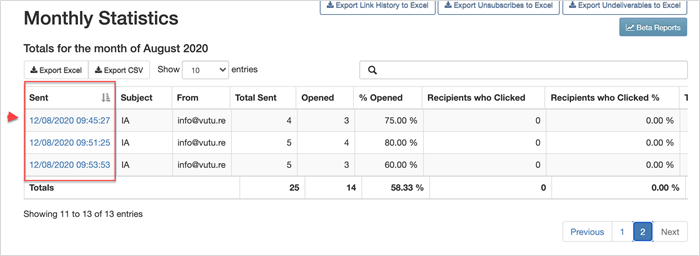
New for 2021: It is now possible to see all the information from that email online as well. It will be visible from the Monthly Statistics screen in the Sent column, where each Date and Time of a send is now a hyperlink to the online information about that send:
Is the information given any different now?
There will be no difference in the amount of information delivered, and the sending user will continue to see the Email Sending Information email arrive in their inbox as well. However, this new feature now allows you to review the Send, at a glance, from within the campaign.
Are there any prerequisites for this feature?
It will be automatically available to all logged in users who access the latest Monthly Statistics screen and have "Admin.Roles.Pre-release.Enable updated spacelab pages automatically" enabled for their role.
Example Sending Information Email:
New, online version of the same information:
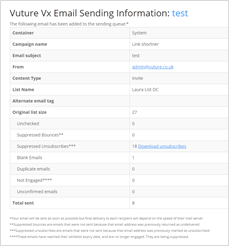
Warning: The Email Confirmation email and the online version of this email will usually match exactly. However, there will be some occasions when the numbers of emails sent do not match. This could be caused by an email being Cancelled or Paused after it was Sent.
For example, if an email send is Paused, and then Resumed, a confirmation email will be sent but it will only contain the breakdown of sends since the send was resumed.
For this reason, when a send is interrupted in this way, it is important to view the total Sent from the Email History Screen and not to rely on the Email Send Confirmation email to necessarily contain all the detail of the full send.
FAQs
Q. I am seeing Duplicates listed in my Send Confirmation email but they are being sent. Why am I seeing this?
A. When a Send is paused, or if it fails during the Send and has to be restarted, the emails that were not sent the first attempt will be retried. These emails will be displayed in the Email Sent confirmation email as "duplicates".
Q. If I send an email through Vuture on behalf of another contact, do they receive the Send Confirmation emails?
A. The user who clicks the Send button automatically receives the Send Confirmation email from Vuture.
