Overview
This article will walk you through how to use a 'Link Not Clicked' Trigger to send a second email (or copy of the original email) if someone does not click on a specific link in an email by a certain date/time.
For example, you send an email asking subscribers to update their Preferences with a link to your Preferences form. If someone does not click on the link to update their Preferences, then you can send them a copy of the original email with a 'Reminder to Update your Preferences' subject line.
These instructions are meant for those who are using Vuture with CSV files or the Contacts Module, as well as, InterAction.
Please note, Triggers is a requirement. If you do not have Triggers, please speak to your Account Manager.
Step by Step Instructions
Please follow the below instructions to send another email (or a copy of the original email) if the contact does not click on a specific link in the first email.
The below instructions will use the example of a contact not clicking on a link to update their Preferences Form in the first email.
1. Send your first email. Please note: This will be referred to as your original email moving forward.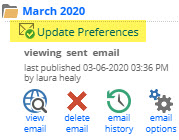
2. Next, in the same email campaign, create the second email you'd like to send if someone does not click on a specific link in the original email.
- If you'd like to send a copy of the original email, go into the 'Send Folder' (i.e. March 2020), click on the original email, then click on 'Resend Email'. This will put a copy of your original email in the Compose Email folder. From here, you can rename the email to something like 'Update Preferences Reminder'.
Make sure this email is 'Published' otherwise click on 'Publish > 'Publish Now' to publish.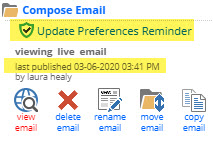
3. Navigate to the Triggers screen and click on '+ New Trigger'.
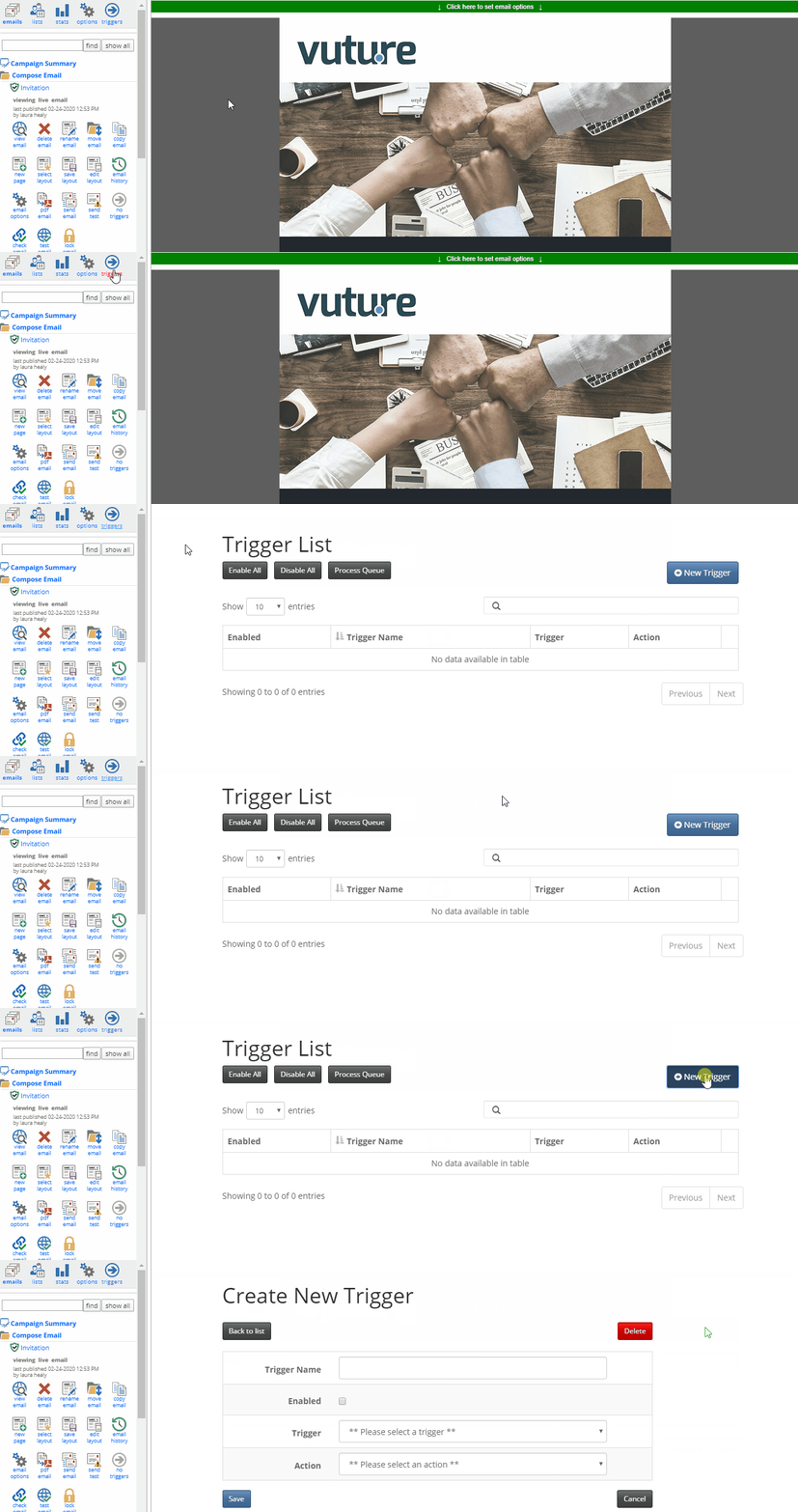
4. Give your Trigger a clear name for what this Trigger will do for you. For example, if it is going to send a second email if the specific link was not clicked in the original email, name it 'If [Name of Original Email] link not clicked, send this email'.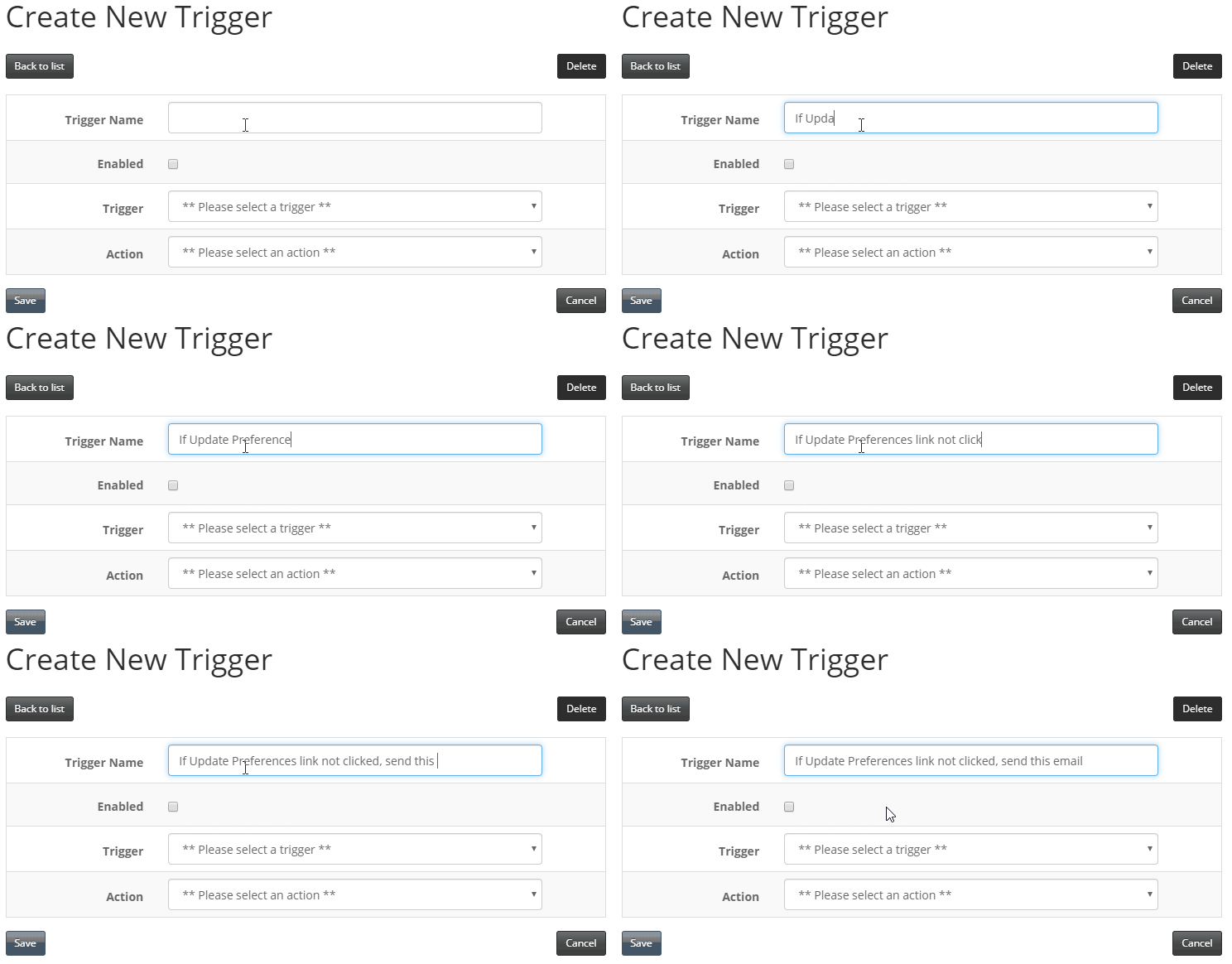
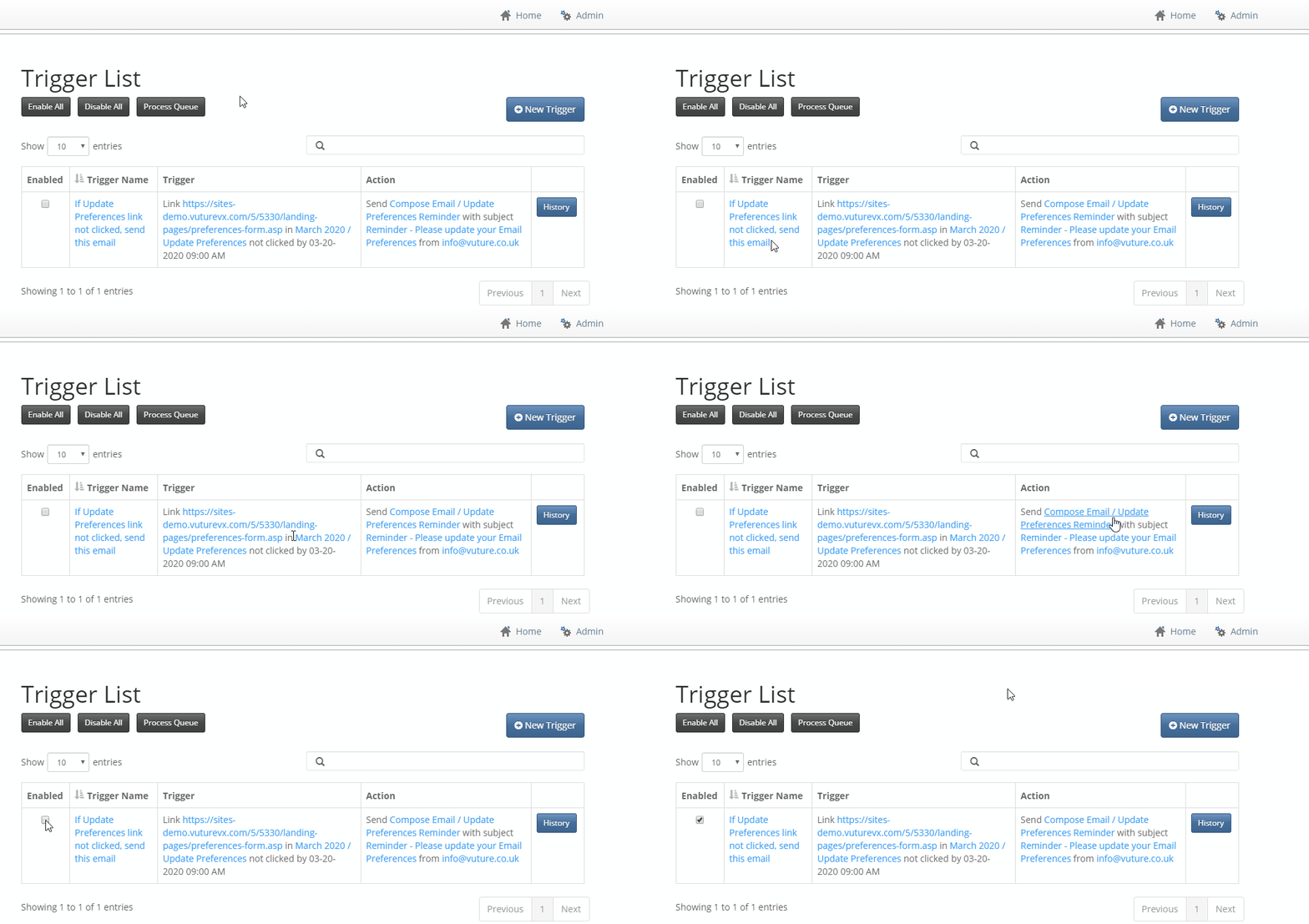
Important: Do not enable the trigger just yet. Wait until this trigger is setup and enable it from the 'Trigger List' screen.
5. Select the 'Link Not Clicked' Trigger from the 'Trigger' drop-down.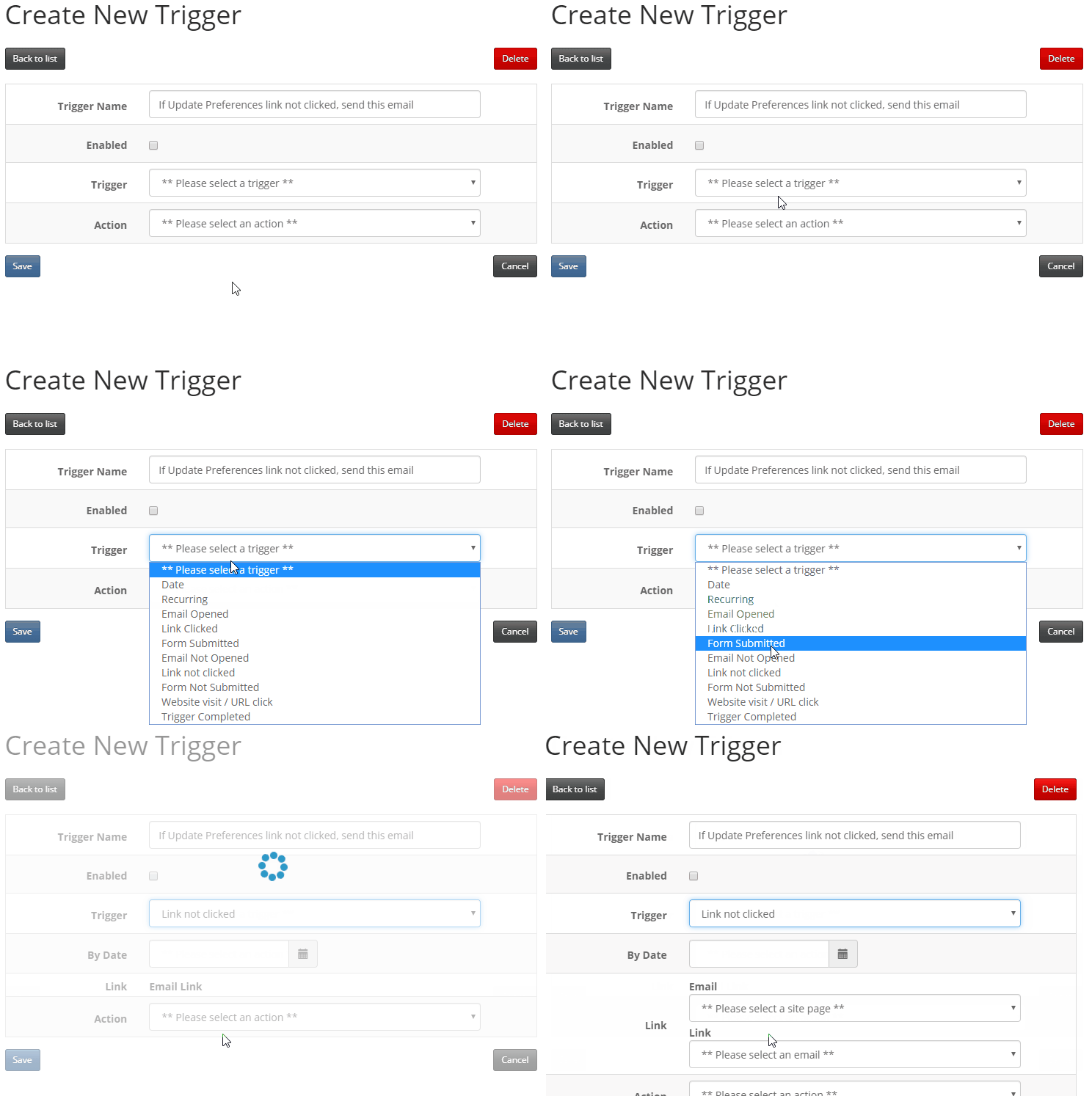
6. Select the Date and Time you'd like the second email to send to a contact who did not click on the specific link in the original email by this date/time.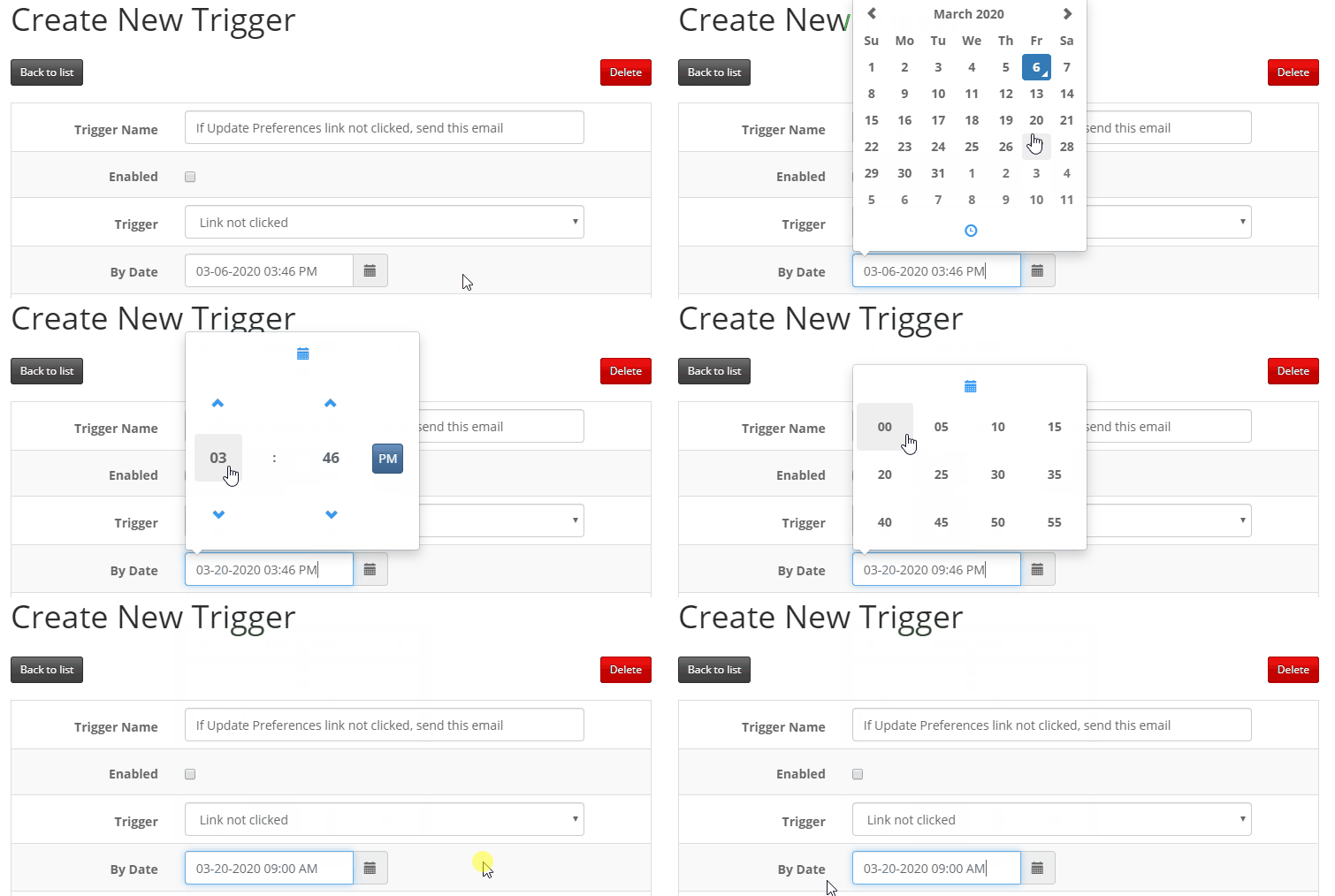
7. In the first "Email" drop-down, you'll need to select the original email that was sent to your list of contacts. This will be the email that is in your Sent Folder (i.e. March 2020).
You'll also need to choose the link in the original that you wish to monitor. If this link is not clicked by the date/time you specified, then a second email will be sent.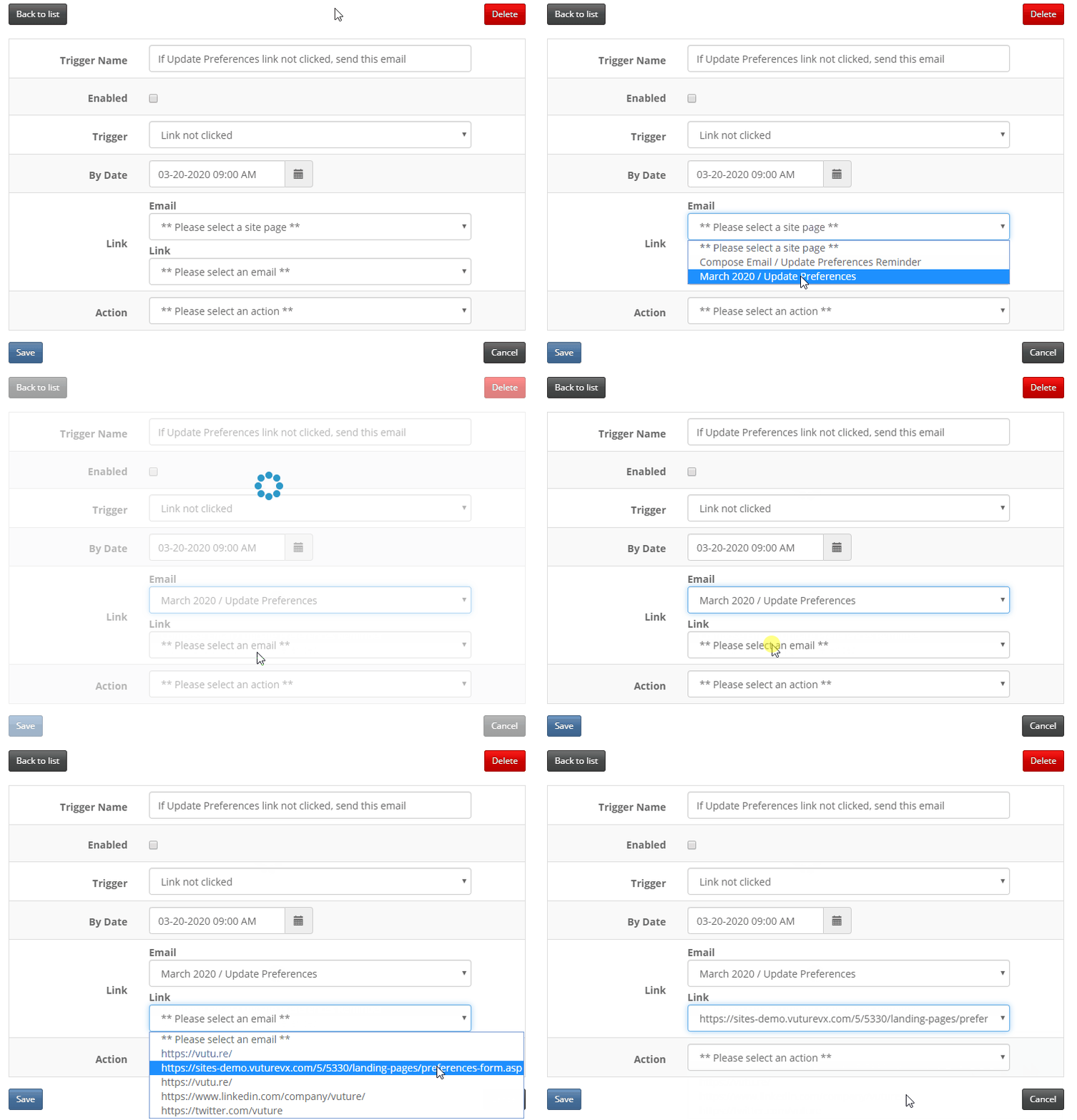
8. In the 'Action' drop-down, select 'Send Email to Matches', to send this second email to contacts who did not click on the specific link in the original email.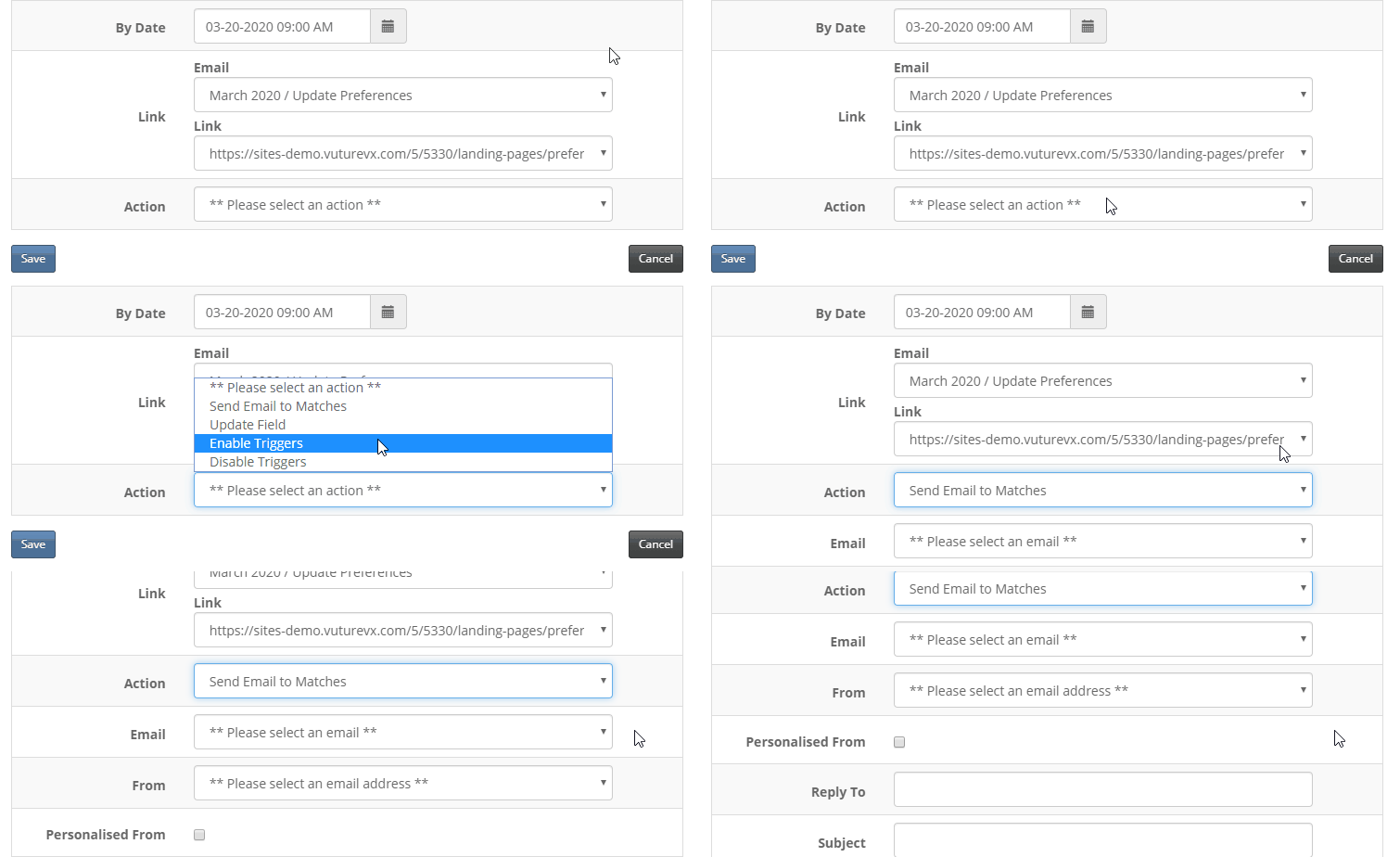
9. In the second "Email" drop-down, you'll need to select the second email (this could be a copy of the original) that is in your Compose Email Folder. This is the email that will be sent if a contact does not click on the specific link in the original email. 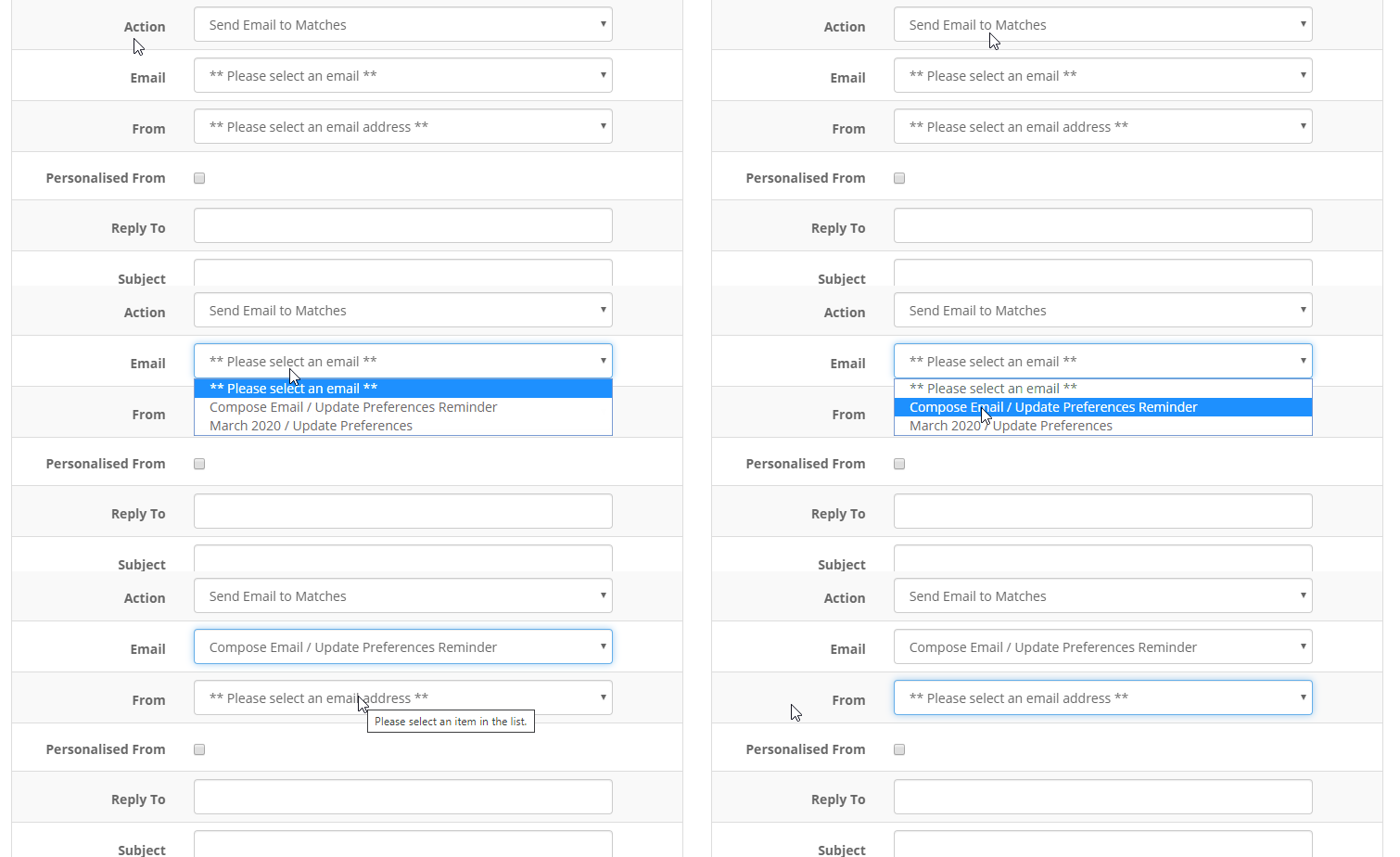
10. Select your FROM Address.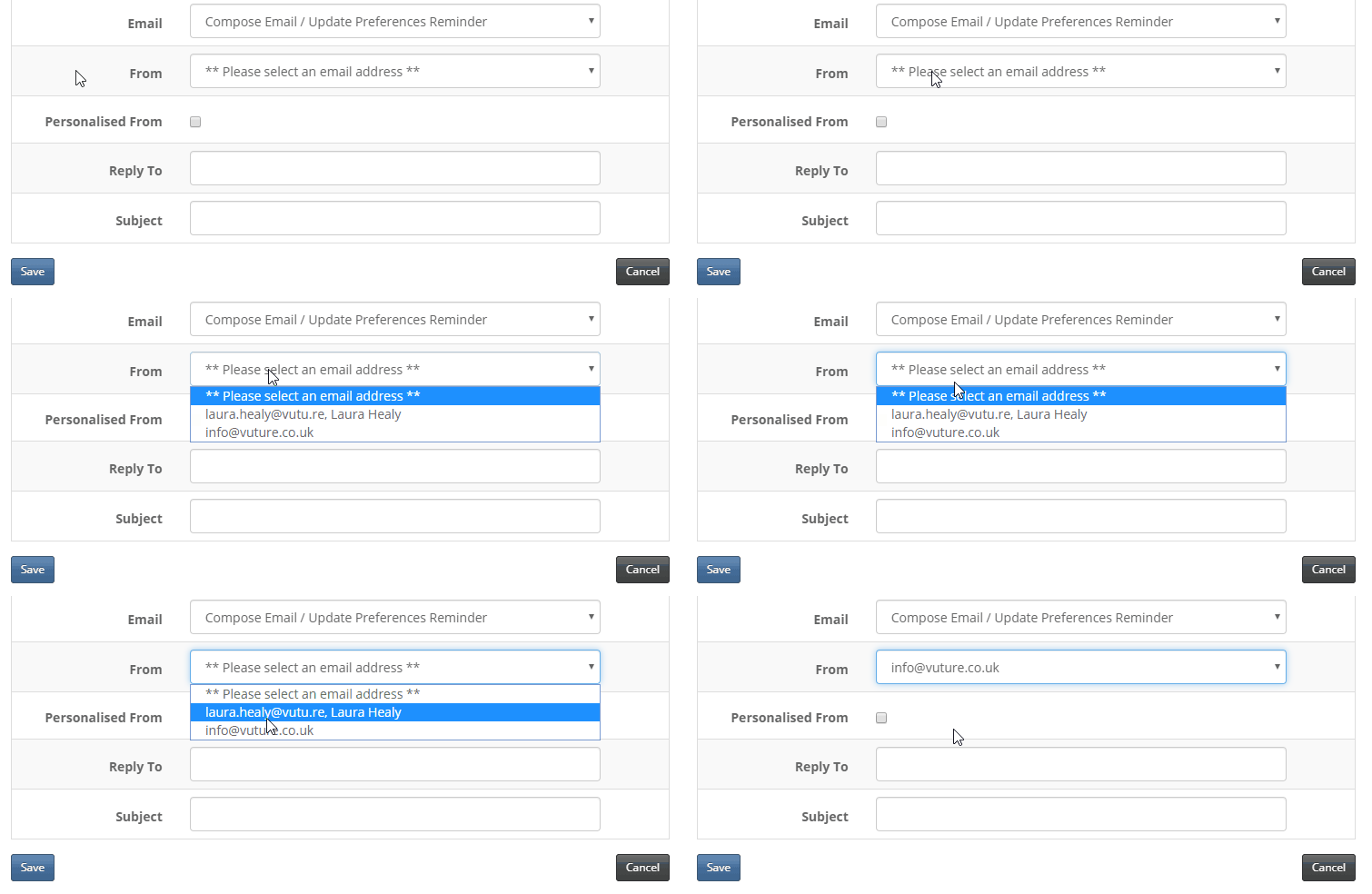
11. (Optional) If you'd like to specify an email address for replies, please enter this email address into the 'Reply To' field.

12. Type in your Subject Line for this specific send. 
13. Click on the blue 'Save' button at the bottom left corner to save your 'Link Not Clicked' Trigger.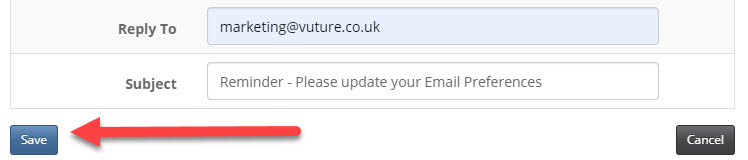
14. Double check that everything is correct (i.e. Date, Time, Email to send, Subject Line, etc.). Then when you're ready, from the Trigger List screen, check the box for 'Enabled' to enable your trigger. The trigger will then send the second email if someone has not clicked on the specific link in the original email by the date/time you set.