Overview
This article covers the testing and sending processes for Intapp OnePlace.
Contents
Uploading an Intapp OnePlace list to Vuture
To use contact fields and custom fields on a Vuture Form (for example, to build an RSVP form for your event) you will first need to upload and sync the Intapp OnePlace list to Vuture.
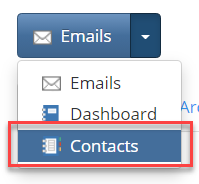
- Log in to Vuture’s platform and select the correct container and then the Contacts module.
- For the CRM Source you will be asked to choose between Vx and Intapp OnePlace as a data source, select Intapp OnePlace.
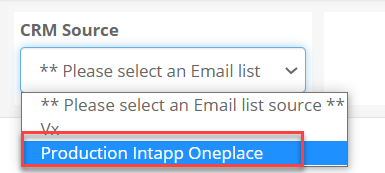
There are two Entities to select from; Events, and Mailings.
Events: contain all the event fields such as RSVP.
Mailings: are used for Publications such as Newsletters, or Alerts.
Note: The Entity naming convention may be different for your instance, for example you may have Invitees and Publications, instead of Events and Mailings.
- Click on the required Entity to select and expand and the lists.
- To quickly locate a list click into the search bar and type a list name.
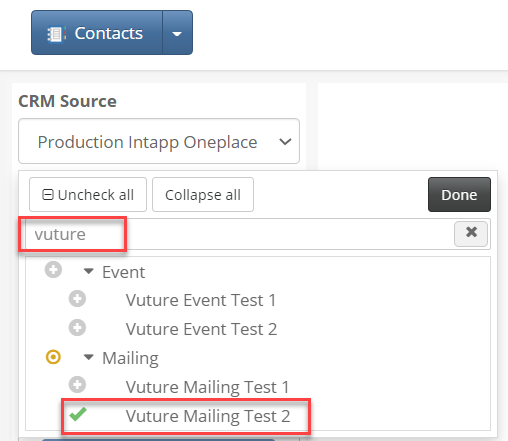
- Click on the '+' to select the list you wish to use then click on Done, and click Import List.
You will get a success message – Imported Lists, written in green, at the top right of your screen.
- The list will appear under the Global Lists and this will populate the screen with individuals.
- Place a check mark beside the list you are using to view the list.
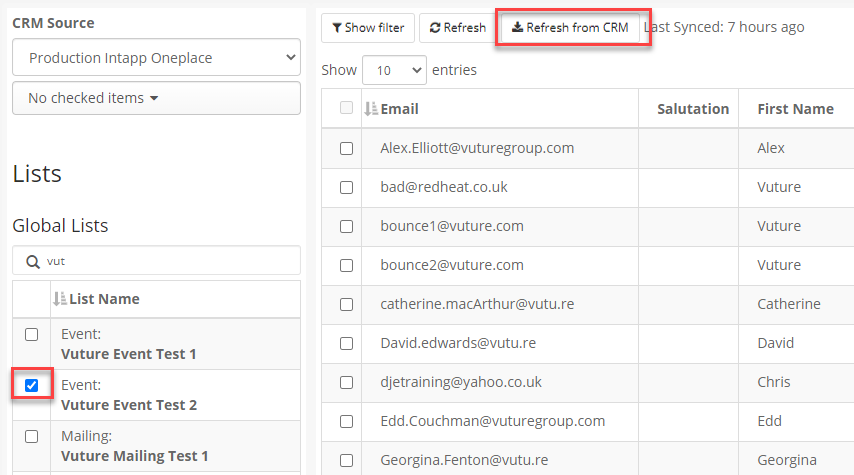
- If it does not populate, click on Refresh from CRM to bring the contacts in.
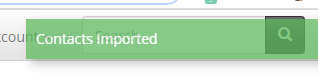
A Contacts imported message appears in the top right corner of the screen once the synch process is complete.
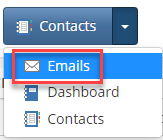
- Return to the Emails module, by clicking the module selector in the top left corner, and choosing Emails.
Within your campaign in the Landing Pages you will already have your RSVP Prefilled and RSVP Blank forms.
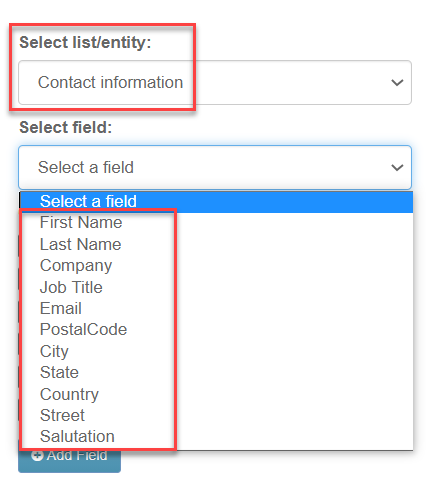
The form fields you can use in the Intapp OnePlace integration are shown in the screen shot below in the list of Contact Entities. The list of Contact information and those Event entities that have first been created in Intapp OnePlace.
|
Contact Entities
|
Describe the Contact. They are a standard set of fields which are always present for each Contact.
The Core Fields are:
|
|
|
First Name
Last Name
Company
|
Job Title
Email
PostalCode
City
|
State
Country
Street
Salutation
|
| Event Entities | Can be campaign based and contain the RSVP, Attendance etc. |
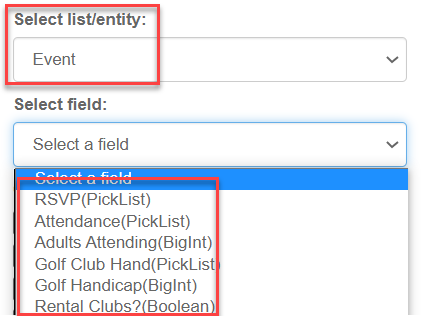
Many other Event Entities can be created – for example, details of how a contact may be travelling to an event, hotel requirements, or which sessions they wish to sign up for at an event.
Note: If there is an entity you need to track which is not available in the current integration, a workaround would be to create the field on your form as a Vuture field only. Any information entered in that field by your contacts would not write back to Intapp OnePlace but would be stored in the Vuture database and made visible in the View Stats report.
Event RSVPs
Adding the RSVP field will give you an Accept/Decline option to use on your form for Events, and these will write back to your list in Intapp OnePlace.
- In the Vuture form, in the Add a Field tab, click on the Select Instance drop down to select Intapp OnePlace.
- From the Select list/entity select Event then.
- From the Select field, select RSVP(PickList).
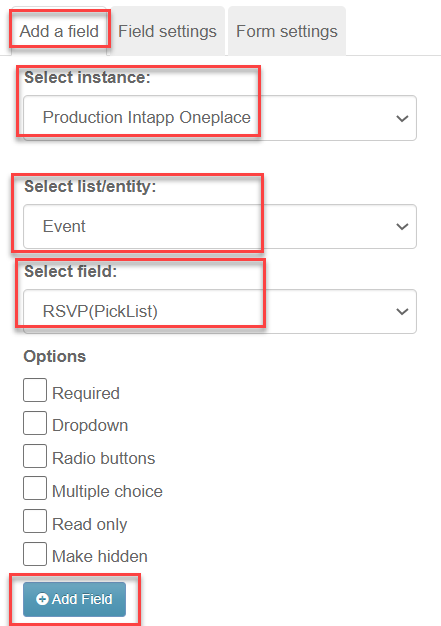
- Click Add Field to add it to your form.
Next we need to setup the redirects.
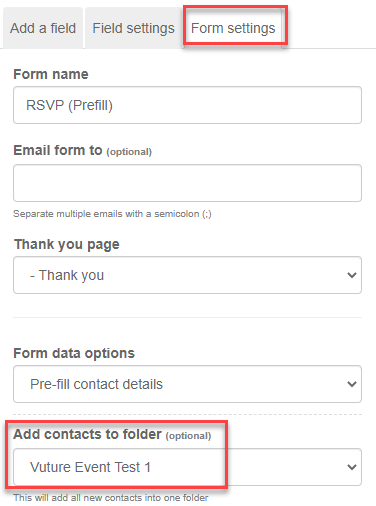
Under the Form Settings tab, you need to enter a form name (make this unique for each campaign, RSVP Prefilled and RSVP Blank is fine but you could add more detail such as the date), this can be useful to view when looking at future reports of forms submitted.
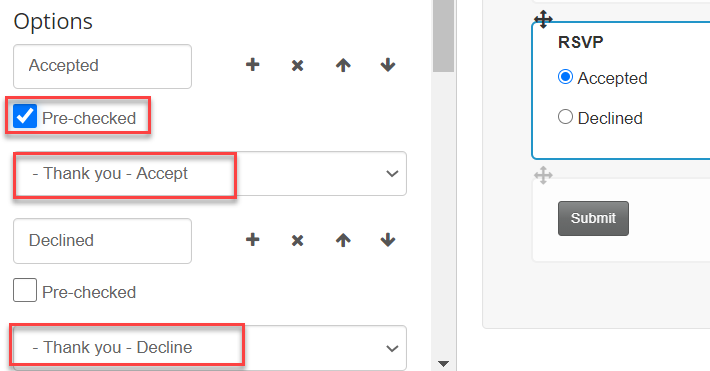
- Click onto the RSVP field you added to the form.
- From the Field settings tab, select the Redirects.
- for Accepted, redirect to the Thank you Accept Landing page
- for Declined, redirect the the Thank you Decline Landing page
- You may also wish to select Pre-checked.
- In Add Contacts to Folder, at the bottom of the list, select the list you are planning to use for the email. This will ensure that any new contacts are added to this list. Note: this is optional for the RSVP Prefill form, we recommend it is best practice to select it.
- Click Save in the top right to save and return to the form view.
- Repeat for the RSVP Blank form.
The Vuture RSVP Prefill form: This Prefilled form will update an existing contact.
The Vuture RSVP Blank form: When the form is submitted it will create a new Contact. Vuture will use the regular duplicate look up for a new contact’s surname and email address. If a match is found, Vuture will update the existing contact. If a match is not found, a new contact will be created in the database.
Note about Duplicates: Intapp OnePlace has an option to either allow contacts with duplicate emails or not. If Intapp OnePlace is set to allow duplicates, there is a possibility that two contacts with the same email/last name will exist. In this case, the contact with the newest Update Date in the CRM will be updated. If Intapp OnePlace is set to not allow duplicates, and Vuture cannot match the contact by last name and email, there is a possibility that the update to Intapp OnePlace might be rejected when the CRM is called.
Once all fields are added and the field settings and form settings are complete you can Publish both forms.
Test Email or Landing Page as Contact
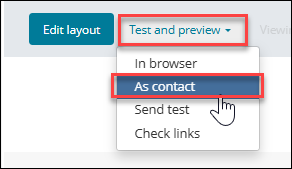
Test and Preview> As Contact, allows you to test emails and landing pages by previewing them in your browser as a contact would see them, this allows you to test personalization.
- In any Email or Landing Page select Test and Preview As Contact:
- This takes you to the preview screen for both emails and pages
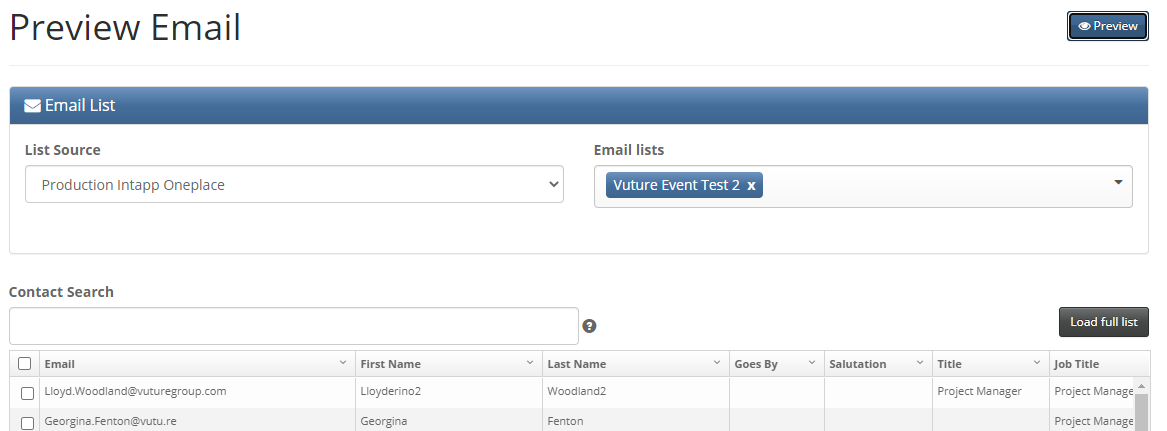
- From the List Source drop-down select Intapp OnePlace (the wording may differ in your instance).
- From the Email Lists drop down select the desired Marketing List.
- Once selected, the contacts from that list are displayed in the lower part of the window place a check mark beside a contact then click Preview.
The email or Landing Page is displayed in a separate tab and can be viewed as the client would use it.
Note: When viewing the RSVP Prefill form, you will see it is pre-filled with the selected contacts information. Should you accept the invitation, this will write back to the Intapp OnePlace list.
Sending a Sample Email Using a Intapp OnePlace List
Sending an email using the Intapp OnePlace integration only works with the latest version of the Vuture Send Email screen (version 2).
In your campaign, once fully built and tested and ready to go, select Send Email. The Send screen has two tabs – Email Setup and Email List.
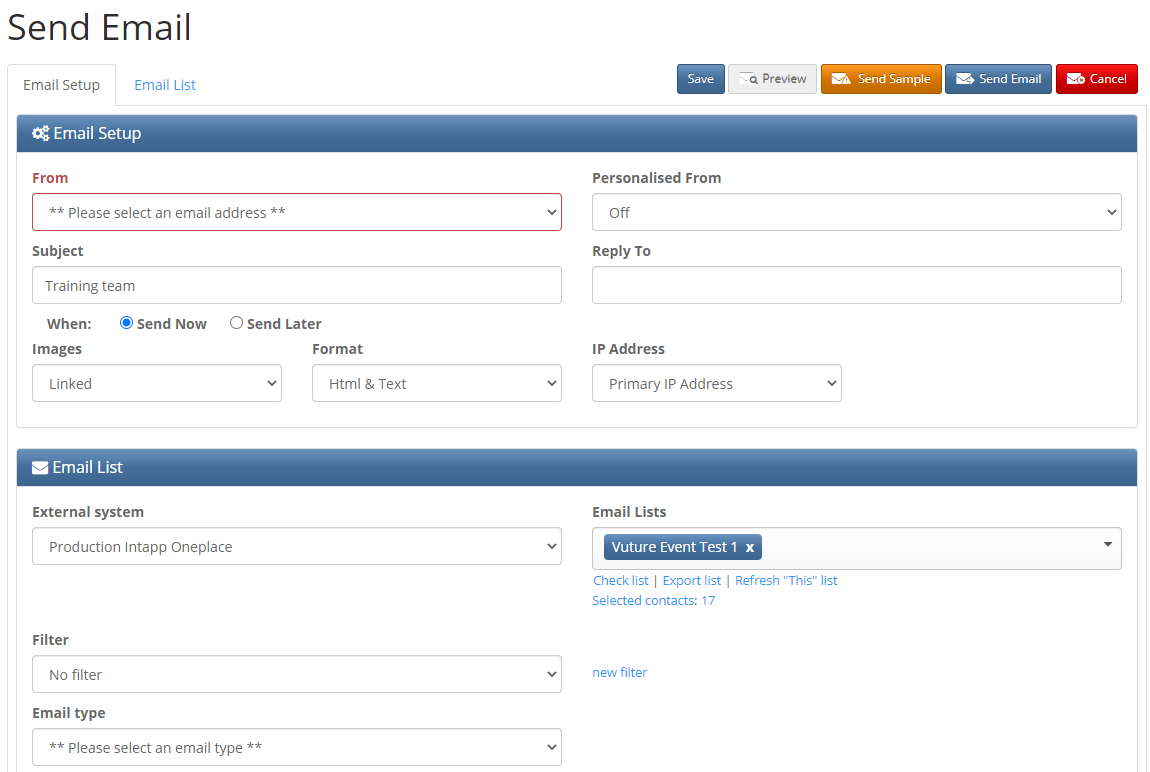
The content of the fields you need to complete are on the first tab at the top.
Enter the:
From: address
Subject of the email to be sent
Reply To: address, if you require an alternate email address
cc or bcc (if using)
Note: Personalised will be released as part of the Phase two (it does not currently work for this version).
- Scroll down to see further fields at the foot of the first screen:
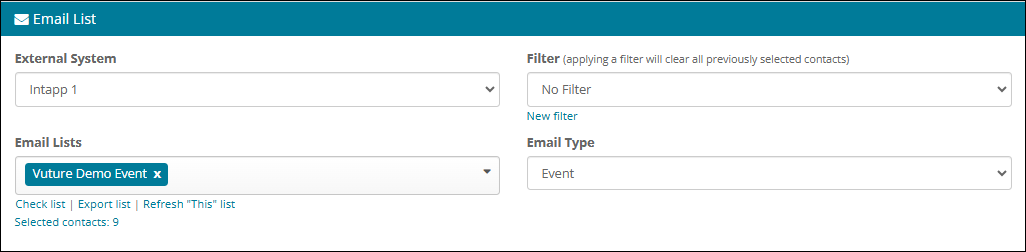
- Select Intapp OnePlace in the External system drop down.
- Find the list you are using in the Email Lists drop-down.
Note: The only lists you will see here, are the list that have been Imported using the Contacts module.
- Click on the link to Refresh this List to ensure you have the update live data.
Important: Refresh “This” List fetches the latest state of the data from Intapp OnePlace and pulls it into Vuture. Changes made in Intapp OnePlace will not automatically be shown until the Email list is Refreshed.
- Select the Email type – Invite, Newsletter, or as your firm has chosen to set up the types.
This selection will influence the suppression lists which Vuture will apply.
Update for May 2021 - Email Types
It has previously been possible to send an email using the Intapp OnePlace integration without selecting an Email Type. However, if you wish to ensure that users select an Email Type on sending, ask your Client Success Manager to configure the 'Email Type Optout' suppression setting in the CRM metadata tool. This will ensure that an Email Type must be selected before sending an email.
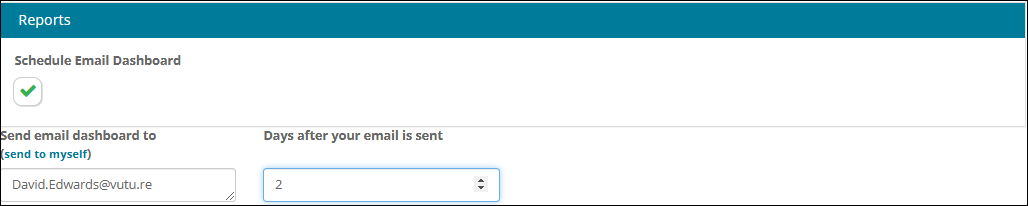
You can schedule reports to go out automatically, to yourself or others, after the email is sent. You can put your email address in the box or others’ email address and select the number of days to elapse before reporting.
- On the second tab: Email List you will see the name of the external system and of the email list, repeated.
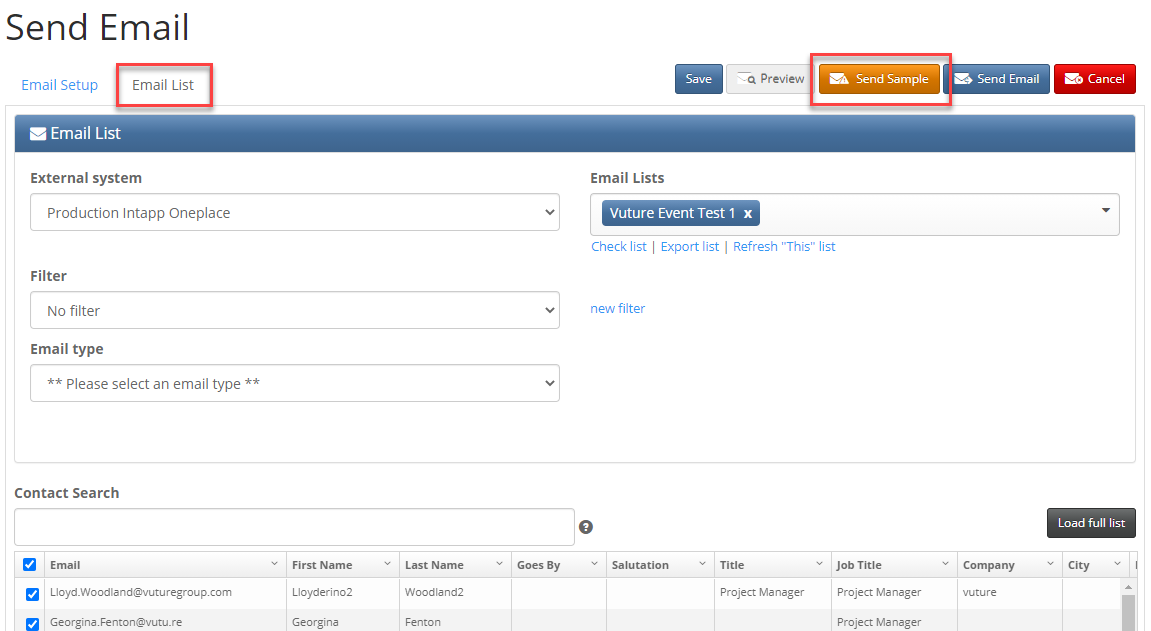
The first 60 subscribers on your Email list will be displayed, by default. This is fast to load and will be quicker than waiting for the page to refresh if you had thousands of contacts in your list. You can click on Load Full List to see the full list. If you do not click on Load Full List, the complete list will still be emailed.
- Click on Send Sample at the top right of the page to do the send.
Note about Goes By field: This maps to a field in Intapp OnePlace called “IR Goes By” which is the same as any other contact field. There is a placeholder which maps to this field called {Goes By}. You can use this place holder in your emails instead of Dear {First Name} for example.
Sending the Live Email - Intapp OnePlace
If you used Send Sample email it is recommended that you delete the sample send before you send the ‘live’ email, to remove any statistics which might otherwise skew your results on click-throughs/ emails opened reports etc.
Sending the live email follows the same procedure as sending the Sample email.
Note: If you have been using a Sample Marketing List for testing, you will need to replace the RSVP fields in your RSVP Prefill and RSVP Blank forms to ensure they are pointing to the correct Marketing List and re-publish them.
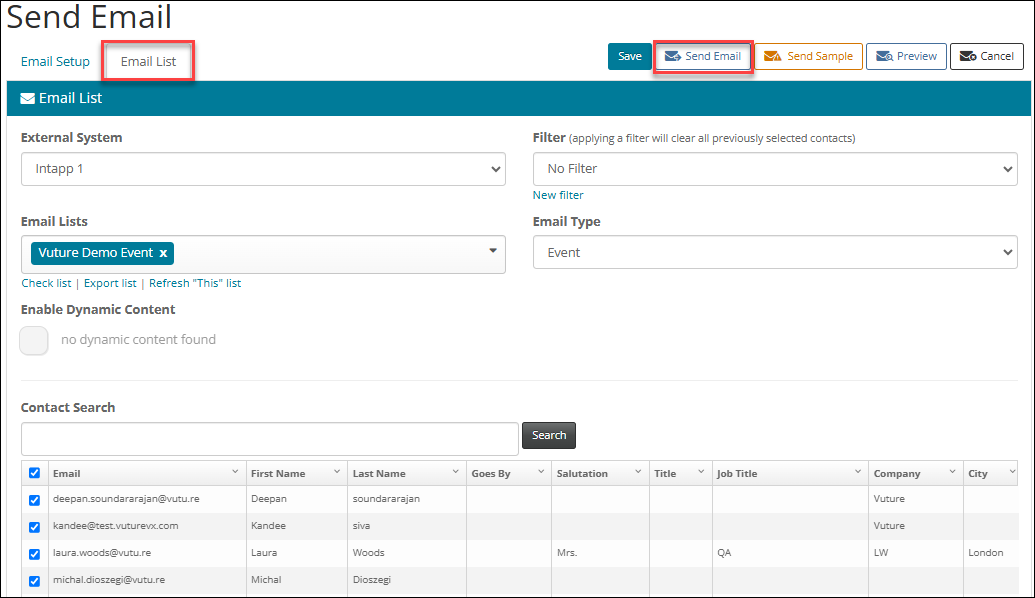
Once sent the email no longer appears in the Compose Email folder as it has been moved to the sent items folder, created and named with the Month and Year it was sent.
Creating Follow up Emails using Filters
Filters are used to send an email to part of your list. For example, to resend an invitation to everyone who has not yet replied, or to send a confirmation to everyone who has replied Accept. You can copy the Invitation email once it has been tested, rename and reword it to create a Reminder to Register email, a Last Chance to Register or an Event Reminder email. It is recommended that you remove the RSVP buttons from Event Reminders, to prevent contacts from trying to register again.
To create a filter
- Prepare your email for sending as if to the whole list.
- Complete the Subject Line.
- Complete the From field and select the relevant Mailing List and choose the Email Type.
- To specify who on the original email should receive the Email Click new filter.
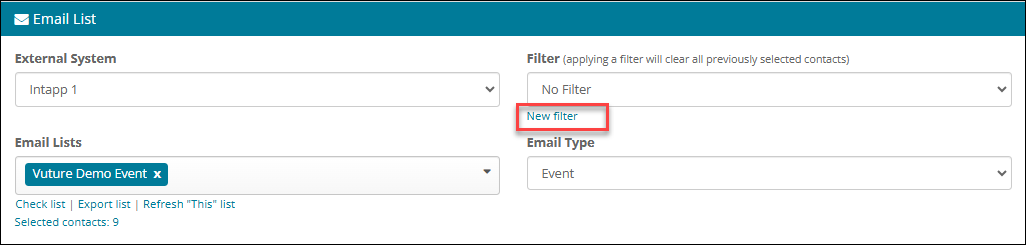
The Add Email Filter screen will appear.
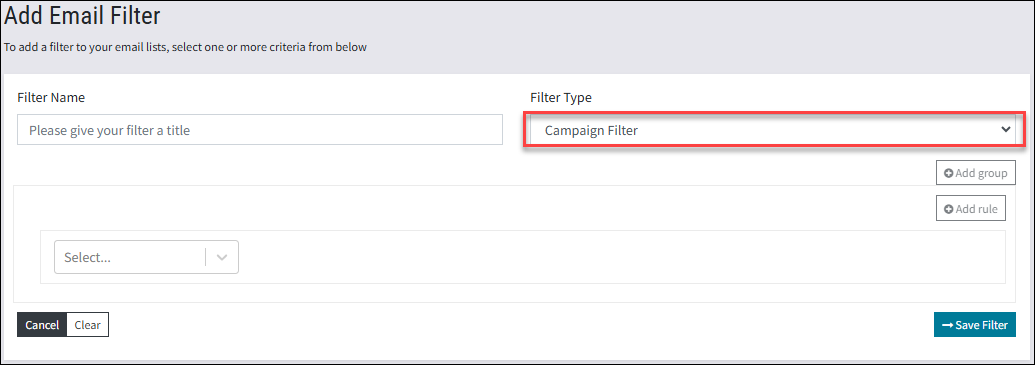
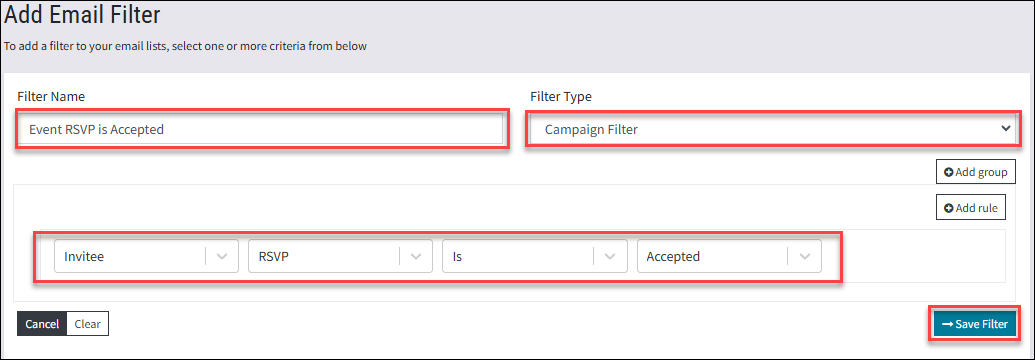
- Type the name for the filter using a clear explanation of what it does.
Warning: Include the Campaign name at the beginning of the Filter name, as Filters are container based (unless you have a check box to select campaign based) to ensure the correct filter is selected that is pointing to the correct Marketing List.
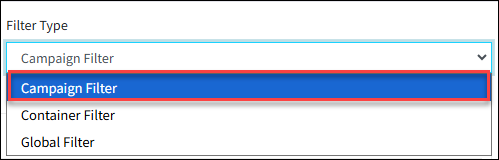
- For the Filter Type it is recommended you select Campaign Filter as there may be many filters residing within a container, and this makes it easier to manage your filters.
- From the first field select Invitee
- From the second field select RSVP.
- From the third field select the required comparison operator; for example Is (i.e.: equal to) <Empty> for a reminder email, or <Accepted> for an reminder the event is tomorrow email.
- Click Save Filter on the bottom right of the dialog box.
You will now be returned to the Send screen, where you will see the the filter has been automatically applied.
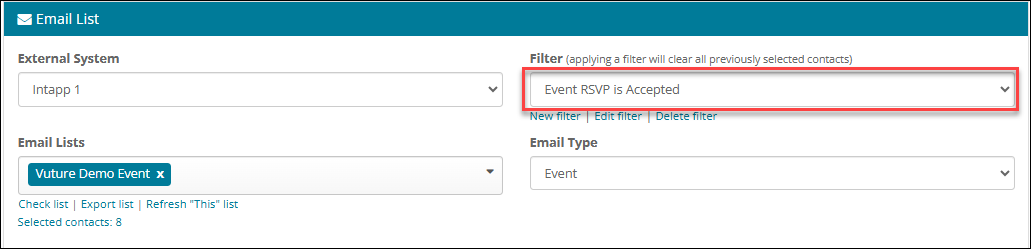
- There may be other filters, you can click the down arrow to confirm you are using the correct one
The example above is using the RSVP field to filter for anyone who has submitted the RSVP Prefill form as Accepted.
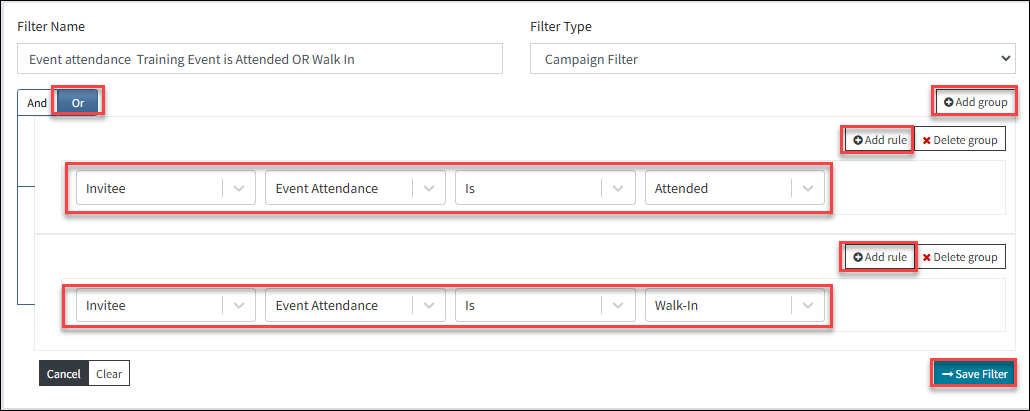
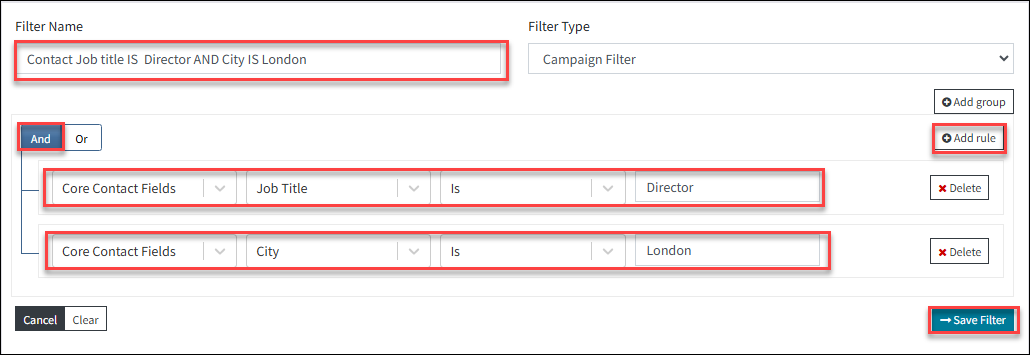
You can create more complex filters using multiple criteria. You can select Add Group or Add Rule as well as choose between AND or OR criteria. And criteria are usually where a contact matches 2 specifics, for example where the Job Title is Director AND the City is London. Using OR criteria is where a contact matches one OR the other Criteria, for example: where the Invitee Event Attendance value is Attended OR Walk-In.
OR criteria filter
This would send only to those contacts who are marked as Attended OR Walk-In to an event, (most likely via the Events Application).
And Criteria filter
This would send only to contacts in the list with the Job title of Director AND who's City is London.
Activities
The following email activities are written against contacts in Intapp OnePlace:
Email Sent
Email Opened
Email Hard Bounced
Links clicked ( Does not include summaries or descriptions or URLs)
Unsubscribes
