Keywords: Email Send Screen, Reply To, Auto replies, Out of office emails, Resend Email, Send More, FAQ
Overview
There are many options available when sending an email, from sending a Sample email first, doing a full send, sending the email to newly added contacts on the list, to re-purposing the sent email to create new emails for followup and reminders.
Contents
Send Options on Email Send Screen
From the Send Email screen, you can specify the recipients or list your email/campaign is sent to using the various options available to you.
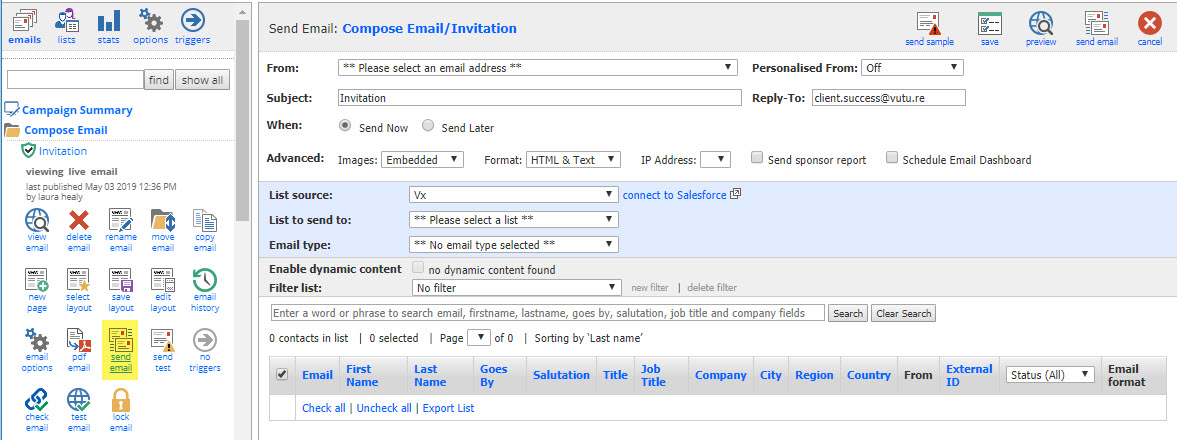
Description of the main send options:
-
From - Specify the From email address. This is the address your recipients will see in their inbox.
-
Subject - Specify the Subject Line you wish for your recipients to see when the email lands in their inbox.
-
Reply-To - Specify the email address you would like replies to go to. (Please see important note about Reply To Addresses and auto replies here).
- When - Allows you to specify a time when to send your email (e.g. now or later).
-
List Source - Select Vx for Standalone users or select the CRM instance you are integrated with.
-
List to send to - Select the list you wish to send this email to.
-
Email type - If this is setup for your instance, please select the type of mailing this is (e.g. Invitation).
Once you are ready to send your email/campaign click the "send email" button and you will be prompted to confirm the send. Once you click "Ok”, your email/campaign will be sent.
Send Later
If you wish to schedule a send for a later time and date you will be able to do so by selecting on the Send Later option under the When category. From here a new series of icons will appear allowing you to select the time, date and time zone you wish for this mailing to be sent.
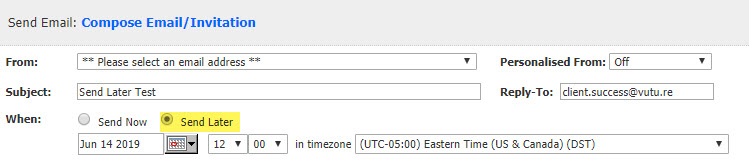
Once you have selected the time and date, as well as the From Address and appropriate Subject Line, you will then choose the list that this mailing needs to be sent to. The final step is to click on the Send Email button located at the top right of the page and the mailing will get placed within the monthly folder and will be sent at the proper time and date.
Please Note:
Send Later is designed to get the email ready to go out as quickly as possible. Hence all the pre-processing is done in advance.
All pre-processing, which includes the suppressing of unsubscribes, is done at the time the send is set up and send is clicked. All the emails are then added to the queue and released at the selected send time.
No further checks are done for updates to the list or suppression folders. What this means is that if a recipient unsubscribes from mailings through another email, between the time the email is set up to "send later" and the time it is actually sent, that recipient will still receive this email.
If you wish to avoid this situation, triggered sends allow you to schedule a send for a particular time with all the processing happening at the final send time, including the suppressing of any unsubscribes.
Send Later Timezone
When selecting Send Later you can select the time zone you wish to use for scheduling the send. This defaults to the time zone in your user settings.
Resend Email vs. Send More
Once you have sent an email, you can re-use it in one of these two ways:
Resend Email
The option allows you to make a copy of the same exact email you just sent and put it back up into the Compose Email Folder with a new ID number. From here, you can make any changes you like and send this email out to a new Marketing List or the same list again.
Please note – If you send this copy of the email to the same Marketing List, it acts as a new send. This means, it will not take into account contacts who have already received this exact email in your previous send.
Most clients use this functionality to send the same exact email to a different Marketing List or alter it (e.g. Change from a Save the Date email with no RSVP button to an Invitation Email with a RSVP button) and send it to the same Marketing List.
Send More
This option allows you to send the previously sent email to additional recipients by selecting the same list or a new list.
Additional sends are de-duplicated so no contact will receive the email more than once.
Warning: editing the html before a Send More will also update the Online version of the email. This means that recipients of the first version sent, if they click on the Online version, will see the updated version - not what they were sent originally.
You can edit the "From" and "Reply-to" fields when doing a Send More.
Send More is useful when a few contacts are added to a list after the main send has already gone out. Also, if contacts bounce and you go into your CRM and update their email addresses, they will be on the list as before but with new email addresses. Choosing Send More will find these individuals and allow you to send to them again.
Note - When using Send More, if you select a new list to send to, it must be from the same data source. For example, if you send an email to a Vx list, and then attempt to send the same email to a CRM list, this will not work. The new list must also be a Vx list. If you are using two different data sources, then you will need to use Resend Email for the second send.
Need to Edit the Subject Line?
What if you want to do a Send More, to benefit from the de-duplication, but you also want to edit the Subject Line before sending the second and subsequent batch of emails? There is a way to do this:
Choose the original email and select Resend (not Send More). Then use the Linked Site Pages feature to link the two emails together. Vuture will then treat the two versions of the email as one email and not send the second version to anyone who has already received the first.
FAQ
1. Why aren't Auto Replies or Out of Office messages going to the Reply To Address I set?
Each recipient's email server will make its own decision on where auto replies or Out of Office messages will go. They can choose to honor the Reply To Address, or, they may decide to use the FROM Address or the Return Path. Because of this, there will be inconsistent results.
For example, if a Partner's Email Address is set as the FROM Address, there is a chance that the Partner could still receive out of office messages. To prevent this, you may use the Partner's Name as the Display Name and a generic email address for the FROM Address. For example: Display Name, Email@email.com = John Smith, marketing@vutu.re.
2. Why do all contacts appear either all unchecked or all checked when doing a Send More?
The system will remember the option you used when sending the original email.
If on your original Send you unticked some recipients, then the Send records that everyone was ticked and the IDs of the contacts you unticked.
If on your original Send you unticked all and then ticked some recipients, the Send records that everyone was unticked and the IDs of the contacts you ticked.
When you do a Send More, the system will pick up whether you started from all contacts checked or all contacts unchecked and apply this to your Send More.