Overview
A Forward to a Friend form allows recipients to forward an email they received from you, to a friend or colleague.
Contents
Additional Resources:
What is a Forward to a Friend Form?
A Forward to a Friend Form allows recipients to forward an email they received from you to a friend or colleague.
There are three types of a Forward to a Friend Form in Vuture: Basic, Advanced (Personalised), or Multi-Language.
Basic - A basic Forward to a Friend Form is a simple forward of the email. The forwarded recipient will receive a copy of the original email in their inbox.
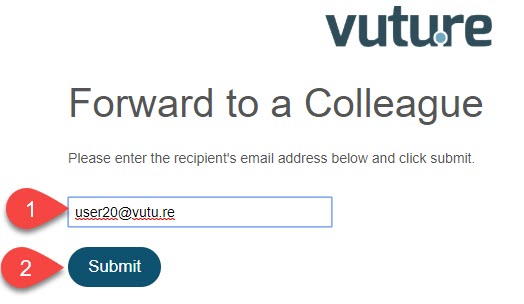
For example, I receive an email in my inbox that I wish to share with a colleague. I click on the link from this email to your Forward to a Friend Form and input a colleague's email address and hit submit (see screenshot).
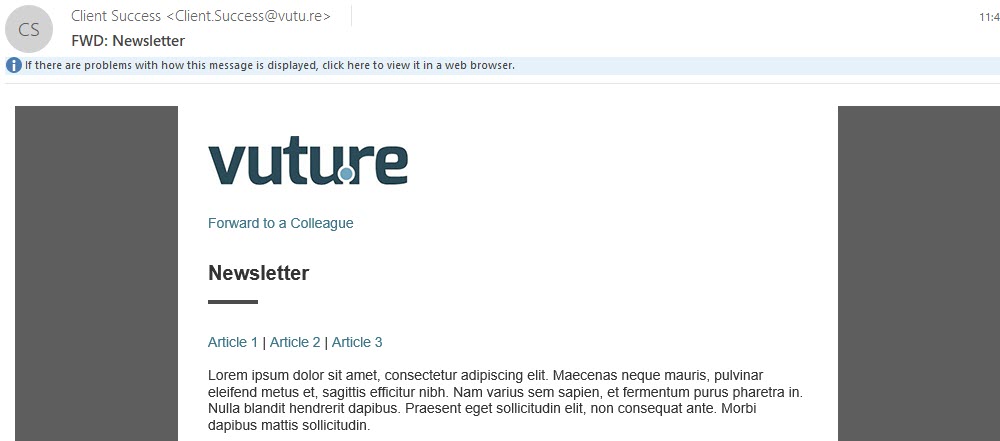
The forwarded recipient will then receive the forwarded email in their inbox coming from the original sender with a copy of the original email (see screenshot).
Advanced - An advanced Forward to a Friend Form allows someone to add a personalised message in the forwarded email to the forwarded recipient. The forwarded recipient will receive the personalised message with a copy of the original email beneath it in their inbox. The forwarded email will be addressed from the original sender, but can reference the contact who completed the Forward to a Friend Form.
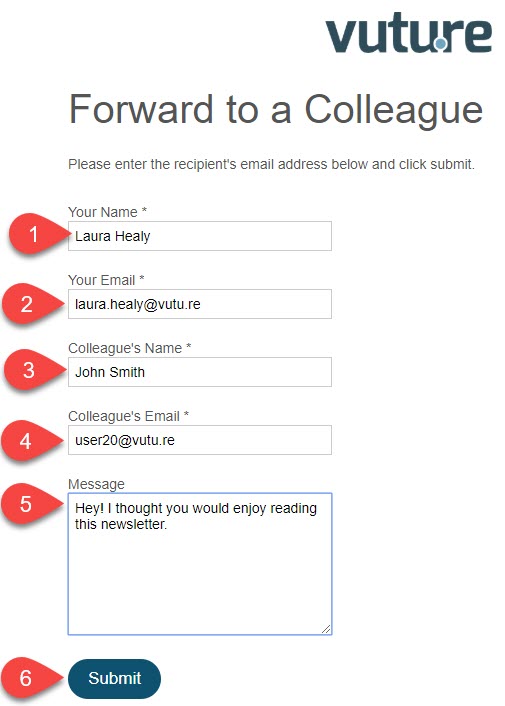
For example, I receive an email in my inbox that I wish to share with a colleague. I click on the link from this email to your Forward to a Friend Form and see that my name and email address prefill with my information. I then input my colleague's name and email address and add a personalised message as to why I am sharing this email with them, then click submit (see screenshot).
The forwarded recipient will then receive the forwarded email in their inbox coming from the original sender and it references the contact who completed the Forward to a Friend Form. They will also see the personalised message with the copy of the original email beneath it (see screenshot below for an example).
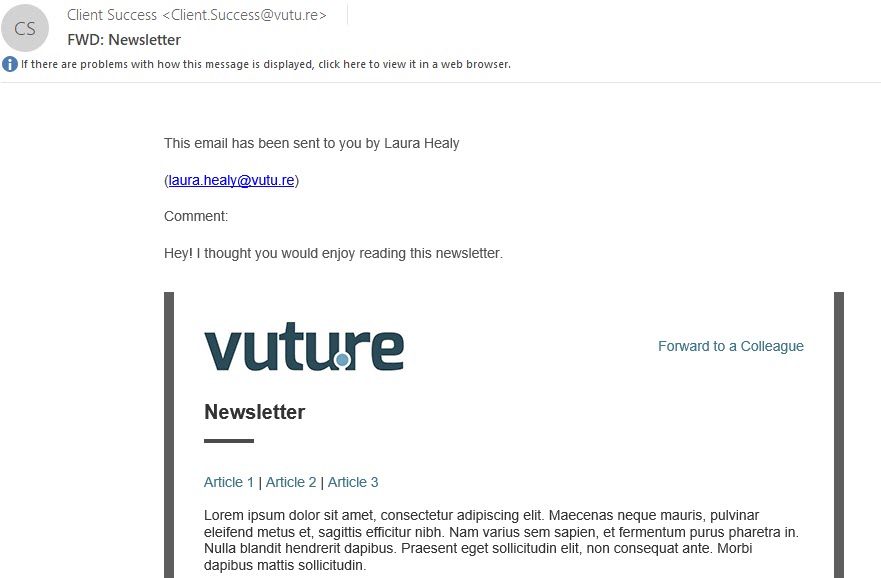
Please note: This template can be modified to change the language that is used (e.g. This email has been sent to you by...) with the below personalisation fields. The above example is using the {recipient_name}, {recipient_email}, {comment}, and {email_message}. Please let your Account Manager know what kind of language you wish to use for the forwarded email the recipient will receive.
The following personalisation fields are available:
-
-
-
- {recipient_name} : Your Name
- {recipient_email} : Your Email
- {comment} : Message
- {email_url} : Link to the forwarded email
- {email_message} : a copy of the original email
Multi-Language (or Multi-Brand) - Multi Language or Multi Brand Forward to a Friend forms can be set up in your instance, to allow the linking of a foreign language form from the appropriate foreign language email. If you create an email in English and add a Forward to a Friend call to action (CTA) button to that email, you can link that CTA to an English language form.
If you create an email in another language you can have your CTA link to the other language form (e.g. Spanish). There is no limit to the number of foreign language forms you can set up. Just be aware that you or your Account Manager will have to create each one in the Global Forms container. If you have no access to this container you will have to talk to your Account Manager about creating the extra pages.
You could also choose to create a variety of forms with different branding and logo headers if you wish.
Important: The two Forward to a Friend options cannot co-exist in the same Vuture Instance. You may either have the basic Forward to a Friend form or advanced Forward to a Friend Form. It is not possible to have both.
Note: This functionality should be used with Blank forms only.
Want to enable or update your Forward to a Friend Form?
If you would like to enable the Forward to a Friend Form, please contact your Account Manager and ask them to setup either the basic, the advanced or the multi-language form for you. They will find the instructions in a Vuture Only article on Confluence here.
How do I use the Forward to a Friend Form?
To allow recipients to use the Forward to a Friend Form, you'll want to be sure to link to the Form in the email you're sending. This can be done in a call to action, like a button that reads "Forward". You may also consider placing this call to action somewhere toward the top of your emails, where it can easily be seen by the recipient (e.g. closer to the "Forward" icon in their email client).
To automate this process, you may also wish to save this to your sub-templates. That way, you do not need to remember to link to the Forward to a Friend form in each email you send.
Please note: For the Forward to a Friend form to work, a recipient will need to click through to the form for a live email you've sent them. It will not work with a "send test" or by simply sharing the URL to the Forward to a Friend form.
How can I test the Forward to a Friend Form?
To test the Forward to a Friend Form, you'll first need to link to the Forward to a Friend Form in the email you are testing.
Next, send the email to yourself using "Send Sample" to avoid mixing your test and live data. When the email lands in your inbox, click on the link to your Forward to a Friend Form and submit the form using a colleague's email address or a personal email address. You should then receive the forwarded email to that inbox.
Please note: If you have a subject line prefix set for Send Sample (e.g. "TEST -"), this will show in your testing of the Forward to a Friend Form. However, the prefix will not show when you do the live email send.
Option to change the "FWD" Prefix in the subject line
Available for all CRMs.
By default, an email forwarded to a colleague will arrive with the prefix "FWD". You can change or remove this on a global configuration. To do so, please contact your Account Manager. They will update your settings in Admin.System.Emails.Forward to a Friend Subject Prefix.

