Note: This article deals specifically with emails and forms which are forwarded by the original contact to another colleague. However, the functionality described below also applies to when a pre-filled form with Read Only fields is opened and viewed not by the contact expected to receive it. For example, if the form has not been mailed out and Vuture does not therefore know who is viewing it. This is the case described below: "if the form was accessed directly through a link outside an email (i.e. we do not know who you are)".
Introduction
When an email is forwarded using Vuture's forward to a friend feature there exists the possibility that the contact details from the original contact could remain visible on the the forwarded version of a pre-filled form. To prevent this, you can tell the system not to pre-fill any forms that are linked to the email, when forwarded.
There are two ways you can set this up:
1. Auto blank a pre-filled form
Using this option, if the system sees that the form was clicked through to from a Forward to a Friend link, or if the form was accessed directly through a link outside an email (i.e. we do not know who you are), it does the following:
- Sets the form to disconnected (i.e. does not pre-fill)
- Removes the read-only setting from any form fields that were marked as read-only and set to display a pre-filled value.
2. Redirect to a blank version of a pre-filled form
Using this option, you can set up an automatic redirect from the pre-filled version of form to a blank version which you have created on a different landing page. If someone arrived at the pre-filled form from a Forward to a Friend link or accessed the form directly through a link outside an email then they would be redirected to the blank version of the form.
This can be useful if you use personalisation fields on your pre-filled forms (e.g. "If you are not {First Name} {Last Name} click here") or you want your blank form to look different from your pre-filled one.
How to enable this functionality
There are two ways:
A. Switch on a system configuration that uses auto blanking on all forms system-wide
This option sets every pre-filled form to use auto blanking (option 1 above) if someone visits the form from a Forward to a Friend link or from a direct link outside of an email.
To Enable:
To enable this option please contact your Account Manager or Vuture Support who can enable this by setting the system configuration "Admin.Systems.Forms.Reset forwarded form" to "Auto blanking"
B. Switch on a system configuration that allows you to choose for each form whether to use auto blanking or whether to redirect to a blank version of the form
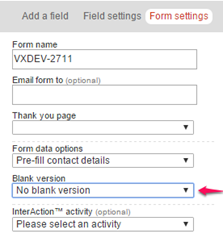
This option adds a dropdown called "Blank version" to the "Form settings" tab in the form editor which allows you to configure that particular form to use one of the following options:
- No blank version: No changes are made to the form for people clicking through from Forward to a Friend or external link
- Automatically blank this form: The form will be auto blanked as described in option 1 above
- Forward to a blank form: This gives you a list of all the landing pages in the campaign and you can choose the blank version of the form which a visitor will be redirected to if they have come from a Forward to a Friend link or an external link
To Enable:
To enable this option please contact your CSM or Vuture Support who can enable this by setting the system configuration "Admin.Systems.Forms.Reset forwarded form" to "Display dropdown"
