Overview
A "Send Sample" will act like a real email send and allow you to fully test the email campaign with a CRM or Vx List. When using "Send Sample" you will be able to click through to a Pre-Filled RSVP Form and see the content pre-fill. You may also submit the form to see the RSVP data write back, as well as, all other CRM activities associated with the send. You may also delete the Send Sample in the Send Folder (e.g. June 2019) to remove any reporting in Vuture.
Please note: You will still need to manually remove any data in your CRM associated with this Send Sample. Deleting the Send Sample in Vuture will not remove any data in your CRM or Vx List.
Also, when doing an InterAction testing, we suggest doing it via the Send Sample Test feature rather than a normal send. This way you will see all the needed information populated in the form.
A Send Sample is also limited to a maximum of 10 email addresses per send.
Learn more about the difference between "Send Sample" and "Send Test" here.
Contents
To send a Sample Email
To use Send Sample Email make sure it is enabled for your role in "Admin.Roles.Send Sample Email".
Once you have Sample Email Send enabled for your role:
- Prepare your email and click on “Send Email”

- Choose your FROM Address
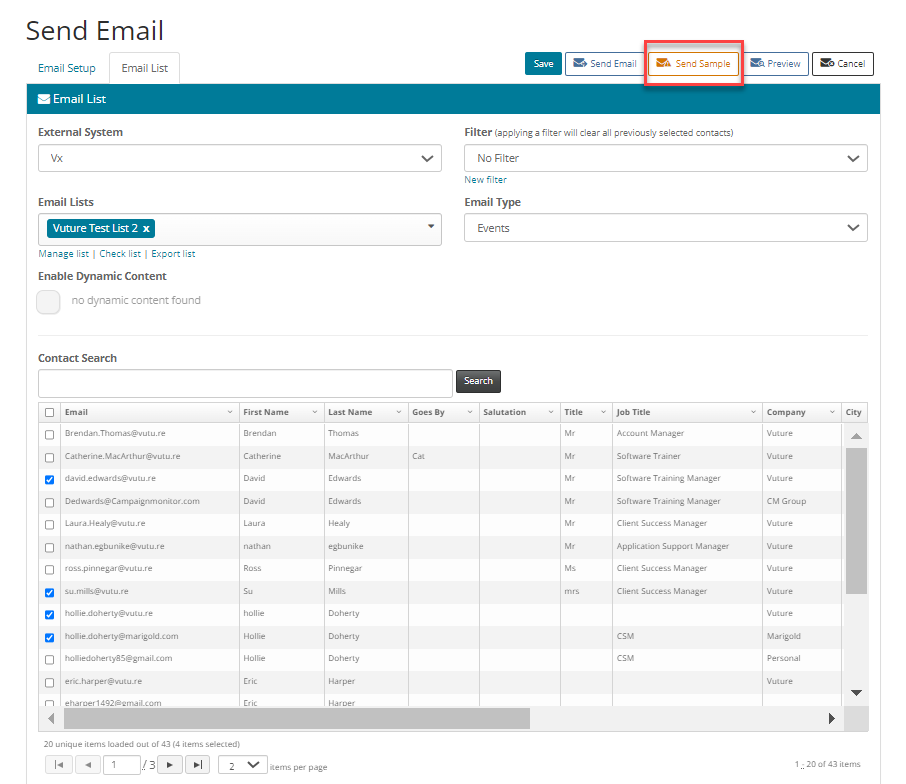
- Select a test list you wish to use and select up to 10 internal contacts to send this test to
- Choose your Email Type
- Click on the Send Sample icon in the top right
- Once sent, a copy of the email will stay in the Compose Email Folder and your "Send Sample" email can be found, in the Sent folder (i.e. May 2024). You can tell which emails are samples as they have a distinct icon:

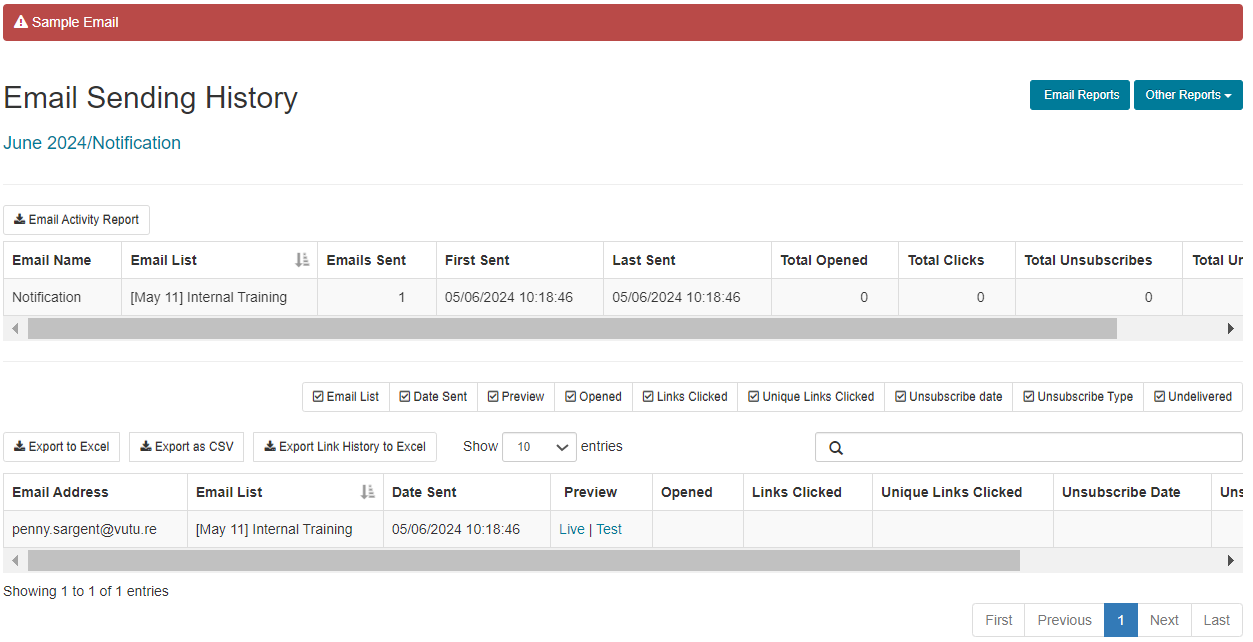
- The email history for a sample email will also have a red banner on the top of the page to differentiate from a normal send:
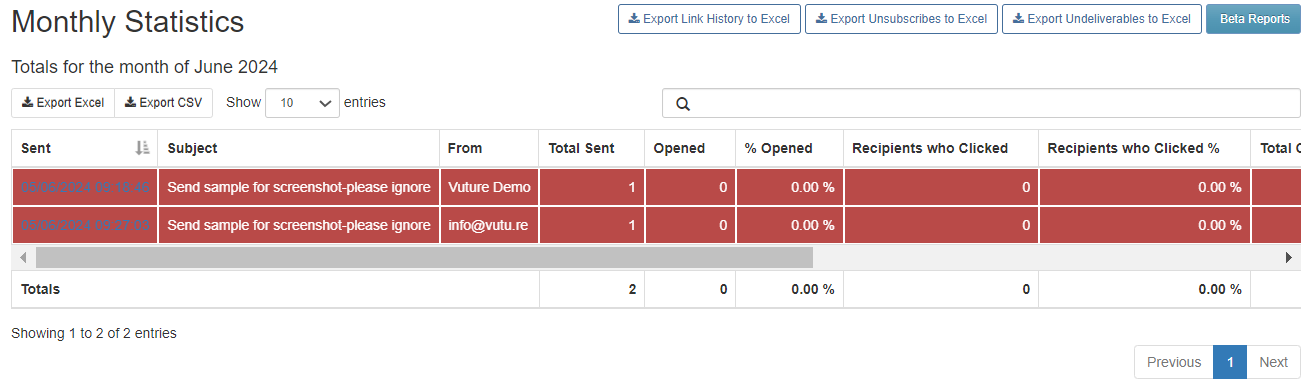
- Also the monthly statistics table (seen when you click on the month sent folder) will show the sample sends highlighted in red:
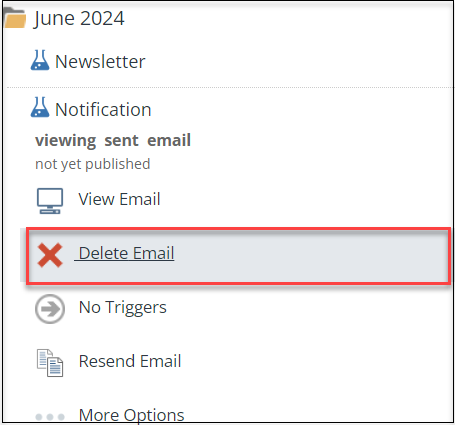
- When you want to remove the data stored by the sample email simply delete the sent email. By default, a copy of the sample email will remain in the compose folder. When deleted, all send history, opens, clicks and form submissions will be removed from the Vuture database and all Vuture reporting.
Important Notes
- No data will be removed from your CRM - you will need to remove this manually if required.
- Once a sample email is deleted you will not be able to retrieve this information.
Send Sample email and Send More
The Send Sample Email feature does not allow you to use the "Send more" functionality by design. Sent sample emails won't give you the "Send more" option, and when you are sending an email through “Send more” you won’t be able to select the “send sample” option from the send email screen.
Add a prefix to Sample send emails
To add a prefix to the subject line of your Sample emails, like "Test -", you will need to ask your Account Manager who will update the "Admin.System.Emails.SendTestSubjectPrefix" field.
If you already have an existing prefix established for Test emails, the Sample email will automatically adopt the same prefix, without any change of settings.
Note: the prefix will be appended by Vuture, as the email is actually sent. You will not see the word Sample (or whichever word you choose to be prefixed) appearing in the Send Email screen.
