Overview
This article will give you an overview of setting up and managing containers within your Vuture platform.
Contents
Overview of containers
Containers make up the underlying structure of the Vuture platform. Organising your containers carefully is worth giving some consideration before you begin because they are a powerful way of managing your platform. Containers allow you to control which user will see each container. Each user could, potentially, get a different view of the system and the container “tree”.
In addition, the container structure allows you to control:
- The campaigns in each container, giving you an easy way to navigate back to your work
- The sub-template categories that are available to users in each container
- The images that users will see
- Variables that may only apply to work in one or more containers
- The valid “send from” email addresses which users can select before sending an email
- Approvers for each container, for use in the Workflow tool
- Reports by container, showing the mailings sent from that container
- Send Confirmation Emails being sent to the sending user plus other specified email addresses.
New for 2019 - for users of the Contacts Module it is possible to make mailing lists available to specific containers only. Read the article here.
All the points in bold above are discussed on the Help Desk, in a variety of articles. There's further information on workflows here.
Planning a new Container structure?
Please review this article for guidance on updating your container structure.
Creating New Containers
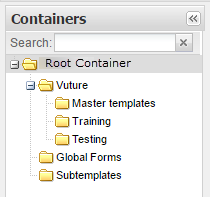
When you are in the Project stage of your Vuture implementation you will begin with just a few containers, depending from the Root, or System, container. The folder tree will usually look something like this to start with:
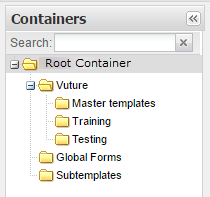
The Root Container will usually be named System or your organization's name.
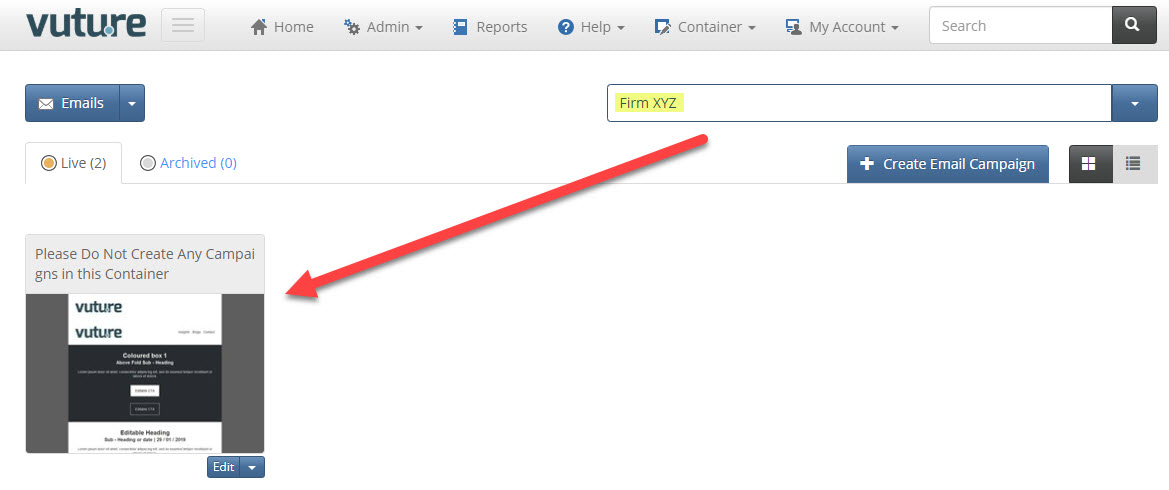
Best Practice Tip: We do not advise that you create or send any mailings in the Root Container. You may want to create a placeholder campaign called "Do not create campaigns in this container" in the Root Container. You may also wish to remove access to any templates in the Root Container to prevent users from creating email campaigns.
To create one or more new containers, you need to be logged in as a SuperAdmin user of Vuture, with access to the Admin tab. Click on the Admin tab and select Containers and Users:

The Admin area will open. Right click on the Root container to open the drop-down menu:
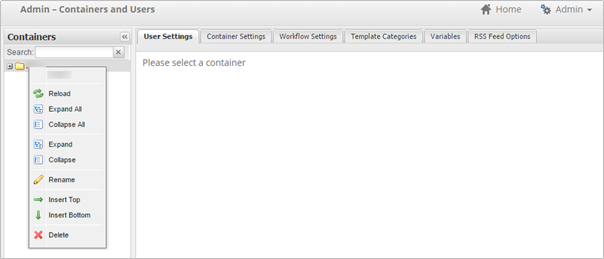
Expand All will allow you to see all containers created so far, with their sub-containers.
To add a new container, first click on the container that you want your new container to depend from; so typically, if you are creating a new structure for your firm, you will start by clicking on the top or Root container.
Then right-click to view the shortcut Container menu and select Insert Top. If you use Insert Top for all your new containers you will build a structure above the existing Vuture containers and gradually push the Vuture set of containers down the page. This is ideal, because the Vuture containers are not normally used by you later, once the initial project and training are completed.
Insert Top will create a new container called New. You can then right-click again, with your new container selected, and select Rename. Press Enter once finished renaming.
You may also like to watch this basic video on how to create new containers:
Adding Sub-containers
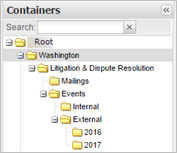
You can add as many sub containers to your new container as you like. There is no limit. You could, for example, build a structure like this with 5 layers of sub container.
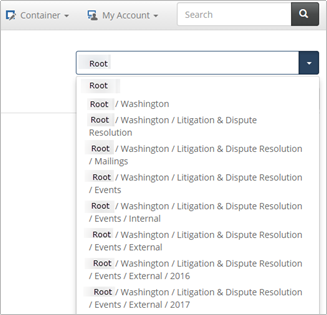
The only possible drawback to bear in mind is that long container names will wrap around and the users will see these containers on their Home screen looking something like this (where the firm name has been replaced with Root to anonymise this document):
Moving Containers
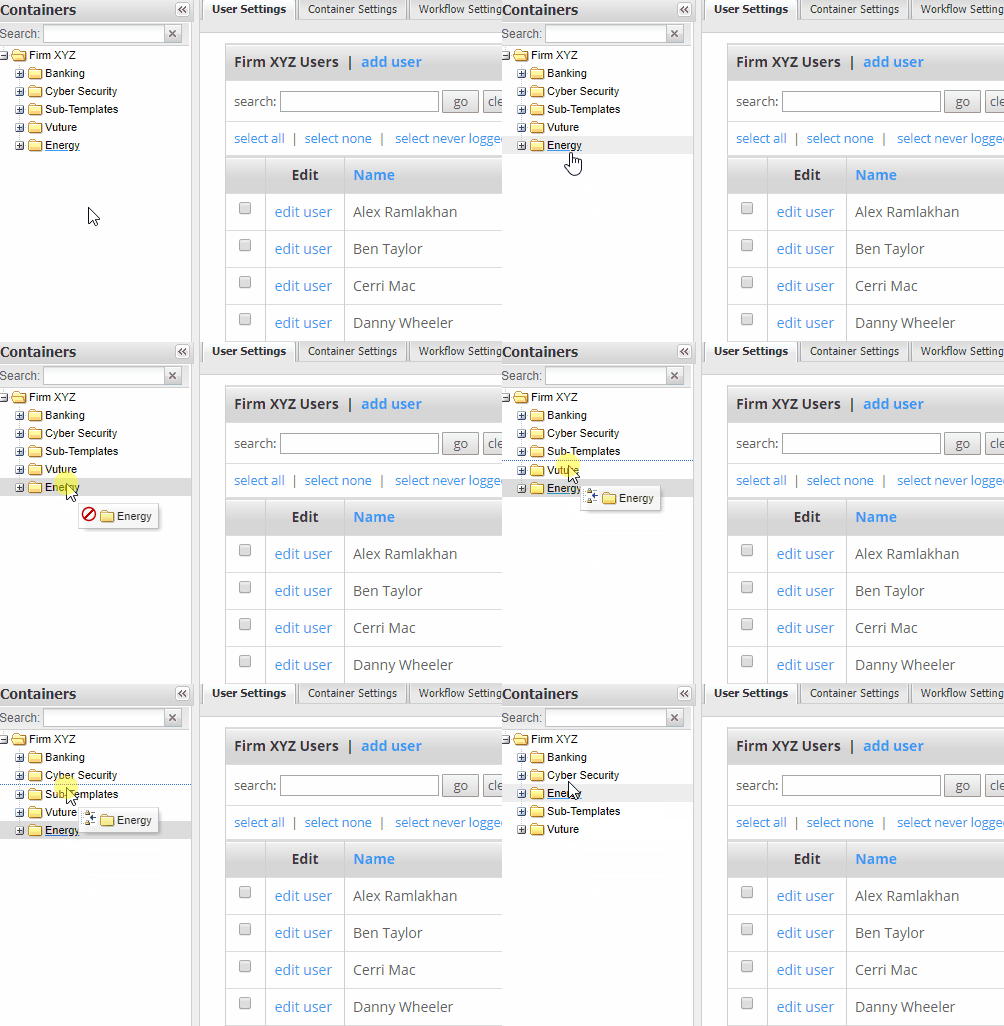
Once you have created a container you can move it to elsewhere in the “tree” click, Hold and Drag to the desired new location. As you Click, Hold and Drag, you will see a dotted grey line, which is where your container will sit if you let go. You can re-order by alphabetical sort or drag one container out of the list and move it up or down to be the sub container of a different part of the list.
Best practice for setting up containers - Reporting
It's important to get your container structure correct. It will help you to structure your campaigns as well as help with your reporting.
Best Practice Recommended Container Structures:
Practice Area / Mailing Type
Mailing Type / Practice Area
Internal / Mailing Type
For example, if you’d like to see overall engagement stats for a Banking Newsletter and you have your container structure setup as "Practice Area / Mailing Type", you’ll be able to pull reports on this specific container (e.g. total mailings sent, total opened, total clicks, bounces, and overall open rate). You can then report this back to the Fee Earner or Business Development Team.
NOTE: If it is important for your firm to report on multiple Industries or Practice Groups (e.g. “Energy – Clean Energy & Renewables” and “Energy Litigation”), Vuture’s Premium Tagging feature will allow you to tag multiple Industries or Practice Groups to then pull a report for overall stats. This can also be by an individual container or by sub-containers. To read more about Tagging please click here.
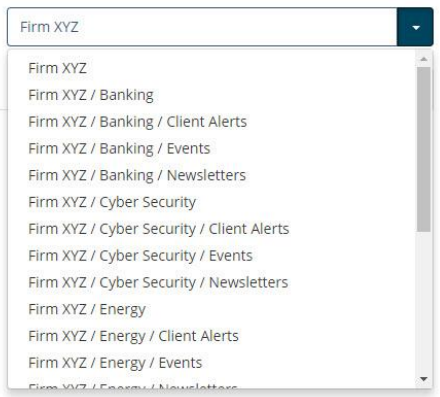
There are other combinations you can use based on the above mentioned common structures. Please choose whichever combination makes the most sense to your organization.
Other common structures you could use are:
Office / Practice Area / Mailing Type
Office / Mailing Type / Practice Area
Practice Area / Office / Mailing Type
Container Structures we do not recommend:
Mailing Type
Year / Practice Area / Mailing Type
Year / Mailing Type / Practice Area
Year / Month / Practice Area / Mailing Type
Year / Month / Mailing Type / Practice Area
We would not recommend having a single container of Mailing Type, without breaking it down by Practice Area. For example, if you have a single container called “Newsletters” which houses all newsletters, regardless of Practice Area, it is much more difficult to isolate a certain Practice Area's email campaigns to see the overall statistics.
We also do not recommend breaking down the Container structure into Year or Month, as you will have the ability to filter on Start/End Dates in all Vuture reporting.
