Contents
What is the Link Editor?
Type Ahead Link Picker
Mailto, Bookmarks & Preset Link Tabs
Manual Mailto Link Options
FAQ
What is the Link Editor?
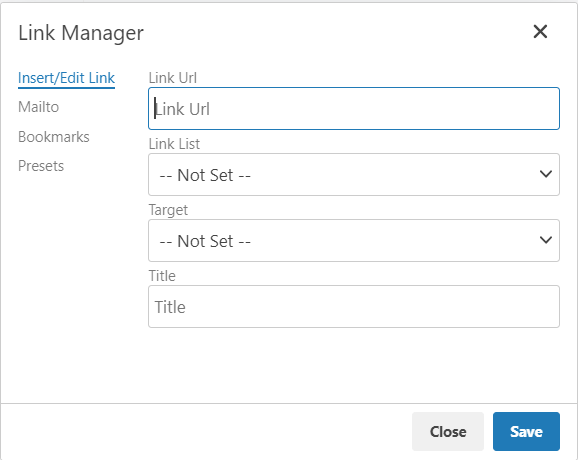
To create links in the text editor, select the required text then click on the "chain" icon to create or edit a link, or the "broken chain" icon to remove an existing link:

The Link Editor provides the following options:
-
Link URL - The external URL that you wish to link to. This should usually begin with one of the following:
-
https:// - for web pages running over a secure connection
-
mailto: - for email links
-
# - for anchor links - An anchor link is a link on a page that brings you to a specific place on that page or to a specified page. You can now use the "Bookmarks Tab" to set this up more easily. Or if you prefer to do this manually, click here to review the set up.
-
Link List - Allows you to select a landing page or uploaded file to link to from the current campaign
-
Target - Allows you to customize whether you would like the link to open in the current window or a new window
-
Title - Allows you to give the link a title that will be displayed as a tool-tip when someone hovers over the link
Typeahead Link Picker
If you have a large number of pages in your campaign and website you can enable typeahead mode for the link picker which allows you to find any page by typing any part of the page name.
This can be enabled by your Vuture Administrator by setting "Admin.System.Versions.TinyMce Link Picker Version" to version 2.
Mailto, Bookmarks & Preset Link Tabs
The Link Picker now offers three additional tabs that make it easier to insert mailto links, bookmarks (links to anchor tags) and preset links. These three tabs will be enabled automatically when you choose to use the new Campaign Editor.
Mailto Tab
This tab allows you to quickly create mailto links by entering the To address and then optionally the CC address, subject and message. Click "Insert" to add the link". You can add more than one email address, using a semi-colon ( ; ) to separate multiple email addresses.
Bookmarks Tab
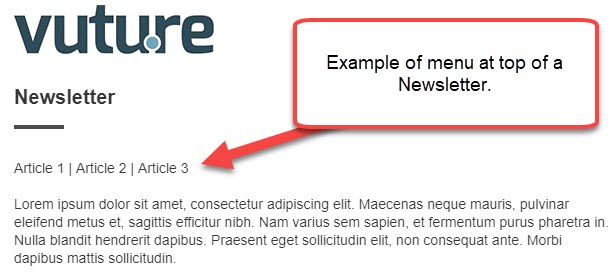
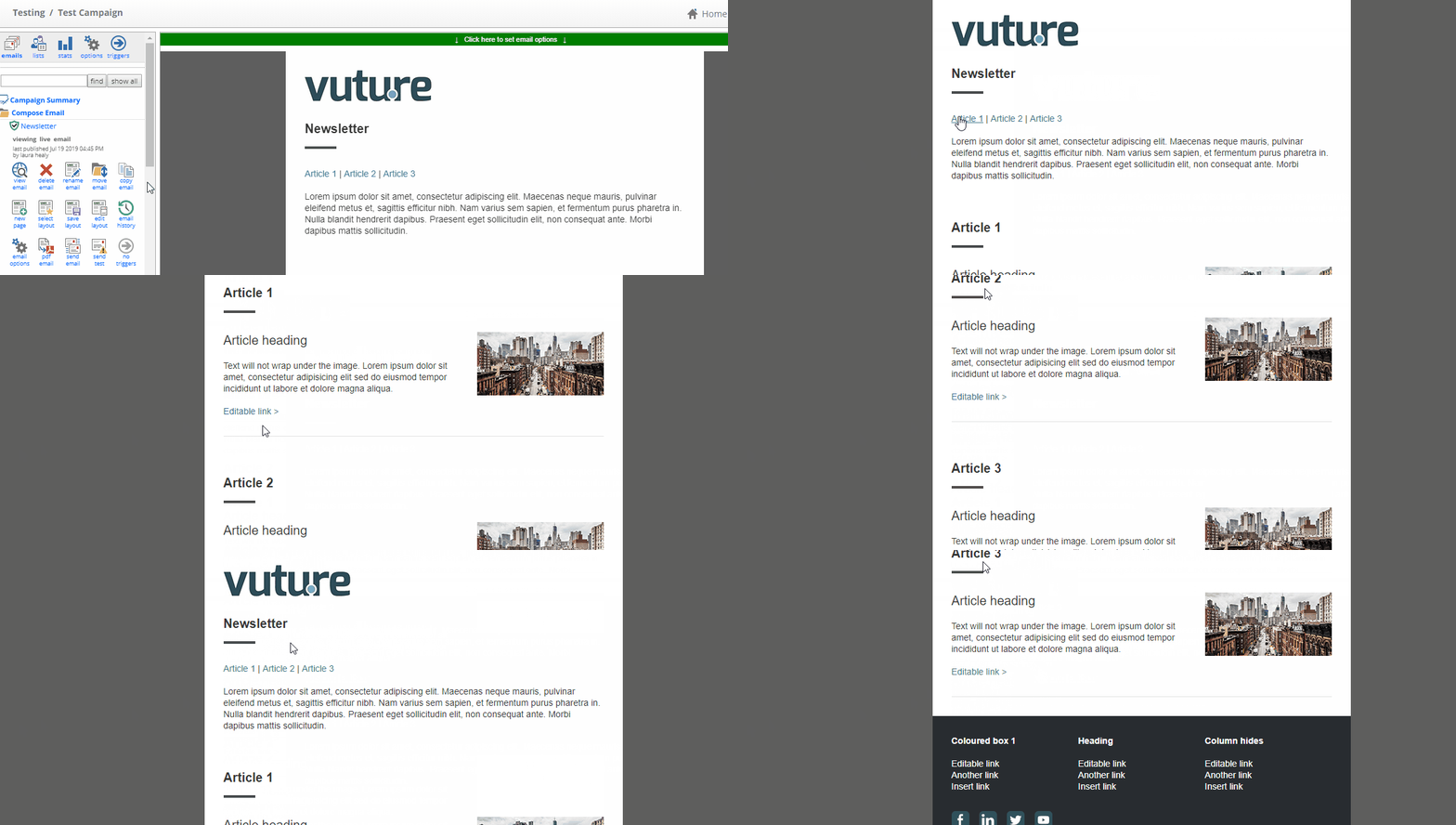
This tab allows you to quickly link to any anchor tags you have on the current page. Anchors make it possible to move a reader from one part of a page to another. For example, in a lengthy article, it can be helpful to have a Contents List or menu at the top of the page with links to each section further down the page.
Anchor links are displayed on the Bookmarks tab in the drop down list. Select the required bookmark and click "Insert" to add the link.
To set up anchors in the Bookmarks Tab for the current page you are working on, please see the instructions below. If you prefer to do this manually, click here.
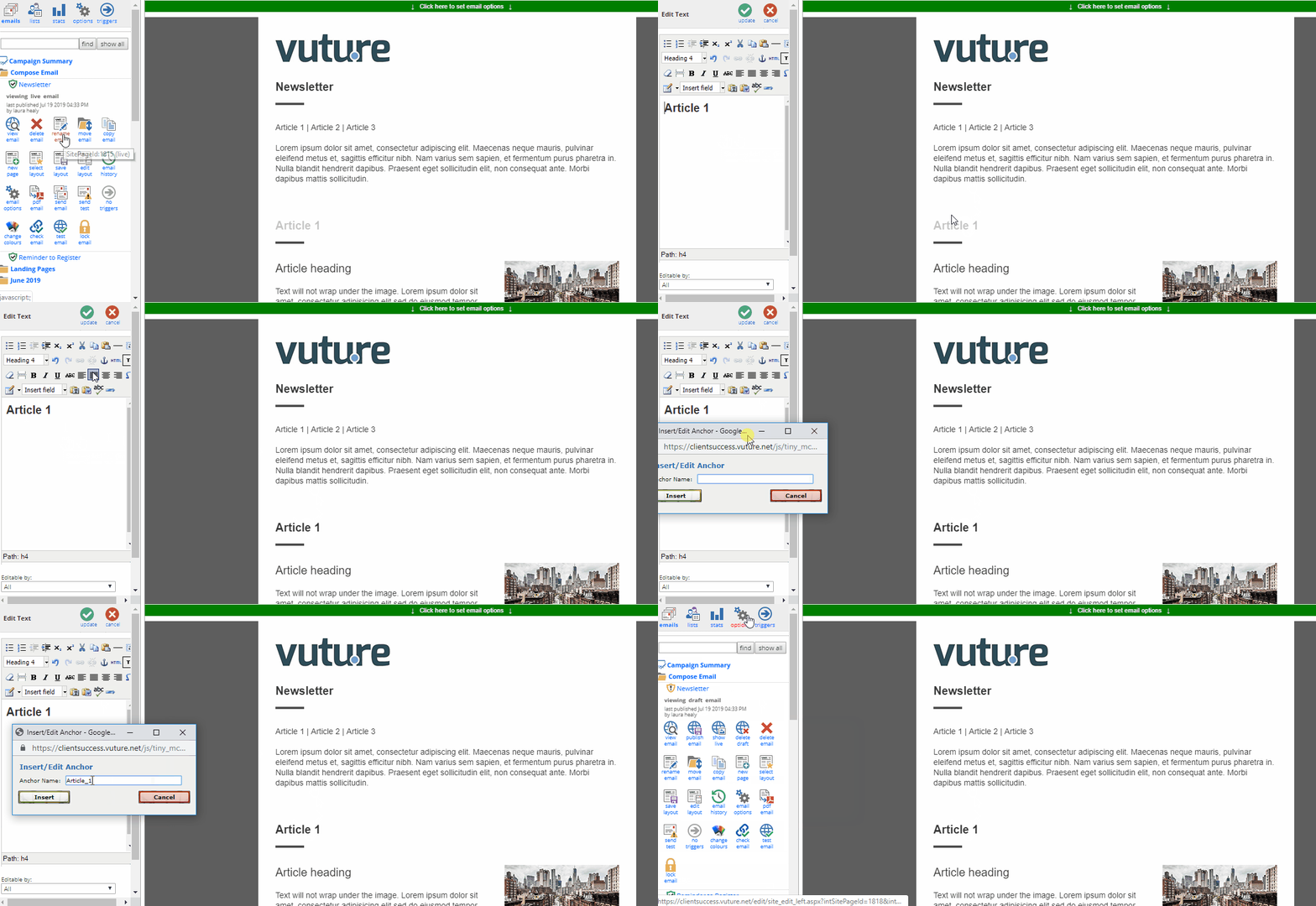
1. Start by setting the destination. Click into a text snippet and put your cursor where you would like the text to drop down to. Then select the icon of an anchor. This will provide a pop up box for you to enter the name of your anchor. Names need to be short, descriptive and unique to the page. Please note: the name should not contain any spaces.
Repeat this step for any other areas of the page you wish to link to (e.g. Article_1, Article_2, Article_3).
2. Now set up the link to activate the anchor. For example, type the item in a "contents list" or "menu" at the top of the page.
3. Highlight the text to link from, click on the "link" icon in the text editor to open the "Link Editor", then navigate to the Bookmarks Tab. You should then see your Anchor Tags listed in the Bookmarks drop down. Choose the Bookmark you wish to link to then click insert. Then click "update" to save your work in the Text Editor.
Repeat this step for each anchor tag you wish to link to in your email.
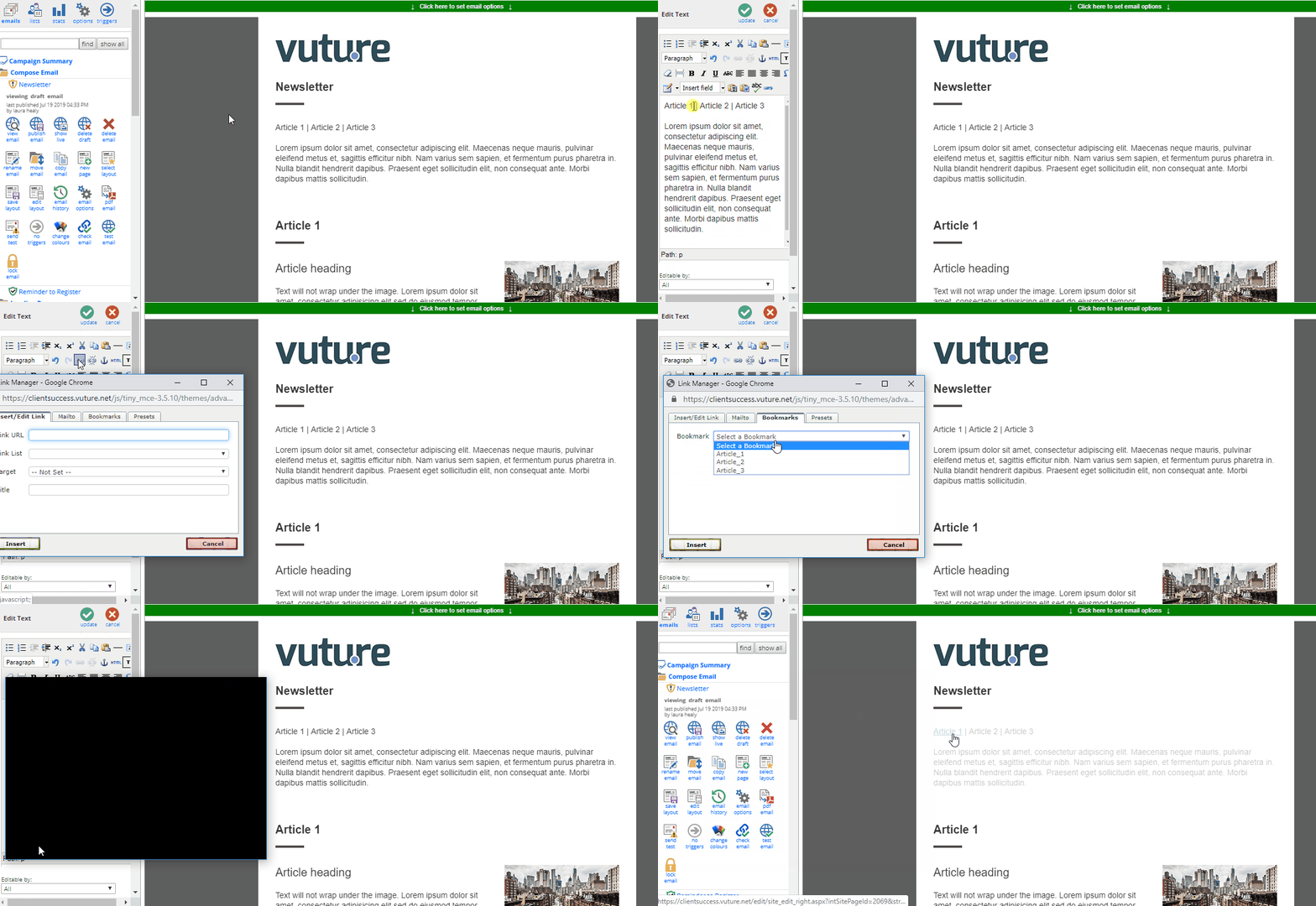
4. Publish your email (Publish > Publish Now).
5. Test your anchor tags by viewing the email in your browser and clicking on each anchor link. It should jump down to each section of content that you placed the anchor tag in Step 1.
Presets Tab
This tab allows you to select from preset links that you can create by adding a container or system variable where the variable value begins with "http://"", "https://"", "ftp://"" or "mailto:". See this helpdesk article for more information on creating Global/System variables.
This could be useful if you have regularly used sets of links that are long or difficult to remember. This also helps save you time, so that you don't need to go to your organization's website to grab the link each time (e.g. regularly used Blog pages, or practice/department pages).The Preset dropdown will show all the matching variables. Select the required Preset link and click "Insert" to add the link.
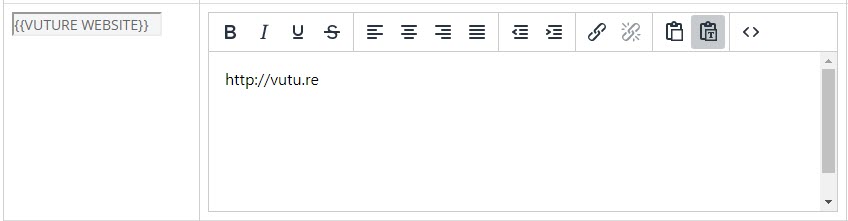
For example: To see the Preset for the Vuture Website, we would create a Global Variable in Admin > Containers and Users > Variables, that looks like the below. As long as the variable value starts with http:// or https:// you will be able to see it in the Presets tab of the Link Editor.
FAQs
1. I have added a link to my form but part of the URL has been removed
This can happen if the URL has two questions marks in it. The workaround is to edit the HTML of the page to correct the link - please contact Vuture Support for assistance.
2. How do I use a mailto link with an ampersand in the email address
Ampersands (&) are special characters and need to be encoded when used in a mailto: link. For example, to use the email address: test&email@mycompany.com you would replace the & with its encoded version %26 so it would become test%26email@mycompany.com. The same applies if you are using an ampersand in the subject or body of the mailto: link.
3. How do I use spaces in the subject and body of mailto links when using the plain text editor?
Space needed to be encoded and while this happens automatically in the link picker and editor you need to manually encode them when using the plain text editor. Do this by swapping spaces for %20, for example: mailto:person@company.com?My%20Subject
4. I am not able to enter multiple email addresses in the To or CC fields when using the "Mailto" tab
This is currently not supported but you can workaround this by entering the mailto manually in the URL field on the "Insert/Edit Link" tab as described in the Manual Mailto Link Options section above ,e.g.
mailto:info@vuturegroup.com;contact@vuturegroup.com
5. How do I personalise links so that each contact has a customised link based on a personalised field such as their ID?
Click here for an article on how to create customised links.
