Introduction
Why Manage Consent?
To remain compliant under many of the Data Protection laws globally you will need to establish a legal basis for managing or “processing” the Personally Identifiable Information (PII) of your contacts. “Processing” is a deliberately wide term which covers storing, managing and using their data. Their PII includes any piece of information which identifies the contact. Examples of PII would be First Name, Last Name, Company Name, Job Title and Email Address, but this is not an exhaustive list.
Special, extra strict, rules apply to certain, extra sensitive, categories of data such as sexual preferences, religion, or membership of a political party, and some others. For the UK, the ICO is the GDPR Regulator and their website carries full explanations and checklists for all aspects of remaining compliant with GDPR. Visit: https://ico.org.uk/
Your Firm, your contacts - advice on managing data
Data Protection regulations vary in their approach depending on the type of contact you are working with. For this reason, it is very important, when starting to think about Data Protection, to take the following steps:
-
Gather your data into one place as far as possible. Take this opportunity to delete or archive any old lists; securely shred old printouts; issue an all-staff amnesty and request that staff offer up all “bottom drawer databases”, piles of old business cards and other collections of data they may have been harbouring. Old, out-dated information will only serve to make your data management task much harder.
-
Segment your data into contact types. Some of your data will cover current clients. They can be handled in one way, while others will be intermediaries or referrers perhaps, or suppliers; they will be handled differently and finally, you will have a list of prospects or targets.
-
Know where your data comes from. Did you pick up a business card at a conference? Did you buy in a list from a list broker? If you do not know the source of your data, you will find it more difficult to manage.
-
Know your legal basis: For each contact type, you will have to decide whether or not you need to obtain their consent to manage their data and their consent to send them marketing emails. You will have to store this consent, indicating exactly what they consented to and when. If you choose Legitimate Interest as your legal basis you will not have to ask your contacts for their consent to manage their data, but you will have to be able to demonstrate how you arrived at the Legitimate Interest decision, and you will still have to give them the option to Opt Out of receiving marketing emails from you.
-
Don’t forget the telephone. This article is mainly about email marketing, but the Telephone Preference Service (for private individuals) and the Corporate Telephone Preference Service (for people at work) exist to allow individuals (in the UK) to Opt Out of receiving sales and marketing calls. Your Sales Team should be checking the TPS or the CTPS as appropriate, before dialling.
Intapp/Vuture Integration - Suppressing Contacts
Suppression Fields are always at the Contact level and are Contact-specific additional information fields. There are 4 categories of suppression: Global Unsubscribe, Email Type, Undelivered, Consent Status.
Global Unsubscribe allows your contacts to remove themselves from all mailings from you. Vuture will not send a mailing to anybody who has their email address in the Global Unsubscribe list, even if they appear in other lists too. The Global Unsubscribe list overrides them all. If a contact selects Unsubscribe from all on a Vuture form, Vuture will update the Globally Unsubscribed? field in Intapp, and that will trigger the suppression from all future mailings.
Consent Status is a check box for Express Consent received.
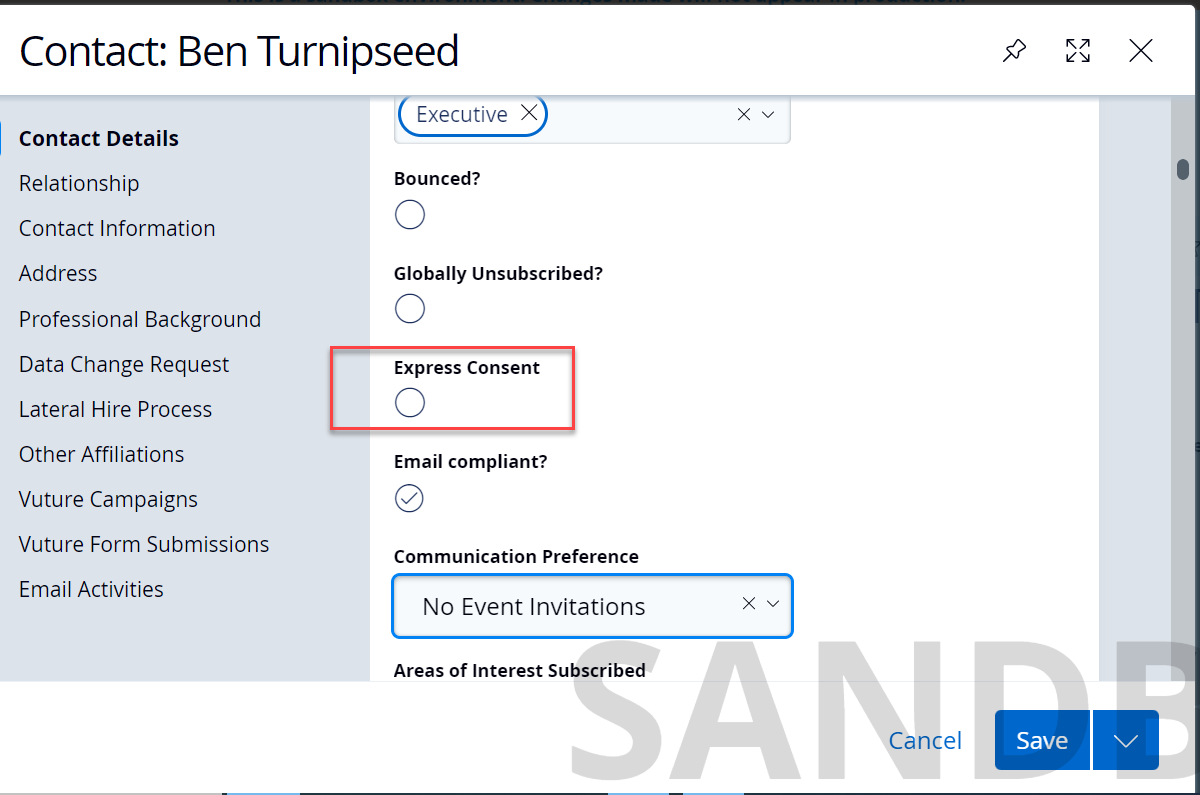
Note Vuture clients do not have to have this field set as suppression, it is optional.
Email Type Opt Out allows your contacts to remove themselves from all mailings of a “type”. Often, Vuture clients will begin by having two types – Events and Mailings – but you can have more types if you want to be more specific.
Events: contain all the event fields such as RSVP.
Mailings: are used for Publications such as Newsletters, or Alerts.
Note: The Entity naming convention may be different for your instance. For example, you may have Invitees and Publications, instead of Events and Mailings.
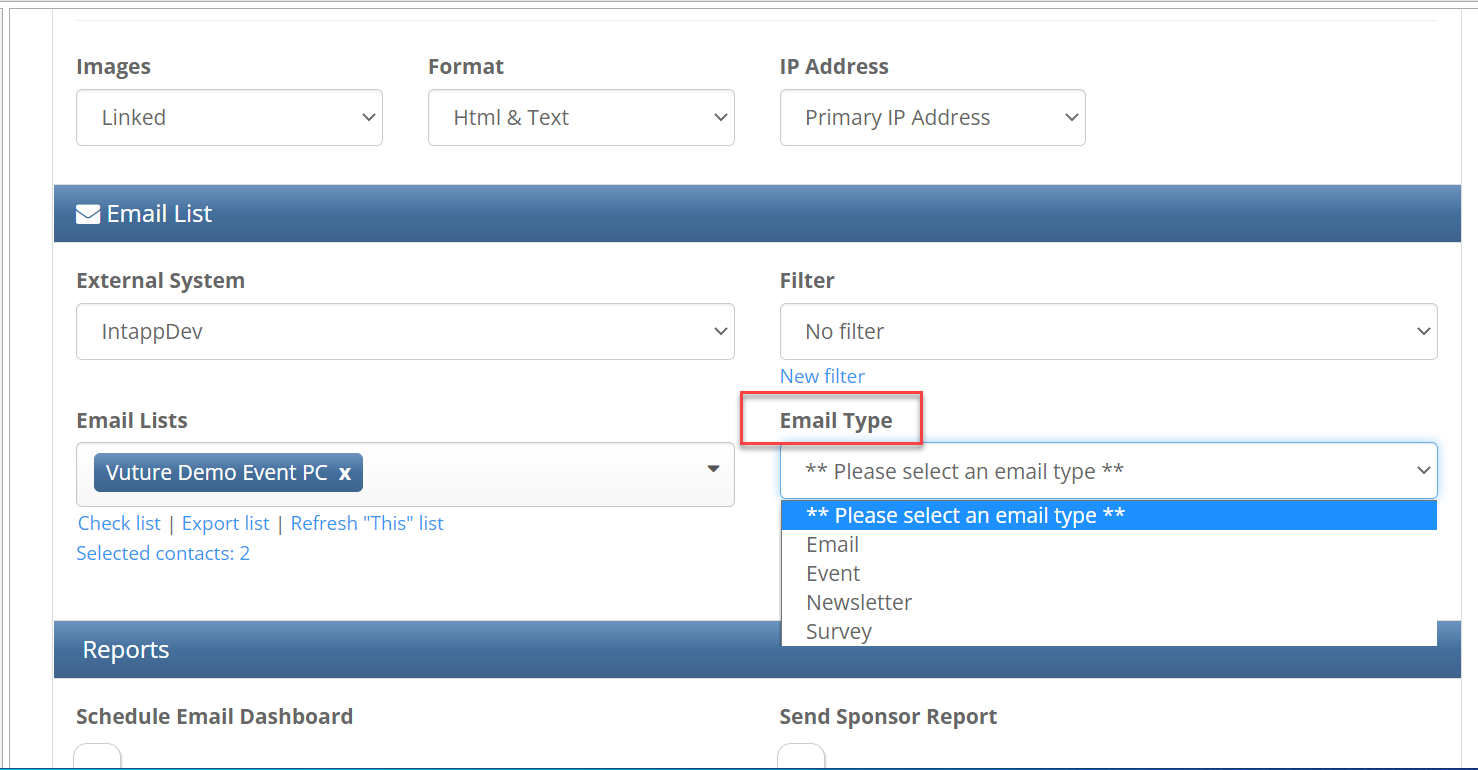
In Intapp OnePlace this should always be the Communication Preferences field. This will be the email Type field that gets selected before sending an email via Vuture. It is displayed in the drop down on the Email sending screen.
Undelivered (or Bounced Emails)
This is where the hard bounce field lives.
Bounceback Types
When an email is rejected by a subscriber's email server, it's called a bounce. There are two primary types of bounces, hard bounce and soft bounce. By default, Vuture processes bounces once an hour.
Soft Bounces
Soft Bounces are temporarily unavailable emails. We will try to deliver to these email addresses multiple times before classifying them as a soft bounce.
Vuture automatically suppresses any emails that soft bounce 5 times consecutively. You can check your soft bounce limit any time by using the Email Deliverability Healthcheck, accessed via the Vuture Home screen.Help.Healthchecks. There is a Help Desk article about the Healthcheck here.
Hard Bounces
By default, Vuture will suppress any email address that hard bounces 2 times consecutively.
Auto Replies
There is a third category of bounce which is an Auto-reply. There are different types of automated responses, the most common being out of office messages. These auto-replies are not suppressed at all, unlike soft and hard bounces, and they are not counted as bounces in our reporting nor are they written back as a bounce activity to the client CRM.
There is a general article here which gives more detailed descriptions of the different categories of bounces.
Writing Back Bounces to the Intapp CRM
The Bounced Email field lives at the Contact level and can be called anything that the client likes, but typically we recommend that our Vuture clients call it Bounced Email.
The two possible values for this field are Yes / No.
There is an example image below but this field can be in multiple view screens and is bespoke to each individual client so there is no set place for it.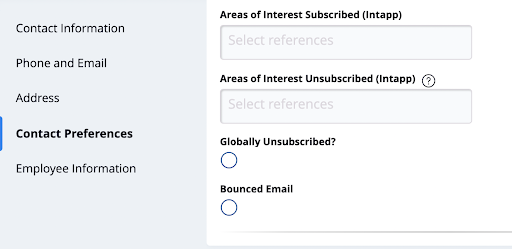
This Bounced Email field will be updated once the email address hard bounces 2 times consecutively
Bounce Activities
Hard Bounces will also appear in the CRM as an Activity called Hard Bounce.
The Activity called Hard Bounce lives in our Vuture Activities screen which sits under the Data Administration tab in Intapp.
Reporting Bounces for One Email
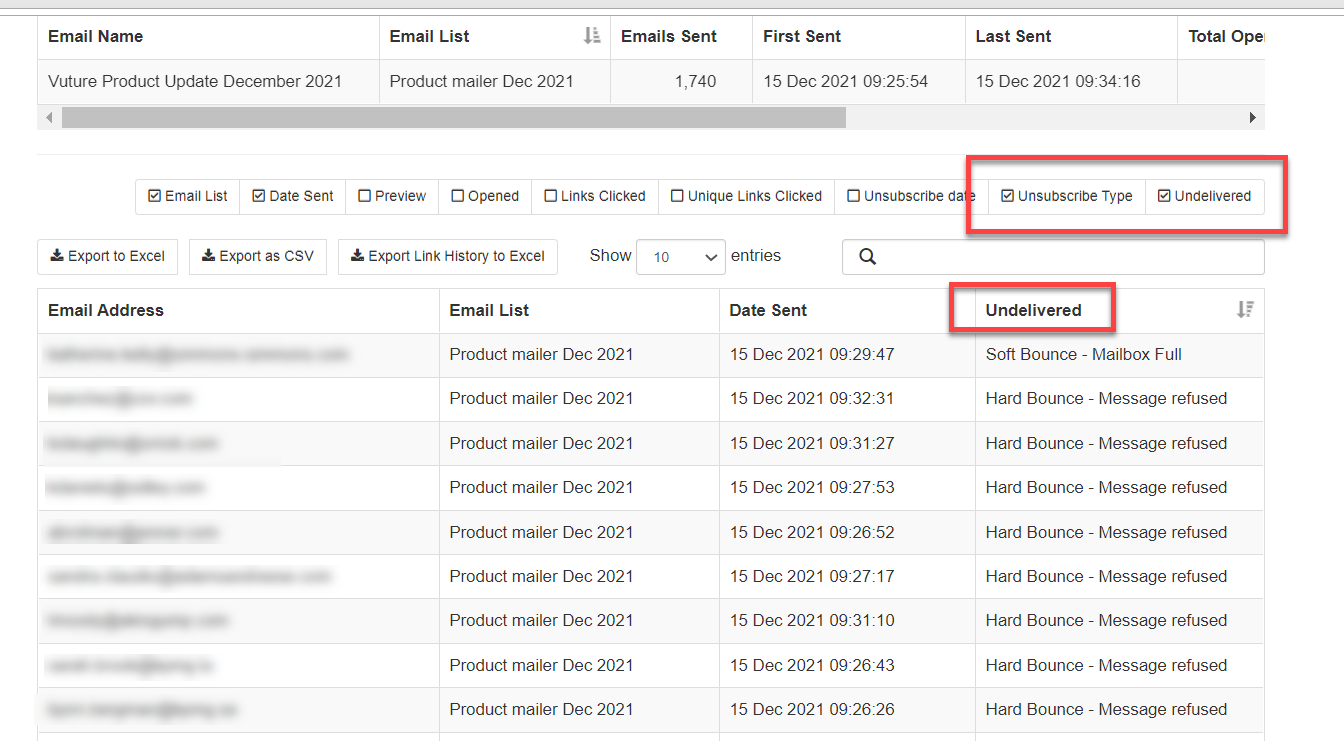
If you want to see which emails bounce when you have sent an email, click on the relevant email in the dated Sent folder in Vuture.
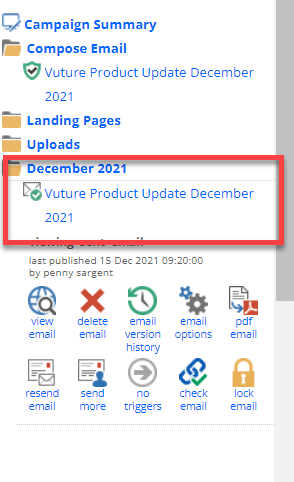
The resulting screen shows all the contacts and, if you check the Unsubscribe and Undelivered boxes, the reason why the email was undelivered. You can export this list to Excel if you wish by clicking on Export to Excel.
Reporting Bounces for all Bounced Emails
The best place to see all your bounces is in the Global Bounceback report. Go to Home screen>Reports and then select Email>Global Bouncebacks. Select the time frame you want to view and click on Table.
Reporting Using the Bouncebacks Dashboard
You could also use the Bouncebacks Dashboard. Further information on this dashboard can be found here.
Enforcing Email Types to ensure Suppressions
If you wish to ensure that Vuture users select an Email Type on sending, ask your Client Success Manager to configure the 'Email Type Optout' suppression setting in the CRM metadata tool. This will ensure that an Email Type must be selected before sending an email; allowing you to manage suppressions by email type as well as globally.
These email types can be set up in Intapp by adding a new email list type under Intapp -> Lists -> Email List Types, and then configuring the field in Vuture’s metadata manager tool in the suppression settings panel. This part will be done for you by the Vuture team.
When you come to send an email, Vuture will ask you which Type of email you are sending, at the point of Send. Any contact who has unsubscribed from that email type will not receive the email.
Offering your clients a choice
To allow your clients and contacts to give their mailing preferences, you can add fields to a Vuture form:
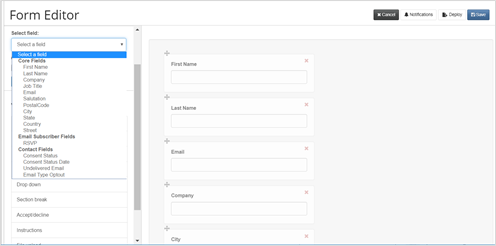
Selecting Email Type Optout from the list above and clicking on Add will give you the opportunity to add the following:
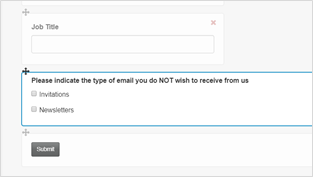
The wording is up to you, and it can be different on different forms.
Areas of Interest Unsubscribes
Some clients may have Areas of Interest unsubscribes set up. This is a bespoke piece of work that Intapp offers. Intapp generally adds it as a chargeable add on.
Talk to your Project Manager or Customer Success Manager if you have any questions.
