Product Information
Setup
ON24 - Upgrading the Integration
The ON24 to Vuture integration has always used an XML-based process. Support for this integration has now been deprecated by ON24 and has been replaced by an API-based integration which is easier for both ON24 and Vuture to support.
Vuture is therefore upgrading the integration to use the APIs, this upgrade is available now.
What does this mean for you, your firm and your clients?
The existing integration will continue to work for now. However, support for the XML has been removed by ON24 so our strong recommendation is that your firm completes the upgrade as soon as possible.
Super Admins will need to complete a one-time operation (described below) to reregister their client key and secret key and then re-enter those keys in the Vuture configuration.
Users who subsequently create an ON24 webinar and add the webinar ID to a form will see no change at all.
Clients who attend ON24 webinars will see no change.
Reports, which used to show no attendance results if the webinar was more than 30 days ago, will now be able to go back to the webinar date and use the api to return all attendees, even after 30 days.
Process to Upgrade the Integration
Clients will upgrade their ON24 account to support the API Integration and they can provision their own access token. Only if clients don't see the 'Integrations' tab under Platform Tools then they can contact their ON24 support team. Vuture support and ON24 have discussed the upgrade and both teams are aware of the required actions.
Once upgraded, in the ON24 application, they should go to the menu Platform Tools > Integrations > API Tokens as below and configure the new API token.
The Access field values have to be configured as following two items:
- Event-level analytics endpoints
- Registration endpoints
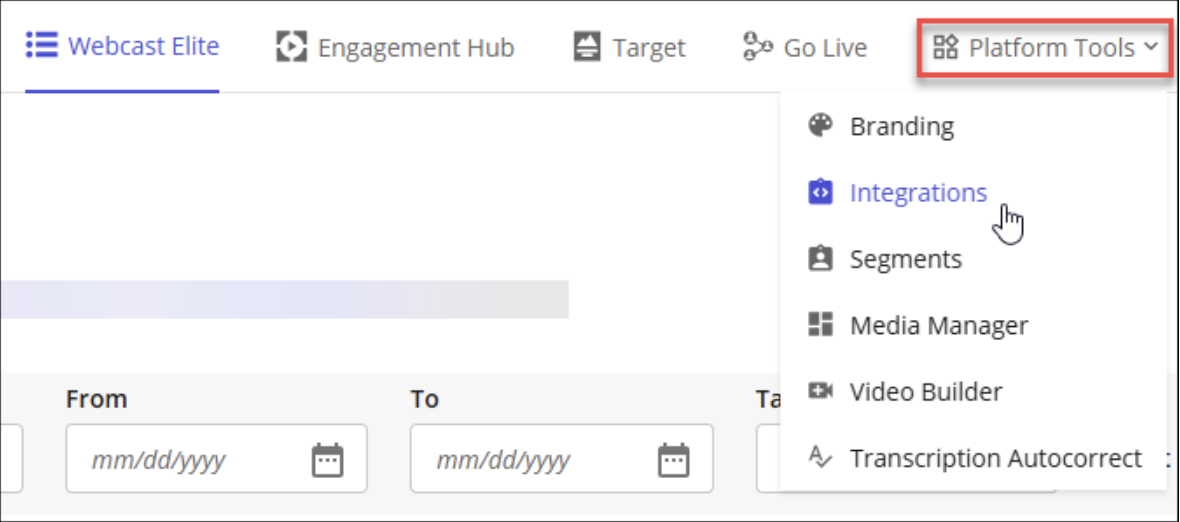
At the top menu, click on Platform Tools, then select Integrations
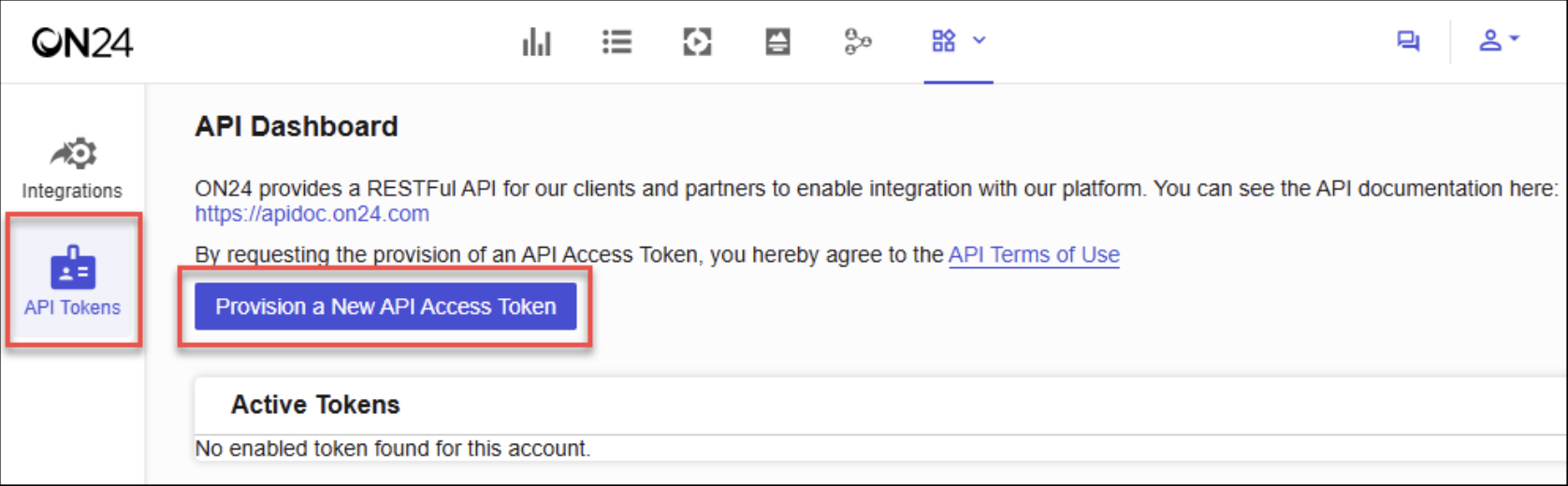
On the left menu bar, click on API Tokens.
Press the purple Provision a New API Access Token button.
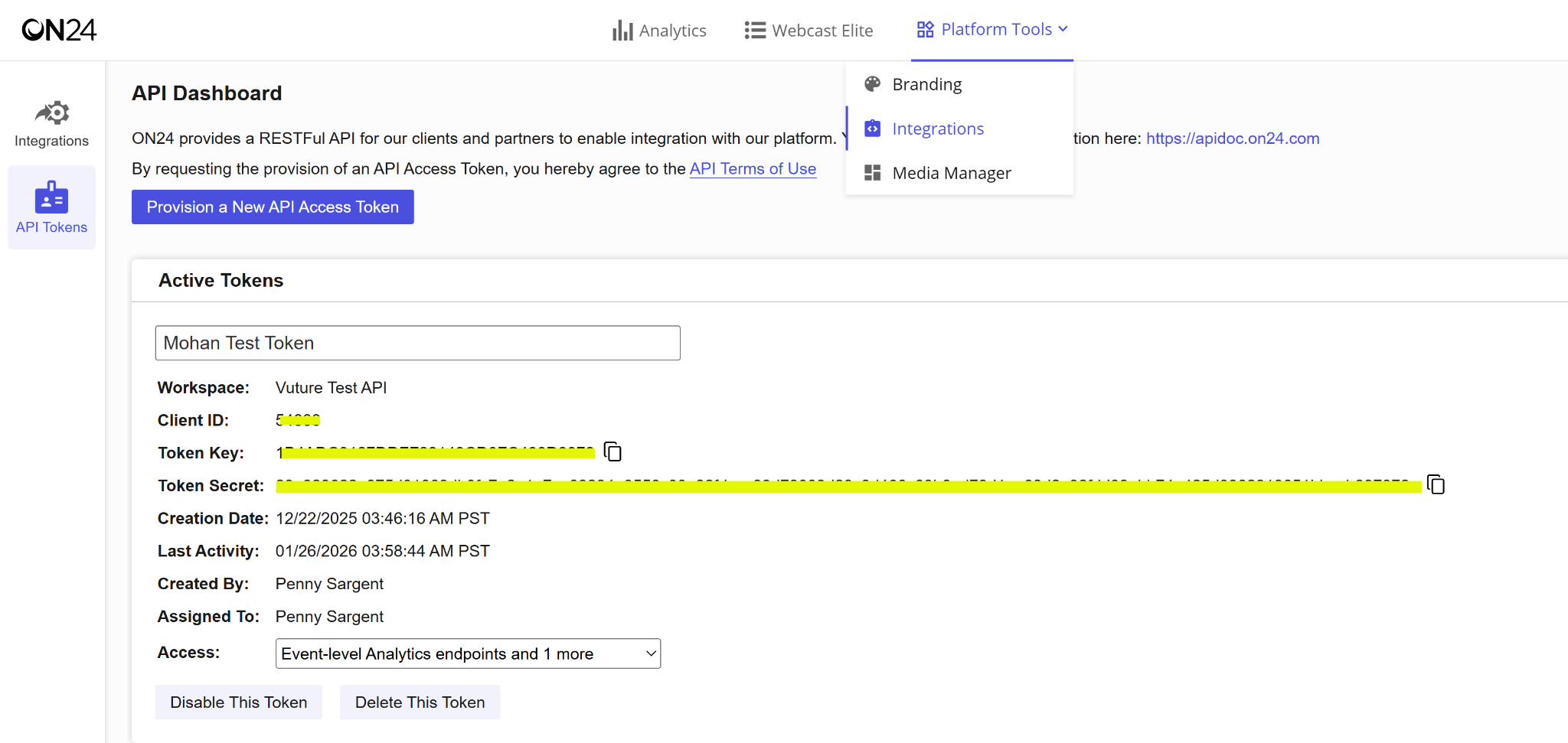
After creating the API tokens, the client should configure the above token in Vuture in the Webinar Setup Tool by selecting the Auth Type as API Token
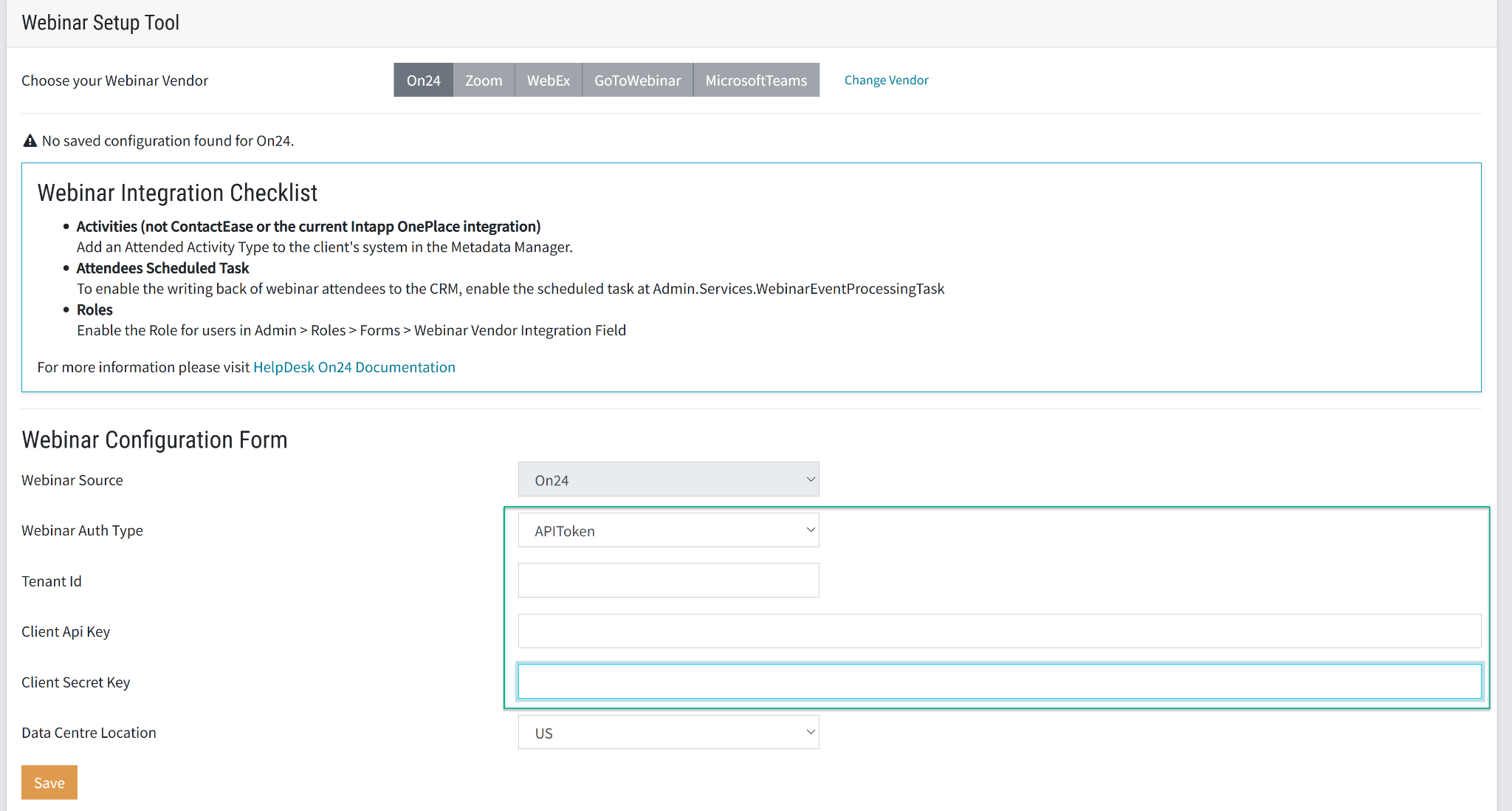
Save the new token and return to any campaign to continue operating as before. This is a one time operation.
URL field change
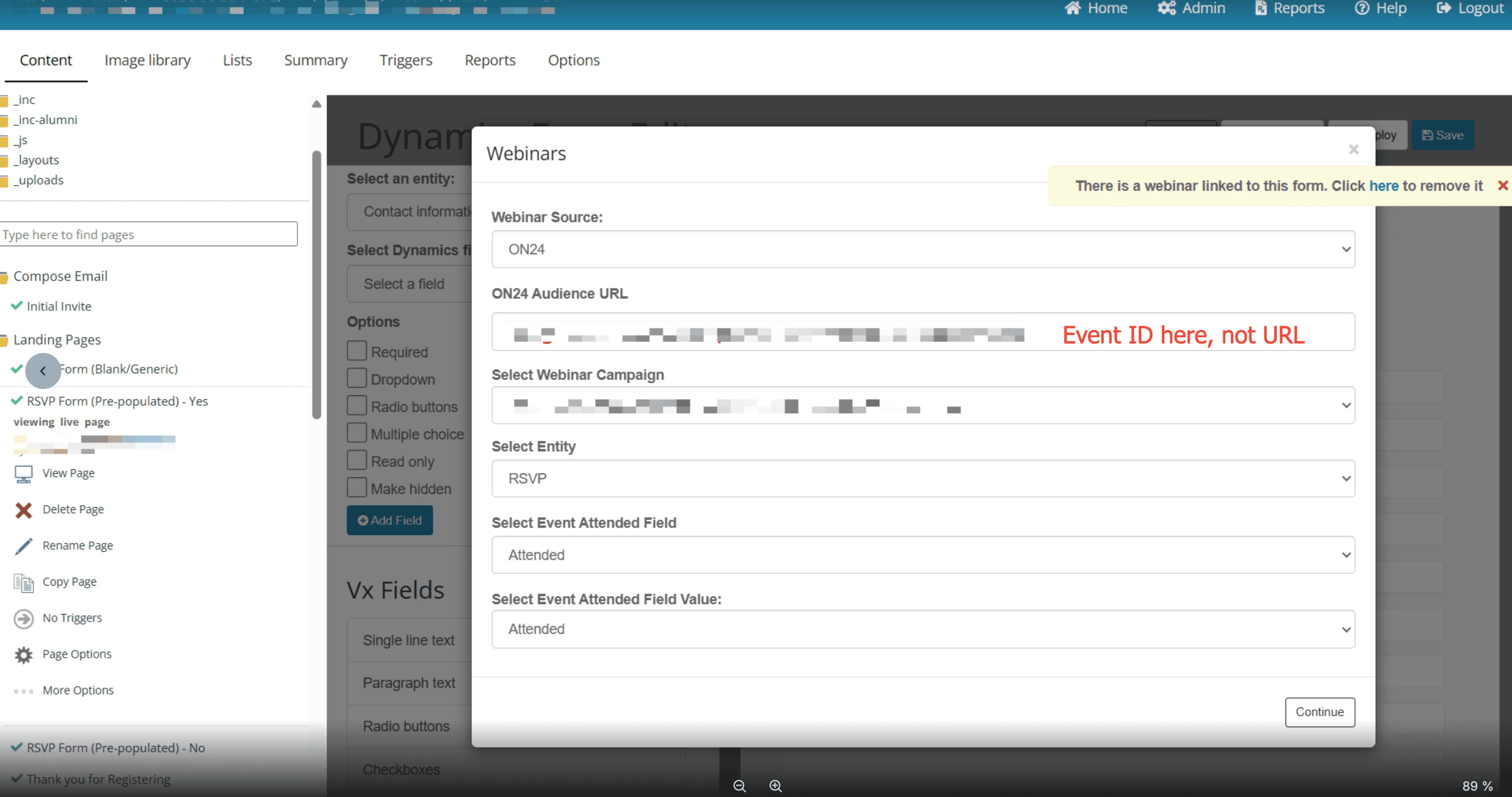
Note: The Event Id entered in the Webinar Id / Event Id field in form editor should only be the event Id not the full webinar URL provided earlier. So the 7 digit Event ID should be entered into the ON24 audience URL field.
Make sure the ongoing event is completed before migrating to new API based integration to avoid any discrepancies in registration and activity writeback.
OnDemand webinars must also be changed. The ON24 audience URL needs to be Event ID