Overview
There are two ways to CC or BCC contacts when sending an email. Either:
1. Manually enter one or more email addresses to receive a CC or BCC copy of the email, or
2. Select an additional field in the CRM which will be looked up on Send and any email address in that field for each contact will be added to any manually entered CC or BCC.
Note: CC and BCC are not available on Test Sends; they only work for "real" Sends and Send Sample.
Contents
Warning: As this is a real CC/BCC, copies will be exactly the same as the original and will include all tracking codes linked to the original recipient. When copies are opened they will register an Open against the original recipient. Clicking on a link to a Landing page or Form will record a Link Clicked. Any pre-populated Landing page or Form will show the original recipient's details. For example, a cc'd contact will be able to register the original addressee for an event.
Manually entering a CC or BCC for the email
Note: This functionality is controlled through a role-based feature. Your Account Manager can enable the feature for selected roles using the setting "Admin.Roles.Emails.Manage CC and BCC"
Once enabled you will see two extra fields on the send screen for CC and BCC.
Enter one or more email addresses in each field separated with a comma: (Note: Only email addresses are valid here)
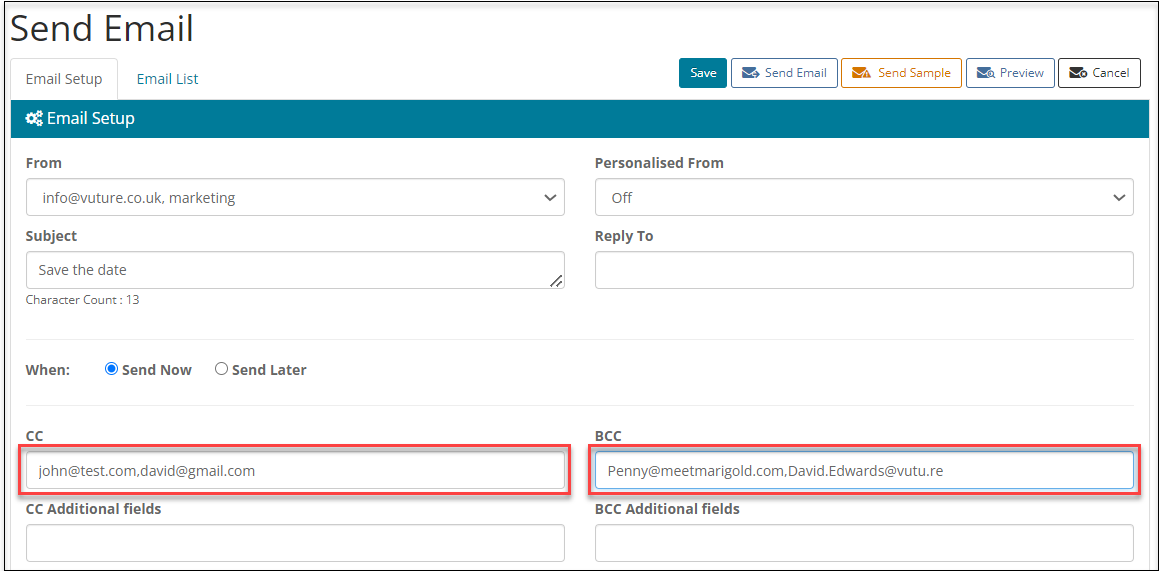
When you send the email it will be CC'd to the contacts in the CC box and BCC'd to the contacts in the BCC box.
Note that it must be a valid email address. A contact name will not work.
The email address you CC/BCC will be added to each email in the send. If you send to 1,000 people and CC an email address, that email address will receive 1,000 emails.
Using CC/BCC Additional Fields on sending
Select one or more additional fields which will be looked up on send and any email addresses contained in that field, for each contact, will be added to any manually entered CC or BCC.
Prerequisites - Internal Mailings
You will need an additional field in IA called My PA or My EA or similar. The name is not important. The field type should be Text (to allow you to enter an email address) and you should make it Multivalue if you think you might want to enter more than one person's email address. For internal mailings this field would typically sit in the Personnel Information folder. For each internal person you are mailing you will need to enter the email address of their PA or EA. into this field.
For example, your firm's partner John Smith has a PA called James Brown. In that My PA field, for John Smith, you would enter james.brown@yourfirm.com or as appropriate for your firm's email address.
Whichever additional field you choose to use for this, you will need to ensure that all the partners at your firm are included in that folder. Firm Personnel will typically be included in the Personnel Information folder. It is not a requirement to use the Personnel Information folder; any Information folder could be used for this purpose.
Once you have created the additional field make a note of the ID number. There is an article here covering how to establish the ID number for a field.
Prerequisites - External Mailings
IA Windows client: You will need an additional field in IA called My PA's Email or similar. The name is not important. The field type should be Text, to allow you to enter an email address. For external mailings the additional field could sit in any Information folder in IA - but note that all the contacts you are mailing, with a CC, need to be linked into that folder and have a PA's email entered in that field if you want their PA to receive the cc.
For example, if you added the additional field to the Client Information folder, all the contacts you are mailing where you want to also mail their PA, would have to be in that folder (would be Clients), with their PA's email entered in the field.
The example image below shows Tufan Unal's record in IA, with the Personnel Information folder selected, where Penny Sargent's email has been entered as his PA.
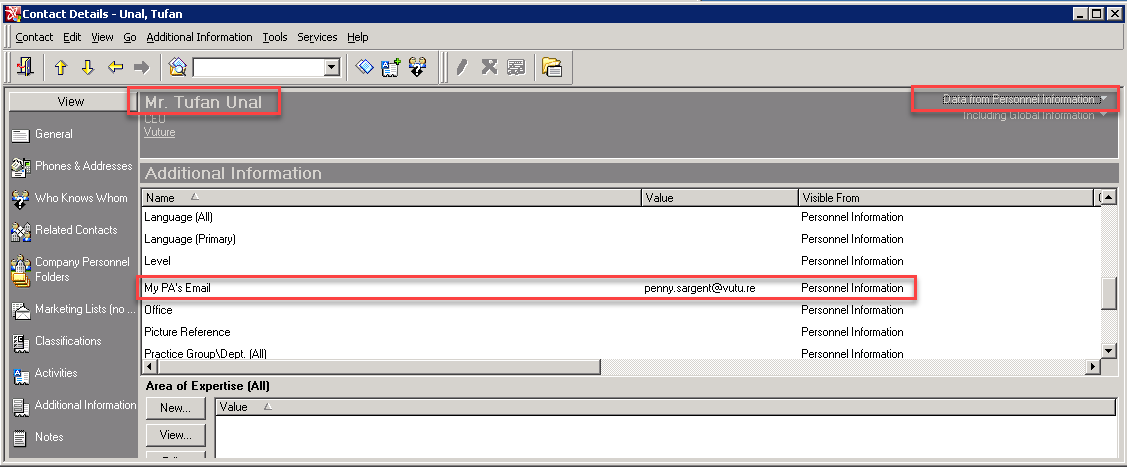
Vuture Role: Ask your CSM to enable the Vuture Role: "Admin.Roles.Emails.Manage CC and BCC option based on additional fields"
Once the role is enabled you will see two extra fields on the send screen for CC Additional Fields and BCC Additional Fields.
Enter a comma separated list of additional field IDs into either or both of these fields:
You can specify one or more additional fields for CC and BCC. These fields will be looked up for each contact on send.
Email addresses found in these fields will be combined with any manually added CC or BCC. Note that it does need to be a valid email address. Names will not work.
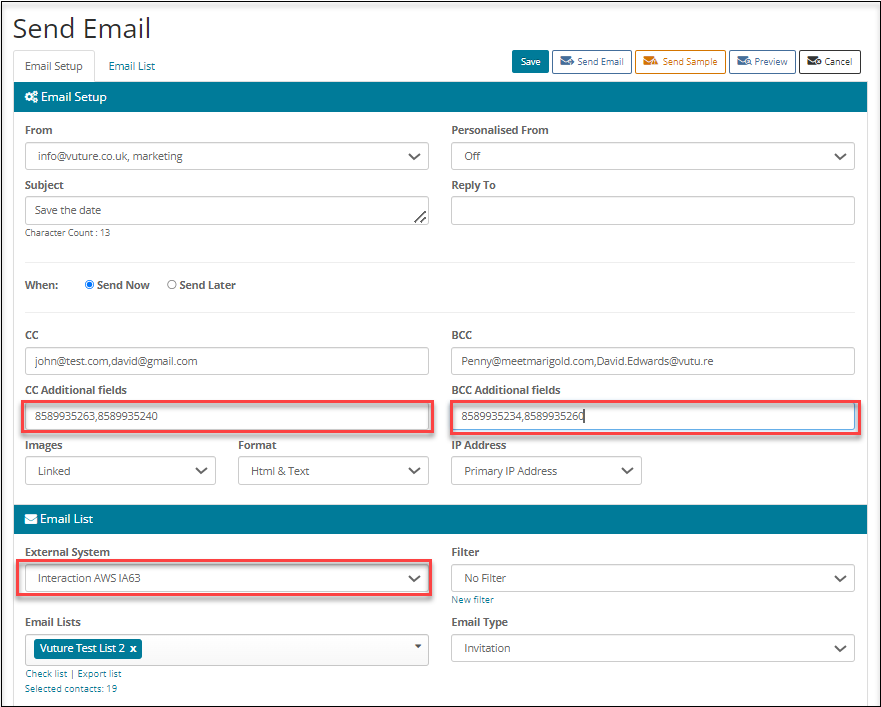
The additional field location will vary, depending on where you have chosen to store the record containing the person's Personal Assistant email address.
- Locate the field you wish to use (or create it if it does not already exist)
- Then establish the field ID number
Click this link to see how to find field IDs in IA.
- When you click Send the email the additional fields will be looked up for each contact and the email will be CC'd or BCC'd to any email addresses contained in this field.
This will be combined with any manually entered email addresses in the CC and BCC fields. Or you can leave the manual fields blank.
If you leave the PA's Email additional field blank for some contacts they will still receive the email. It will simply not be cc'd to anyone, unless you enter a cc manually.
