Keywords: Account locked, disabled, Account not setup, forgot password, unable to load CRM lists, InterAction upgrades, thresholds, deleted an email, update sent email, blurry images.
Overview
This article gives you quick access to some of the most common requests reported to our Support Team. By giving you all of the information upfront to help resolve these issues, we hope that we can help you before you need to submit a ticket and wait for our Support Team to get back to you.
Most Common Support Requests
Account Support
CRM / Vx List Support
All CRMs
InterAction
Vx Lists
Email Campaign / Template Support
Account Support
Account Locked / Disabled
You will need to ask a Super Admin on your team for help. Here are the instructions you can provide to them.
'Account Not Setup' error for New Accounts
When creating a new user account, the new user may see an error message that reads 'Account Not Setup' when logging in for the first time. This is because there are no 'Enabled Packages' for this user. Please see this Help Desk Article for more information.
Forgotten Password / Reset Password
You can reset your password by following these instructions. Or, you may ask a Super Admin to reset your password for you by providing them with these instructions.
CRM / Vx List Support
"We are unable to load any CRM Lists" / CRM & Vuture Connection Issues
If you are experiencing issues with Vuture establishing a connection with your CRM or you receive an error message like "We are unable to load any CRM Lists', please use the below troubleshooting articles and work with your CRM and/or IT Team before escalating to Support.
Where can I find my unsubscribes?
This depends on whether you are using Vuture connected with a CRM or using Vuture standalone (i.e. Vx Lists or Contacts Module).
-
For clients integrated with a CRM: All of your unsubscribe data will be found directly within your CRM. The only area within Vuture where you will see unsubscribe data is via the View stats of your Unsubscribe Global Form. Please see additional note below.
-
For clients who are using Vuture standalone (i.e. Vx Lists or Contacts Module): This will be reported within the Vuture platform and can be seen in the following reports: Email Send reports and the Email Global Statistics report.
Additionally, if you'd like, you can see an audit of anyone who has submitted your Unsubscribe form within your Vuture platform. This can be done by going into your Global Forms campaign > Unsubscribe form > click on the 'View Stats' icon. Then select your start/end date, select 'Detailed form submissions', then 'Generate Report. This will download a CSV with this audit trail of those who have submitted this form.
InterAction Upgrades
If you are planning to make any changes to your InterAction environment, such as upgrades, please notify your Account Manager as soon as possible with the following:
- The planned dates & time
- The answers to the questions in this article
Increase InterAction Thresholds
Please review this documentation with IT or your InterAction Admin in order to increase the Max Thresholds. Please then contact Support with the exact number of the increase, so that Support can match this on the back-end of Vuture.
Below is an example of what to provide in your Support Ticket:
Our IT Team is looking to update the email list threshold in InterAction to the following figures.
- maxResultCountCeiling – 50,000
- maxDBResultThreadshold – 50,000
- InClauseThreshold – 500
Can you please update this on Vuture to match the new thresholds?
"An unexpected error has occurred" when uploading a Vx List
If you are trying to upload a CSV into Vuture, either via Lists or the Contacts Module, and receive the 'An unexpected error has occurred' message, it is likely because the 'Company' column is missing from your CSV file.
The following fields are mandatory in the CSV (although all, except email, can be left blank, so only the headers are required): First Name, Last Name, Company and Email.
For full instructions on uploading a list, please review the below articles:
Email Campaign / Template Support
I deleted an email or landing page by accident
If you have the 'Super Admin' role enabled for your user account, you should be able to restore a deleted email or landing page within an email campaign. This restore can be done within 30 days of the landing page or email being deleted.
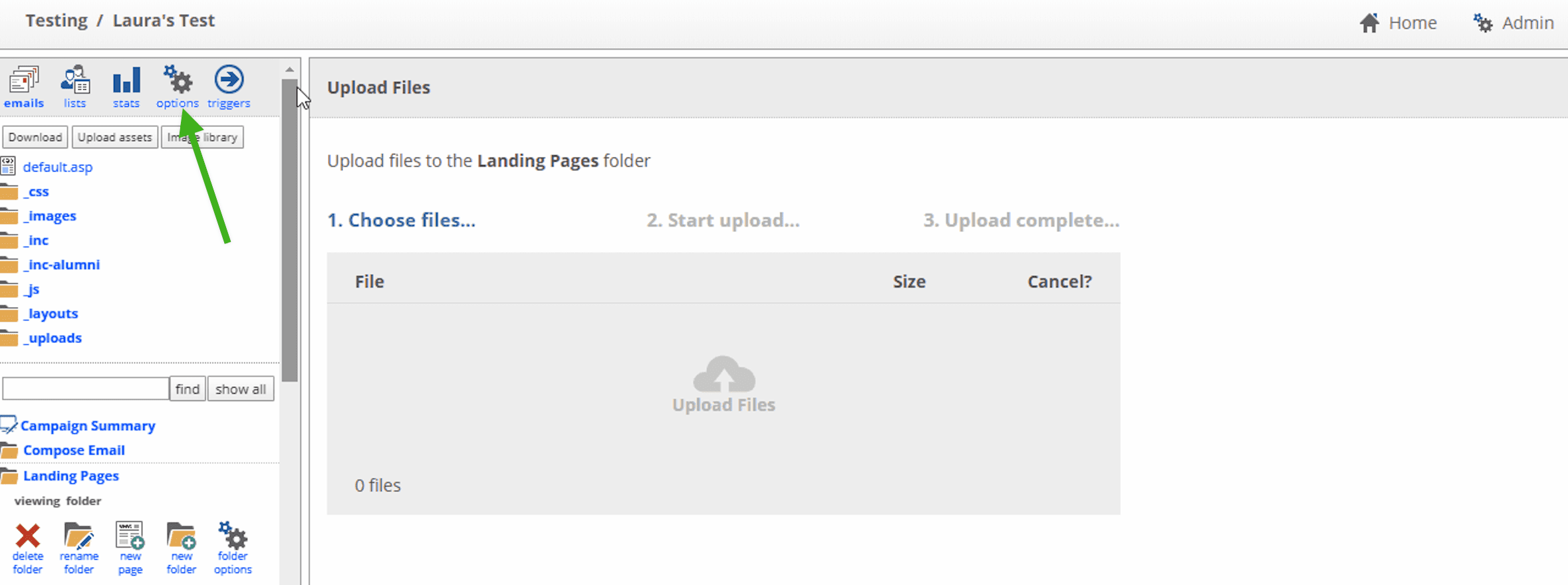
- Click on the options icon
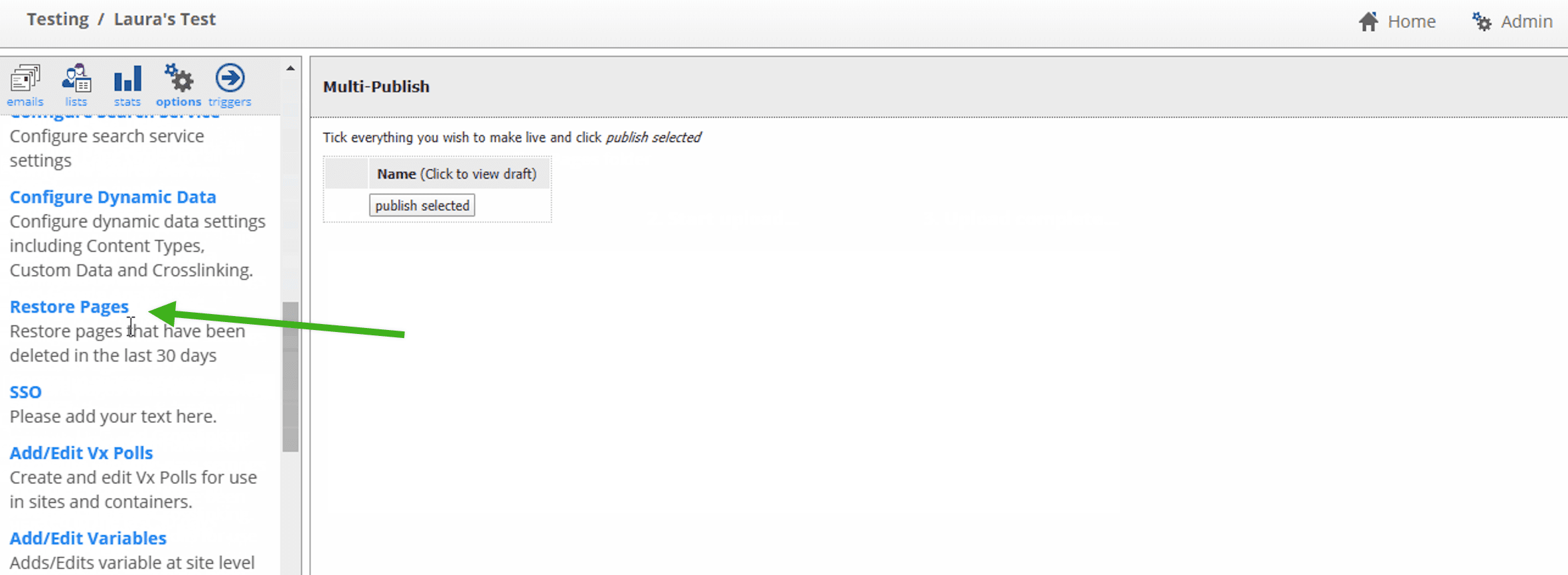
- Scroll down the list in the left sidebar and click on Restore Pages
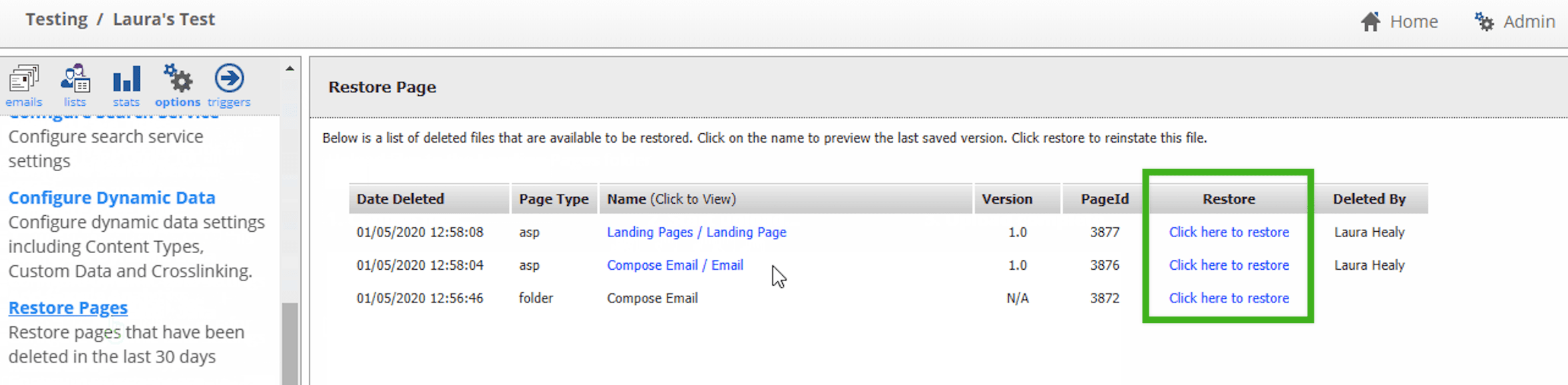
- Locate the landing page or email that you want to restore and click on Click here to restore in the corresponding row
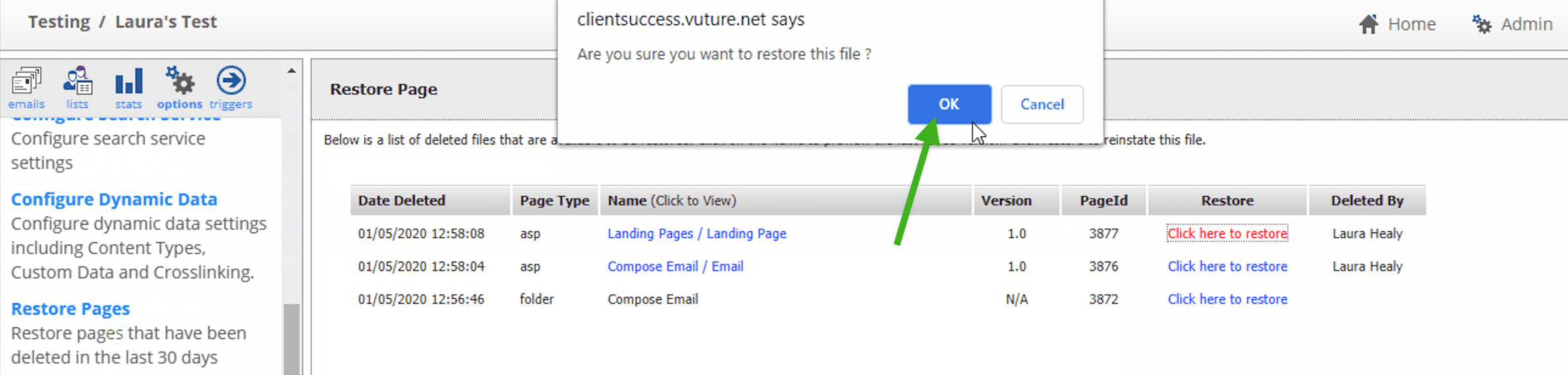
- Two pop-up windows will appear, one after another; click OK in each window
Please note, If you do not see this enabled for your Super Admin role, please contact Vuture Support or your Account Manager to enable this for you under 'Admin.Roles.Admin,Restore Pages'.
I need to update an email that's been sent (i.e. misspelling, wrong text, etc.)
If you've sent an email, then realized you need to change/edit text in the content of that sent email, it is possible to update it.
However, the change will only be seen for any new emails that are sent (i.e. using Send More) or for those who view the existing sent email online. Unfortunately, it is not possible to change the actual email that is received in the recipient's inbox once it has left the Vuture system.
If you've had the Vuture HTML Training, you should be able to edit the HTML of the sent email by clicking on the sent email > 'Email Options' > 'Edit HTML' then 'Save HTML'. If you were to then click on 'View Email' on your sent email, you'll be able to see your change in this 'online version'.
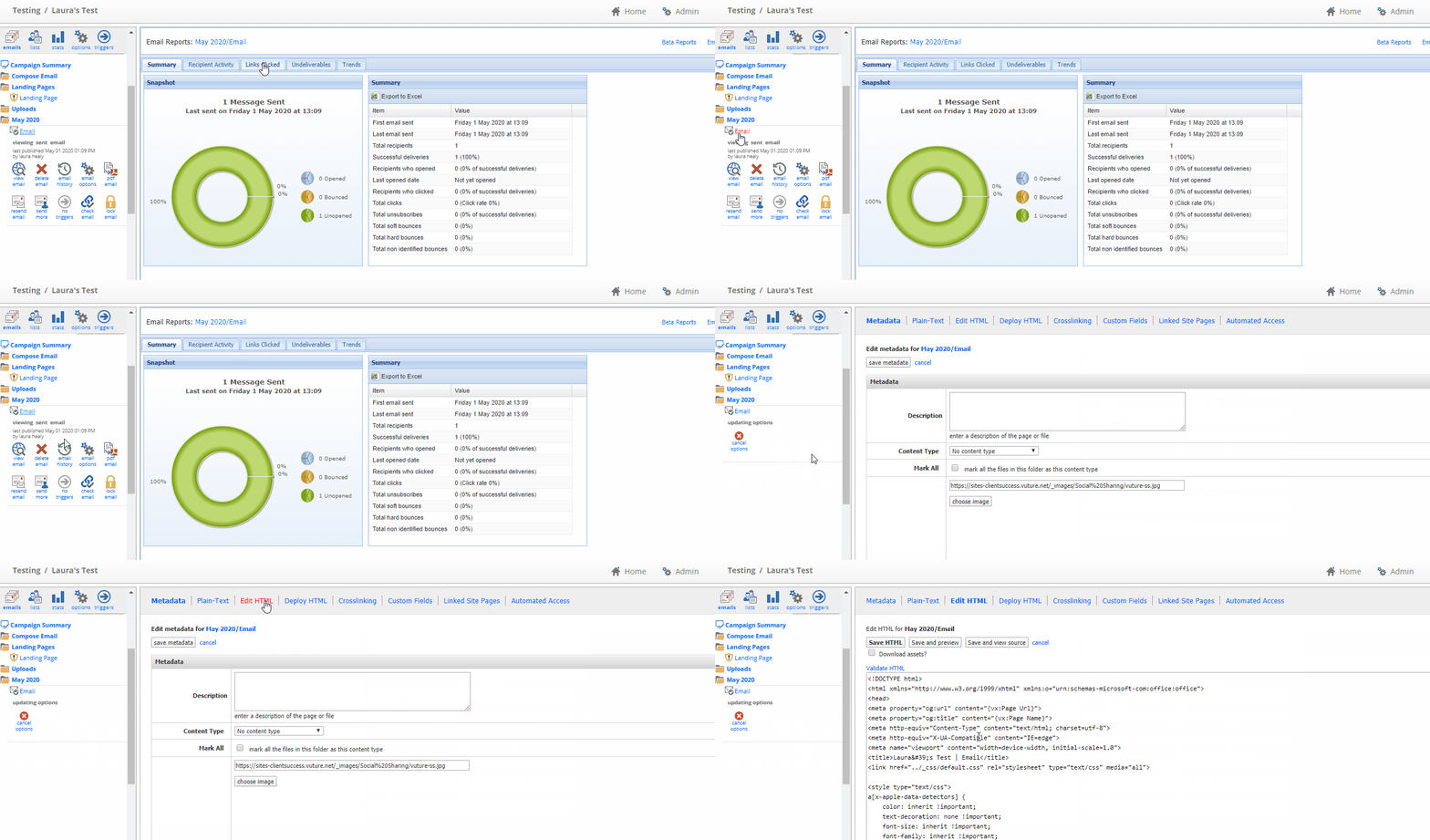
If you have not had the Vuture HTML Training and are therefore not able to edit the HTML yourself, please contact Support with the following information:
- The URL to the Vuture email campaign
- The exact name of the sent email and the sent folder it is located in (i.e. May 2020)
- The current text you wish to be deleted
- The exact text you'd like to replace the current text with
My images are blurry
Sometimes you might find that an image that you upload is blurry or stretched when you add it to certain snippets. There can be multiple reasons for this.
Please review this Help Desk Article on best practice to try to resolve the issue before escalating this to the Support Team.
