Overview
If you have forgotten your password or have been locked out, you may find instructions on how to gain access back to Vuture in this article.
Contents
I forgot my password
If you have forgotten your password you can reset it by:
- Typing your email address in the Email box. Then,
- Click on Forgotten your password? on the login screen.
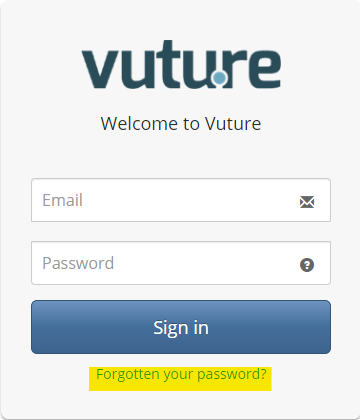
After you've clicked on Forgotten your password?, please follow the below steps.
- You will receive two emails from Vuture, one of which will contain your temporary password.
- Use this temporary password in the password box.
- Next, you will be prompted to update your password to something you can actually remember. See screenshot below of this prompt to "Please update your password".
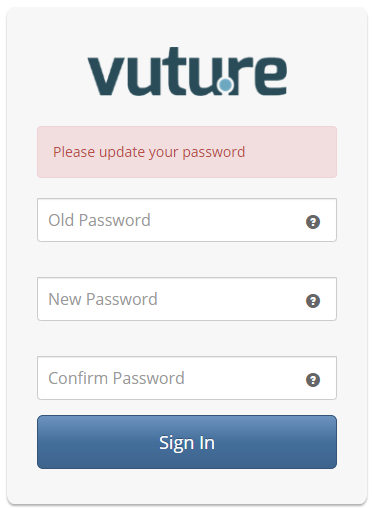
- In the Old Password field, type in the temporary password that you received in the Vuture email.
- Then, in the New Password and Confirm Password fields, type in a memorable password for your new password. Then click 'Sign In'. This will be your password moving forward for accessing Vuture.
Please note: Your company may have policies in place where you cannot use old passwords and may have specific password lengths and character limits.
If you need someone to reset your password for you, please click here.
I am locked out of my account
By default, Vuture allows up to 5 failed login attempts before the account is disabled. You will see a warning when you reach the last failed attempt. Before trying again, we recommend clicking on forgotten your password. Otherwise, you will need to ask your Super Admin to re-enable your account.
If you have typed in your password incorrectly too many times your user account will be disabled. You may see an error message that says, "My account is now locked" or "User account is disabled". You will not be able to reset your password or re-enable your own user account.
NOTE: For security reasons, Vuture employees cannot re-enable your user account. You will need to reach out to one of your Super Admins to action this for you.
Instructions for Super Admin
If you are a Super Admin of a Vuture instance. You can re-enable a user account as follows:
- Go to Admin>Containers and Users
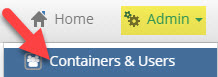
- On the left hand side of the screen, click on the top most level container (the root folder)
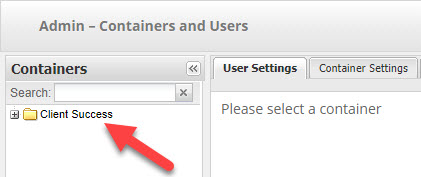
- Type the user's email address in the search bar and tick Show users in sub-containers
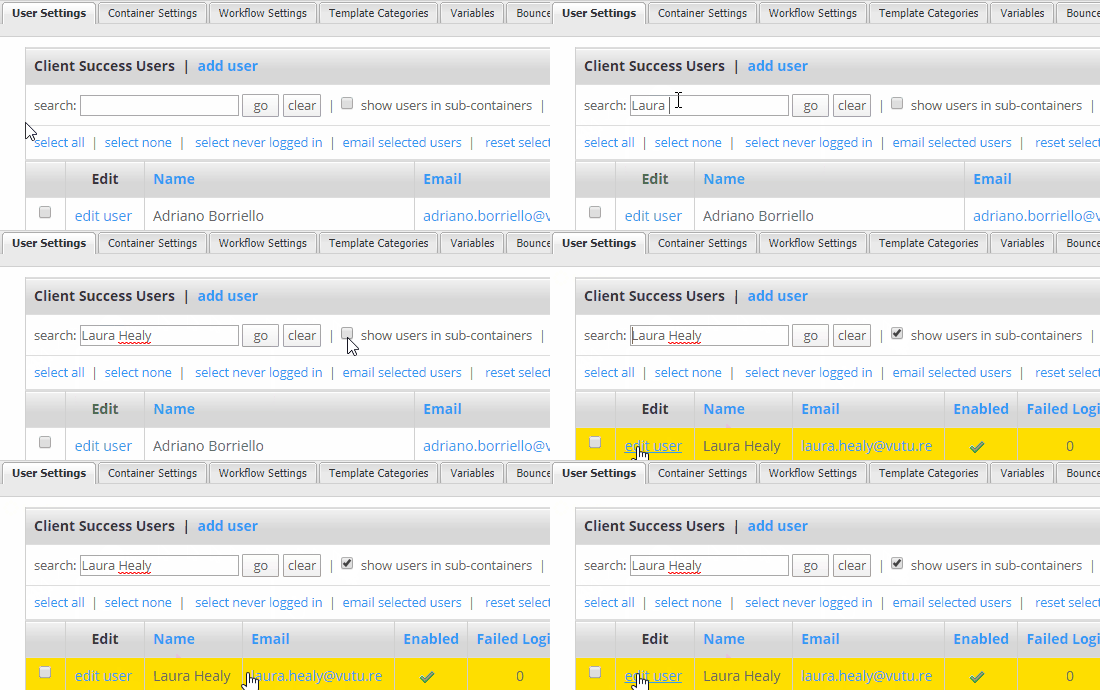
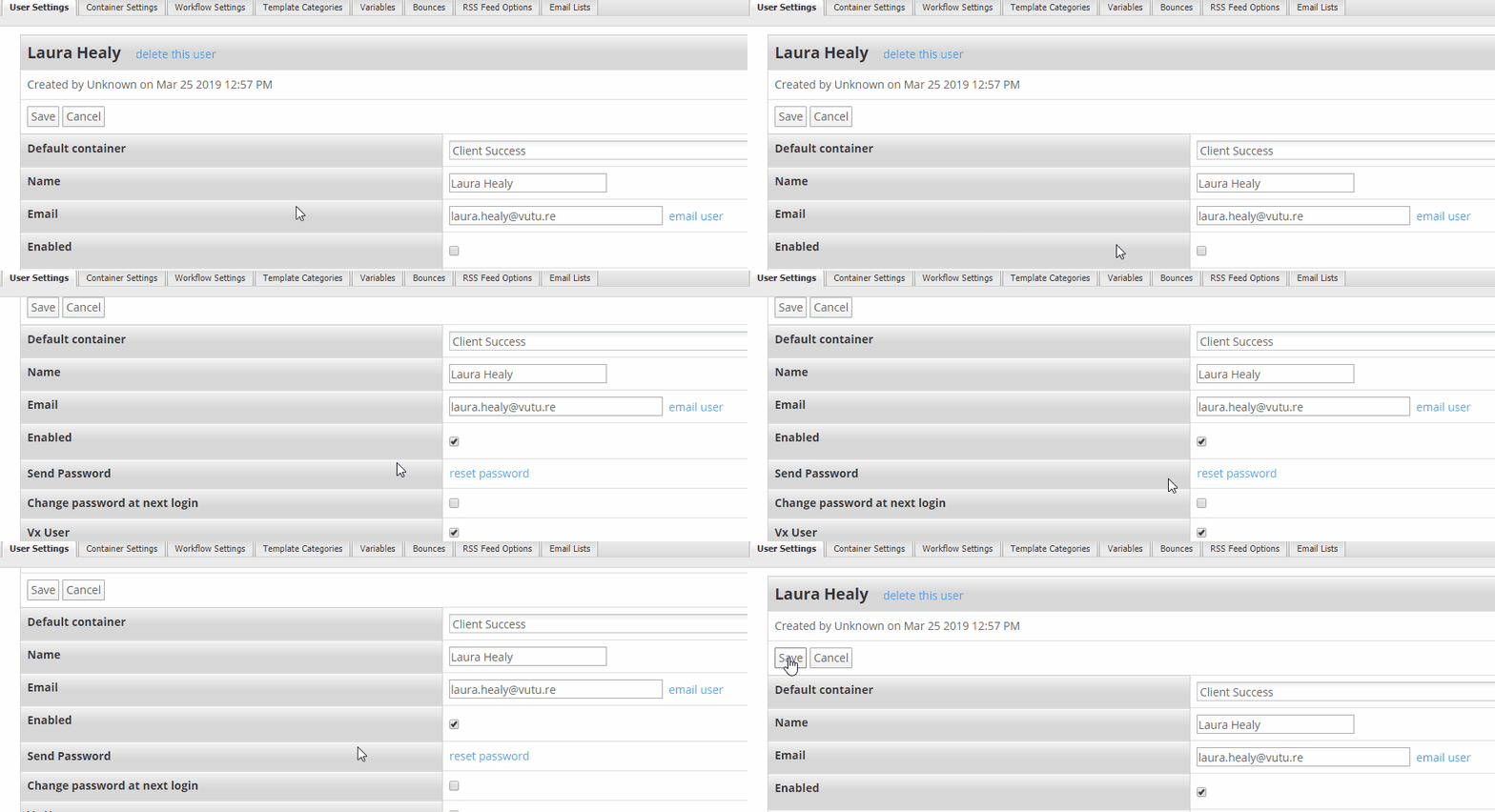
- Click Edit User
- Check off Enabled
- Click Reset Password
- Then click, Save
Future Recommendations
To eliminate needing to ask a Super User to re-enable a user's account in the future, Vuture could enable a setting that allows a user to reset their password, if they disable their account.
This means, that after 5 failed log-in attempts, the user could click on the Forgotten your password? link, receive their temporary password and automatically re-enable their account . Contact Vuture Support, support@vutu.re, or your Account Manager to enable this for you. Vuture Support or your Account Manager will go to Admin>System>Membership>check off Decrement Login Attempts.
Vuture can also change the message that the user sees when they are locked out of their account. We suggest a message such as: "You have locked your account. Please reset your password by clicking on Forgotten your password."
Please let Vuture Support or your Account Manager know that you would like to change this messaging and the exact language you'd like to use. Vuture Support can then change this message via Admin>System>Membership>Custom Login Exception Max Login Exceed Message.
