This article describes the settings required for viewing and managing the Whitelist suppressions.
Prerequisites:
Navigate to Admin.System.Emails:
The checkbox at "Check Whitelist On Send" should be enabled.
Log Suppressed Emails should be enabled.
The following settings are default settings:
Admin > System > Email > DNS Server to check whitelisted domain
Admin > System > Email > Minutes to Reload Email Engagement Data
The following settings relate to how long the contact will remain in the system as ‘Engaged’ and be able to send emails to. Once this expires, they become ‘Not engaged’ and will no longer receive emails if you have the Monitor and Suppress option selected. If they engage with the email, i.e. click a form and submit they will reset. (Default would be 12 months.)
Admin > System > Email > Number of Months to Check for Engagement
Admin > System > Email > Number of Months to add for never engaged white list expiration
Admin > System > Email > Number of Months added for white list expiration on email open
The tool can be made visible to roles through Admin > Roles > Emails > View Email Engagement Whitelist.
To edit the tool Admin > Roles > Emails > Edit Email Engagement Whitelist, needs to be enabled. This will normally be for Vuture Admin or CSMs only
Note: There is an updated configuration available on client instances which will give more clarity to whether or not unengaged contacts are being suppressed from receiving emails via Vuture's Email Whitelist Engagement Tool.
Please note: The default configuration for this (for new clients) is Off.
The "Check Whitelist On Send" drop-down box will be by default set to "Off". However, see the three options below.
There are three options available:
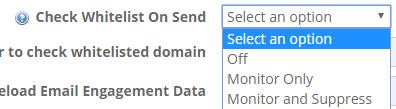
Off - Will send the email to all contacts who are not otherwise suppressed in some other way (for example, who have opted out previously). The Email Send Confirmation email will not contain any extra information:
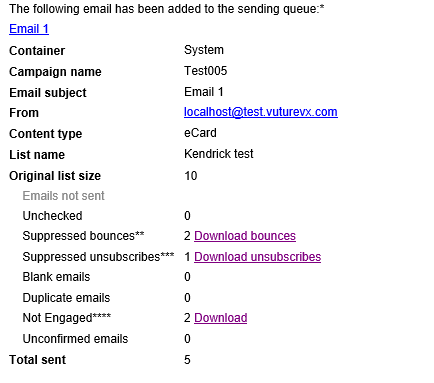
Monitor Only - Will send the email to all contacts (who are not otherwise suppressed), but the Email Send Confirmation email will show a "Not Engaged" row for any not engaged contacts.
At the foot of this email page at **** it will also say "Warning only: They are not being suppressed." There will be a downloadable file listing these contacts.
Monitor and Suppress - Will send the email to the engaged contact only. The Email Send Confirmation email will show the "Not Engaged" row. Next to this row a download button will contain the suppressed contacts.
At the foot of the email on **** at the end of the sentence it will say "They are being suppressed."
Here is an example of the Email Send Confirmation email which the user will receive: