Keywords: Blurry image, blurry images, blurry, fuzzy images, fuzzy image, low resolution.
Overview
Sometimes you might find that an image that you upload is blurry or stretched when you add it to certain snippets. There can be multiple reasons for this. This article contains best practice for using images in your emails and landing pages with Vuture.
New for April 2021: Following client feedback that images were not always appearing at their best, particularly on Apple devices, we have added a new setting to our solution. This setting will force the cropped image to be twice the size of the placeholder, so that it scales down more efficiently on the screen of the end user. The setting is found in Admin.System.Image library.High Res Scale Factor (recommended setting: 2) Ask your Client Success Manager to set this for you.
Note: To see any improvement in the image appearance, you need to ensure that the original image you upload is at least twice the size of the placeholder in the snippet.
Contents
Double the size of the image snippet dimensions
Upload your image into Vuture double the size of the image snippet dimensions. Images best compress and shrink down by half, so that there is no loss in resolution.
Please note, the original image should be much larger than the image snippet dimensions. This way you are decreasing the original image size to double the size of the image snippet. You would not want to increase the size of the original image to double the size of the image snippet as this will only stretch the original image.
For example, if your image snippet is 660px wide and 260px tall, then you would want to upload your image at 1320px wide and 520px tall.
How to find the image snippet dimensions (i.e. 660px wide and 260px):
Navigate to the image snippet you wish to upload a new image to. Click on the image.
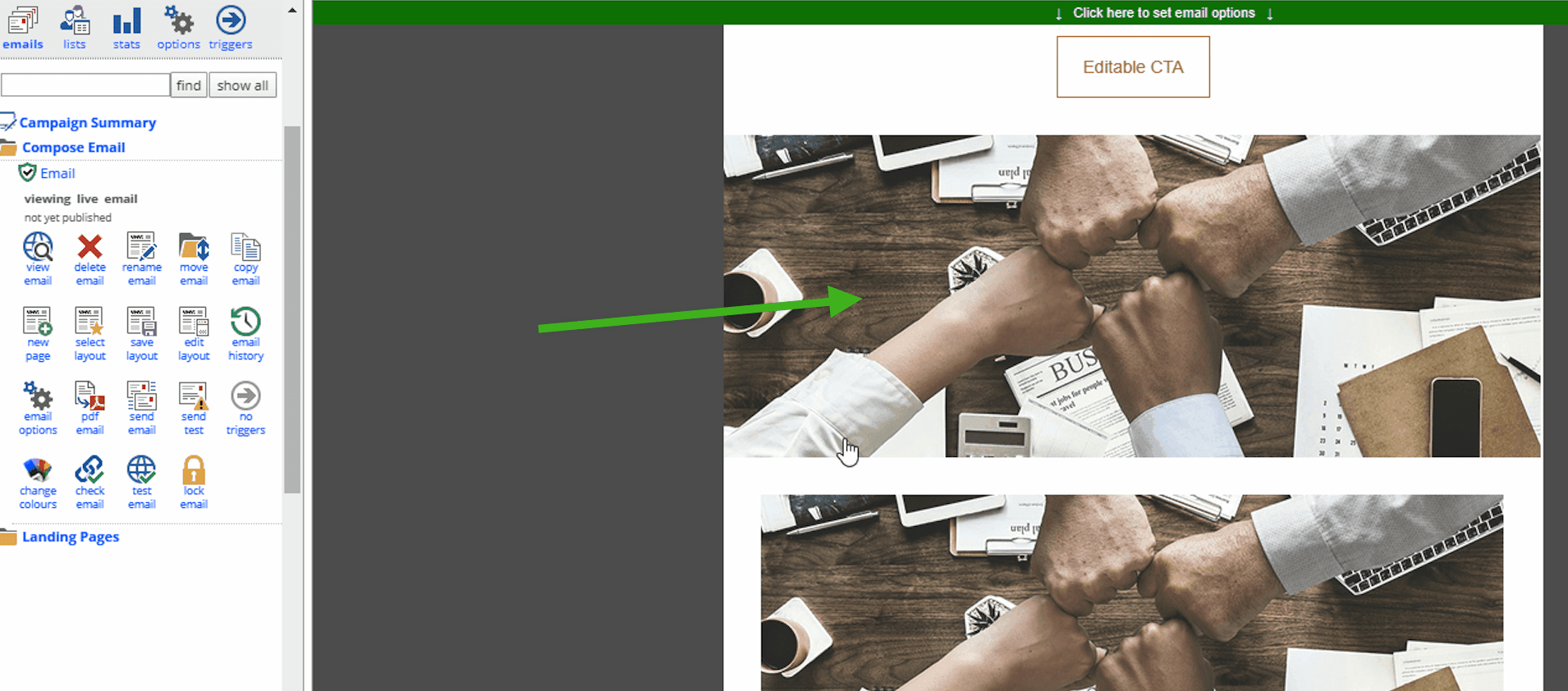
You will then see the exact dimensions that this current image is within the snippet. You'll want to double the width and height of the image you wish to upload.
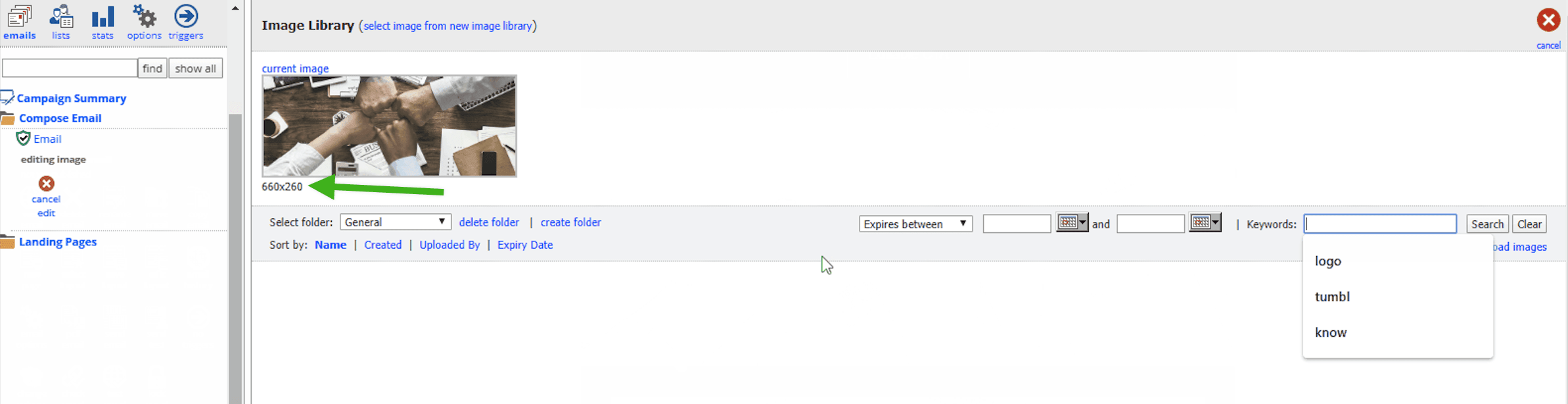
Uploading the image at double the size of the image snippet (1320px wide and 520px tall):
Upload the new image (at double the size of the image snippet) and watch it scale down to the image snippet's dimensions without losing any resolution.
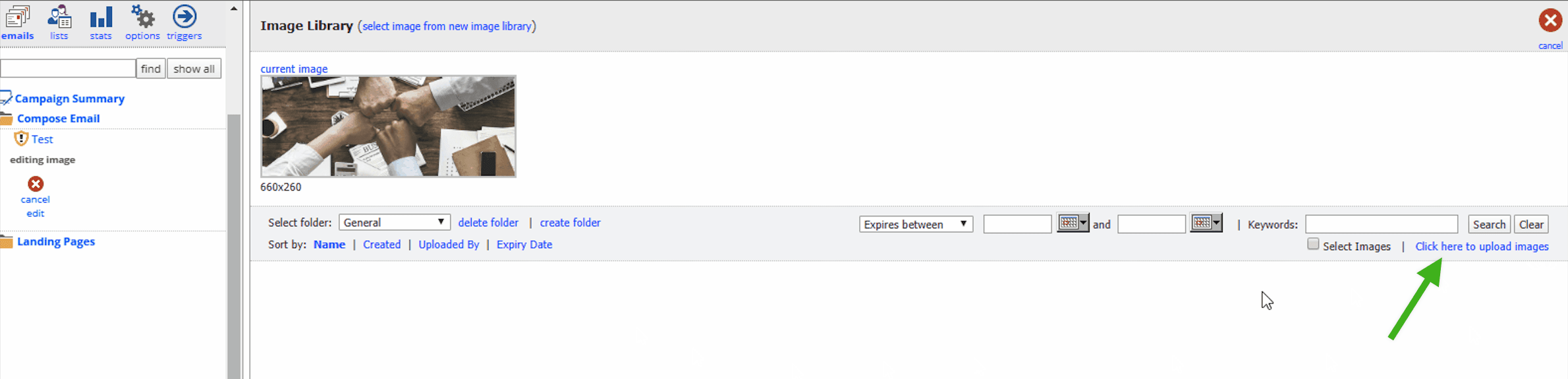
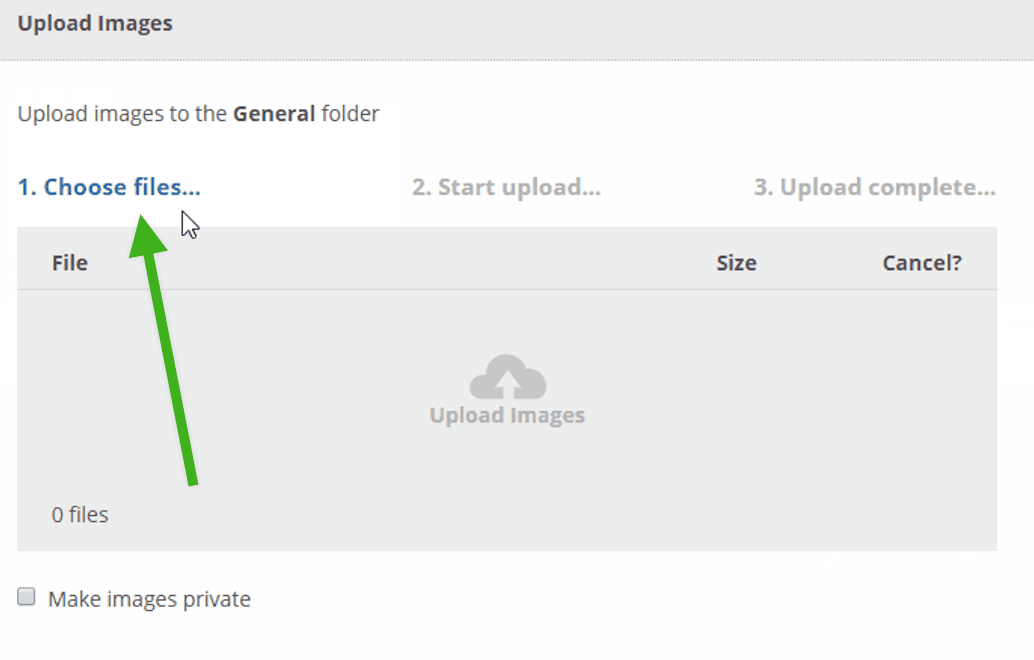
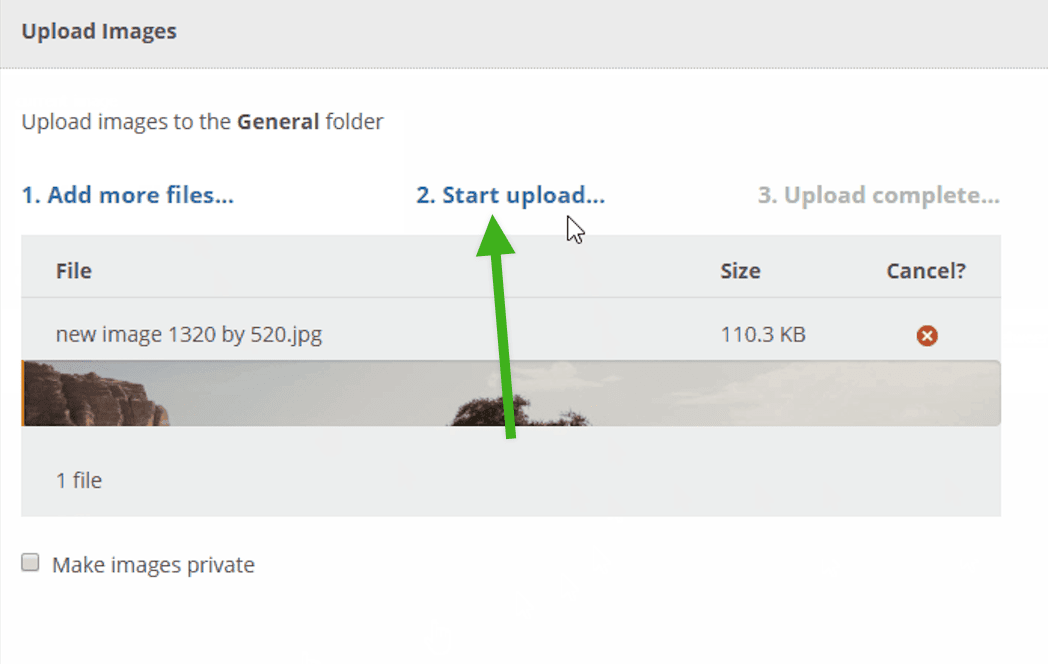
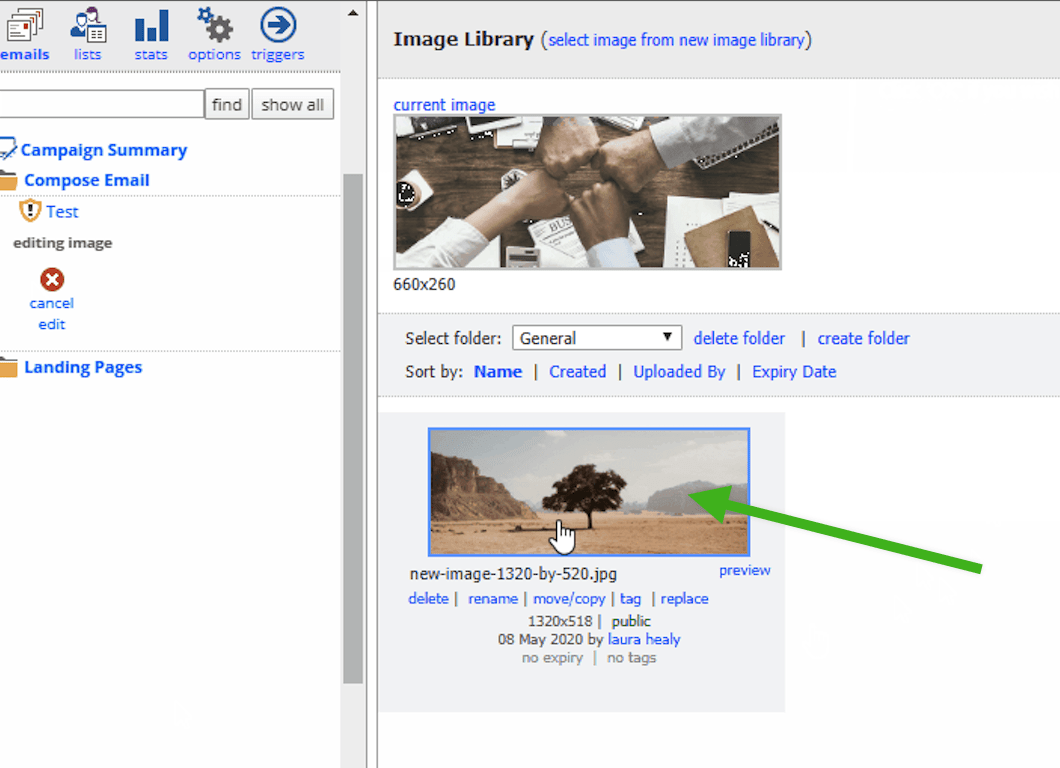
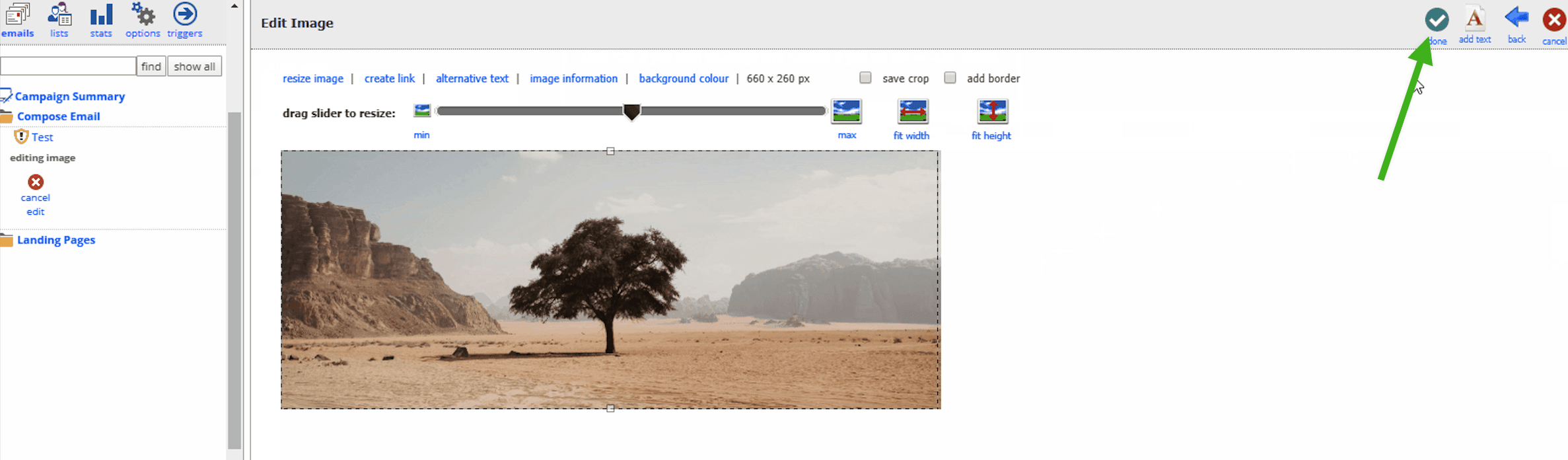
You may then View Page to see it in the browser and send a sample as part of your testing.
Use a Vuture setting to help improve quality
If you find that images are still not appearing as expected, you can ask your Customer Success Manager to add a setting to force the cropped image to be twice the size of the placeholder (unless the original image is less than twice the size of the placeholder) so it scales down more efficiently on the screen of the end user. The setting is found in Admin.System.Image library.High Res Scale Factor (recommended setting: 2)
Do not continually edit the same image
If you upload/edit your image in Vuture, then continue to edit this same image (i.e. re-cropping again and again), it will lose resolution each time. This is because Vuture is continually compressing this image every time it is re-cropped.
It is best practice to upload the image at double the size of the image snippet, rather than continuously crop the image within Vuture's Image Editor.
Avoid using text in images
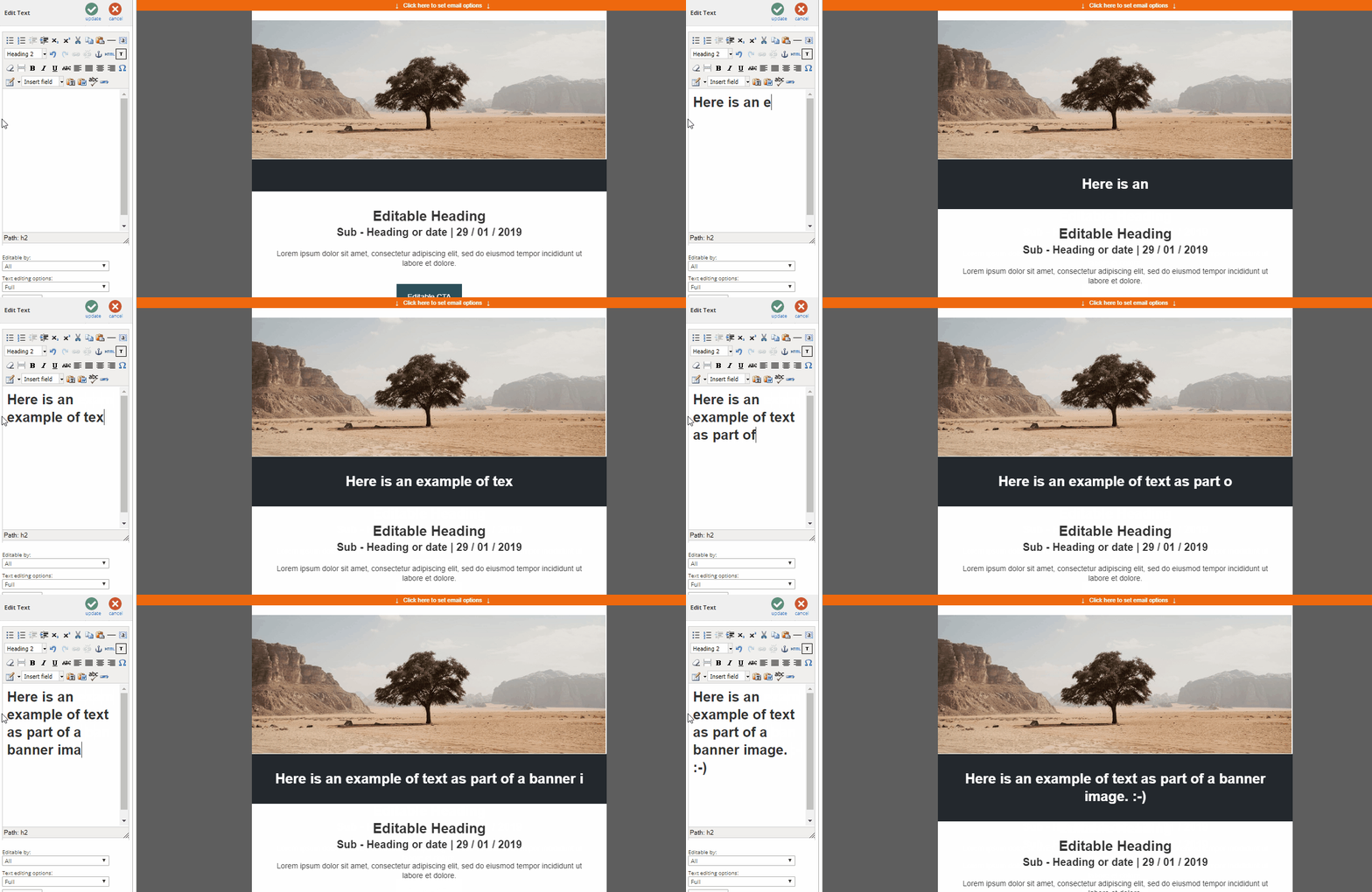
It is not considered best practice to use text in your images. Not only can this lead to poor text quality within the image, making it difficult to read, but you are then relying on someone to download the images of the email to see this text.
Best practice is to have our Front End team create a snippet for you that uses a background color and allows you to type text directly into it (see example below). We may also be able to make the text look like its part of the image using a combination of image and background color. Speak to your Account Manager to explore your options.
Use JPEG if converting an email to PDF
If you are using Vuture's PDF generator, we recommend only using JPEGs to avoid any image blurriness during the conversion process.
Image Sharpening Feature
There is a setting which affects how we process images, making them sharper when using high resolution images and resizing them to a smaller image. This is a system wide setting, which sits under Admin->System->Image Library->Image Sharpening.
There are no prerequisites for this setting. It is enabled on your system by default and set to a default value which we think gives the best sharpness of images.
300DPI is considered the best resolution. However, Image Sharpening at 100DPI is also acceptable since Vuture crops new images.
