Overview
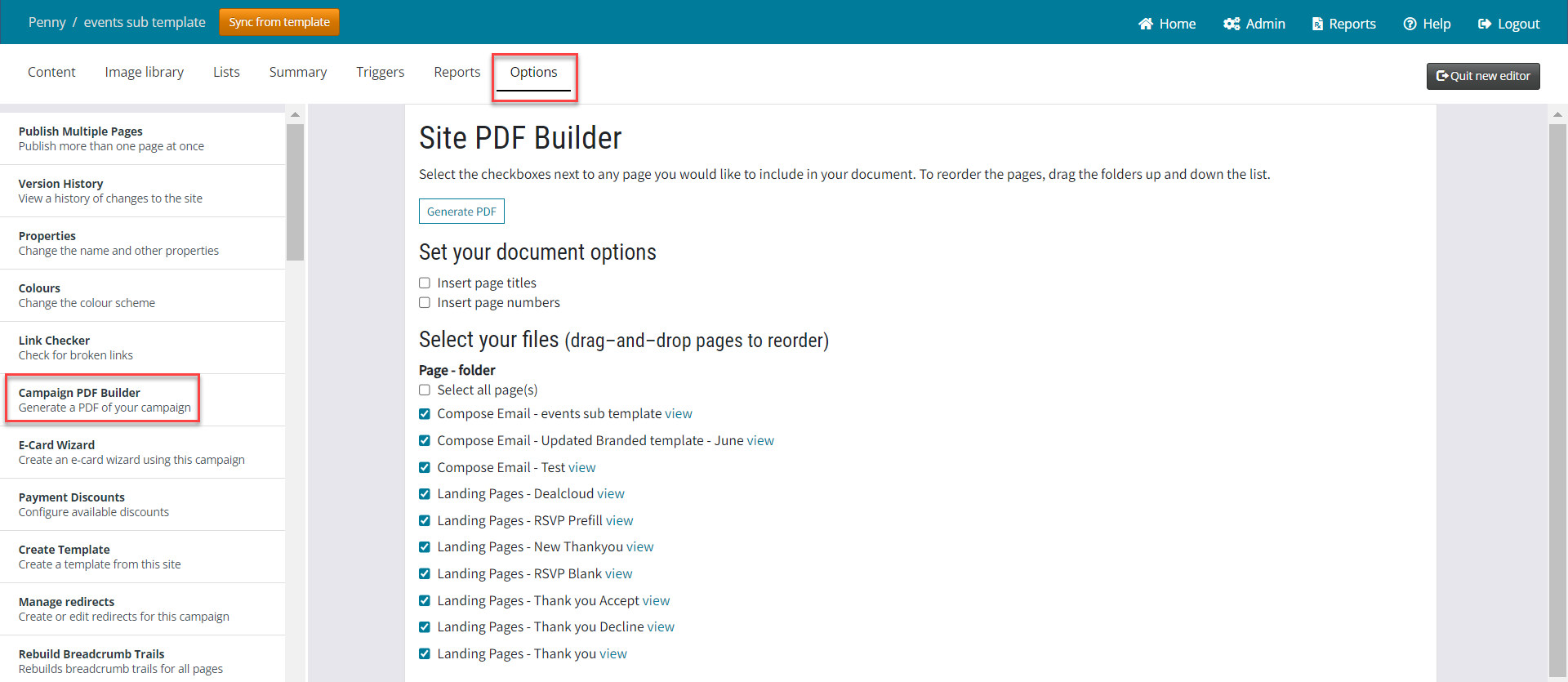
Any email or landing page in the system can be generated as a PDF; or you can choose to generate a PDF of your entire Campaign by clicking on Options and then Campaign PDF Builder:
Contents
How to enable the PDF generator
This functionality will need to be enabled by your Vuture Administrator at "Admin.System.General.PDF this page"
Once enabled you can choose which roles have this functionality available by enabling the feature in Roles: "Admin.Roles.Email Campaigns.Convert to PDF"
Use the PDF generator for a single page or email
Please note: Videos are not supported by the PDF generator.
The PDF generator adds a "pdf email" or "pdf page" button under More Options, that you can click on to generate a PDF version of the email or page.
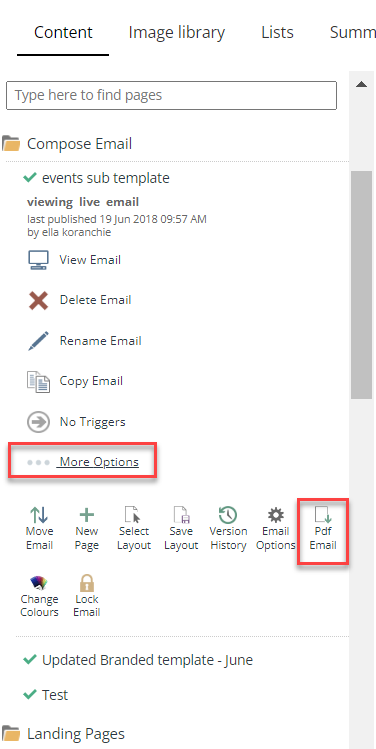
Note: Each PDF has a URL that you can link to if you want to send a link to a PDF version of the page. This URL is available by hovering over the pdf button, right clicking and copying the link address. This URL will generate the latest published version of the page.
PDF all the pages in a folder
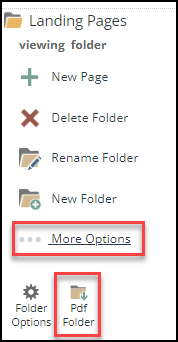
You can also PDF all the pages in a folder by selecting the folder and clicking More Options and then the Pdf Folder button.
PDF Zoom Factor
The PDF will open at 100% zoom by default. Your Customer Success Manager can adjust this system-wide using the setting "Admin.System.General.PDF zoom level" Enter a percentage zoom value as a number without the percentage (%) sign, e.g. 50 or 200.
Default PDF Size
You can set the default page size for PDF generation. The options are A4 or Letter and your Customer Success Manager can change this setting at "Admin.System.General.PDF Default Size"
PDF Inset
You can choose whether or not the generated PDF has its content inset, i.e. has spacing around it.
The default is 0,0 which generates the PDF full page with no inset.
Your Customer Success Manager can change this setting at "Admin.System.General.Pdf Insets" by entering the insert width and height in pixels. For example 20,50 will generate all PDFs with a 20px inset width and 50px inset height, i.e. a 20 pixel inset border at each side and 50 pixel inset border at the top and bottom.
PDF Page Breaks
By default PDFs that are larger than a page will be be generated with page breaks.
This can be over-ridden so that all PDFs are generated as a single continuous page with no page breaks. Your Customer Success Manager can enable this by ticking "Admin.System.General.PDF Exclude Page Break"
Transparent PNGS
Please note that if you use transparent PNGs in your templates you may find that they do not render well in the PDF generator. In this case we recommend replacing these with JPGs and matching coloured backgrounds.
Please contact our support team if you need assistance or advice with this.
