An introduction to Form Logic; what is Form Logic and how to use it. This article applies to users of all crm integrations and none, and contains links to Form Logic instructions for limiting form submissions and links to using Form Logic with various crm integrations.
Overview
New for 2023 - Form Logic Wizard will write your conditional statements for you. You can continue to write the logic statements yourself if you wish, or see here for how to use the Wizard.
New for 2022 - Form Logic Now Available on the Submit Button. See below for how to do this.
New for 2021 - It is now possible to use Copy and Paste, instead of Inspect, to discover and use the underlying values of the fields you need to create a Conditional Rule. See below, under the "More advanced" section of this article.
To learn more about how to use Form Logic with your CRM or with Vuture Standalone, please first review this article in full, then click here.
Contents
Form Logic allows you to transform a basic Vuture form into an interactive form. This is done by using conditional rules to tell the Vuture form how to behave, once a contact engages with it.
For example, at a very basic level, you can use Form Logic to hide or show later fields based on someone's response to an earlier form field or question.
What are a few common use cases of Form Logic?
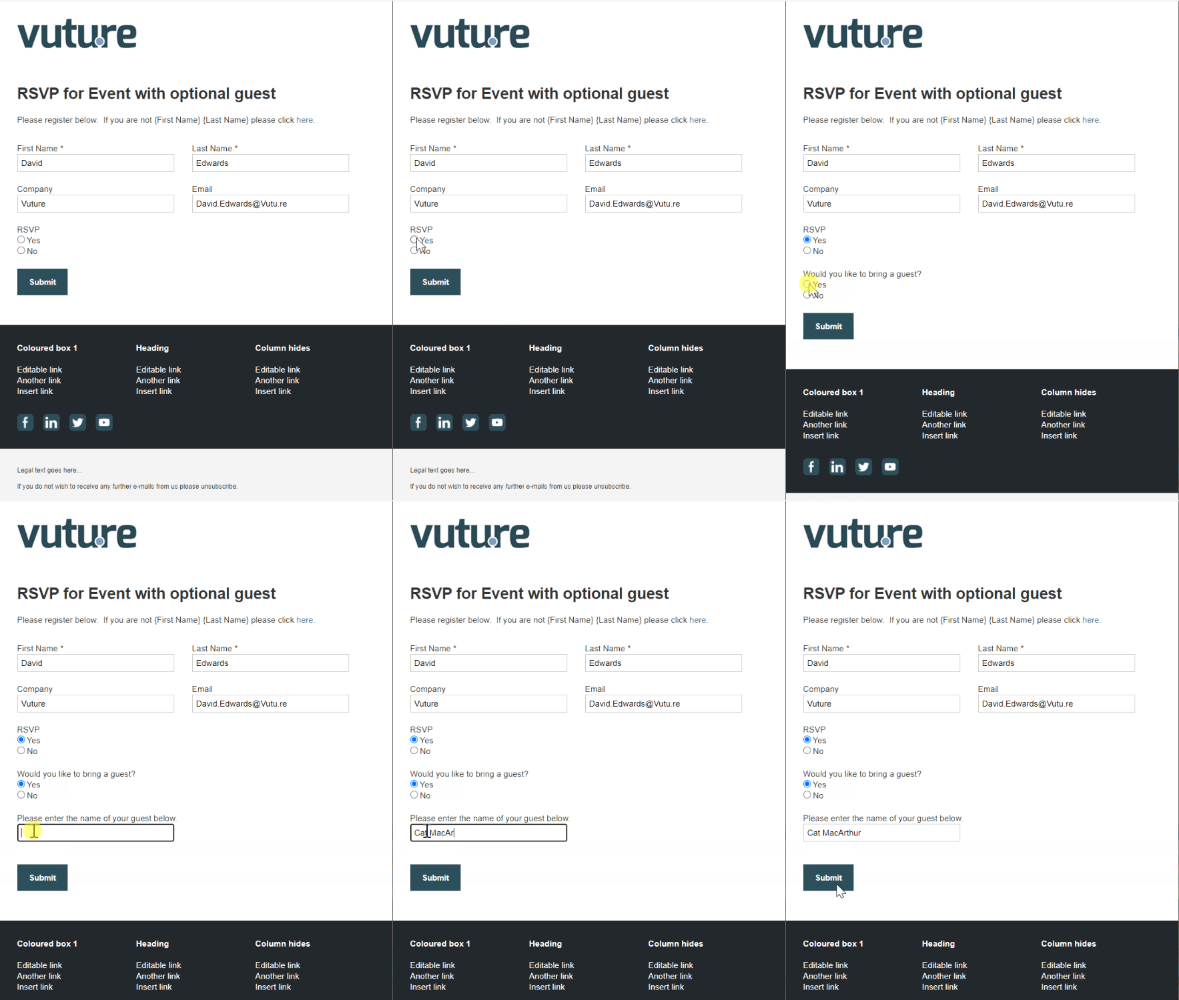
Use Case #1 - Asking a follow up question if someone RSVPs Yes
In this example, you can use Form Logic to show the 'Would you like to bring a guest?' field, when someone RSVPs yes on the form. If the contact's answer is yes, it will then display a text box to type in the guest's name.
If someone were to RSVP No, then no additional fields would be displayed and the contact would simply submit the form.
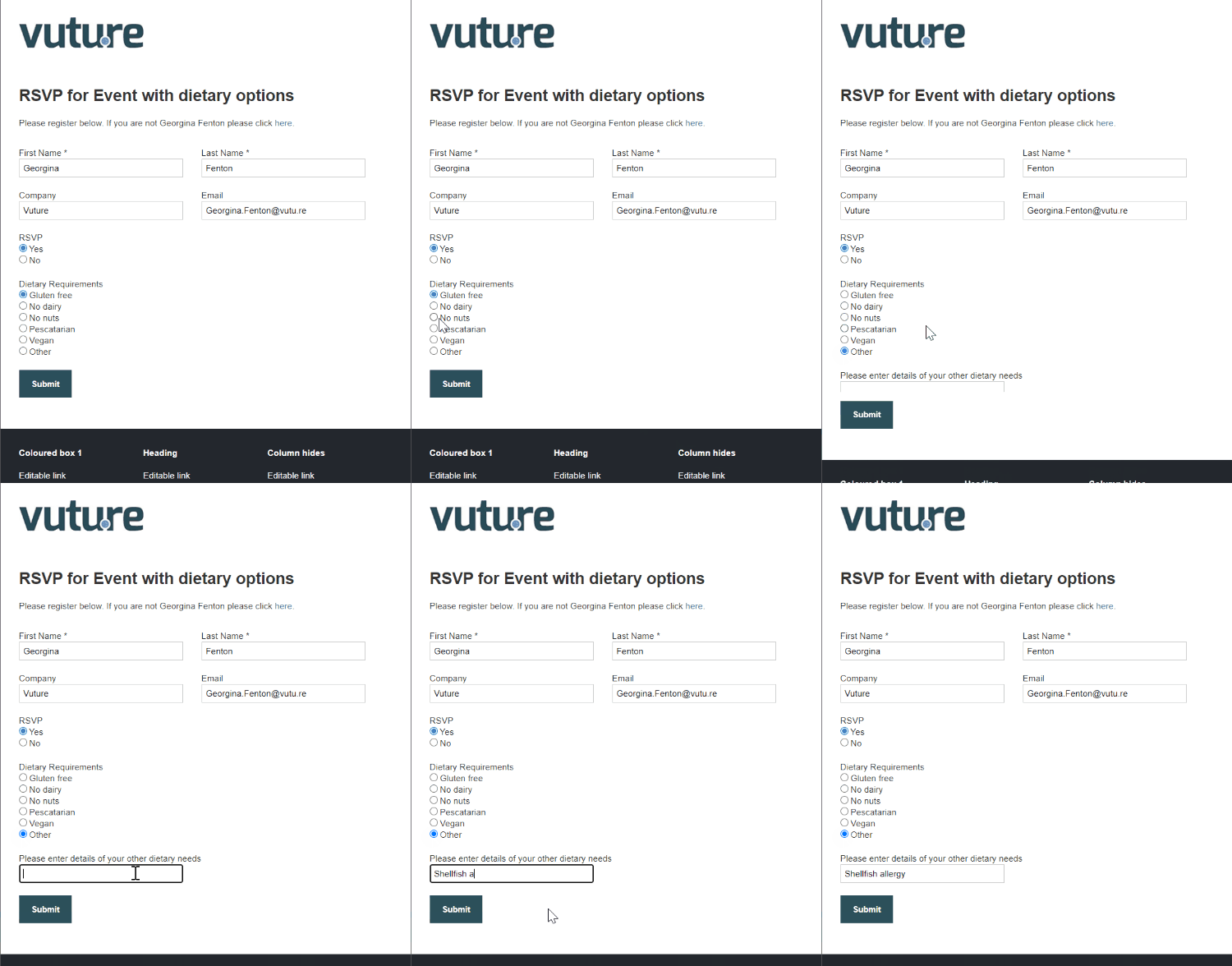
Use Case #2 - Asking for further, dietary requirement information
Similar to Use Case #1, this example uses Form Logic to hide or show fields. The additional text field is only displayed if someone chooses 'Other' for the Dietary Requirements field.
Use Case #3 - Capping an event when the registration capacity is reached
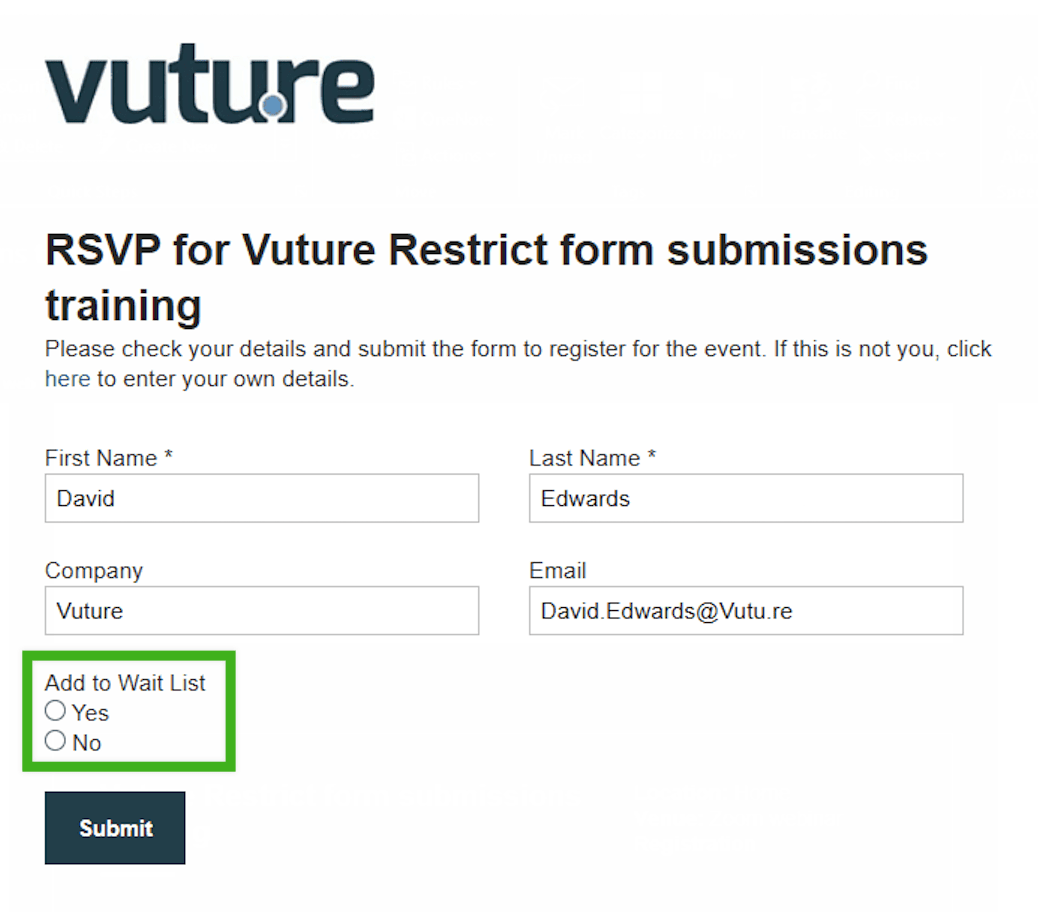
In this use case, you can use Form Logic to set a limit on how many people can register to an event. Once the limit is reached, the RSVP field will be hidden and an "Add to Wait List" field can be displayed instead. Review the below examples to see the different options for capping an event.
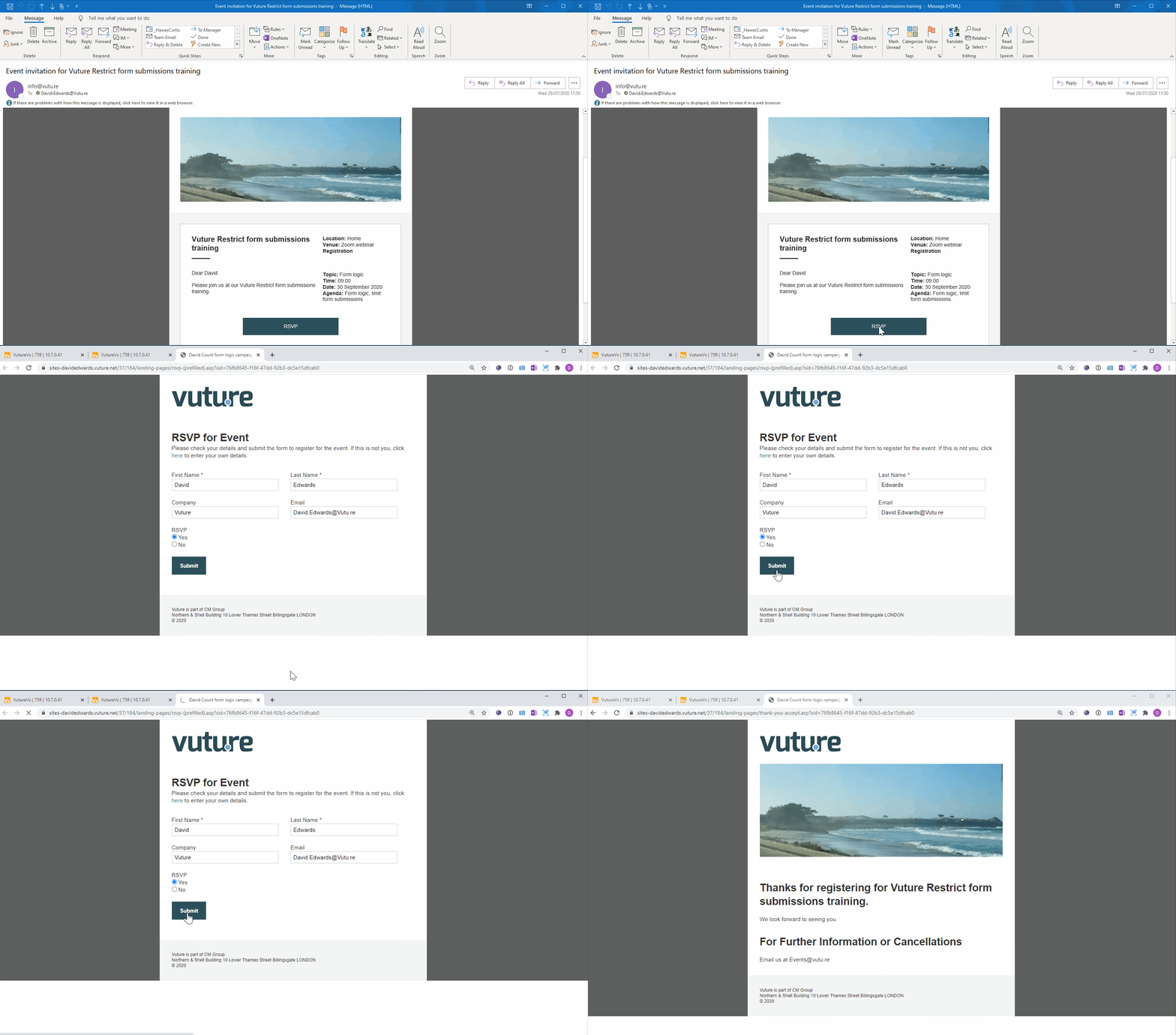
Normal RSVP Example
Below is an example of the normal RSVP Process without Form Logic. All fields are visible and you can simply submit the form to RSVP.
Hiding the RSVP field Example
In the second example, Form Logic is applied so that the RSVP field has a Count formula. This means that the RSVP field remains visible until the limit of registrants is reached. You will see in the below GIF that the RSVP Field is no longer displayed since the limit has been reached.
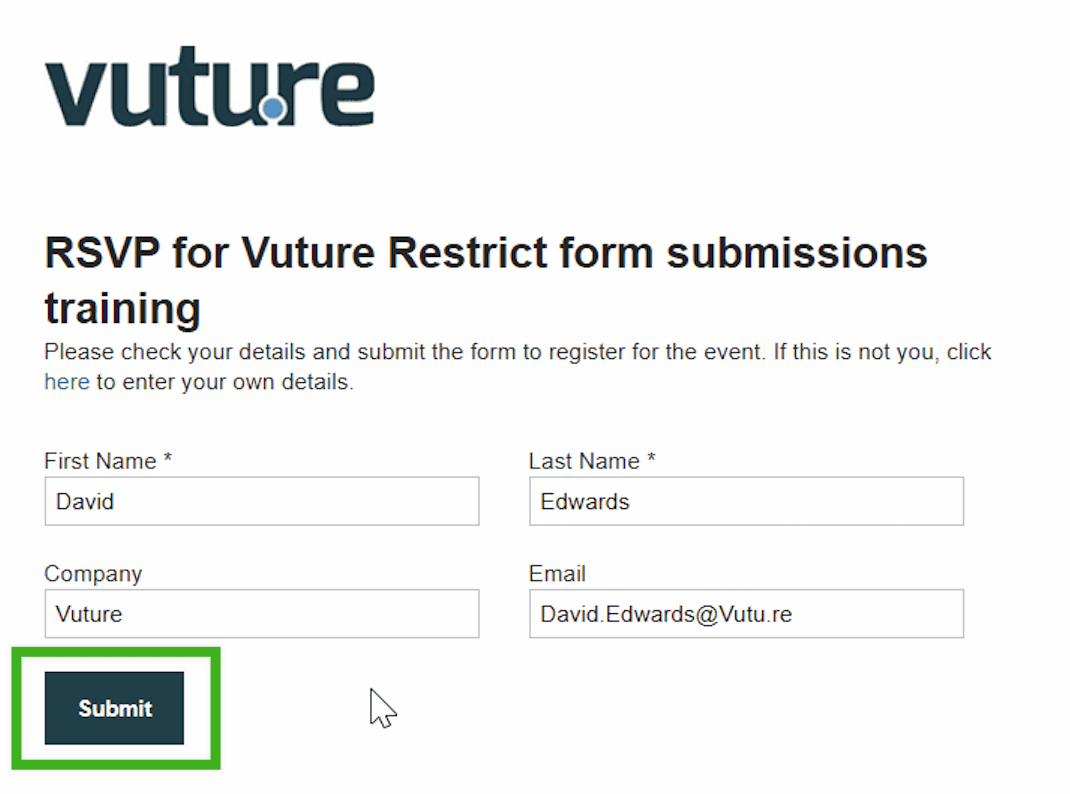
Displaying the Add to waiting list field
This last example, uses Form Logic so that the RSVP field is hidden once the capacity is reached and the Wait list option is displayed.
Requirements to enable Form Logic
You will need to ask your Account Manager to enable the following on your system:
- Have Forms v2 enabled in your system via "Admin.System.Versions.FormEditorVersion2" and for your role;
- Have "Admin.System.Forms.Force validation script" enabled to see the Conditional Rule boxes in the Form Editor.
Please contact your Client Success Manager if you're unsure about your current settings.
Your browser can be Chrome, Firefox or IE. If you use Internet Explorer, ensure that it is version 9.0 or higher.
How To Guides for each CRM and Standalone (Vx Lists or Contacts Module)
Please click through to the Form Logic guide for your CRM or for Vuture Standalone:
Recommended: An Explanation of how the Form Logic Count Formula is used to Limit registrations
More advanced:
Using Copy and Paste instead of Inspect
We wanted to make it easier for users to create Form Logic statements or Conditional Rules. Now, instead of using "Inspect" to study the underlying html of the form, there is an option to Copy and Paste the value of fields into the Conditional Rule statement.
When you use the Copy option, Vuture will find and copy the hidden Value of the field to the clipboard. From there, you can paste it into your Conditional Rule.
The Copy option is under the pages icon, next to each field:

Please note, it is the "hidden value" that the feature is copying. This is not necessarily the same as the words that the client will see.
2. Operators to creating conditional rules
To use Form Logic, you'll need to enter in conditional rules to tell the Vuture form how to behave once someone engages with it.
For example, to show a hidden field, you do this by adding a Condition to the field you want your contacts to see. The Condition ensures that they will only see that field if they respond in a specified way to the previous question.
To build these conditional rules, you will need to use Operators. Below is a table of each operator you can use and some examples of how that operator might work with Form Logic.
| Operator | Meaning | Examples |
| == | Equal to | When a field is equal to this value, show the field on a form. If the RSVP is Yes, show this secondary field. |
| != | Not equal to | Show a field if the value is not equal to those values that are specified. For example, show a follow up question for those who do not select USA or UK on a Country field. |
| < | Less than | Keep a field visible if the number of a field value is fewer than the specified number. For example, keep displaying the RSVP Field for up to 29 registrants, where the capacity must be below a specific number (30). |
| <= | Less than or equal to |
Keep a field visible if the number of a field value is fewer than or exactly equal to the specified number.
For example, display the RSVP Field for up to 30 registrants, where the capacity can be up to and including a specific number (30).
|
| > | Greater than |
Keep a field hidden until the number exceeds the maximum capacity of 29 registrants.
For example, keep the Waiting List field hidden until the maximum capacity (which must be below a specified number) has been exceeded.
|
| >= | Greater or equal to | Keep this field hidden until the number of a field value is equal to or greater than the specified number. Hide the Wait list Field until 30 RSVPs are submitted. |
| || | Or, to work with either of several conditions | Show a field if a field value is this X, or that Y. For example, show a Consent field if the Country field is USA or UK. |
| && | And, to link 2 conditions | Show a third field, if the contact answers with the specified values of the two fields. For example, if someone chooses USA as the Country Field, display the Consent Field, then display a second field of Frequency of mailing, if the contact chooses 'Quarterly', then display the third field. This third field is only displayed if the contact responded with USA and Quarterly. See video for full explanation. |
IMPORTANT: "Less than" operators are usually used to keep a field visible until the threshold is matched, "greater than" operators are usually used to hide a field until the threshold is matched.
When using greater than or equal to >=, or less than or equal to <=, the equal to operator MUST come after the less than or greater than sign. So => and =< will not work.
We have added the capability for users to apply form logic to the submit button on a form. This means you could hide the submit button if, for example, the capacity has been reached for an event. Alternatively, if the contact’s responses lead to the conclusion that they should not submit the form, you could hide the submit button and replace with a cancel message.
Method - The way to add form logic to hide or display the Submit button is exactly the same as for any field on the form. For example, if the capacity for an event is 40 attendees, you could put the following into the Conditional Rule for the Submit field: { Count: ‘all', Instance: {'0'}, ListId: {'Vx List Id'}, Field: {'Field Name'}, Value: {'Value'} } <40 replacing all the terms in ‘quotes’ with your own firm’s values.
Form Logic Wizard
The Form Logic Wizard removes any requirement for you to write your own conditional statements; or to find your own field IDs or value IDs.
Click here to see a full description of how to use the Form Logic Wizard.
Troubleshooting and FAQs
If your conditions are not being met in the form (for example, the secondary field is not hidden when it should be), you could have made one of the following common mistakes:
- Case Sensitivity: Variables and function names are case sensitive. Please make sure you have added the correct name and/or field IDs and used the correct case
- Mismatching quotes, parenthesis and curly brackets: Make sure any statement which opens with a parenthesis, ends with a closing parenthesis
- Use the correct assignment operator. For example: '= >' is not the same as '> =' The first of these two examples is incorrect and will break the condition and consequently the form. See the table above for guidance
- Extra commas, semicolons or other punctuation characters: Every character has an interpretation in Javascript, any unnecessary additions will modify your condition
- Do not use inverted commas ( ’ ). Use single quotation marks ( ' ) in your condition. Make sure the mark is straight and isn't tilted or curvy in any way.
- Do not use special characters in crm field names. Special characters are "!"#$%&'()*+,-./:;<=>?@[\]^_`{|}~"
- If you are trying to do an IS NOT on a checkbox, then you will first need to find the value ID in the html. When checkboxes are being used, you should not use formField == 'that'. Instead you need to take the html ID of the field and use #accept in the Conditional Rule box (for example, where you are checking for the fact that the Accept check box has been selected). To check that the Accept checkbox has not been selected, you would put !#accept in the Conditional Rule box.
Note that it is not always possible to use the name of the field (unless they happen to be the same), it has to be the ID - you can find this by doing the following steps:
FAQs
Q. Is limit form submissions only available for RSVP fields?
A. No, this can be used on any field, including custom fields.
Q. Can you take a contact's guests into account when using form logic to limit submissions?
A. Unfortunately, there is no way to include guests in the count when using form logic.
These guests would need to register themselves for the event using a blank form; or the firm could submit the form on the guest's behalf. They would then be added to the count.
Q. Can we automatically pre-fill a response for a contact, based on their previous selection, without using Form Logic?
A. No this is not possible. Currently, the only way to display further fields based on a previous response is by using Form Logic.
Q. Can we implement a scenario where if an end user enters an email address that has previously unsubscribed into a form, a message appears notifying them they've previously unsubscribed and ask if they would like to resubscribe?
A. No, as this allows potential bad actors to scrape email addresses by seeing if an email address belonging to a competitor or colleague reside in your CRM - this is a potential data breach.
