Overview
This feature applies to all CRMs with which we integrate, and Standalone.
Once you have clicked Send on an email you can Pause or Cancel the send to stop any emails that have not yet been sent.
Contents
There are two ways you could Cancel the send, depending on whether it is an immediate send or a scheduled send:
Prerequisites
You will need to have this feature enabled for your role and also in the configuration, by your Customer Success Manager or Vuture Support.
Admin>Roles>Emails>Pause / Resume Mailings
Admin>Roles>Emails>Send Status
Also enable the configuration:
Admin>System>Emails>Show a live send status
Timings
Time Taken to Cancel a Send
We have reduced the time taken to cancel a send to a matter of seconds. For example, a send to 10,000 contacts can be cancelled at the point of sending and it will now take approximately 10 seconds to cancel the entire send. If you cancel a send, any emails that have not yet been delivered will be cancelled and removed from the email queue.
Please note: You will see the green progress bar only once you've clicked on Send and if the mailing list is very small it may flash up and then disappear so quickly that you do not get the opportunity to click on Pause or Cancel.
Time Taken to Cancel a Scheduled Send
There is not an exact timing recommendation for a cancelled send because it depends on so many other factors, but since a scheduled send puts all emails into the queue, there must be enough time to remove all emails from the queue before the send begins. As a guide, if it is a scheduled send to 10,000 contacts, the send should be cancelled at least 10 minutes prior to the scheduled time.
If you are sending immediately you can Pause or Cancel the send whilst it is in progress.
Please note: You will see the below progress bar only once you've clicked on Send and if the mailing list is very small it may flash up so quickly that you do not get the opportunity to click on Pause or Cancel.
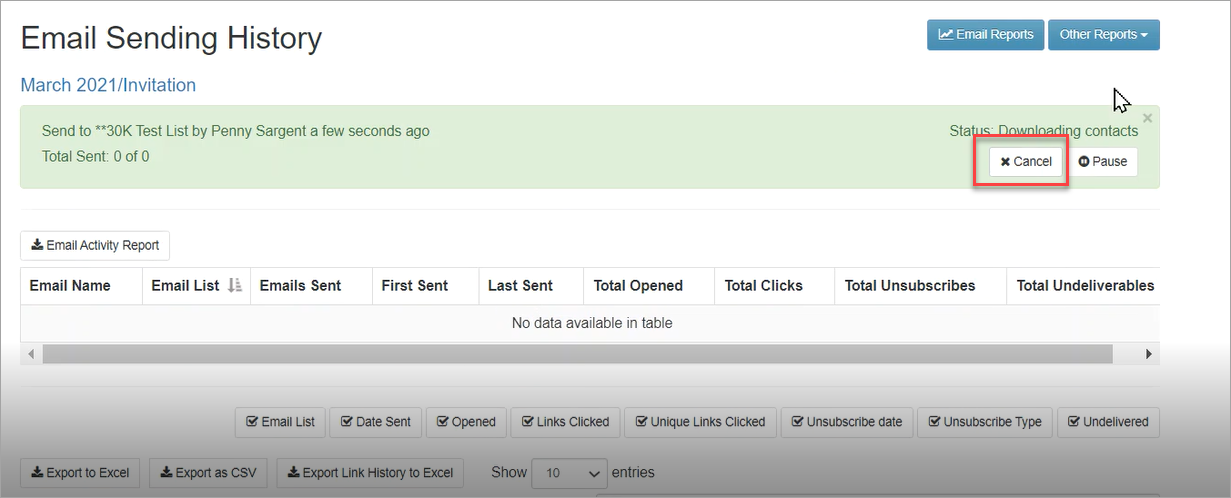
- To cancel a send, click on Cancel
- To pause a send click on Pause
If you Cancel a send, any emails that have not yet been delivered will be cancelled and removed from the email queue.
Note: Any activities already written to CRM will not be deleted.
If you select Cancel, you will see an "Are you sure? message. If you click OK, the screen will show a new notification:
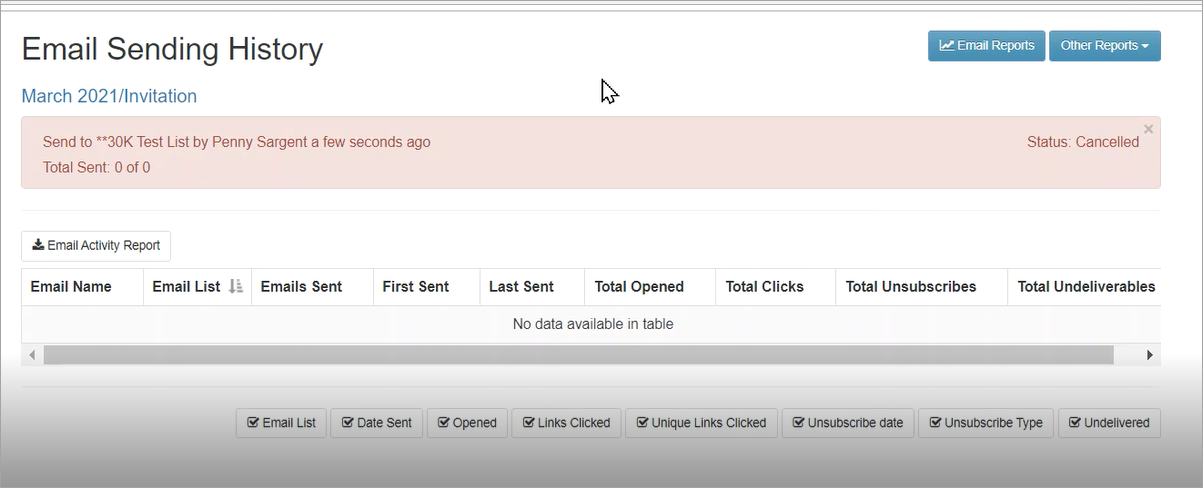
This red warning banner will stay on the page for 7 days. After 7 days it will disappear automatically.
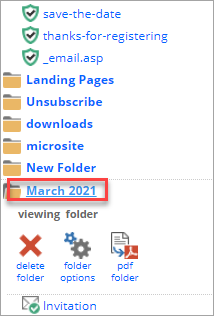
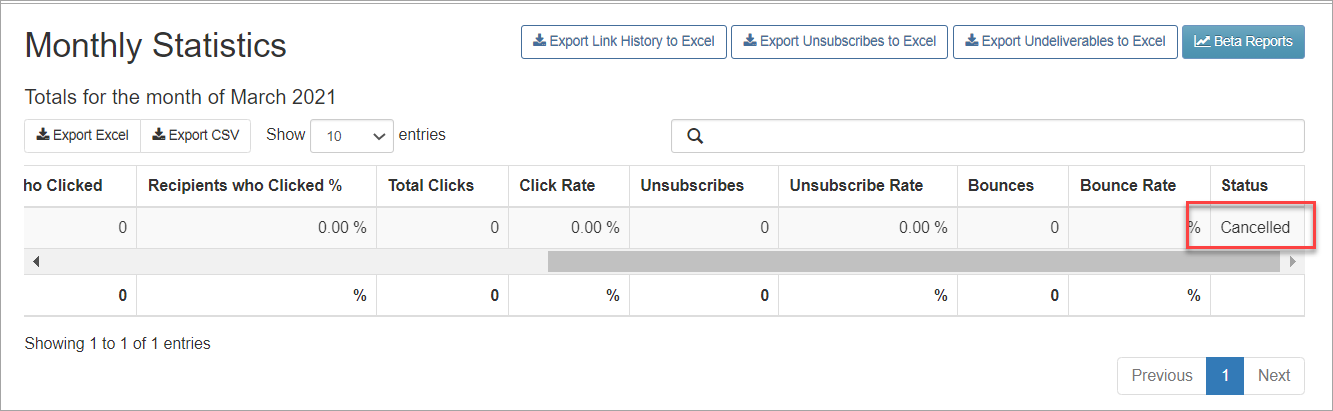
To see the history of any Cancelled Sends, click on the monthly folder to review the Monthly Statistics like this:
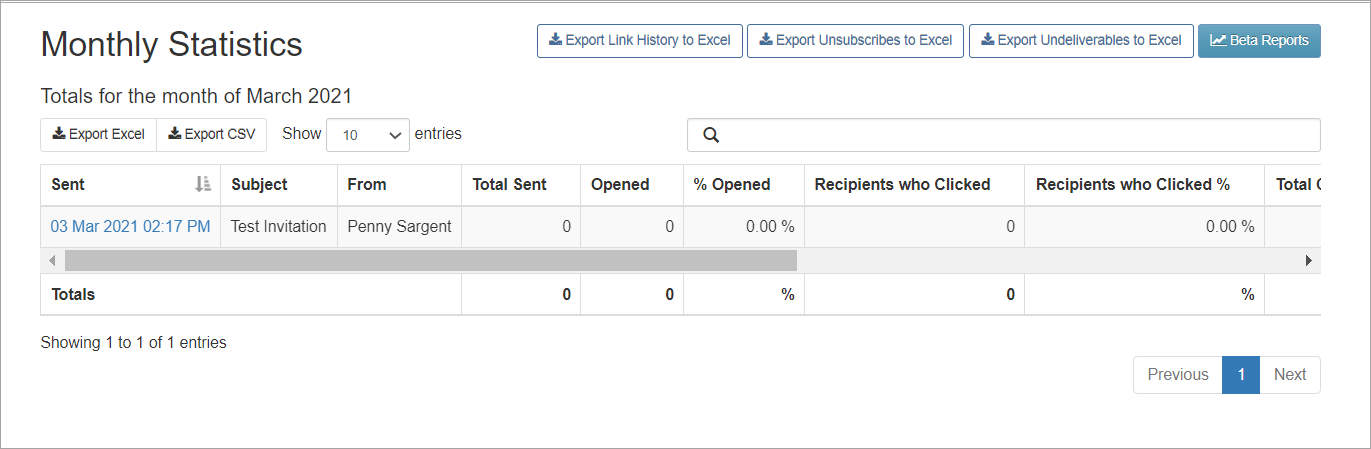
Scroll all the way to the right hand end of the screen.....
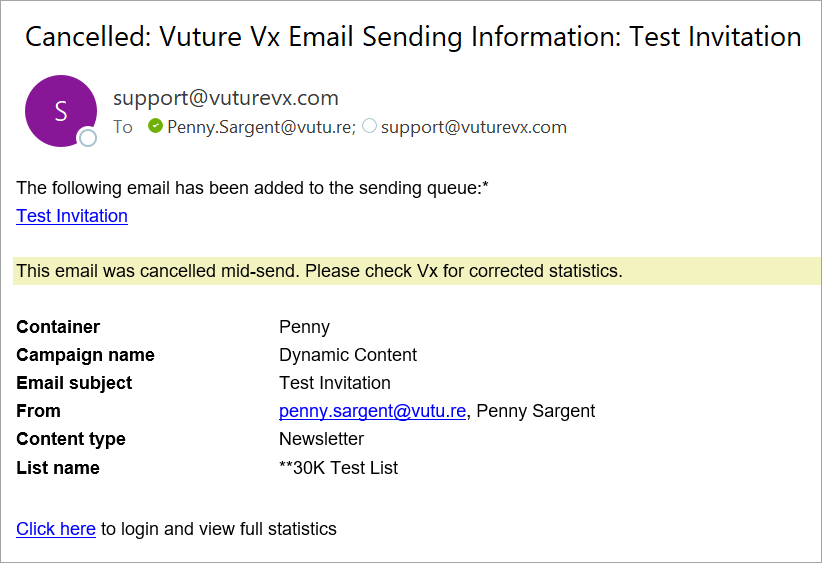
You will also receive an Email Sent Confirmation Email confirming the cancellation, like this:
Cancelling a scheduled send
To cancel a scheduled send make sure that you have this enabled for your role. Admin>Roles>Emails>Delete send.
A scheduled send works differently from an immediate send or a send now. When you set up a scheduled send the processing happens immediately (downloading suppressions, for example). Then the send waits until the scheduled time before starting the actual send.
Once you have scheduled the email you will see the email appearing in your sent folder.
- To cancel, click cancel send
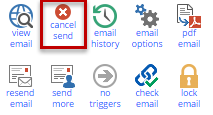
As long as you cancel at least 10 minutes before the scheduled delivery time, the complete send will be cancelled.
If you cancel the send whilst it's still processing, the user that sent the email will receive a confirmation email to confirm that the send was cancelled.
If the scheduled send is cancelled after the processing has completed but before the scheduled send date, no cancellation notification will be sent.
When you cancel a scheduled send:
- The email won't send
- It will be removed from the Compose folder
- You will receive a cancellation email confirming that it was cancelled
- You will see it in the monthly statistics page under "status" as cancelled.
If a Scheduled Send was a Send More, and it has been cancelled, then the above will still occur. However, the email history will reflect those who received the email before the "Send More" was scheduled.
