This is a premium feature - please see your Account Manager for details.
Overview
If you have the Google Analytics tracking code on your organization's website, Vuture can pass the UTM Campaign Parameters to links that are clicked from your Vuture email to your website/domain(s).
This will allow you to not only see Vuture as the Source in Google Analytics, but will also allow you to see which Vuture email campaigns are sending traffic to your website(s).
Contents
Requirements
Please contact your Account Manager about setting up your Vuture instance to integrate with Google Analytics. Please know that this is a premium feature.
For your Account Manager to complete the setup, you will need to:
- Ensure that the Google Analytics Tracking Code is embedded on your website or the domain(s) that you wish to track (i.e. main website, micro-sites, blog sites, etc.);
- Provide your Account Manager with the list of domains you have the Google Analytics Tracking Code embedded. This will allow your Account Manager to add this list of domains to the backend of Vuture to track any links clicked within a Vuture email pointing to these domains;
Your Account Manager will find instructions on how to set this up on the backend of Vuture here.
Once your Account Manager has completed the setup, any links in a Vuture email for the specified domain will automatically have the Google Analytics parameters added when clicking through. You will also be able to log into Google Analytics to see the data write back.
Example of the UTM Parameters being added to the clicked URL from a Vuture email (highlighted in yellow):

What does this look like in Google Analytics?
Once you start passing these parameters to your Google Analytics tracked website you will be able to see them in your Google Analytics Reporting.
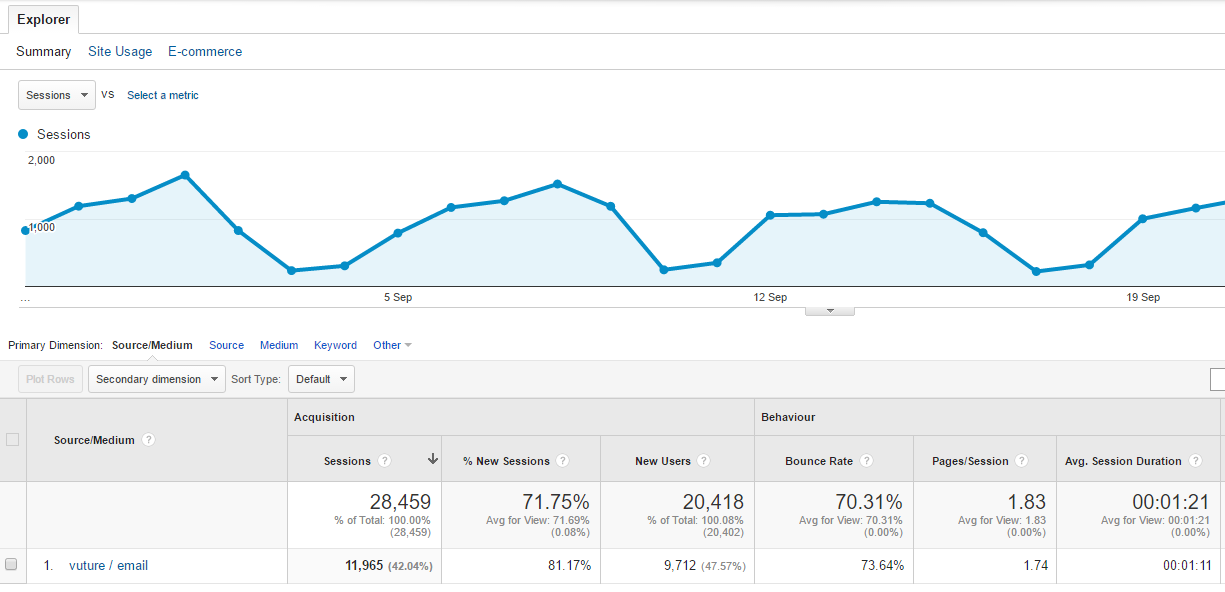
Under the Acquisition / All Traffic / Source/Medium section of the reporting you can view your visitor sessions broken down by source and medium. In here you will see vuture / email for all visits that came through Vuture links and you can drill into the detail:
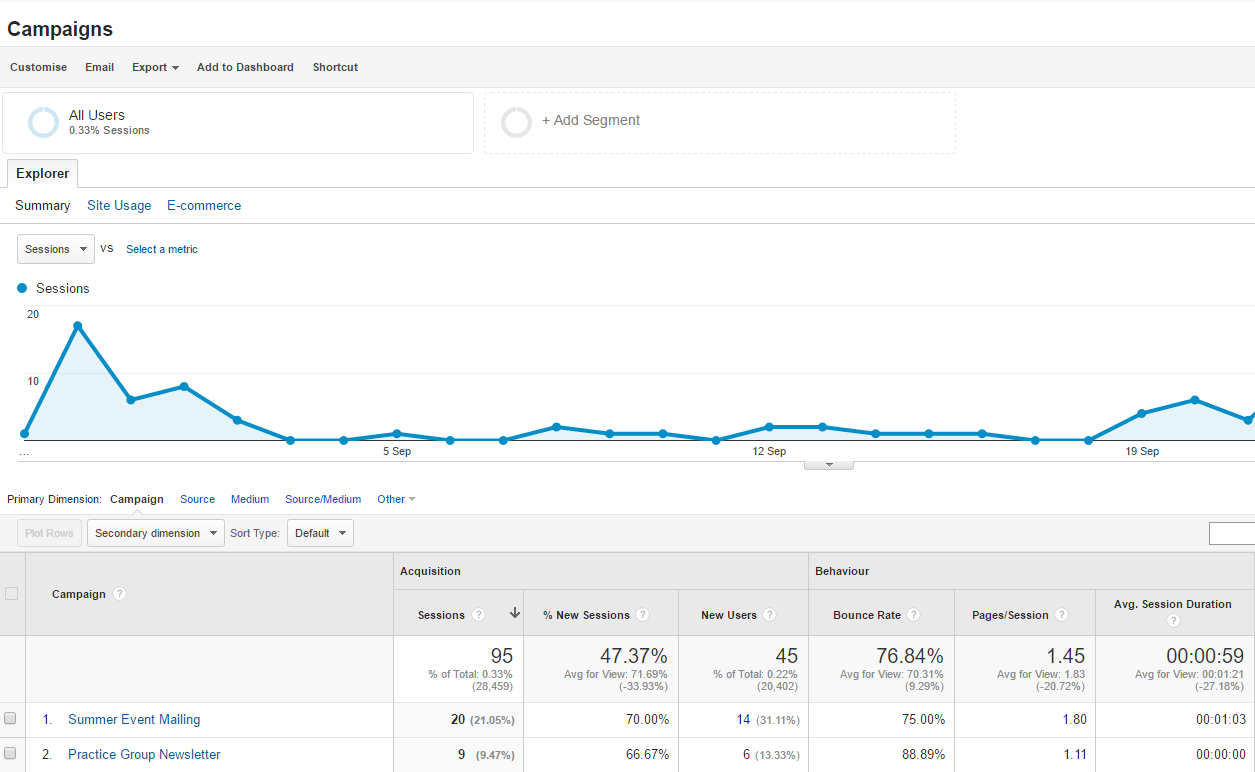
You can also look at the session for each individual email you send. These equate to campaign in Google Analytics and you can see them listed under the Acquisitions \ Campaigns \ All Campaigns section and you can drill into each one for details:
FAQ
1. My Google Analytics parameters are not being appended to links pointing at the domains I have specified.
Ask your Account Manager to check that the entries in "Admin.System.Emails.Google Analytics Tracking Domains" are a list of comma-separated domains only and don't contain "http", "https", or any colons (:) or slashes (/) in them.
Please also make sure that there are no spaces after each comma that is separating the domains.
2. What options do I have for customising the UTM parameters?
If you'd like to dynamically set the UTM parameters, it is possible to use system variables (see list of system variables here ) in the parameters.
The most common use of this would be to dynamically set the utm_campaign parameter to the name of the email/page or the name of the email campaign (This is the default setup). This would be done by setting Google Analytics parameters to either:
1. Pass the name of the Email or Landing Page to the Google campaign parameter:
utm_source=Vuture&utm_medium=email&utm_campaign={vx:Page Name}
2. Pass the name of the the Email Campaign to the Google campaign parameter
utm_source=Vuture&utm_medium=email&utm_campaign={vx:Campaign Name}
You may also be able to combine multiple system variables within the UTM parameters. For example, using the Date and name of the Email Campaign:
utm_source=Vuture&utm_medium=email&utm_campaign={Date}-{vx:Campaign Name}
3. Will this impact the spam scores?
Simply put this will not, the utm parameters aren’t added into the emails we send. They are added by our link click tracking process which happens outside of the email.
