This article covers all aspects of creating a Zoom webinar and adding it to a Vuture form so your contacts can register.
Overview
Zoom Webinars are now integrated with all CRMs. The CRMs that this integration will work for are Fibre, DealCloud, Dynamics, ContactEase, InterAction, OnePlace, Intapp OnePlace and Salesforce (For Dynamics and ContactEase it only applies to CRMs using our integration via the connector tool.)
No CRM? - The Zoom integration will work for Standalone clients too. However, it is important to note that Attendance is not recorded back to the list.
Important: You will need to purchase at least a Pro license for the Zoom Meetings product, in order to get access to the Zoom platform and API's. You will also need the Zoom Video Webinar add on, in order to host Webinars. Contact your Zoom account manager to purchase these.
Contents
Introduction
It is now possible to create a Zoom webinar and integrate the registration process with your CRM, contacts who accept and also those who attend in your CRM. (Note: ContactEase and the current Intapp OnePlace integrations do not have activities integrated with Vuture. They will accept RSVP updates but not event activity records, at the moment.)
Registrations and Attendees
As well as automatically recording registrations for Zoom webinars using Vuture forms, it is also possible to write back attendee information to your CRM. This works through a Vuture scheduled task that once a day (schedule can be varied) completes the following:
• Marks contacts who attend the webinar as 'Attended' in the CRM. This uses an 'Attended Webinar' or ‘Attended Event’ Additional Field on the event list
• Also writes an 'Attended' Activity against the contact to indicate the event they attended and for how long they attended. (Note: Activities are not included with the ContactEase or the current Intapp OnePlace CRM integration.)
This functionality also supports blank RSVP forms. A new contact will be created in the CRM and then their details will be submitted to the list. This allows the Attended activity and the Additional Field value to be added to the new contact in the CRM.
Tracking Attendance: It is only possible for Vuture to track (and write back activities for) attendees who register via a Vuture Form. Any users that register for the webinar directly through the webinar provider using a generic audience link, will not have an attendance activity written back to the crm. Their attendance will be recorded in the webinar provider's reports.
Please note: The Vuture Scheduled Task to update the CRM is run once a day, by default, which is why you will not see the 'Attended' activity or additional field write back immediately when a contact has joined the Zoom webinar. The purpose of this default is to reduce the load on your system. Typically you will work with your Client Success Manager to agree a “quiet time” on your platform, at which to run the scheduled task.
Prerequisites and Actions you need to take for the Zoom Integration with Vuture
|
Prerequisite
|
Who to Action
|
|
Licenses and Software
Important: You will need to purchase at least a Pro license for the Zoom Meetings product, in order to get access to the Zoom platform and API's.
You will also need the Zoom Video Webinar add on, in order to host Webinars. Contact your Zoom account manager to purchase this.
Warning: Webinars and Meetings are not the same. Please ensure you have the correct license.
|
Client, for both requirements
|
|
Credentials
Once you have your Zoom credentials (API keys) enter them in the Webinar Setup Tool
Warning: never reset the token without first talking to your CSM. Resetting will cause the integration to stop working.
|
Client
|
|
Form Editor version
The Zoom integration back to the CRM will only work for clients who are on Vuture's Form Editor v2. Your Vuture Client Success Manager will check this for you.
|
Vuture
|
|
Optional
When creating the RSVP Form, in the Settings tab, name the form with the campaign name or Event name instead of just RSVP Prefill - this will aid reporting later.
|
Client
|
|
Optional
When creating the RSVP Form, if you are using the Attended additional field, you will be adding List name , Attended field name and the Attended value on the Settings tab of the form.
|
Client
|
Set Up the Invitation in Vuture and the RSVP Form
Create the Invitation email campaign in Vuture in the usual way.
You will need the usual RSVP Prefilled Form (plus a RSVP blank form if you wish).
Optional: Rename these forms with the Event Name and Date. This will aid reporting later.
Set up the webinar in Zoom and obtain the Webinar ID.
Note: It is now possible to set up multiple webinars or a series of webinars to work with the Vuture integration. There is an article about this here.
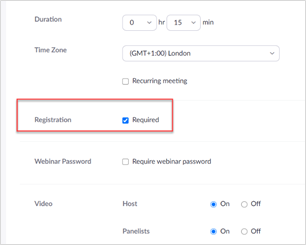
Note: In the Zoom setup, check that the "Registration is Required" setting is On.
Note: To divert late registrants to the On Demand workflow, you should enable the Option: Close registration after event date:
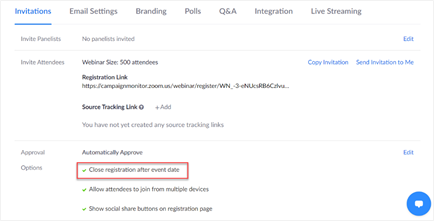
Attendees will still be able to register on the event date and once the webinar starts, as long as it is before the projected end time of the webinar. For example, if you schedule a webinar for 9AM with a duration of 2 hours, the registration will close at 11AM.
Note: If you enable this setting and make your webinar available On Demand, contacts can use the original registration link to register for the On Demand webinar recording.
Approval Settings
You can choose not to invoke any approval process on your webinars, and make them available to anyone who registers from the email invitation and RSVP form, without the need for approval. However, there is a known issue in the On Demand approval process from Zoom. Therefore, the following applies:
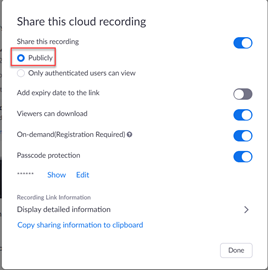
1. The Zoom On Demand webinar should have the Publicly viewed option enabled. This option is in the Recordings section here:
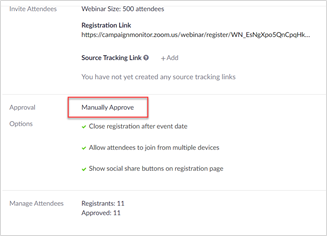
2. Registration approval should be switched to Manually Approve. This does NOT mean that you will have to manually approve all registrants. Vuture will do this for you in the background.
The process is as follows:
When a contact registers for the On demand recording they will be listed in the Pending Approval tab in Zoom. The approval could be done directly in Zoom. Alternatively, Vuture will approve automatically with the following setting, which is on a config: Admin.System.Forms.ApproveOnDemandZoomRegistrant.
If this is enabled, contacts will be automatically approved and moved to Approved Status in Zoom.
The contact will then receive a confirmation email from Zoom, with the link to view the recording. Upon clicking the link, the contact will be directed to the page to enter My Passcode (if the recording is password protected). At the same time, Vuture will send an email to the contact containing the password information. The contact should copy the passcode, received via the Vuture confirmation email, and will then be able to view the video.
Adding the Webinar ID to the Vuture Form
Use the article here.
Specify Attended additional field
If your mailing list includes an Attended additional field, you will need to specify this on the Settings tab.
Select the Marketing list name, the Entity, the Event Attended Field and the Event Attended Field Value. You could use either Enumeration or Boolean field types for the Event Attended field.
Remove the Tentative and No options from RSVP.
The RSVP options on this form should be Yes or Accept or Accepted only. Precheck the Yes or Accept value and mark the field as Hidden. Remove any Tentative or No or Decline values.
Why? This is because the action of clicking Submit on the form tells Zoom that the contact would like to attend. There is no Decline option. Zoom will automatically assume that anyone completing the form and clicking the Submit button is Accepting.
Suggestion: You may wish to add an Instruction field to the bottom of your form, just above the Submit button, with some text such as "Click Submit to confirm that you wish to attend this Webinar". This would stand in the place of the usual RSVP Yes / No which the clients normally see.
Link the RSVP form to the Vuture email and send the Mailing
Suggestion: On the Call to Action or RSVP button in the email, you may wish to use alternative, positive wording instead of RSVP, such as the words “Register” or “Accept”. This is because the form should (as explained above) contain no Decline option.
Contacts will receive the email, from where they can click the button, complete the Vuture form and click Submit.
They are then registered for the Zoom webinar. They will not be asked to also complete the Zoom registration form.
Private Client Registrations - registering individuals with no Company
Warning: If your contact is a private individual and has no company name, this may cause an issue if you marked Company as a required field when you created the webinar. To prevent this, when creating a new webinar in your Zoom dashboard, you could only mark Last Name and Email Address as required fields. When you create the RSVP form in Vuture, make sure that you only mark Last Name and Email Address as required fields in there too.
Remember: If a field is marked as required in Zoom, it MUST also be marked as required in the Vuture form. Only the fields in the table of core fields (given below) can be set to required in Zoom.
If you have already made Company a required field in your webinar and you choose to change this, you can open the webinar in Zoom and scroll down to the Invitations tab, and click on Edit. Uncheck the Company (Organization) field.
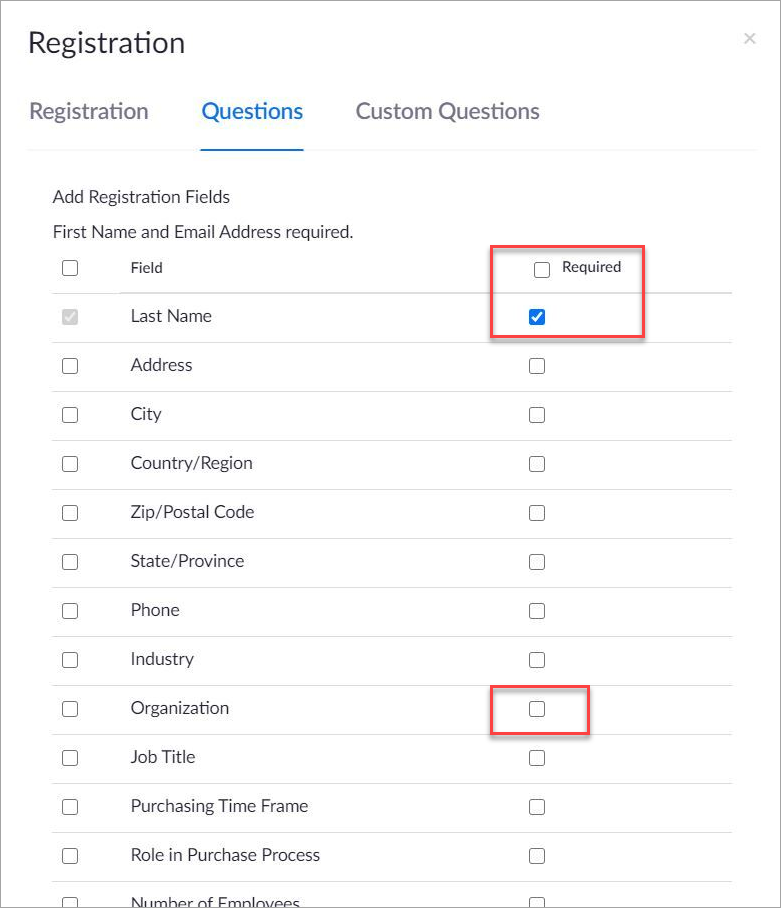
If you do not accept registrations from private individuals, and always require a company name, first make the Organization field required in the Zoom set up and then make the Company field required on your Vuture form.
These are the webinar integration fields which Vuture supports, with their mappings to Zoom:
| Vuture | Zoom |
| FirstName | first_name |
| LastName | last_name |
| Company | org |
| EmailAddress | email |
| State | state |
| City | city |
| JobTitle | job_title |
| Country | country |
| PostCode | zip |
Confirmations and Reminders
Once contacts accept, Zoom will automatically send out confirmation emails, containing the link to the webinar. Zoom will also send Reminders if you wish. You can select and edit these Reminders under Email Settings in the Zoom Webinar page, adding your own wording and logo if you wish.
On Demand Registrations - after the webinar date, a contact who registers for the Zoom webinar after it has finished will be put into the On Demand workflow. On Demand registrations will allow contacts to register and then view the webinar recording.
We can configure your Vuture platform to look at On Demand registrations and add an Activity and update an Attendance field in your crm (except for ContactEase and Intapp OnePlace which do not include activities in the integration). This update will take place performed by a scheduled task which checks, once per day, for contacts registering to view the On Demand version and marks them in the CRM as Registered and Attended.
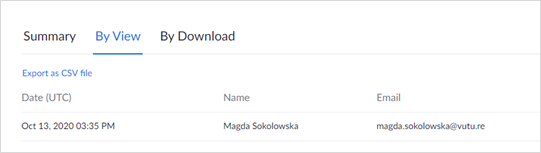
Important Note: At Vuture we are assuming that a contact, once Registered for the On Demand version, will then go on to view the On Demand recording. We are therefore marking them in the CRM as Attended. However, because Vuture cannot see the contact’s actions at that point, and because Zoom does not include this information at the time, we cannot guarantee with certainty that the contact continued and actually viewed the recording. To check later, you can use Zoom’s own Recording Analytics here:
GENERAL FAQs
These FAQs will be updated as questions come in. Please check back to see new Q and As. There is a new FAQ section, dealing specifically with IT and Security, at the end of this section.
Q. Some contacts say that they never received the confirmation email & reminder emails from Zoom
A. The Vuture Product team did some testing on this one and concluded that there is no reason why, from the Vuture side, that a contact who has successfully registered would not get their confirmation email.
The confirmation email sends from no-reply@zoom.us and passes SPF, DKIM, DMARC. So either it was sent and went to spam/quarantine, or possibly the contact didn’t get registered properly, which we should be able to see. If you can see the registration has happened, then Zoom will send the email.
The contact’s organisation might have certain firewall restrictions from emails sent from Zoom - this has nothing to do with our integration not working.
Q. Some contacts experienced an error when trying to log into the webinar.
A. Disable the setting: "Only authenticated users can join meetings" to avoid contacts having to use single sign-on to join the webinars. Instructions here.
Q. How to set up Reminders?
A. Set up 3 reminders to be sent from Zoom - 1 week, 1 day and 1 hour before the webinar starts - each includes the contact’s unique joining link - this presents 4 opportunities for the contact to find their unique joining link (3 reminders + 1 confirmation email upon registration). Follow the instructions here
Q. Should I include an iCal with my Vuture Thank You page?
A. No. Do NOT use the iCal in Vuture - it will not contain the unique joining link! The contact should use the iCal from the Zoom confirmation email. Advise the contact on the Thank You landing page to look out for the email from Zoom and click the link in that email to add the event to the calendar. Some sample text for the thank you landing page:
“Look out for an email from Zoom that will arrive in your inbox shortly. Please follow the instructions to add this event to your calendar. It will also contain your unique joining link that you will need to be able to access the webinar on the day.”
Q. How to Track Attendance?
A. It is only possible for Vuture to track (and write back activities for) attendees who register via a Vuture Form. Any users that register for the webinar directly through the webinar provider using a generic audience link, will not have an attendance activity written back to the crm. Their attendance will be recorded in the webinar provider's reports.
Q. I would like to create a series of several webinars and invite my contacts to pick and choose which they would like to sign up for, on one form Vuture. Is that possible?
A. Yes it is possible. See this article for managing multi-webinars. https://support.vutu.re/hc/en-us/articles/4408238641937-New-Way-to-Add-Webinars-to-Forms-Single-Webinars-plus-Multi-Webinars-or-a-Webinar-Series
Q. My clients have both Zoom and On24. Will we be able to have two webinar integrations on the same platform?
A. Yes, connect up each new Vuture Form to the appropriate webinar provider for each event. You will need to rename your Webinar Attended activity to Webinar Attended instead of Zoom Webinar Attended or ON24 Webinar Attended.
Q. What happens if a contact signs up for a webinar after the transmission date?
A You should have the setting in Zoom "Close registration after event date". This will automatically divert late sign ups to the On Demand workflow.
Q. I signed up for my own webinar to test it but I got an error message. Is it broken?
A. No, the host is not allowed by Zoom to register for their own event. Use a second email address to test your own event.
Q. If someone forwards the invitation to someone who is not a contact in our CRM, can they register and have that information go back into the CRM the same as with a regular event registration?
A. Yes. A completed Vuture RSVP form, which is forwarded to a new contact who then registers for the event, will write back to your CRM as a new contact.
Q. I understand that the writing back of attendee info to the CRM (after the event) happens once per day. Do you have an idea of what time this occurs?
A. The schedule for the attendees to be written back is decided by you, working with your Client Success Manager. We suggest once a day, when the system is quiet or otherwise not being used, but your CSM can set the scheduled task to take place more often if you wish. There is a Vuture Only article here specifically about setting up scheduled tasks, to help CSMs.
Q. The join time, leave time and seconds spent in the webinar metrics that are available in the Zoom report - do these fields also go back into the CRM?
A. Not all of them. The time spent in the webinar is included in the Activity detail.

Q. Managing On Demand registrations - Are On Demand and Recording of the webinar separate links? What is the difference between On Demand and just a normal recording of the session?
A. There is no difference. When you set up the webinar originally, if you select “Make this webinar available on demand” then once the webinar is completely over, the link will be switched to the On Demand version automatically. Anyone registering for the On Demand version will be directed to the Recording.
Q: You mentioned "Attended" - Is that an field that's manually updated after a webinar or does the integration automatically log this?
A: Vuture will log users that "Attended" in Zoom and then pass this to Vuture / your CRM (via a nightly sync). Contacts will be updated with a value of "Attended" in the "Attended Additional Field" against the event list. Vuture will also create an attended activity for each contact who attended the webinar. (Except for ContactEase which does not use Activities)
Q: Is any of this Attended data stored in Vuture's reporting?
A: The Attended data is not stored in Vuture. You can extract this data from Zoom or your CRM. Vuture stores “RSVP” information but does not store "Attended" information.
Q: Will there be any impact on our Zoom functionality outside of webinars?
A: No, there should not be any impact.
Q: Do we need to create new form templates after purchasing the Zoom integration?
A: No, you can use your existing RSVP (Prefill) & RSVP (Blank) forms.
Q: After a user clicks "RSVP - Submit" will they be brought to a Zoom registration form?
A: No, users will not be directed to a Zoom registration form. Users are automatically registered for a webinar after they complete an RSVP (Prefill) or RSVP (Blank) form and click Submit.
Q: Will a new record be created in our CRM if someone registers and we don't already have their information? (For example, if an invitation is forwarded to a colleague).
A: If a user fills out an RSVP (Blank) form, it will work in exactly the same way as blank forms normally do.
Q: For post-webinar follow-up, do you suggest sending emails via Zoom? (i.e. Thank you for attending).
A: You have the option to send follow-up emails from either Zoom or Vuture. Zoom will be an automatic, immediate follow-up (with less personalization), while Vuture can be more personalized.
Q: What happens if someone were to just dial-in to a webinar - How is that written back to our CRM if we don't have their information?
A: If a contact were to complete their details on a Blank Form and click "Submit" they will be created as a "New Contact" in your CRM and be marked as "Registered." If a contact were to get the URL from somewhere else and dial-in directly, Vuture cannot create them or register them.
Q: In the RSVP Prefill / Blank Forms, why do we need to remove: No, No Reply, & Tentative options?
A: You need to remove all the "No" options because the act of clicking "Submit" is understood by Zoom as meaning, "Yes I want to attend." There is no "Decline" option in Zoom. Therefore, we recommend changing the name of the RSVP call to action on your webinar invitation to say Register or Sign Me Up or something similar.
Q. The webinar is over. Why am I not seeing Attended figures in my CRM?
A. The Vuture Scheduled Task to write back the attended activity is run once daily by default, which is why you will not see the 'Attended' activity or additional field write back immediately.
Q. Some contacts say that they never received the confirmation email & reminder emails from Zoom
A. The Vuture Product team did some testing on this one and concluded that there is no reason why, from the Vuture side, that a contact who has successfully registered would not get their confirmation email.
The confirmation email sends from no-reply@zoom.us and passes SPF, DKIM, DMARC. So either it was sent and went to spam/quarantine, or possibly the contact didn’t get registered properly, which we should be able to see. If you can see the registration has happened, then Zoom will send the email.
The contact’s organisation might have certain firewall restrictions from emails sent from Zoom - this has nothing to do with our integration not working.
Q. Some contacts experienced an error when trying to log into the webinar.
A. Disable the setting: "Only authenticated users can join meetings" to avoid contacts having to use single sign-on to join the webinars. Instructions here.
Q. If a list of attendees are imported into the Zoom Webinar, will this write back to Vuture and then into CRM?
A. For the process to function correctly, data must be submitted through the Vuture form and will then update any relevant notifications in Zoom, prompting the platform to send out confirmation emails containing the correct link to login to the webinar. Which then writes back data back to the CRM, once the event has finished.
ADVICE FOR CLIENTS
Set up 3 reminders to be sent from Zoom - 1 week, 1 day and 1 hour before the webinar starts - each includes the contact’s unique joining link - this presents 4 opportunities for the contact to find their unique joining link (3 reminders + 1 confirmation email upon registration). Follow the instructions here
Do NOT use the iCal in Vuture - it will not contain the unique joining link! The contact should use the iCal from the Zoom confirmation email. Advise the contact on the Thank You landing page to look out for the email from Zoom and click the link in that email to add the event to the calendar. Some sample text for the thank you landing page:
“Look out for an email from Zoom that will arrive in your inbox shortly. Please follow the instructions to add this event to your calendar. It will also contain your unique joining link that you will need to be able to access the webinar on the day.”
IT/TECHNICAL FAQs
Q. Our IT team has asked for technical documentation on what data is going where, how, and what the tokens are doing? Our Information Security team wants to understand what the transmissions encryption security looks like and define specifically where and what the app connects to.
A. We only deal with 2 of the Zoom API endpoints and we use OAuth2 to authenticate with those APIs.
Q. Can I use JWT to authenticate?
A. No. Zoom previously recommended that we use JWT tokens to authenticate. However, we have moved to OAuth2 which is a more secure method and Zoom are deprecating JWT from June 2023.
Q. What is a Zoom Registration Endpoint?
https://marketplace.zoom.us/docs/api-reference/zoom-api/meetings/meetingregistrantcreate
A. This endpoint is used to register a user for a meeting or webinar. When an end user signs up to a webinar via a Vuture form, we will make a call to this endpoint with just the First Name, Last Name and Email Address. This will create the user as a registrant for that webinar in Zoom. This will return a Zoom meeting ID, a unique Zoom ID for each user registered.
Q. What is a Zoom Attendance Endpoint?
https://marketplace.zoom.us/docs/api-reference/zoom-api/reports/reportmeetingparticipants
A. This endpoint is used to pull through a list of end users that attended the webinar. We use this to be able to write back an activity to your CRM to show that contacts not only registered, but actually attended the webinar. We pass through the Zoom Meeting Id, and we get back a list of user details which we match to our list of registrants by their unique Zoom ID. We then compare the 2 lists and write back activities to the CRM for the users that appear in both lists.
Q. Can you confirm how Vuture will securely integrate with Zoom via the API call e.g. through HTTPS?
A. Yes, data is encrypted in flight using TLS
Q. Can you confirm what security checks have been performed to ensure the API is secure e.g. Pen Test of the API?
A. Please see https://zoom.us/security - we are not in a position to pen test Zoom.
Q. Are all protocols encrypted during transport?
A. Yes, the Vuture – Zoom integration is performed over a secure channel and using Zoom’s AES 256 GCM transport encryption.
Q. Where is the data stored? Is it encrypted?
A. User webinar registration details are stored in Zoom (https://zoom.us/security). Attendance data is written back via Vuture to a customer’s CRM and encrypted while stored on Vuture systems.
Q. Does the software have access to any sensitive data?
A. The integration typically requires the first name, last name and email address to process a webinar registration.
Q. Does the vendor provide white papers on data handling procedures?
A. Zoom’s security information is available here https://zoom.us/security and Vuture’s is here https://vutu.re/trust-hub/security.aspx
Q. Is authentication secure? MFA capable? SAML? LDAPS?
A. The integration uses OAuth2 to authenticate between Vuture and Zoom. As API is used to facilitate the integration. No options exist for SAML or MFA.
Q. Is Vuture compliant with ISO27001 or other?
A. Vuture is ISO 27001 certified.
Q. How is high availability maintained?
A. The integration is dependent on Zoom’s API being available.
Q. Whose responsibility is backing up the data?
A. Zoom is responsible for any data stored on their system (webinar registration data) and Vuture / the customer are responsible for data stored on Vuture and customer systems (webinar attendance data).
Q. Does Zoom provide hardening recommendations?
A. This is not applicable. It is an API based integration.
Q. Does the software require any 3rd party software in its architecture (SQL, etc)?
A. It only requires Zoom
Q. Does Zoom provide architecture diagrams?
A. This is not applicable. It is an API based integration.
Q. Are any firewall changes required?
A. No
Q. Does the software support security logging?
A. Zoom might provide logging for webinar registration events.
Q. Does the software support role-based access or least privilege accounts?
A. This is not applicable. It is an API based integration
