InterAction Tools and InterAction Errors Dashboard
InterAction Errors Dashboard
There is a Knowledge Base article covering the InterAction Errors Dashboard here. The Errors Dashboard is aimed at helping Admin users to identify where a problem with IA may be coming from. It will deliver an explanation in plain English of any error messages being received.
Tooling - InterAction Tools
InterAction Tools offers a drop down menu of helpful access points where Admin users can review a contact’s activities, additional fields and lists. The Tool requires the user to know the contact’s ID.
To find the Contact ID use the Contact Lookup option which is halfway down the list. Enter the contact’s Last Name and Email Address and click Submit.
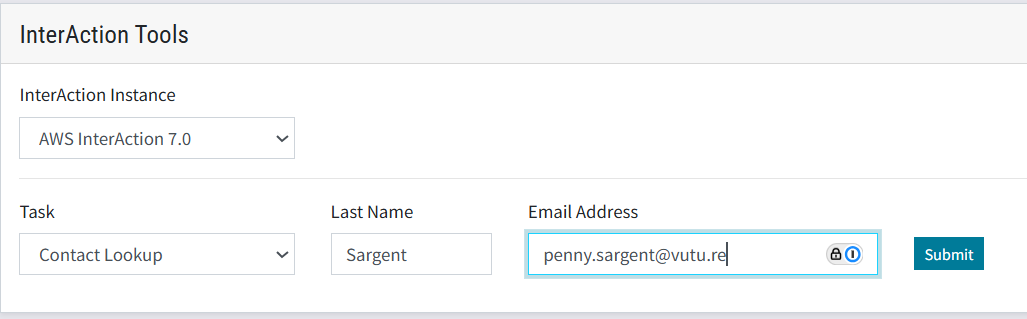
The result for this database (the example screen shot below is full of duplicates and nonsense testing entries) is displayed:
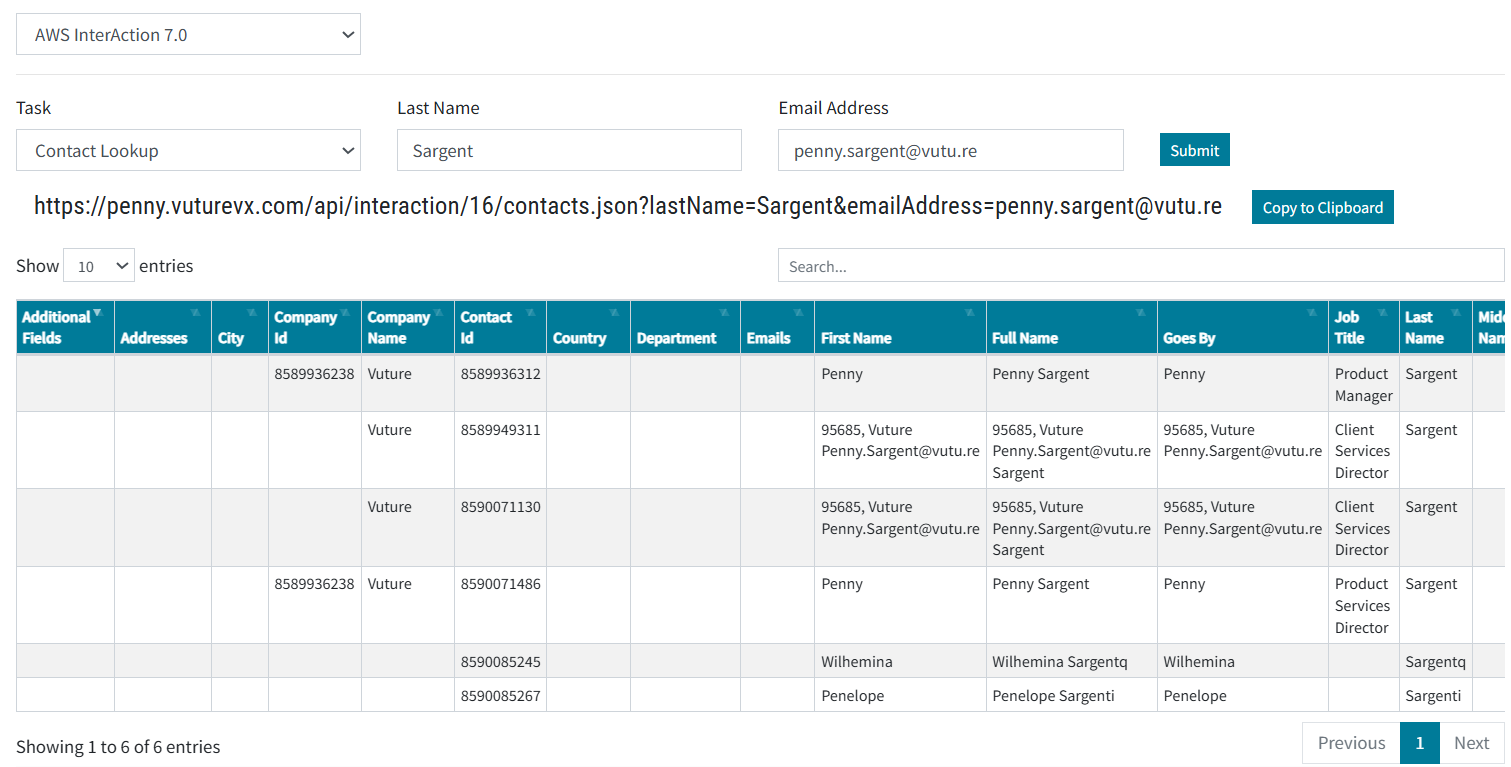
The Contact ID is visible in the sixth column.
You can now copy/paste and use this Contact ID in other parts of the InterAction Tools such as the Activities recorded against a contact.
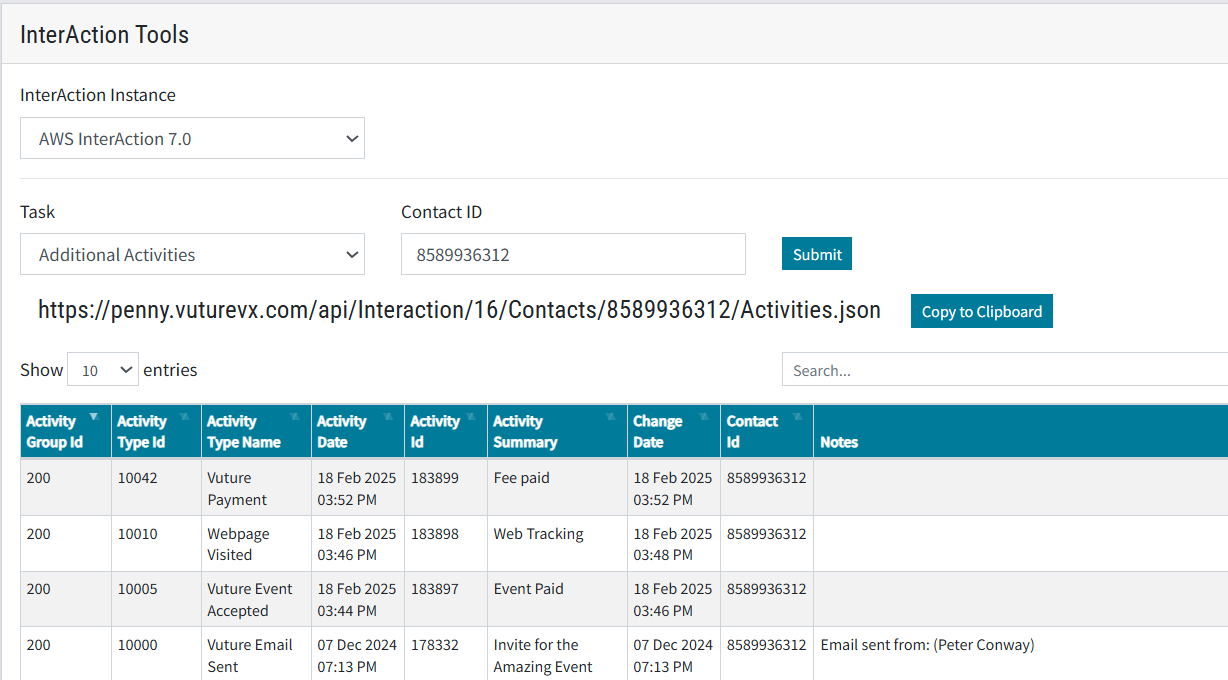
To see the Activities recorded for a contact, select Activities, add the Contact ID and click Submit.
InterAction Tools - Activities
InterAction Tools - Additional Fields
This tool displays, for one contact, all the additional fields on InterAction that Vuture knows about. Please note: there may be additional fields based on lists that have not been uploaded to Vuture. If the list is not in Vuture, the platform cannot display the list’s associated additional fields.
Sorting by the Actual Values column will bring all the fields which have a value to the top:
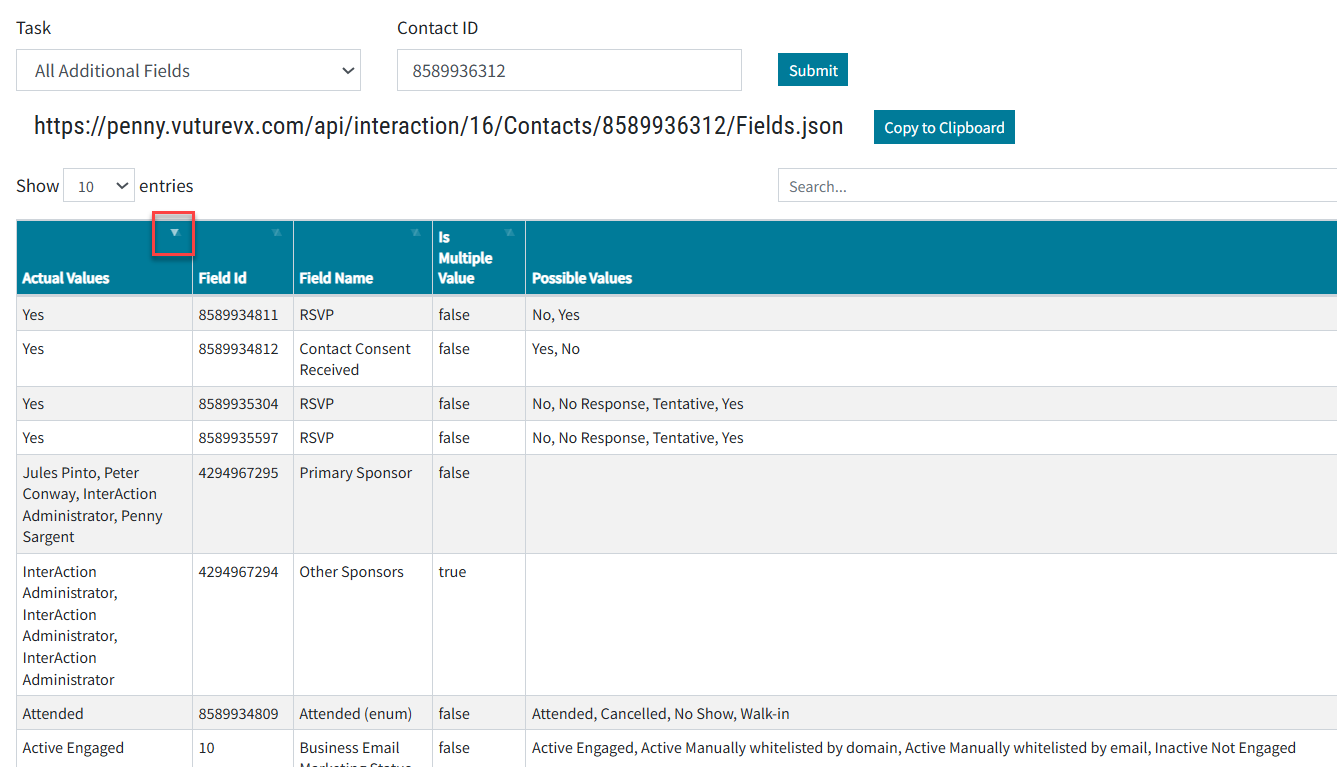
The results of this query can be very long. If you make a note of the ID of the Additional Field you can reduce the results by using the next tool instead -
InterAction Tools - Contact’s Additional Field by ID
Entering the field ID of 1 as an example (which happens to be the field called Gender):
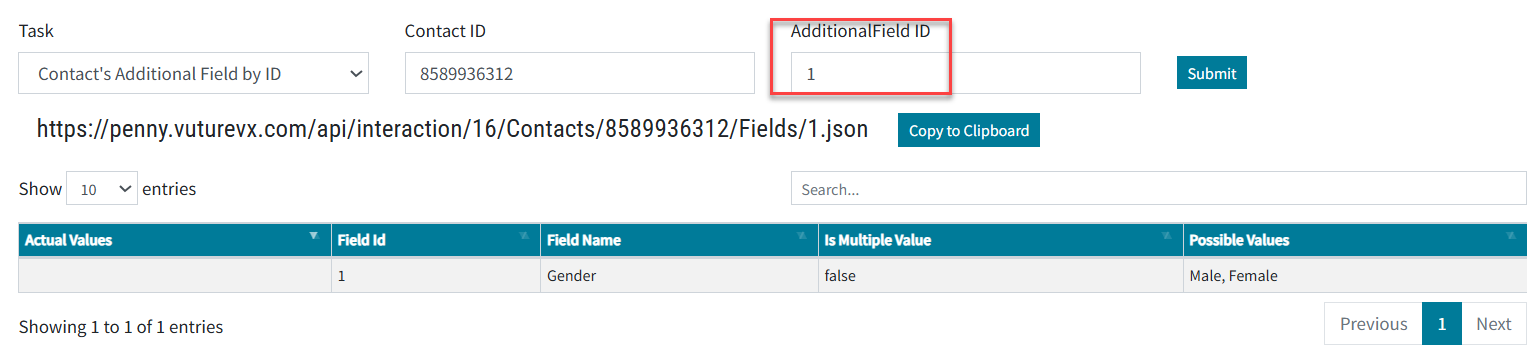
The result displays that this contact has no value in the field.
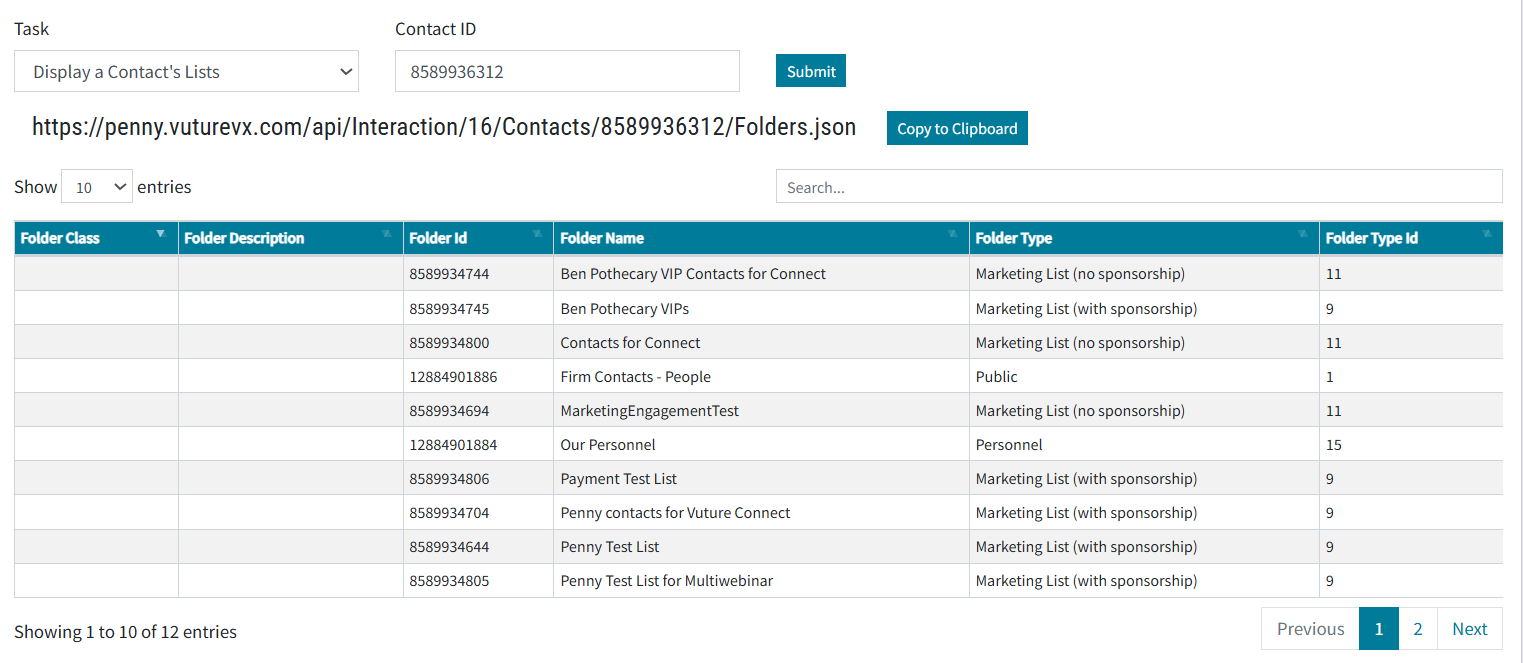
InterAction Tools - Display a Contact’s Lists
You will need to use the Contact Lookup tool first, to find the contact’s ID.
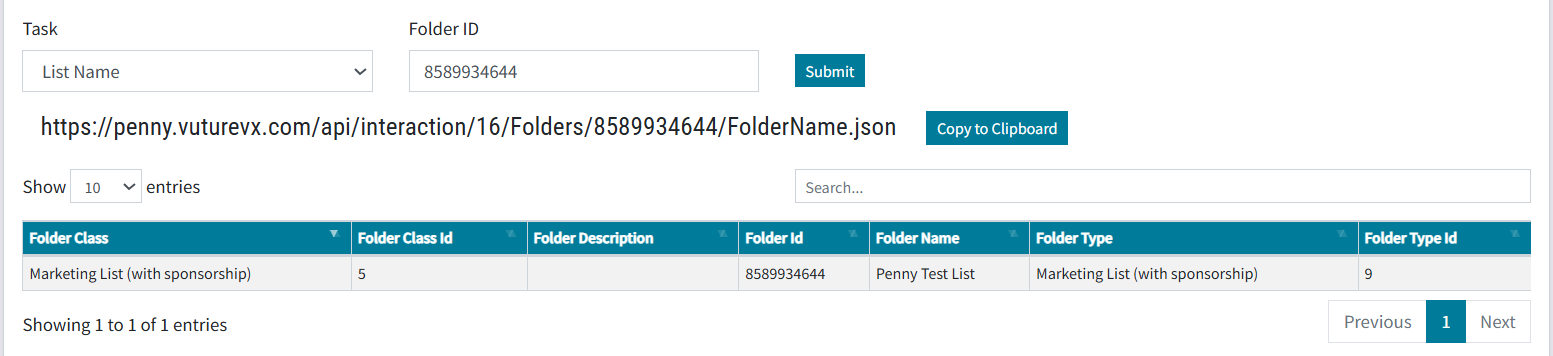
InterAction Tools - List Name
This tool allows you to enter a Folder ID and see some information about that list.
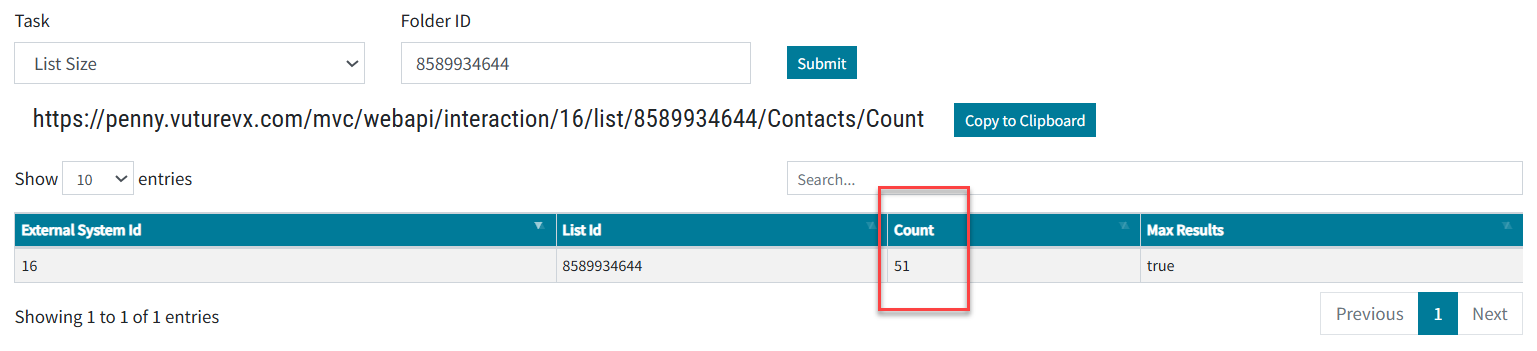
InterAction Tools - List Size
This tool allows you to see the number of contacts on the identified list.
InterAction Tools - Pull IA Settings
By default the InterAction web client API is set to return a maximum of 10,000 results which means that you will only be able to send to the first 10,000 contacts on any InterAction list and, you will be unable to load in the complete data for unsubscribe and bounces lists that are larger than this size.
The threshold applies separately to the lists you are sending to, your unsubscribe suppression folders and your bounce suppression folder.
So if your threshold is 10K then Vuture can only download the first 10K of contacts you are sending to, the first 10K of contacts in your combined suppression lists for that send and the first 10K contacts in your bounce suppression list.
It is important you set this value to a higher value than the largest of: your largest send size, your largest combined suppression list (global unsubscribes + email type unsubscribes) and your bounce suppression list.
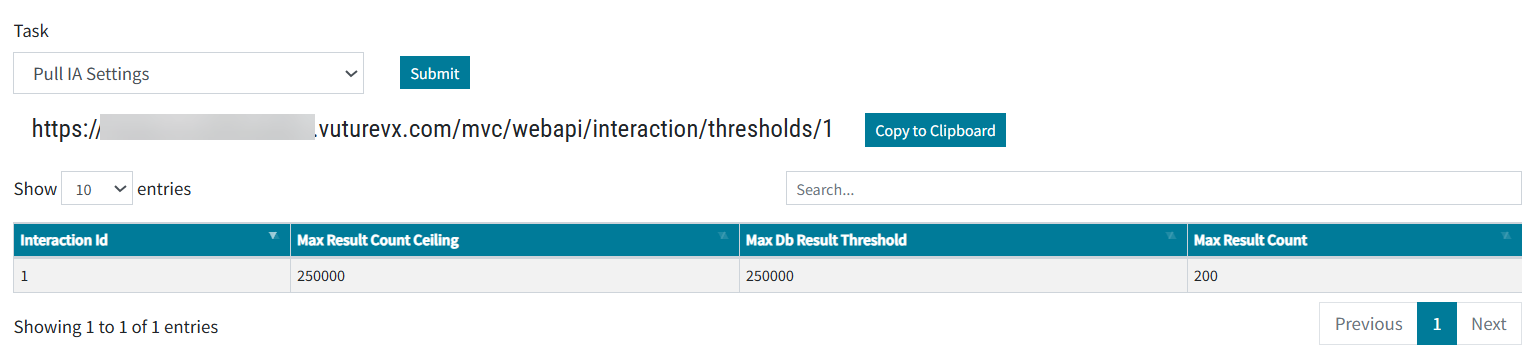
-
maxResultCountCeiling: This is the absolute maximum number of records returned. This default is 10,000 but we recommend this is increased to 50,000 or the size of your anticipated largest list size.
-
maxDBResultThreshold: This is the maximum number of records returned from the database for memory intensive requests. The default is 10,000 but we recommend this is increased to 50,000 or the size of your anticipated largest list size.
Please see this Knowledge Base article for more information.
