This article covers the following topics:
Introduction
As part of Vuture’s efforts to simplify and update the user interface and experience, we wanted to bring all the Template functionality together in a single screen with a new UI that is easy to understand and use. This solution groups all your templates together, in a dedicated area of the platform, called Template Manager.
Extra Information:
- We ran a client webinar covering the Template Manager which is available On Demand if you wish to view it. Click here for the On Demand version.
- Alternatively, our Enablement Manager David Edwards created a brief video on this topic which is available to view here. The pw for this video is Lidas8f9yh$%
- Following the October 2023 webinar for clients on this subject, we have turned the questions and answers from the Q&A session into new FAQs for this article. You will find them at the top of the FAQs section below.
Please note: this new product is designed to update in conjunction with the legacy template creation/updating process, so any template changes made via the old method will be automatically synced with template manager. However, that sync is not possible the other way round, i.e. changes made in Template Manager cannot be pulled back into the campaign which sits in your Subtemplate container (or wherever you keep your legacy templates). As a result, your old campaigns will fall behind the Template Manager version. Therefore we would recommend to fully adopt the Template Manager, instead of switching between the old method and the new one.
Prerequisites and Access
You will access the Template Manager from the Admin drop down menu on the Home Screen.

- First ensure that access to Admin pages is enabled for your Role in Admin.Roles.Spacelab Pages.Admin Pages
- Ask your CSM to enable Template Manager for your Role via Admin.Roles.Manage Templates
- And on your system settings via Admin.System.Templates.Template Manager Enabled
- And enable Admin>System>Templates>Campaign sync with Template Button
Note: We recommend that only users who currently have access to the Admin.Containers & Users area should have the Role to assign templates to containers.
Also: Users in the Template Manager will only see the containers to which they would normally have access.
Roles
Detail on which Roles allow which features in Template Manager are given in a Vuture Only article here.
New Container called Template Manager
When first enabled, the Template Manager will create a new, hidden, system container which will be used to house all the new templates. This system-generated container will be visible in the folder tree under Admin, Containers and Users, but it cannot be accessed via the front end drop-down list of containers. Users should therefore just ignore it. If users attempt to navigate to the Template Manager subcontainer, they will be sent back to the home screen.
Template Manager is divided into three tabs: Templates, Categories and Containers.
The Templates Tab

The Templates tab presents all the templates existing in the platform, grouped by category on the left of the screen and listed individually on the right.
The columns are all sortable. Click on a column header to see the contents arranged by that column heading.
Uploading a Template
You can Upload a template to here. You might do this if you upload your firm's own templates or a CSM could upload further, Out of the Box, templates for you if you have purchased them.
Adding a Template to a Category or Moving a Template to a Different Category
To add a template to a category, select the Upload Template button, choose the file, select the category and add a template name. In this version of the release, this is also the way you will move a template from one category to another. To move a template, download it first, then upload it to a new category.
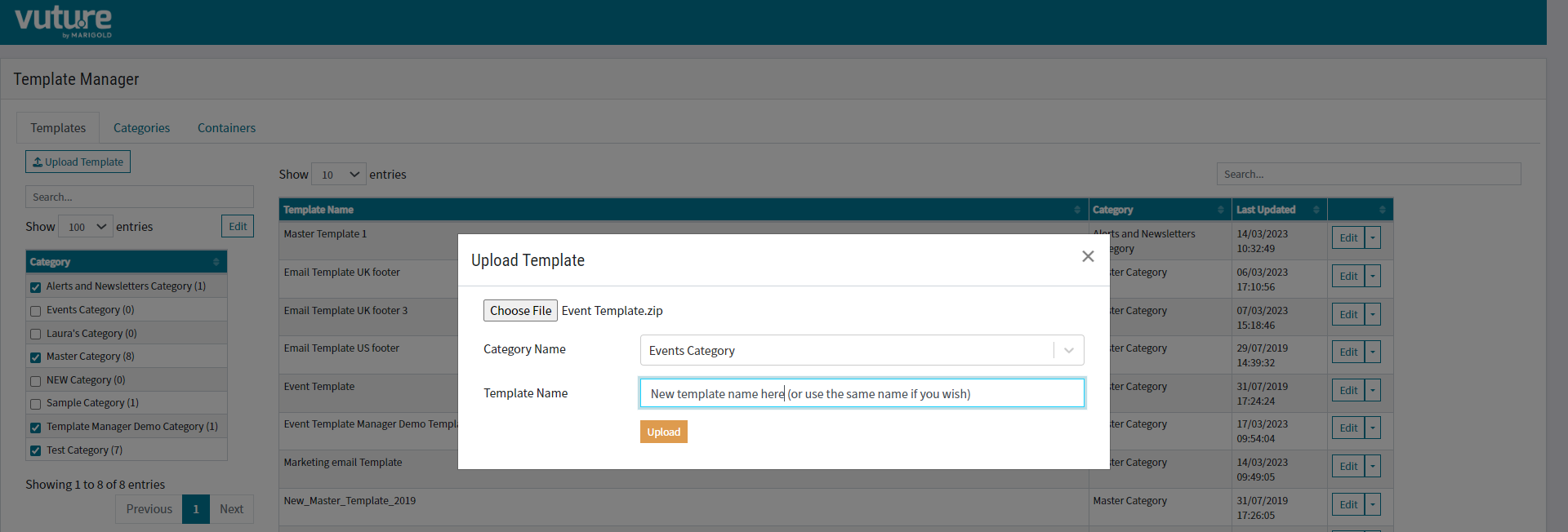
Still on the Templates tab, to reduce the amount of scrolling required, check only one category on the left to see just the templates in that category. Alternatively, to see all the templates on the instance, displayed in the right hand box, check all the categories on the left.
Edit Categories or Add a New Category
Clicking the Edit button on the left allows you to edit the categories by renaming them or deleting them.
You could also add a new category from here. Here is a view of how that looks, clicking the left hand Edit button:
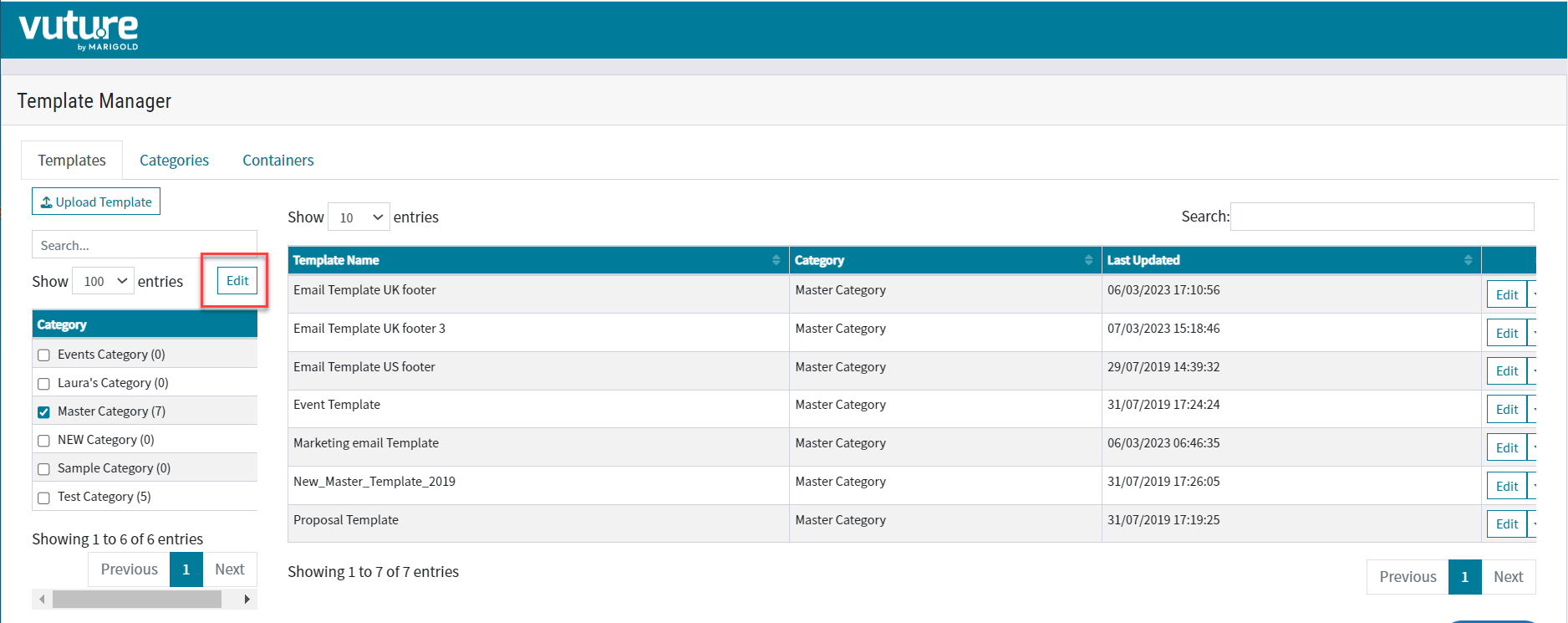
gives you the following view:

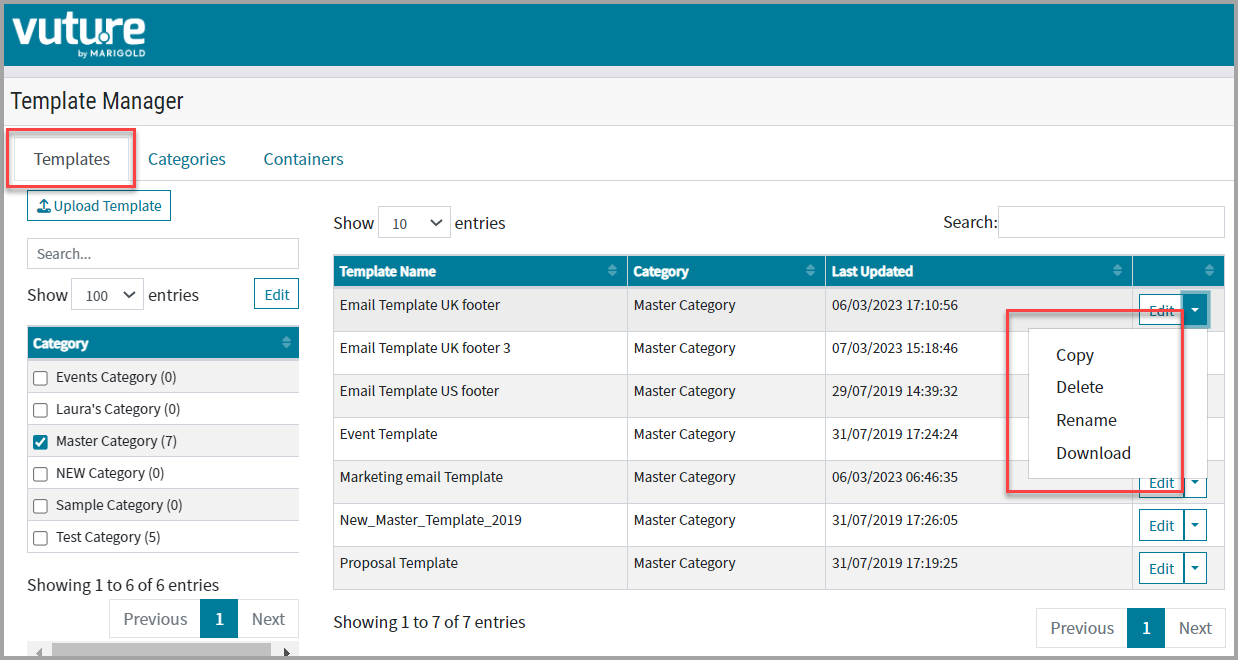
Closing that window and clicking on the right hand down arrow instead gives you the opportunity to copy, delete, rename or download a template.
Copy, Delete, Rename or Download a Template
Edit a Template
You can click the Edit button on the right hand side to go into a template and edit the template directly from here. It will open the template in the familiar campaign screen. Make your changes to the template campaign and select Save Template. Any new campaigns created which are based on this amended template will show the updates. Any previous or older campaigns which are based on the template will need to be synced to pick up the changes. For more information on this see the Sharing Template Updates to Existing Campaigns section of this article, below.
The Categories Tab

Categories are collections of templates, grouped together and the collection or group then named as a category. The category is linked by you to one or more containers. This makes it easier to assign a collection of templates to a container, for users to find when they come to create a new campaign.
Clicking on the down arrow on the left and the plus sign on the right opens up the list of Categories and the folders or containers to assign them to. Like this:

Assigning or Linking Categories to Containers
Users can decide in this Categories tab where to assign, (or link), a category of templates. Use the dropdown selector box on the left to choose a category and then select the checkboxes in the file tree on the right to link the category.
The file tree mirrors your firm's instance, showing all containers to which you have access. Any subcontainers can be displayed by clicking on the > symbols.
Checking the box for a container to link a category to that container will automatically check the subcontainers and sub-subcontainers in that container and link the category to all of them, even when they are not displayed on this screen. To remove any links you do not wish to make, open the file tree by manually opening up the v arrows and uncheck the boxes as necessary.
The process is: Select a Category, check the boxes, and Save. You will see a green Success message across the top of the screen. Like this:

This shows a successful link of the Events Category of templates on the left side, to all the containers which have been ticked, (checked), on the right side.
The Containers Tab

In the third tab, the user can see every container in the instance, to which they have access, on the left of the screen. Do this by clicking the + sign marked in red above, or by manually opening up any or all of the v or > arrows.
All the template categories linked to each container are displayed on the right side of the screen. Like this:

Removing Categories from a Container
From here it is quick and easy to unlink a category from a container by clicking on the little x next to each template name.
The light gray x at the end of the box (highlighted in red) will remove all categories from that container. If you choose to remove all categories it will prompt you first, to confirm that you really want to go ahead and remove them.
Adding More Categories to a Container
The light gray down arrow (highlighted in red above) shows you further available categories to link to the container.
Sharing Template Updates to Existing Campaigns
We have a sync capability which will allow users to sync the latest snippets, or other changes, from an updated template to any campaign which was previously created, based on that template. This will allow admins to share access to new snippets or other design changes quickly and easily and will ensure that users are always using the latest version of any template. The previous expected behaviour was that an updated template would produce a new, updated campaign, and that still applies. The new behaviour is that now, users can also access existing or older campaigns and pull through any changes that have been made to the template by using the sync.
Prerequisites
Ask your CSM to enable Admin.Roles.Manage Templates for your Role
And Admin.System.Templates.Template Manager Enabled
And enable Admin>System>Templates>Campaign sync with Template Button
Process in Brief - to see the sync working
- Create a campaign based on your chosen template, save and publish
- Edit the template (Quickest access is to use the Edit button in Template Manager)
- (Do not change the template name at this point - it will break the relationship between the template and the campaign)
- Save over the previous version to update the template
- Navigate back to the existing campaign based on the template
- Click on Sync Template
- The Sync will pull in the latest version of the template and update the campaign
- Continue to edit, test and Send out the campaign as usual.
1. Edit a Template
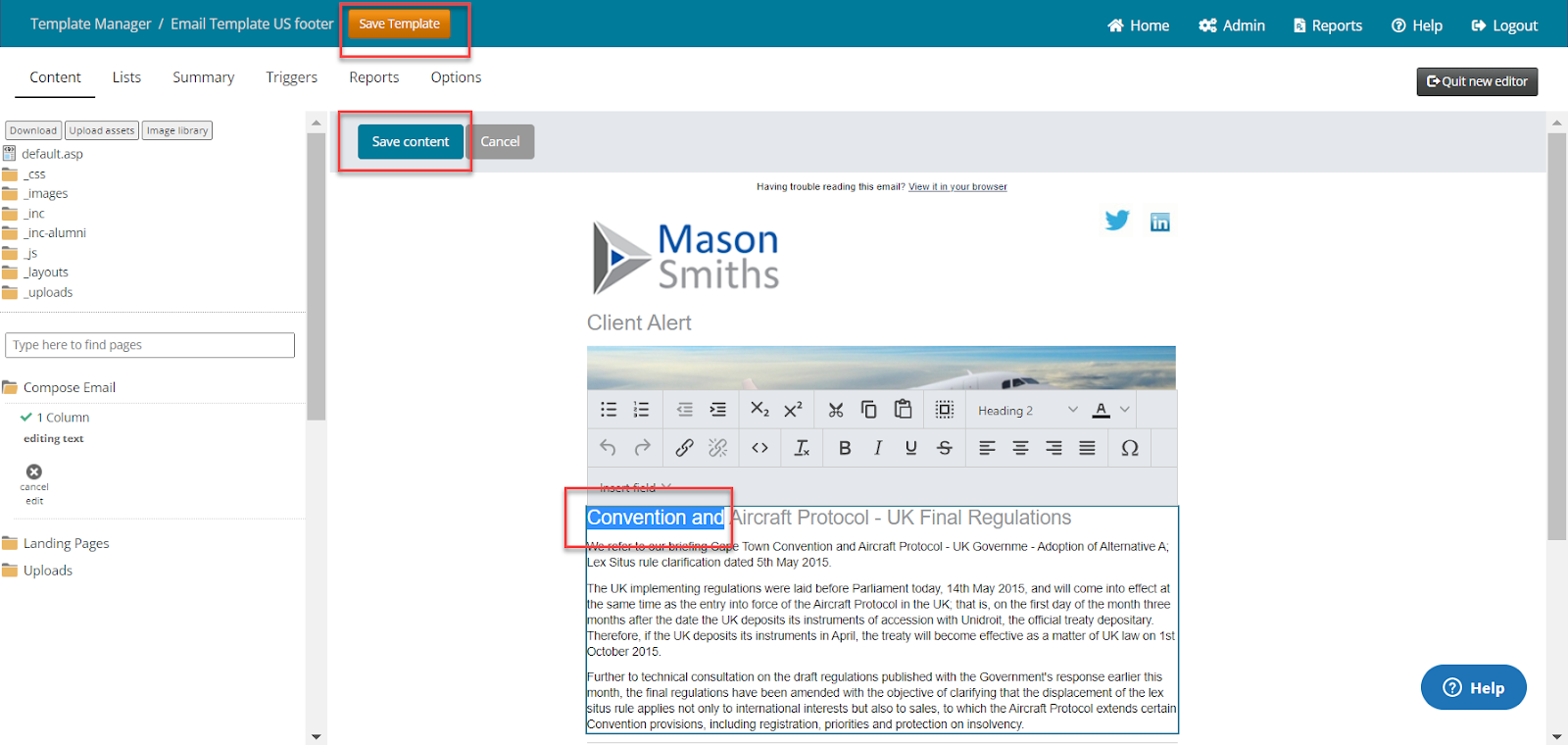
In this example I am going to edit the template called Email Template US Footer. Click on the Edit button.
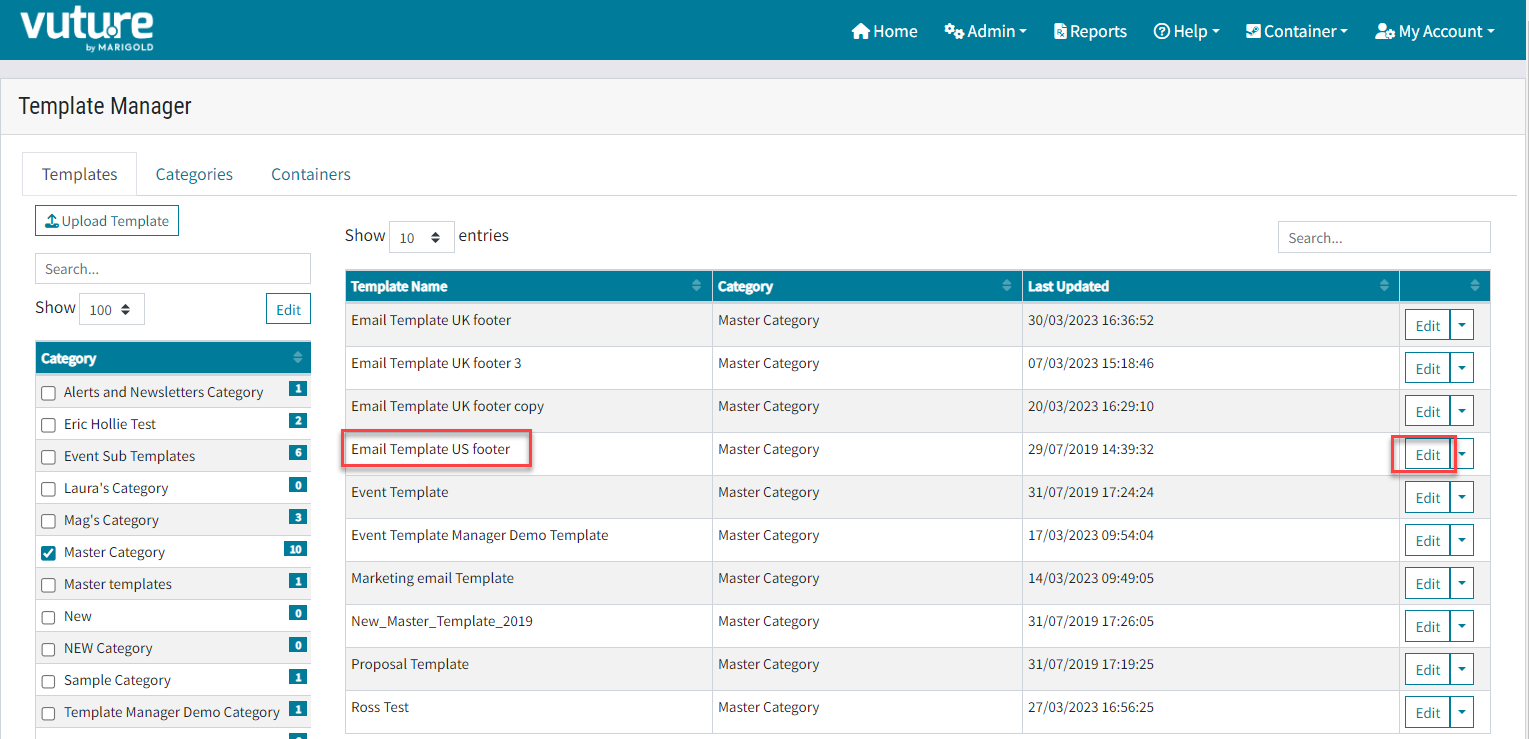
In the template, make the edits, Save and Publish. Click on Save Template. For this example I will remove the words Convention and. However, typically, this feature would be used for new snippets, new colour choices or other designs, not text.
Please note: Triggers and variables are not included in the sync process.
2. Save over previous version to update the template
Invited to save the template, ensure that you choose the same name and click Save.
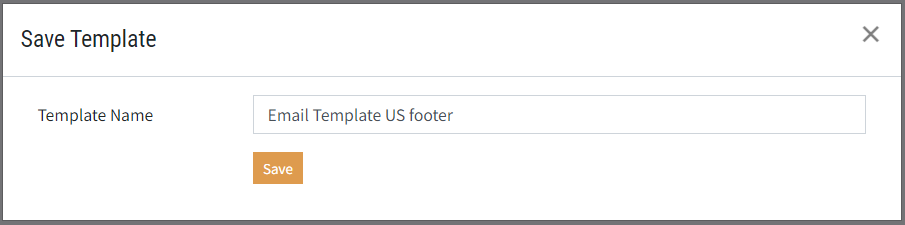
You will see a Save Successful message

3. Navigate to any container where that template has been used to create a campaign based on the template
The following image shows the headline in full in the campaign.
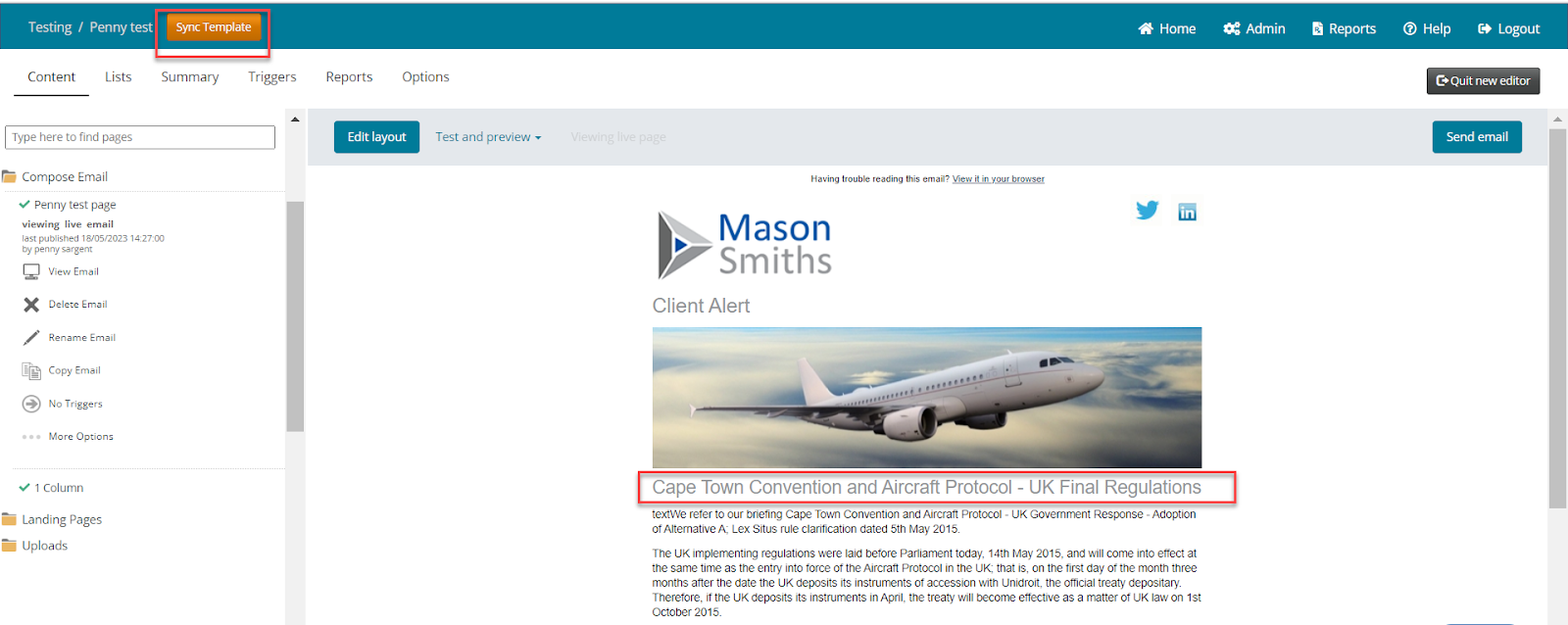
4. Click on Sync Template
Click on Sync Template and review the warning message:
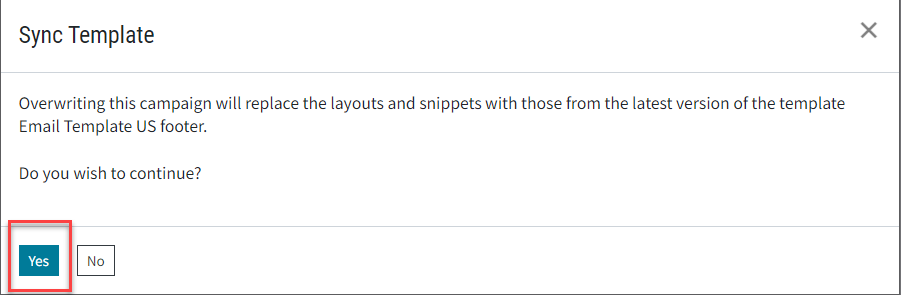
Click Yes.
5. The Sync will pull in the latest version of the template and update the campaign
The campaign will be updated to match the changes made to the template.
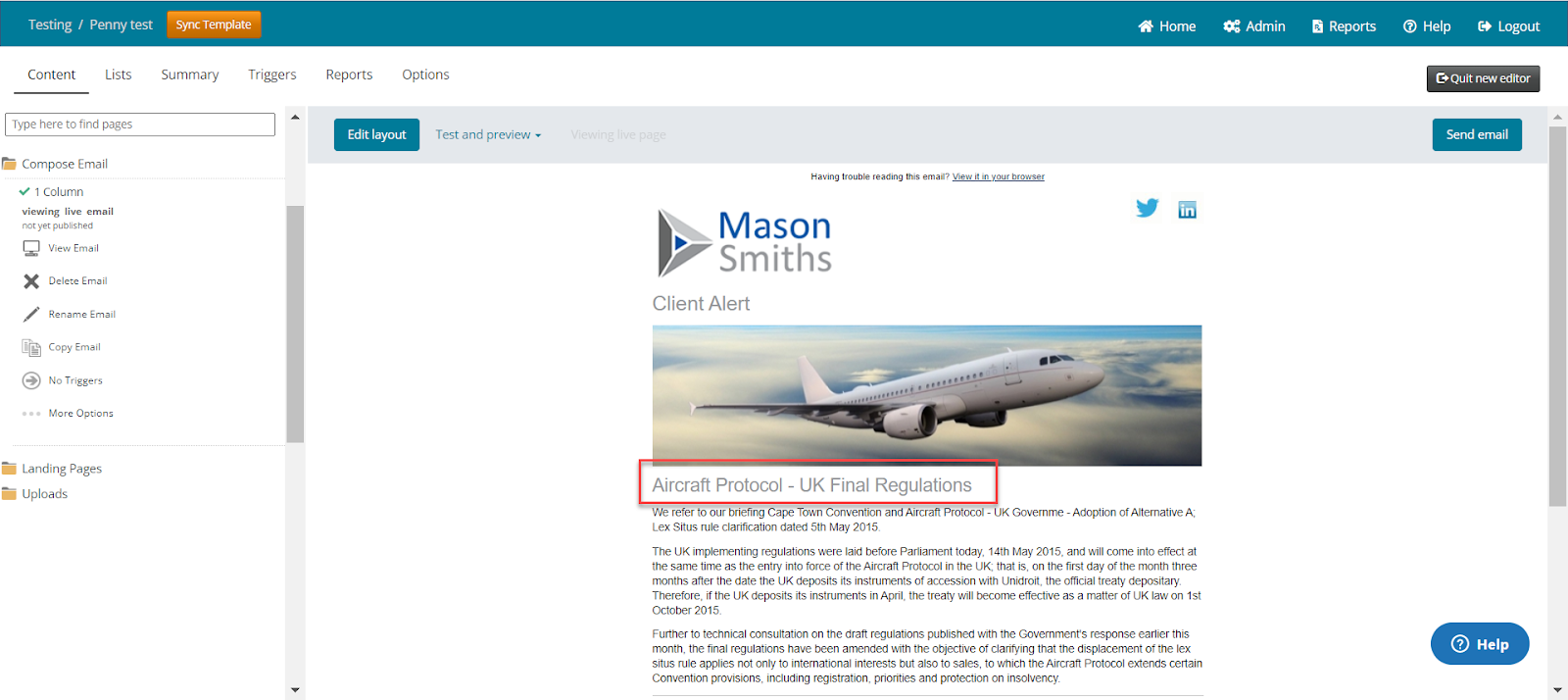
Continue to edit, test and Send out the campaign as usual.
Note: the sync process will look for all pages or layouts which are named the same across both the campaign and its parent template, and sync any changes where it matches. Therefore, any text changes you have made to your campaign will be replaced with the text in the template where the sync process finds a match in the page/layout name. In order to avoid text changes being overwritten, you need to rename the page in your campaign first.
FAQs
Q. Will the copy process copy over all my images to the new Template?
A. No. When we copy a template, we do not copy the folder _images folder from the template folder. This is for the following reasons:
a. Images folders are potentially very large and the folder sizes would become unmanageable
b. There is a risk of unintentionally copying over images which should have been retained in their previous format
c. Copying images could override a file if the file has the same name.
If you need help with some images to be copied, you can raise a ticket with Support who will be able to help you
Q. Can I now save Notifications in a subtemplate using the new Template Manager?
A. No you still cannot save Notifications in a Template. The Template Manager alters the way users can see, edit and manage Templates. It does not alter the functionality of Templates themselves. However, Templates will save Triggers so you could consider using Triggers instead of Notifications.
Q. What happens to saved layouts when using the new Template Manager? Do I need to save layouts separately like in the old set up?
A. Yes. Save Layout is required for each time you build a layout in a campaign.
Q. Do you still have to save layout for each page in a template before clicking Save template in order for all pages to save?
A. Not necessarily. If you don't then only the layout(s) you have updated will be saved. When you use Compose Email > new layout then it will pull through the previous layout as you did not overwrite this.
Q. When you update the master and Save layout, Save template, does this save it out to all Containers?
A. If you are using the same template Category in different containers then yes. It doesn't matter which container you are in, they are all referencing the same template Category.
Q. Can you see where templates are being used and delete them if they aren't being used?
A. You can see where templates have been assigned to a Category, and you can see where Categories have been assigned to containers. You cannot use the Template Manager to see if those templates have been used for campaigns. The List View on the Home Page in each container can show you where a template has been used to create a campaign in that container. There is an article about the List View here: https://support.vutu.re/hc/en-us/articles/360020695058-Getting-Started-Container-Views#list-view
Q. I want to update snippets in one specific email in each campaign e.g. "new snippets" (dumping ground of new/edited snippets). If I hit "sync template" will all emails in that campaign be overwritten? Or can I specify that I only want "new snippets" email to sync/update? I don't want to overwrite any emails that people have already worked on.
A. No you can't specify a limit to the sync. The action ""sync template"" will sync from the template you used to create the campaign to all the pages in the current campaign.
However, the sync process will only update, or overwrite, pages in the current campaign which are still named the same as the pages in the source template.
To prevent accidental overwriting, first check the page names in your template and ensure that any worked-on pages in your current campaign have been re-named. For example, your template could have pages called Invite, Reminder, Second Reminder and so on. Once they have been worked on in your campaign they will probably have been renamed as ""Invite to [Event title] on [Event date]"" for example. So they will not get overwritten.
The sync will only operate in the campaign from where you press the sync button. If you want to update snippets in several campaigns you will have to open each campaign in turn and press the sync template button.
Q. If our admin dropdown does not include the Template Manager option should we contact our account rep or is there another reason that may be?
A. You need to ask your Customer Success Manager to enable the Template Manager for your role. We recommend that it is only enabled for Super Admins. The prerequisites for this feature are described in this Help Desk article here https://support.vutu.re/hc/en-us/articles/9901262622877-Template-Manager#prerequisites
Q. When you save a template, are the campaign variables also being saved?
A. Yes. Campaign variables are saved when you save a Template.
Q. How can you tell what master template was used to build a campaign?
A. In the container home page, use the List View to see all the campaigns in that container. Each campaign shows the template used.There is an article about the List View here: https://support.vutu.re/hc/en-us/articles/360020695058-Getting-Started-Container-Views#list-view
Q. Can I publish pre-created campaign variables to the campaign summary section along with a Template? For example, can I have a {{Date}} variable already in Campaign summary that will be there and ready for my users to supply actual date that will render throughout my campaign?
A. Yes. Campaign Variables will save when you save a template, whether or not you use Template Manager.
================================================================
FAQs from pre-October 2023
Q. Do I have to sync again next time I use the updated template?
A. If there have been no changes, then no. You can see from the first screen of the Template Manager when the template was last updated. Once the template has been overwritten and saved, any new email built from that template will reflect the latest version.
Q. What about in different containers? If I have the same template applied to a variety of containers, will one session to Update it and Save work across all containers?
A. For any new campaigns, yes. As long as the template is one single template, not different versions of the same template.
Q. Are triggers or variables included in the sync process?
A. No, they are not included.
Q. Why is there a new container in my folder tree, that I cannot access?
A. When first enabled, the Template Manager will create a new, hidden, system container which will be used to house all the new templates. This system-generated container will be visible in the folder tree under Admin, Containers and Users, but it cannot be accessed via the front end drop-down list of containers. Users should therefore just ignore it. If users attempt to navigate to the Template Manager subcontainer, they will be sent back to the home screen.
Q. We have a Subtemplates container - would this be replaced with this new Template Manager screen and mean we no longer need the Subtemplates container?
A. It isn't a requirement because Template Manager will store templates in a new, system generated area. However, it might be a convenient place to keep some core designs safe.
Q. When copying a template in the template manager, will the variables that live in the template be copied over as well? B/c as of now, when you copy a campaign, the variables do not carry over.
A. Yes, if you copy a template in Template Manager the variables will be copied over too.
Q. Are you still able to access the actual Vuture email if you delete the template?
A. Yes. Once an email has been created, as a copy of a template, it will exist as an entity independently of that template. So if you delete the template you will not delete the email.
Q. Does "Sync Template appear at the top of a campaign only when there has been an update to the template?
A. Once you have it enabled in your instance and for your Role, the button for Sync Template will always appear at the top of a campaign, even if there is nothing to sync.
Q. Can this process be reversed?
A. No. The only way to reverse it would be to sync again to a previous version, if you happened to have one.
Q. If you had already edited the email and added or removed snippets, will it overwrite those edits when you update the template for an active campaign?
A. Yes it will potentially overwrite any edits. To avoid this, rename the page that you want to keep unchanged. The overwrite will only apply to pages which are named the same. So Invitation will overwrite Invitation, for example, not Invitation(1).
Q. Synch template: Is the overwriting of the template logged in the email version history?
A. Yes it is.
Q. The sync is great! However, users need to be careful when syncing templates, that they don't choose to overwrite any content/snippets in their campaign that they actually want to keep, is that right?
A. Correct. It is possible to accidentally overwrite content that you wanted to keep. To prevent this, rename the page you want to keep.
Q. When syncing updates made to a template into an existing campaign, will the existing text/content in the existing campaign be preserved or is it replaced with whatever is in the template?
A. Text or other content in the existing campaign will be replaced by what is in the template.
Q. Is there a way to save a change to all templates or are these one off?
A. You will need to save changes to templates one at a time.
Q. Will all users be able to sync templates in live campaigns or is it restricted based on account permission settings?
A. The ability to sync templates is controlled by a Role.
Q. Is there a way to control the display sequence of subtemplates that appear using the Create Email? Currently I think they are alpha only.
A. No, this is alpha sorted only.
Q. Has this template manager already launched, and if not, when will it be available?
A. It was released in 13.8 which will roll out to your instance over the next few weeks if not already there. Ask your CSM to enable it for you.
Q. Can a PDF formatted template be uploaded to Vuture?
A. Not as a template if it is in pdf format. If you have an existing template which you would like to have uploaded to your system, speak to your CSM who will be able to advise you on the required format.
Q. Can you UNDO after hitting the sync button? Or perhaps use the revert function in the email history?
A. No. Unfortunately not. But you can use the email version history to recover individual pages within a campaign.
Q. Will snippet libraries move between each template category?
A. No, snippet libraries will still be held at the campaign/template level.
