Introduction
Vuture removes suspicious bot clicks from your reports when they are detected, but it is not possible to remove them all before they potentially affect the accuracy of your email marketing metrics. Therefore, we have built a tool which will help you to identify and manually remove bot activity before it affects your reporting. (It will not return to previously run reports and remove bot clicks from there.)
The Report Clean up Tool works in tandem with Rapid Click Detection, as described here. If Rapid Click Detection is configured, this will automatically omit suspicious links from reports. The Report Clean up Tool will flag the IP from which the rapid clicks originate and give you the option to block it. The new feature will add a hidden link to emails to catch out bots and create them as suspicious IP addresses, to allow users to block this IP address in future. These hidden links are called honeypot links.
What are Bot Clicks?
Bot Clicks are clicks on your emails that are not performed by an actual person. They are not always necessarily malicious. For example, email security bots will perform clicks on links within an email to ensure there is no harmful activity contained within the email. However, you will want to remove them from reports to prevent them altering your numbers.
Vuture removes Bot Clicks from your reports when they are detected (here is how), but it is not possible to catch them all or remove them all before they potentially affect the accuracy of your email marketing metrics. Therefore, we have built a tool which will help you to identify, and manually remove, the Bot activity from future reporting. This tool will show IPs that have been flagged as suspicious and allow you to remove them.
Prerequisites
- Enable the following feature for your Role: Admin.Roles.Report Cleanup Tool
- Works with any CRM with which we integrate plus Standalone users
- The Tool will become available to your instance as the release 13.2 is deployed
- To filter bot clicks:
- Admin.System.Emails.Bot Click Filter Queue should be enabled
- Admin.System.Emails.Honeypot Link should be enabled
- EmailLinkClickQueueProcessingTask should be enabled
- Admin.System.Version.BotclickFilterVersion = 3
- Admin.System.Emails.Block MultiClicks Threshold In Seconds does not have to be switched on for this feature to work, although it can be on. This setting is discussed in this article here.
Accessing the Tool
From the Home Screen, navigate to Admin.Report Cleanup Tool.
You will see a dashboard, displaying IP addresses in two tables:
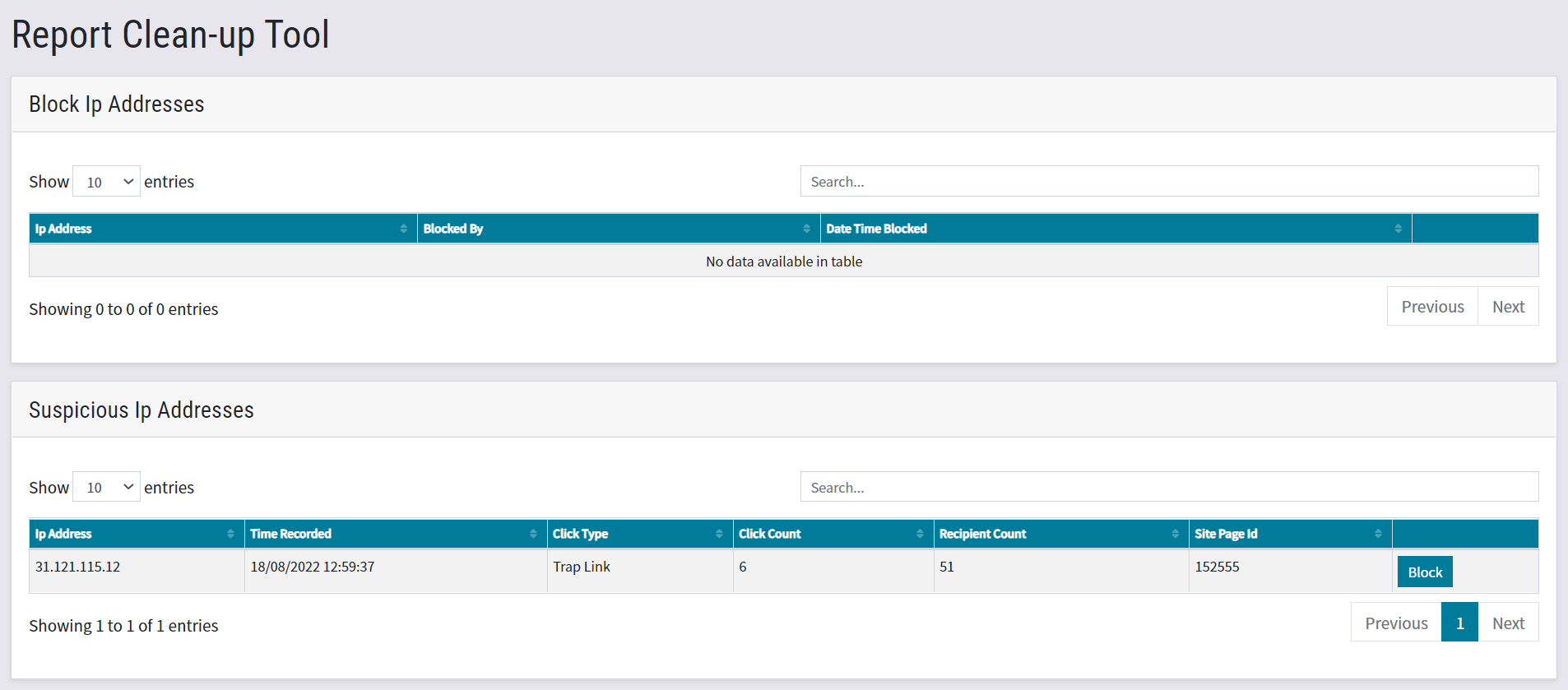
Table 1: Block list
- Blocked IP
- Blocked By (User)
- Date/Time Blocked
- Remove from block list (button)
Table 2: Suspicious list
- Suspicious IP
- Time Recorded: This is a date stamp of the first suspicious activity registered for that IP address. Future instances of suspicious clicks from the same IP are then added to the original row, under the original time stamp.
- Click Type: Again, only the type of the first suspicious click is recorded. Future instances of suspicious clicks from the same IP are then added to the original row, under the original click type.
- Trap link: Vuture has recorded a click on a honeypot link from this IP.
- Multi Click: This IP was flagged because a contact has clicked multiple times in an email within a pre-configured amount of time (0.5 seconds by default). For more information on this setting, click here.
- Multi Click Same Link: This IP was flagged because a contact has clicked multiple times on a single link within a pre-configured amount of time (0.5 seconds by default). For more information on this setting, click here.
- Click count
Click Count is a sum of clicks identified as suspicious for that IP address. We fetch this number from the click queue, which is stored for a certain number of days - 90 by default. Some customers have shortened this time period, but generally it's worth considering this number as a comparison against other suspicious IPs. - Recipient count
The Recipient Count is non-unique across emails. It could therefore be the same user clicking on links from different emails. This is the count of contacts for which at least one suspicious click has been registered.
- Add to block list (button)
The Impact on Your Vuture Reports
-
V3 is more efficient than V2 in detecting bot clicks and handling rapid clicks and you will therefore see a reduction in your click reports, even if you do not use the report clean-up tool.
-
For V3, if a honeypot link is clicked, that contact's click will not count in that particular email send's reporting. Honeypot link clicks will however continue to be listed in the report clean-up tool, and if you choose to block that IP address from there then all clicks (not only honeypot link clicks) from that IP address are excluded from future campaigns.
-
Because v3 includes an option to block reporting of clicks on honeypot links, that will likely also reduce the numbers on your click reports.
-
Adding an IP to the blocked table will mean that all future clicks for that IP will be blocked from all Vuture reports. Adding an IP to the blocked table does not affect reporting for historic clicks.
-
Removing an IP from the blocked table will mean all future clicks are included in Vuture reports. Any clicks which took place while an IP was blocked will not be collected and shown in reports, even if the IP is unblocked again.
The table which flags IPs as suspicious will categorise the reasons for flagging as one of the below:
Rapid click detection (existing feature) highlights IP/user agent as suspicious.
Clicks on invisible honeypot link highlights IP as suspicious.
The user can move the IP from the bottom table to the top table to block it, or vice versa using the buttons. Removing IPs from the blocked table means false positives can be corrected.
FAQs
Q. What is the difference between the different versions of the Bot Click filter?
A. Version 3 is more efficient than v2 in detecting bot clicks and handling rapid clicks (V1 should no longer be utilized). Version 3 will:
-
Automatically block honeypot link clicks from campaign reporting
-
Look for the time between a user’s link clicks. If they appear within a predetermined threshold (i.e. 2 seconds) of each other then they can be blocked from campaign reporting - this is known as “rapid click protection”. Your CSM can help to change same-link or different-link rapid click protection threshold settings
-
Provide the option to block/unblock suspicious IP addresses from all future campaign reports using the report clean-up tool
-
Uses caching to improve general task performance and efficiency
Q. Is it only beneficial for users of the Report Clean Up Tool. i.e. if they don't use Report Clean Up Tool then there is no difference to v2?
A. Version 3 is better than v2 in terms of performance. Version 3 is recommended because it uses less resource and will be faster to respond and v3 is more efficient than v2 in detecting bot clicks and handling rapid clicks.
Q. Does adding a honeypot link add a tracking pixel to the email?
A. No, this does not work in the same way as an open tracking pixel. Open tracking happens when images are downloaded, so they do not require explicit action by contacts to record their behaviour.
The honeypot link, while invisible, will act like any regular link in a campaign. If it is not clicked, it won't record any data at all. When clicked, it records exactly the same information as a click on any other link in the email, so no additional data is collected about your contacts. It is simply the act of the click which Vuture uses, with any clicks being marked as potential bot behaviour.
Q. If a recipient clicks on a honeypot link does it remove the recipient's info from the reporting?
A. No, the recipient's information is not removed from the reporting. It will create a suspicious IP address which can then be blocked using the Report Clean Up Tool. This will remove the IP address from future reports.
Q. Will clicks on a honeypot link be included in reports for Links Clicked?
A. No. Clicks on a honeypot link will not be included in Link Clicked reporting.
Q. How do honeypot links appear on emails? Do I have to add them myself?
A. No. Vuture adds the link to an email at the point of Send. Vuture checks to see whether BotClick v3 is enabled. If it is, we add the link. The link is added on the bottom of the email. It is inside the html tags and it's marked as "Hidden".
Q. I don’t have the Block Click Filter Queue enabled yet. Can I still go ahead and access this Tool?
A. Yes, the Tool will be available to you if you have the config and role enabled, as listed above in the Prerequisites section.
Q. I have marked an IP as “blocked'' but now I want to change my mind. How can I do that?
A. You can unblock an IP by clicking on the Unblock button in the Blocked IP table. If this IP was recorded as suspicious while the IP was blocked, the IP will display in the Suspicious table. Otherwise, it will display in the Suspicious Table only if it's flagged again. Simply move the IP from the top (blocked) table to the bottom (suspicious) table to unblock it.
Q. Can I find out who has blocked a particular IP?
A. Yes, user activity on this table will be logged
Q. I have removed an IP address from the blocked list, but I’m still not seeing any click data for that IP address?
A. It will take up to half an hour for the clicks to start showing in reports again
