The email devices dashboard gives you breakdown of the email devices that have been used to open emails in a certain period of time. It can also be used to see what email devices were used to open a specific email (
click here for more details).
You can send this dashboard to yourself or your colleagues either once or on a recurring basis. Find out how to do this here.
Filters
You can filter this dashboard by campaign which you can select if you click on Site Name and an individual email from the Site Page.
You can also select a specific date range.
Reports that make up this dashboard
Email Analytics (43: Email Analytics)
This report shows a pie chart with an overview of the main devices used to open the email or emails.
When you drill down, the report you see is: 111: Email Analytics Full Results
Email Analytics Detailed (65: Email Analytics Detailed)
This report lists the email devices in a table and includes a deeper breakdown of the devices with a more detailed breakdown
When you drill down, the report you see is: 65: Email Analytics Detailed

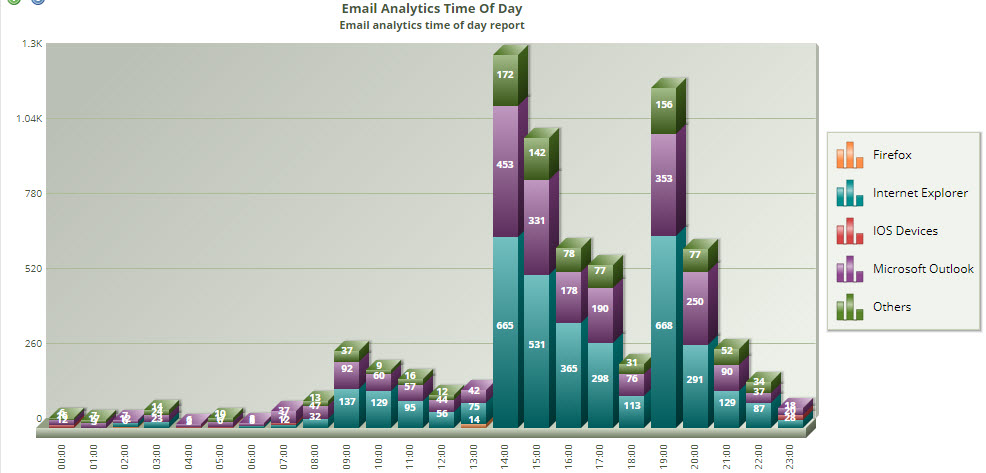
Email Analytics Time of Day(149: Email Analytics Time Of Day)
This report shows a bar chart of devices used to open this email at different times of the day. This report is useful as it can show how mobile usage increases and decreases during the day.
When you drill down, the report you see is: 149: Email Analytics Time Of Day
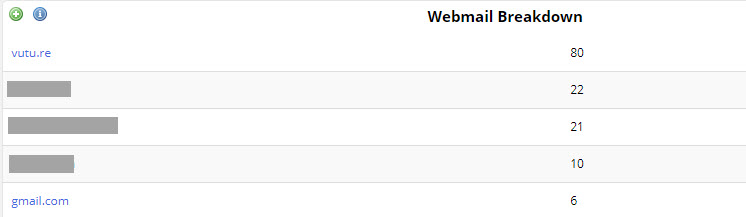
Webmail Breakdown: (150: Webmail Breakdown)
This report shows a breakdown of the email opened through a webmail client and displays the information by domain. Please note, the report only returns information for contacts who have opened the email in a browser.
When you drill down, the report you see is: 151: Webmail Breakdown Full Results.
How to view the Email Devices Dashboard for a specific email send
To view the Email Devices Dashboard for a specific email send, navigate to the email campaign, click into the send folder (e.g. June 2019), then click on the email send in the send folder. This will bring up the "Email History Screen". From here, click on the "Email Devices Dashboard" link in the top right corner (see screenshot). This will bring you to the Email Devices Dashboard with the email send selected, from which then you can click on "Update" to see the email device stats for this email send, rather than all sends during a specific period of time.

