Your role needs to have the feature "HTML Admin" enabled to be able access to the template management area of each campaign. Your Account Manager can configure that for you. Note that there is a separate HTML Admin feature for email, web and print modules.
Vuture recommends using a specialist role for this and applying this role to a Templates container at the root of your container structure.
Template management
This area allows the download, upload and editing of campaign assets and files using an online text editor and zip file uploader.
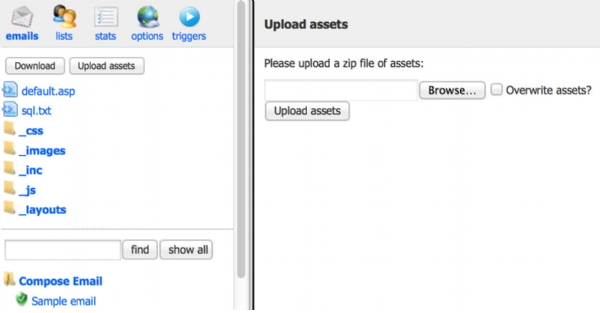
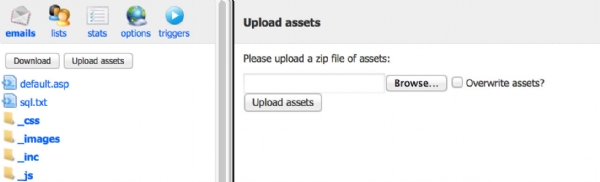
Using this, it is possible to upload a .zip file of template files and assets directly into a campaign. Vuture controls file versioning and creating all database entries.
Vuture automatically renames any assets and searches the remaining files in the zip file, repointing any links as necessary. There is an option to replace existing assets with those contained in the zip file, however this option will immediately overwrite any files with out history or versioning.
zip file structure
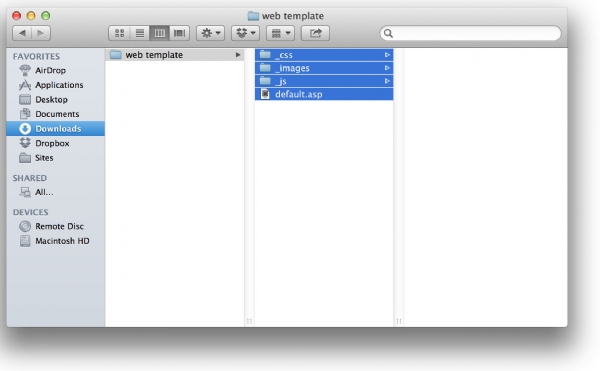
The zip file structure is important; it should have only the required folders and should not be nested more than one folder deep. There are also rules regarding the types of included files allowed; this is covered in more detail below.
Remember to create your .zip file from the root of the campaign, not from the folder level above.
Folder structure
The folder structure of the .zip file should always match a pre-defined layout. Please note, not all folders are required by the .zip uploader.
The structure of the .zip file can be copied by downloading an existing site using either the Vx API at https://{myVxUrl}/api/Site/{siteId}/Export.zip, or using the Download button in the template management section.
Structure
All folders not accessible by the user should be prefixed with an underscore e.g. _css, _images, _inc, _layouts, _js, _history, _thumbnails
Each template should follow this folder structure
|
Folder name
|
Detail
|
|
_css
| CSS style sheets should be stored in a folder called _css
Standard CSS file names in these folders are default.css, ie.css and ie7.css
|
|
_images
|
The root of the _images folder should contain all the image files used by the site that are not accessible to the user
|
|
_inc
|
Any include files should be in an _inc folder
|
|
_js
|
Any javascript includes should be in a _js folder
|
|
_layouts
|
This folder contains the template layouts. Each layout should be named according to its function.
|
|
_thumbnails
|
In this folder there should be the file _small.jpg which is a 240x180 thumbnail of the home page - this can be automatically generated
|
Allowed file types
Currently, Vuture only allows uploading of the following file types through the .zip uploader:
- .asp
- .aspx
- .html
- .gif
- .jpg / .jpeg
- .png
- .js
- .css
- .pdf
- .doc / .docx
- .xls / .xlsx
- .ppt / .pptx
- .ico
- .svg
Security
For security reasons Vuture forbids the upload of the following folders or files:
bin/
_history/
__macosx/
appsettings.config
web.config
connectionstrings.config
sql.txt
Asset editing
Vuture also includes an asset editing screen, through which any static text-based assets (for example .css files) can be edited, renamed, or deleted.
If you would prefer to use an offline editor (for example Dreamweaver) Vuture provides the ability to upload files directly into the asset folders, either using the multi-file uploader or the .zip uploader.
Importing Online Files
If you have an email layout that is already published online Vuture can import it directly from the URL.
Click on the Compose Email folder and enter the name of the email and a URL in the URL to import from box. You can choose to download assets such as images and CSS files into the campaign. If you choose this option Vuture will automatically update the links to these assets in the HTML you are importing.
Renaming files
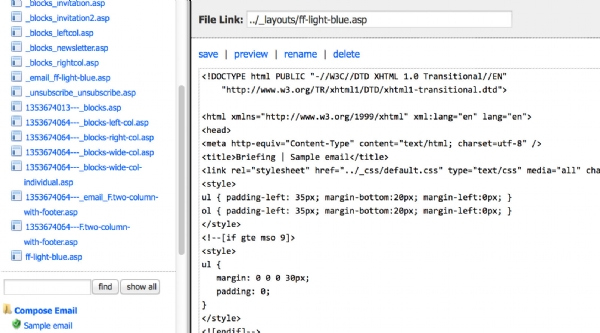
Vuture will automatically scan your campaign for linked assets, and relink when you rename. Renaming assets is done through the editing screen.
Troubleshooting
If you experience any issues pasting a snippet from the clipboard, ask Vuture Support to check for you that there is a "_blocks.asp" file in the _layouts folder. The clipboard needs that blocks file in order to operate.
