Keywords: Move campaign, request move, copy campaign, migrate, migration task
Overview
This article will cover how to request a campaign to be moved to a different container.
Contents
How to Move a Campaign
Move or Copy?
Moving a campaign to a new container is not the same as copying a campaign. As best practice, we do not recommend copying campaigns, especially email campaigns with forms. For more information on best practice regarding copying campaigns, please review this article.
Moving the campaign to another container will allow you to better organize your container structure and will bring along with it any send data, so that your reporting remains intact. Campaign variables will also be moved with your campaign to the new container and any existing links will not break.
IMPORTANT: It is best practice to wait until your campaign has been sent, before requesting your campaign is moved to a new container. Triggers and their accompanying filters will be recreated and mapped across to the new container, but it would be wise to double-check these once the move has taken place, if further mailings are planned to go out.
Making the move happen:
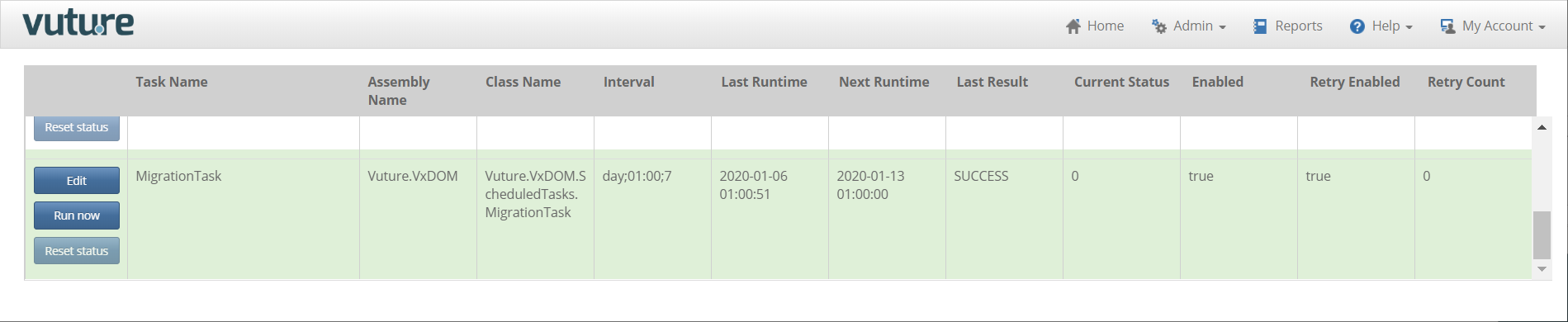
Support will carry out the requested move for you by running the Scheduled Task (Admin.Services.Migration Task). This should be done manually for the first few times it is requested. Once it is established that moves are working well, then Support can enable the task on a schedule - for example every night. Nightly is preferred over the daytime, because the move process needs to lock the files.
Requested moves will not occur immediately
Requested moves will not occur immediately, but will be shown on an admin dashboard and take place according to the Migration Task (a task which can be Run Now for a client in Admin.Services. Migration Task by Vuture Support.)
Please note: It is okay to make edits to the email campaign before the task runs to move the campaign to its new location. All changes will carry over when the move takes place.
Prerequisites
There are two possible settings which can be enabled under Roles for clients for Move Campaign:
- The ability to request a Move and specify the container to move the campaign into.
- The ability to see all requested Moves on an admin dashboard. This dashboard is intended to display the Moves requested (pending) and provide a history of the Moves that have taken place. It is not required for all users to see the admin dashboard. Once a Move has been requested, it would be possible for an Admin user to go into the dashboard and, if required, Delete that request.
Set Up
Please ask Vuture Support or your Customer Success Manager to enable the below settings. This will give you access to request your campaigns to be moved.
1. In Roles, enable Admin.Roles.Email Campaigns.Move Campaign for your users. This will allow users to see the option on the home screen and request a Move:
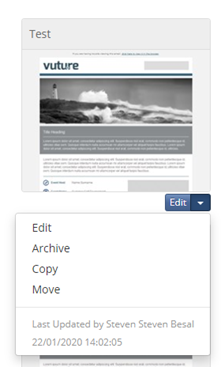
Clicking on the Move option will result in the opportunity to select the new container.
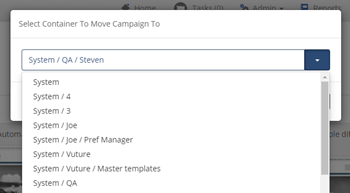
This Move request will be added to the admin dashboard and to Scheduled Tasks, in a queue. The Move will not take place until the Scheduled Task runs.
2. In Roles, enabling Admin.Roles.Admin.Move Campaign View Enabled allows a user to view the admin dashboard which lists all moves requested by all users across the platform. To see the dashboard, they will click on Admin tab from the home page:
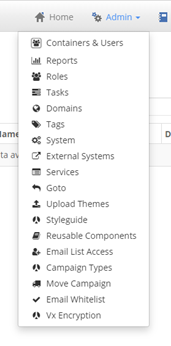
The dashboard:
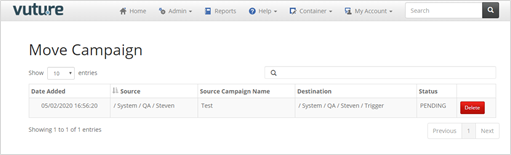
Any requested Moves will appear in this dashboard.
The Move will occur when the Task is run - visible under Admin.Services. If you need to complete the Move urgently, Vuture Support can go to the list of tasks at Admin.Services, find the task and choose Run Now.
Once moves are established successfully then Support can set the task on a schedule, for example, every night at midnight, to pick up any moves that have been requested that day.

The schedule is given in the Interval column, where the last number is the frequency.
For example, if you wanted the task to run every days at 11pm, the Interval you would need is
day;23:00;1 which would equal once a day at 23:00
If you wanted the task to run once a week at 11pm, the Interval you would need is
day;23:00;7 which would equal every seventh day at 23:00
