Security Role Setup
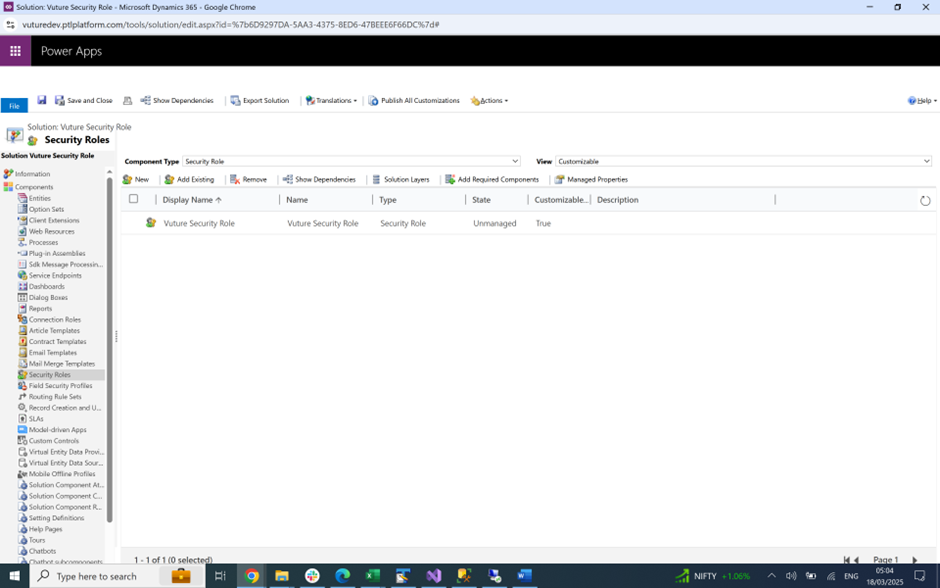
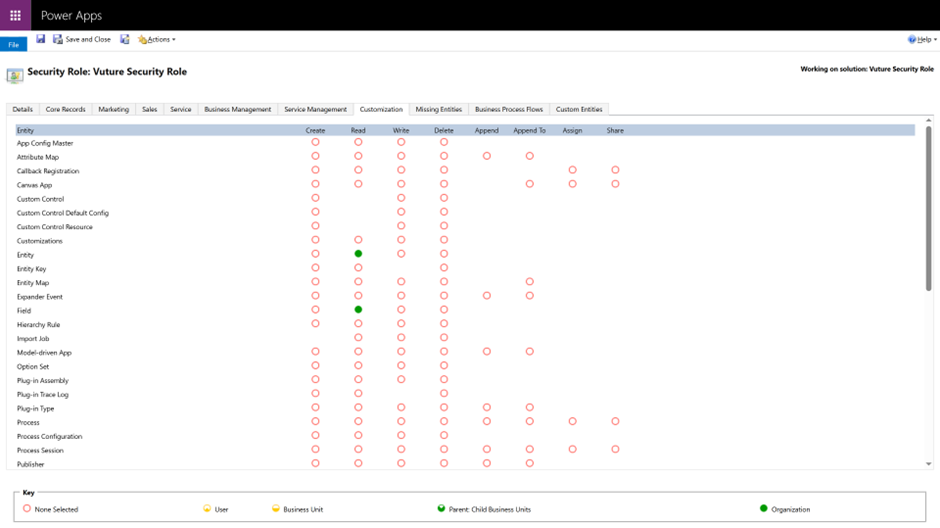
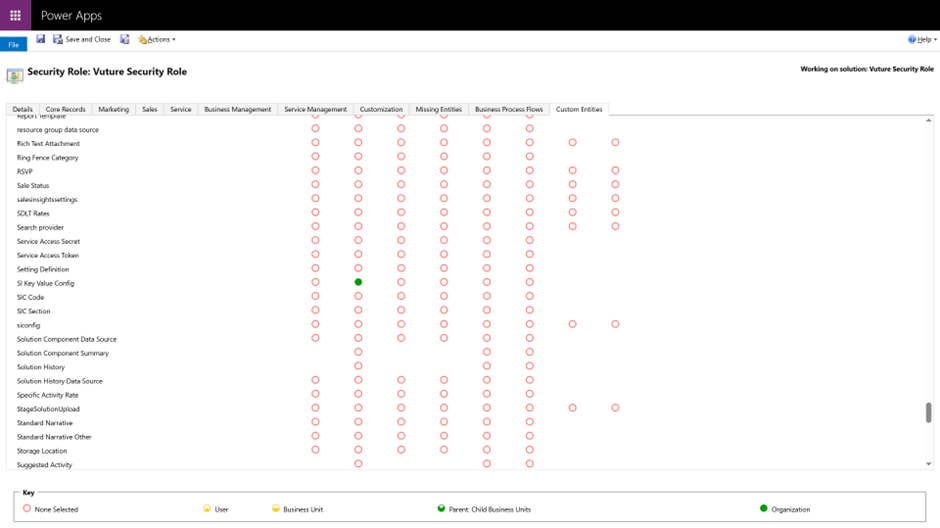
When we set up Peppermint clients with a Vuture integration, we typically ask the clients to set up Admin User rights, along with the Vuture security role setup in the solution file we send them. However a client may be operating on the principle of least privilege, so they would want the Vuture user scoped to only have minimum permissions necessary. Accordingly, Vuture has created a security role setup called Vuture Security Role for modifying the entities defined/added in the solution file.
Vuture Security Role
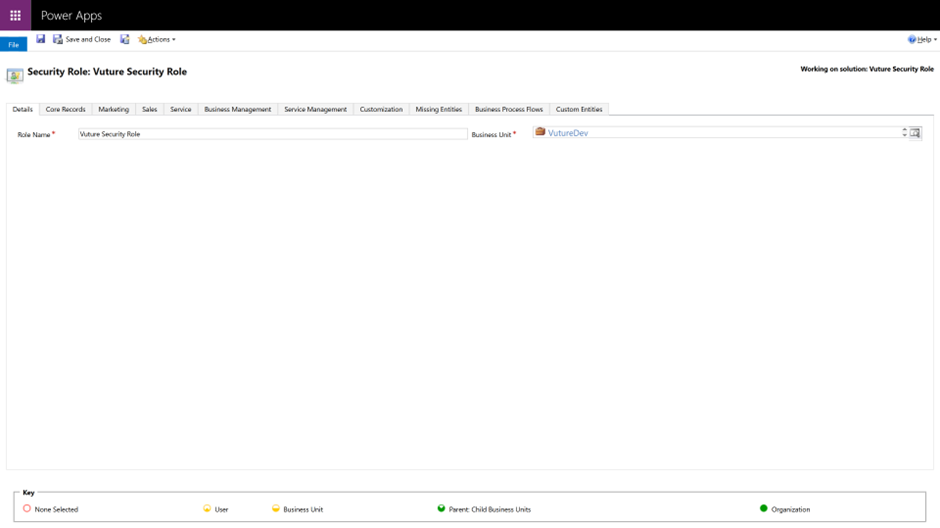
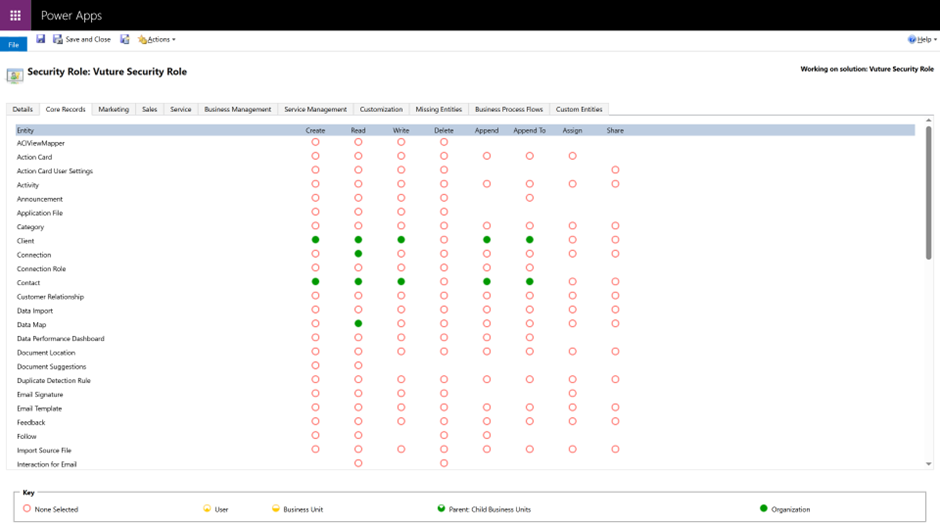
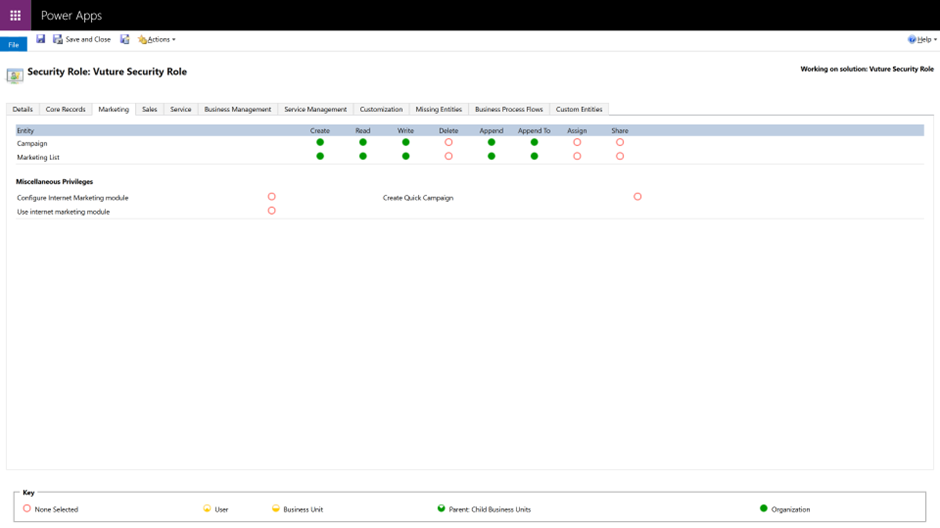
The images below display the Vuture Security Role configured in the solution file.
Create New Security Role
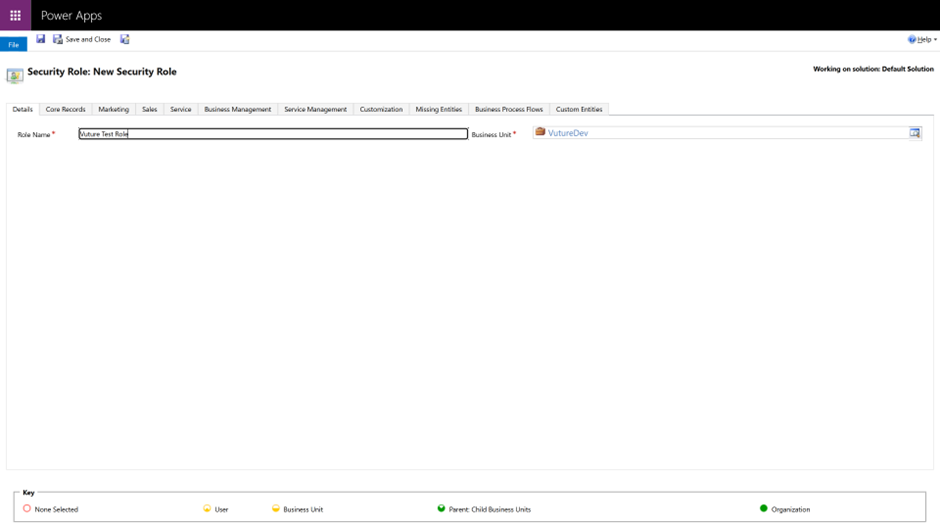
We can create a new role under Settings > Security > Roles and configure the required privileges. Click Save.
Note: If you require a user with least privilege, select the read-only privilege for the different roles required for viewing the entities/objects in the solution file. For example, you could select the read-only privilege for the above Vuture Security Role.
Create New User
We can create a new user under Settings > Security > Users > New and configure the business unit, email address and required fields and click Save.
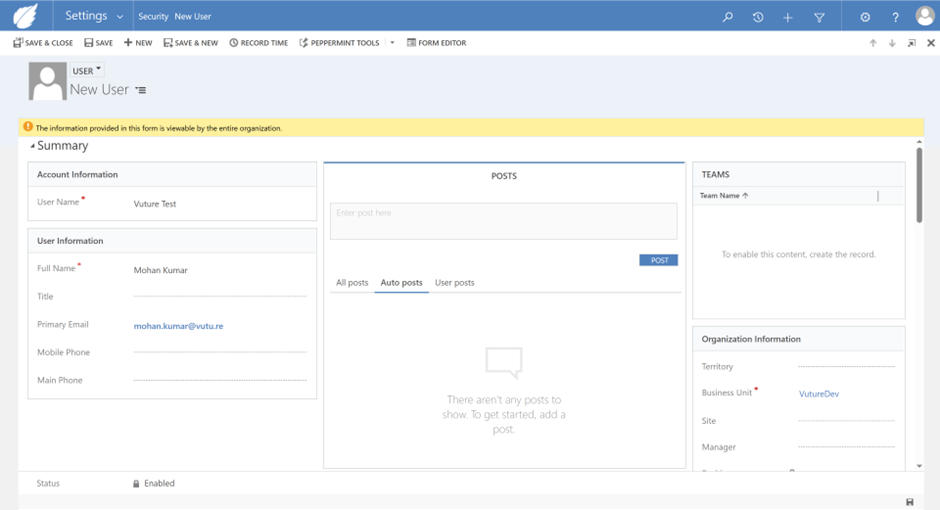
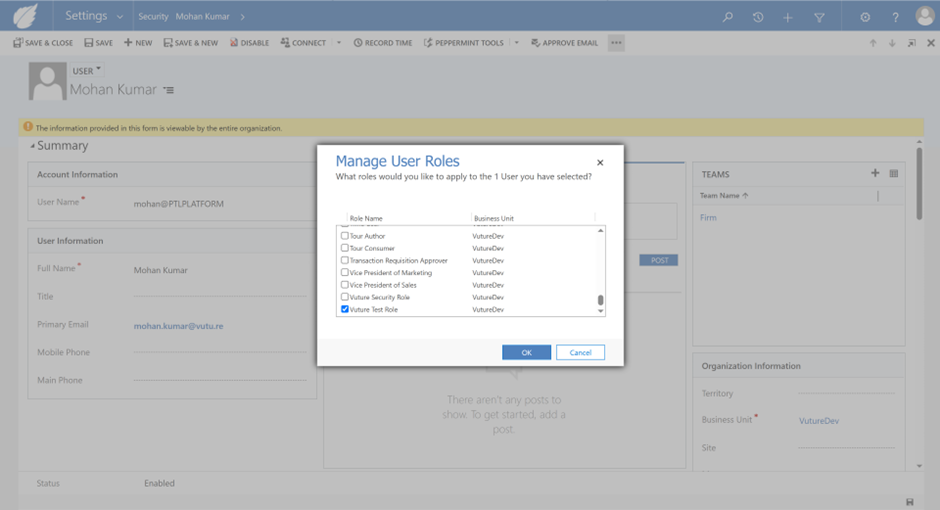
Now go to more command (…) > Manage Roles and select the required role and click OK.
Reference - https://learn.microsoft.com/en-us/dynamics365/customerengagement/on-premises/admin/create-users-assign-online-security-roles?view=op-9-1
