As part of our ongoing work to update all our user interface and bring it into line with the look and feel which has already been released in other parts of the system, we are making Email Send Screen v2 available for Dynamics.
Prerequisites:
Email Send Screen v2 is now available for all CRMs and standalone.
To enable Email Send Screen v2 in your instance you need to ask your Account Manager to go to Admin -> System-> Versions -> EmailSendScreenVersion and select version 2.
You will also need Admin.Roles.Emails.Send v2 enabled for your Role.
Static lists combined with dynamic lists
Please note: you can only send to either all static lists or all dynamic lists in any single send in order for personalised links to work correctly. For Send Screen v2 we have protected against the possibility of error by deselecting one list type if the other has already been selected.
If you wish to use both types of list in one single mailing, we recommend that you send to one type and then use Send More to send to the other type.
Send Screen v2 Updated UI
There are currently two tabs on the Send Email screen - Email Setup and Email List.
Email Setup Tab
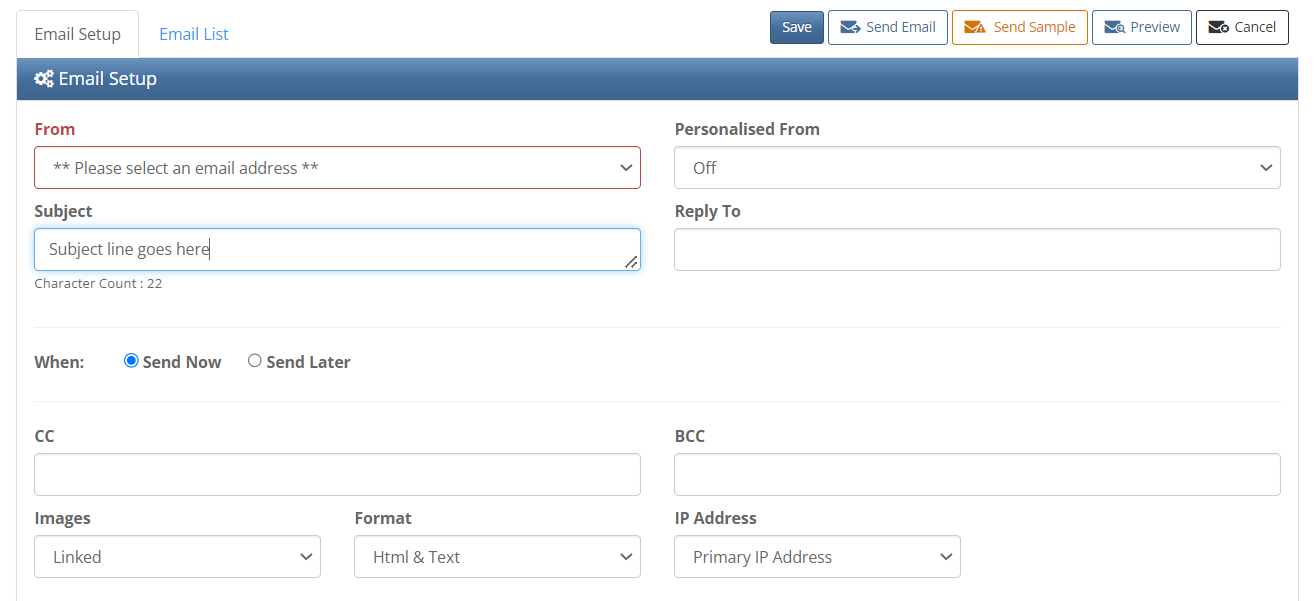
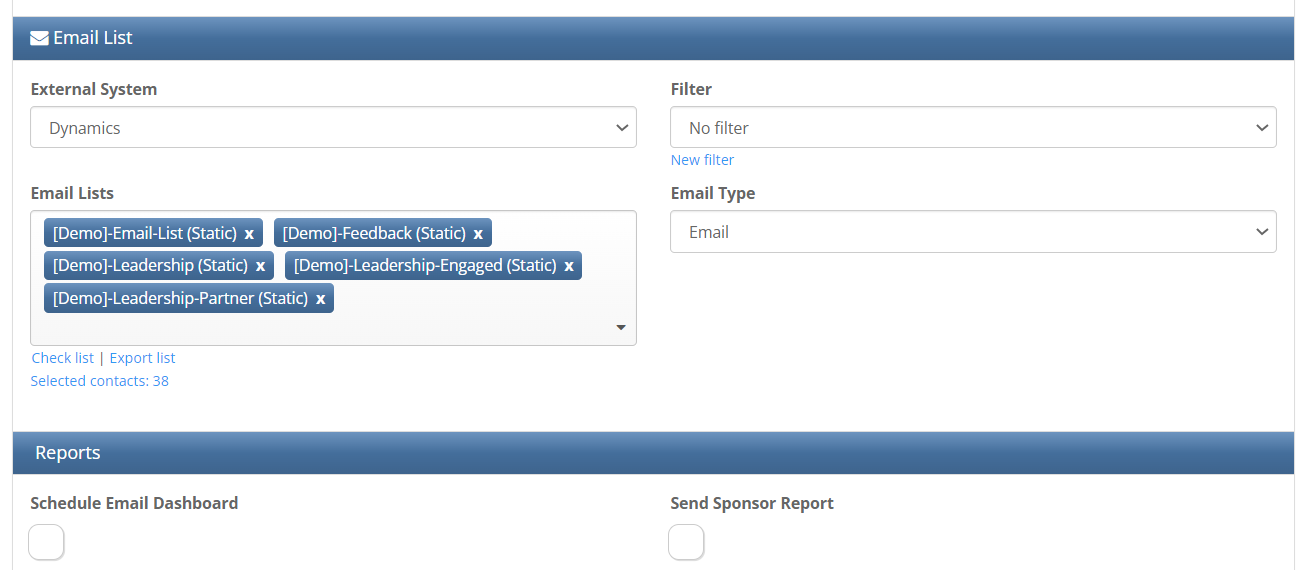
The functionality of this tab mirrors the setup available to you on version 1 of Email Send Screen.
It includes:
- From email,
-
Personalised From,
- Subject Line,
- Reply To (which you can make a required field if you wish. Find out how here),
- CC and BCC if enabled, CC Additional Fields if enabled (for InterAction). Find out more here,
and, the Images, Format and IP Address line which are typically for Vuture Only.
You can select your data source (external system or csv) from here, choose your list and build a filter.
There is also a link to the Check List tool. If the Check List tool is enabled for your firm, you could see from here which contacts on the selected mailing list would be suppressed, if you had automatic suppression enabled. Click here to read more about the Check List tool.
What's New in v2?
The link to the Check List. This link allows you to access a version of the Engagement Allow List Tool, displaying just the contacts in the current, selected Mailing List(s).
Email List Tab
Image showing top part of the screen
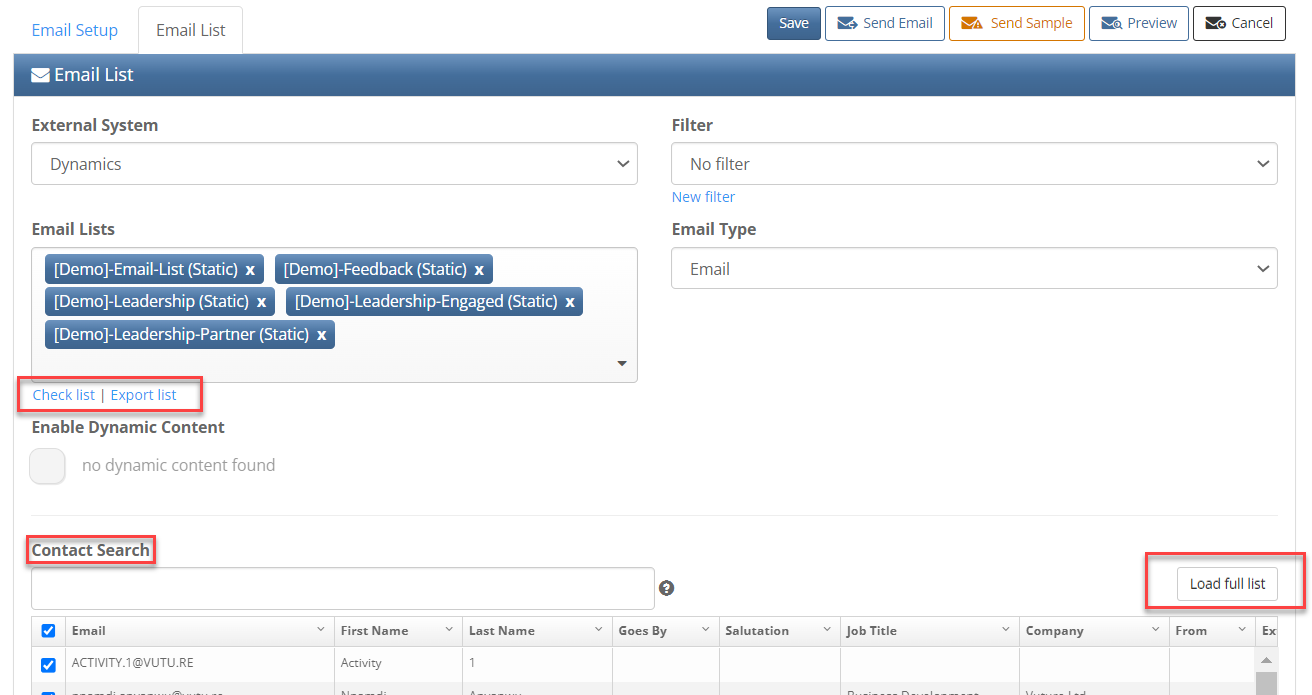
The Email List tab allows you to choose your list(s), filter the list, select the Email Type and search the list for specific contacts. (Dynamic Content is only for use with InterAction crm)
Image showing lower part of the screen
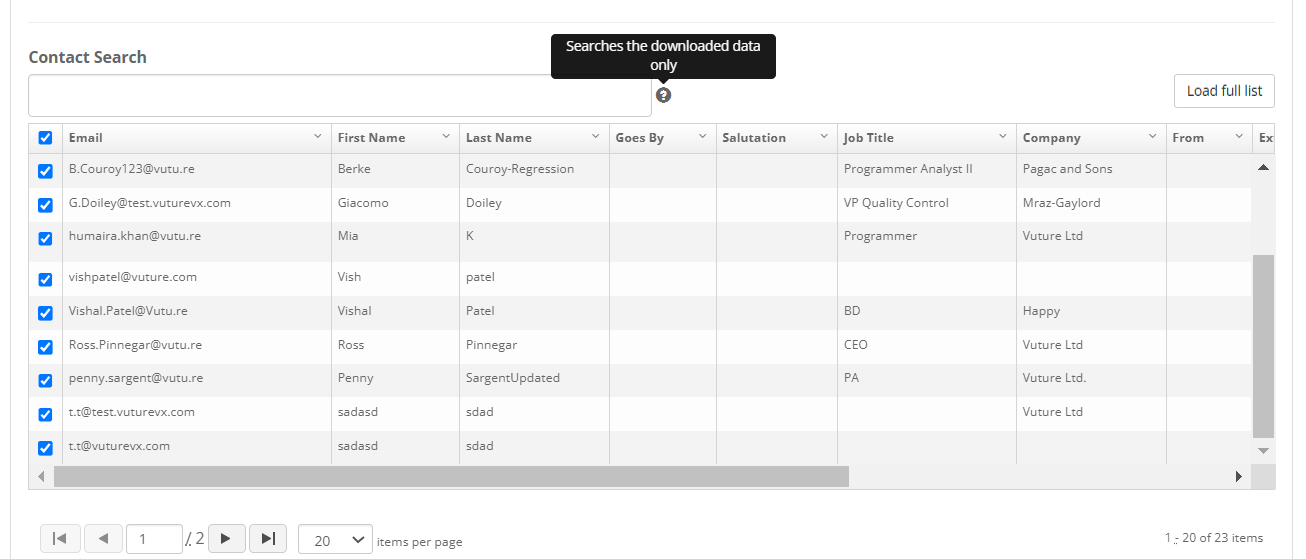
Notes on Searching for a Contact
When you select a mailing list, Vuture will only load and display the first 60 contacts to the page view, or fewer than 60 if the list is shorter than 60, as in the image above. This is because, if you had a very large list, it could take a very long time to load and it is not required to display the whole list before sending. However, if you needed to search for a contact across the entire list you would first click the Load full list button. Otherwise the search will look across the 60 displayed contacts only.
There is no need to load the full list before sending the mailing; Vuture will send to the whole list of contacts automatically. The Load full list button is only for searching.
FAQs
Q. In the new send screen, if a user chooses to Pause and then Resume a send, what is the expected behavior?
A. The user will be returned to the send screen. That is because a Pause and Resume mirrors the behavior of a Send More. It allows the user to continue the send without resending to any email address that has already received the mailing.
