Introduction
When you are preparing to send an email it can be useful to first check the mailing list for engagement, before sending to it. Using the Checklist Tool will allow you to see all the individuals on the mailing list, when they last engaged with your marketing, and (if you have automatic suppression switched on) who will be suppressed from this mail, when you send it, because they have not engaged inside the last period set by you.
Prerequisites
1. The Module
2. The Role
3. Default expiry times
4. Automatic suppression or not
1. The email module, with Send Email screen v1 or v2
2. If you need to be able to edit whitelisting expiry dates, your Role needs to have enabled: Admin.Roles.Emails.Edit Email Engagement Whitelist.

Without this enabled for your Role, you will be able to see the Checklist Tool results but not change any dates.
3. Default expiry times for whitelisting. Most firms have chosen 12 months but some have opted for longer and some for shorter. This config is set for you by your AM at Admin.System.Emails
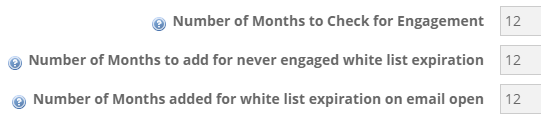
The figures above indicate, in the first place, the number of months to look back at a contact's engagement history.
The second figure is for how many months a brand new, never mailed contact should automatically be whitelisted.
The third figure is how many months whitelisting a contact should receive if they open an email or click a link.
4. A decision on whether or not to suppress contacts who have an expired whitelist date. Some Vuture clients have chosen to automatically suppress contacts from all mailings when their whitelist date has expired. Some clients have chosen to view the expired contacts via the Checklist Tool, but send anyway. If you want to automatically suppress contacts who have expired, ask your Account Manager to enable Admin.System.Emails.Check whitelist on send.
How to Use the Check List Tool
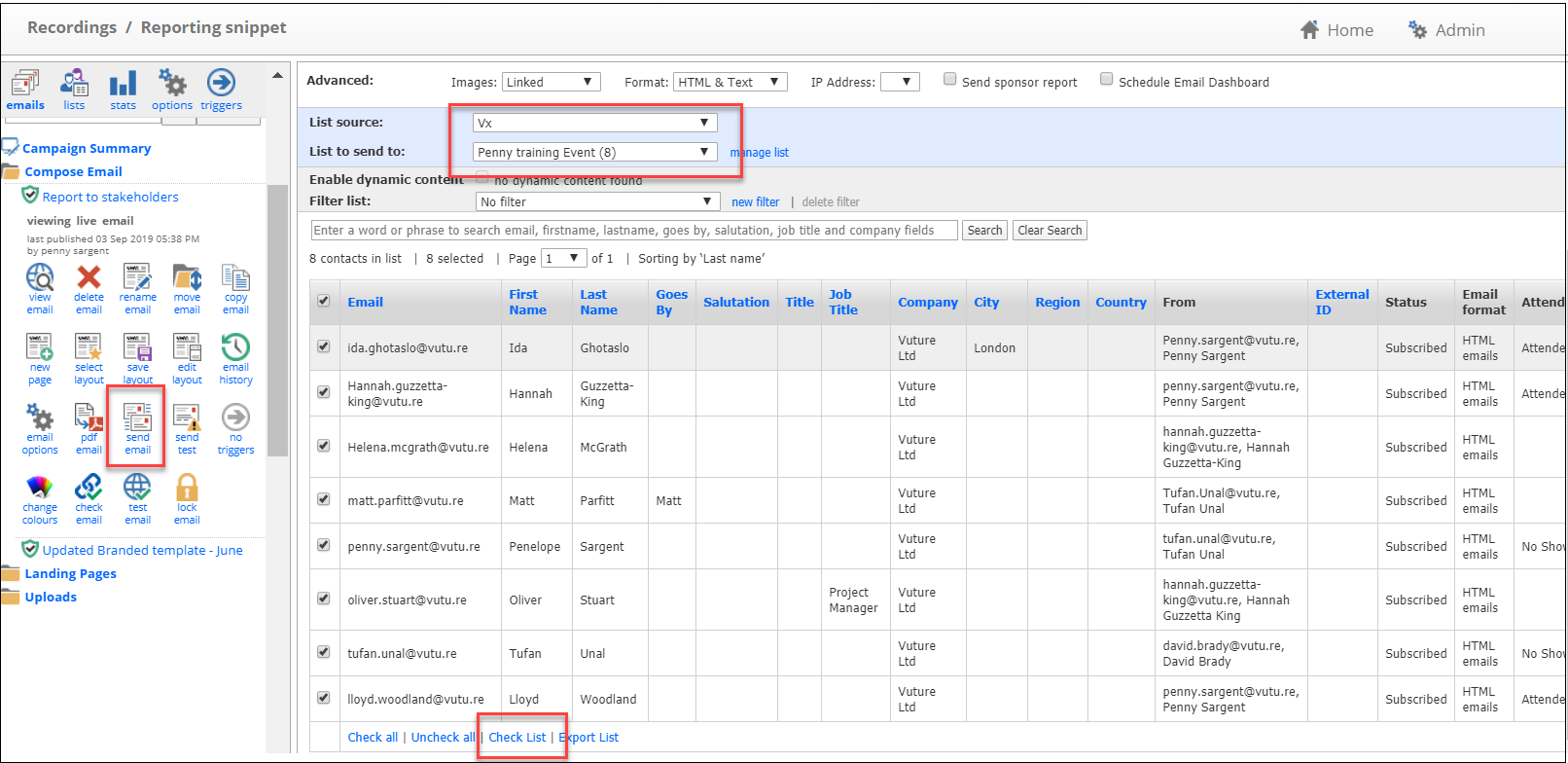
In your campaign, once you have tested and confirmed that you are ready to send it out, select Send Email.
Alternatively, and especially if you are reluctant to click on the Send Email icon before you are ready to send, there is now another way to access the tool, for users of InterAction and Standalone only. Click here to read this article.
Select the CRM you are connected to (or Vx if no integration) and the mailing list you plan to use. You can select multiple lists if you wish. Vuture will show them in the Check List tool combined and de-duplicated.
Scroll to the foot of the page and find the Check List link.
This is how it looks in Email Send Screen v1
This is how it looks in Email Send Screen v2:
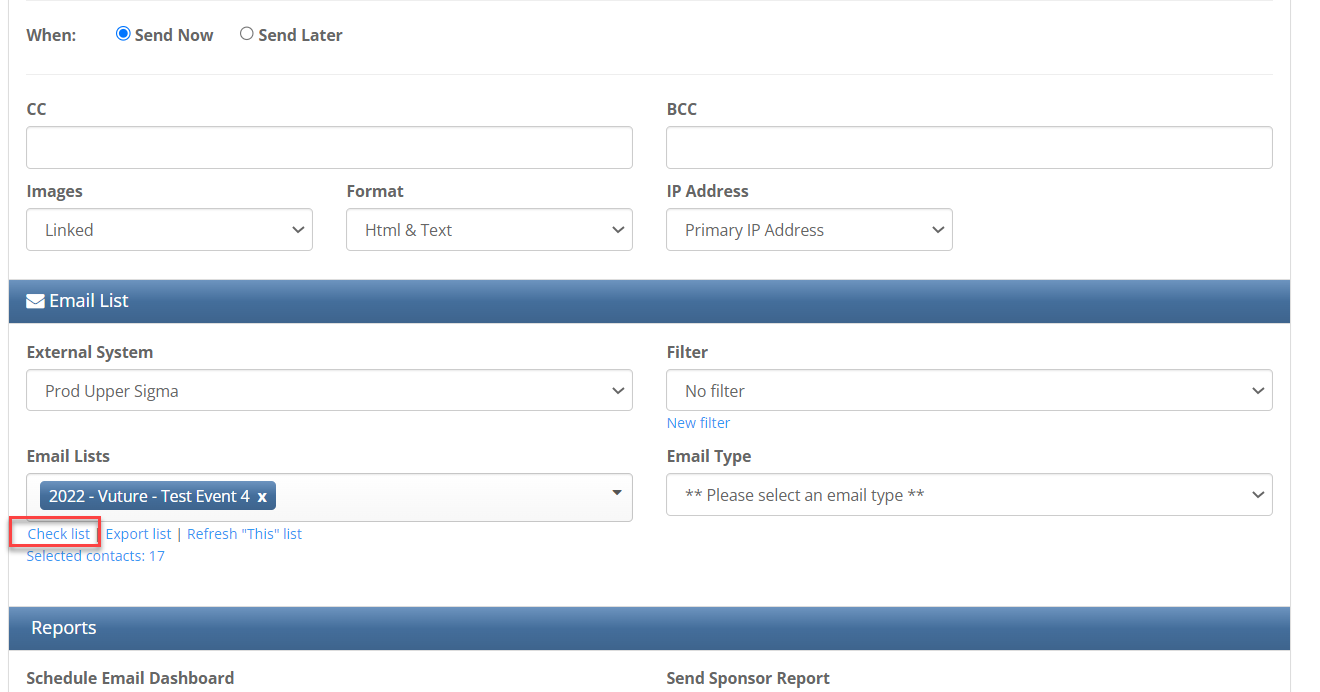
Check List now links directly to a version of the Engagement Whitelisting tool, limited to showing you the individuals on this mailing list (or lists) only.
The screen will look like this:
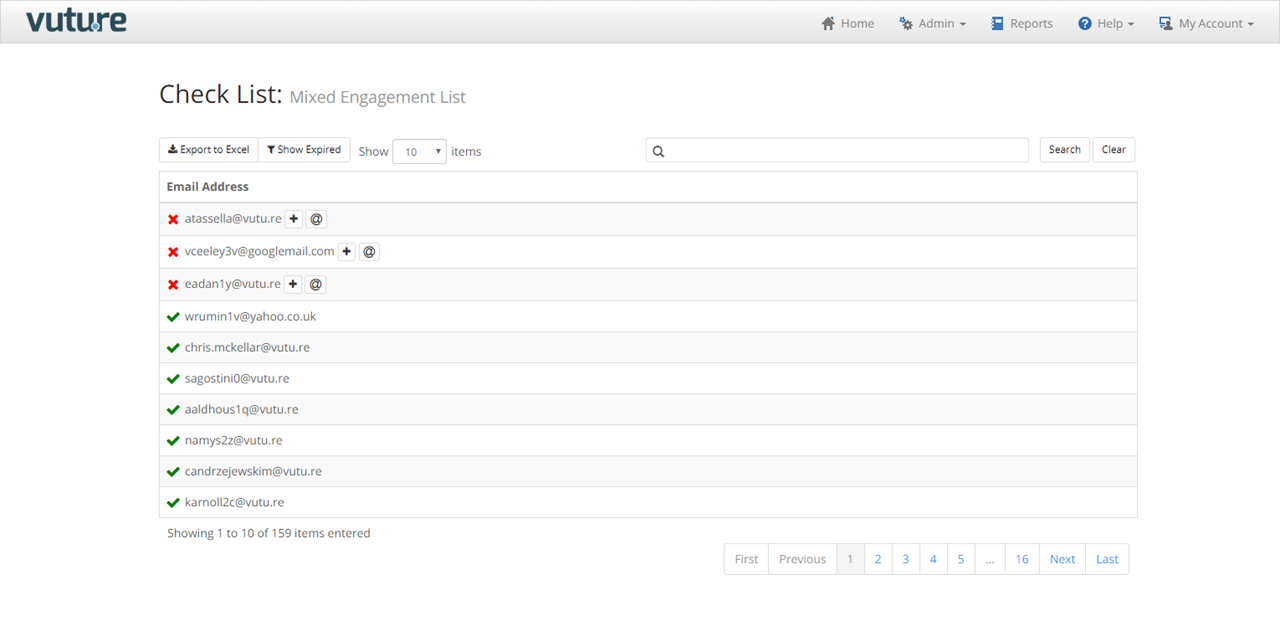
You have the option to Export to Excel if you wish. You can search for individuals or page through the list.
Filter the List
Alternatively you can filter the list, to show Expired email addresses only, for example, and then decide how to action each one.
Clicking on the red cross next to an email expands the view like this:
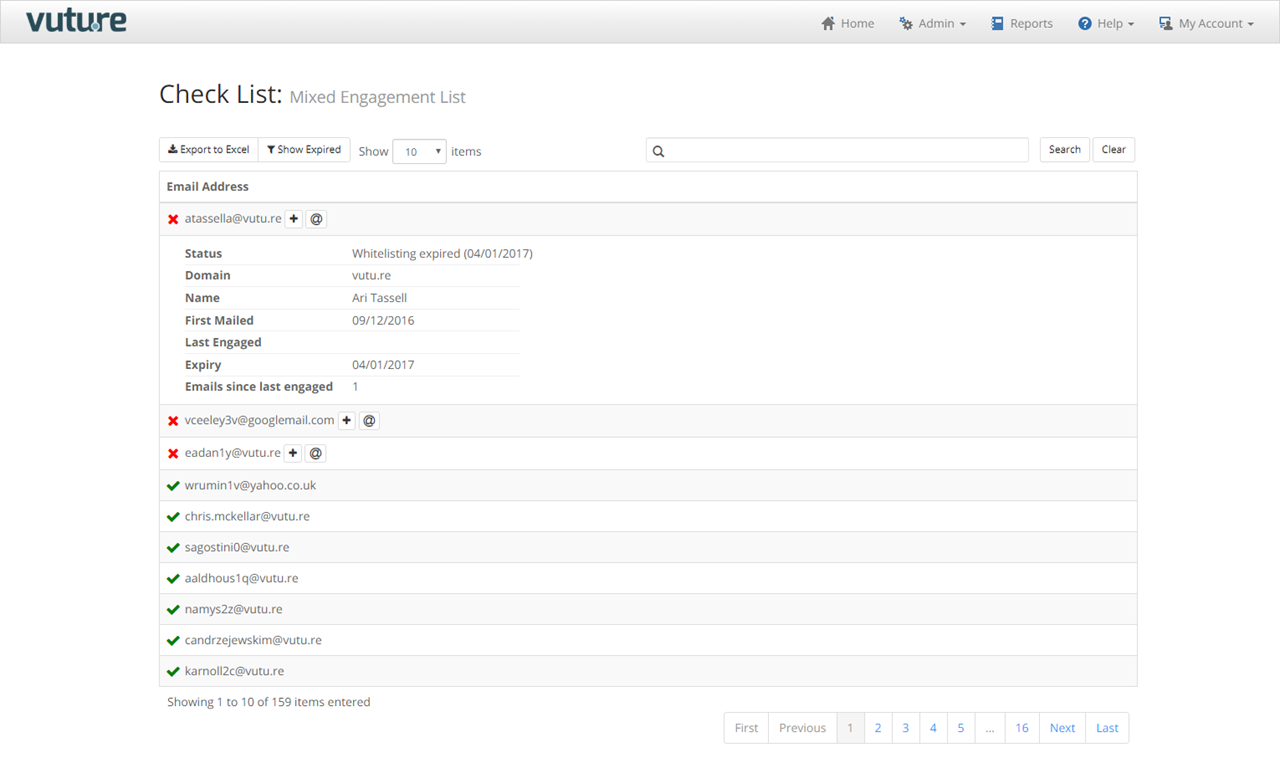
This expanded view shows you why an individual's whitelisting has expired. In the example above, they have not engaged since they were sent an email in 2016.
You can also see how many emails they have been sent via Vuture since they last engaged.
What does each Status mean?
1. Whitelisting Expired (Date)
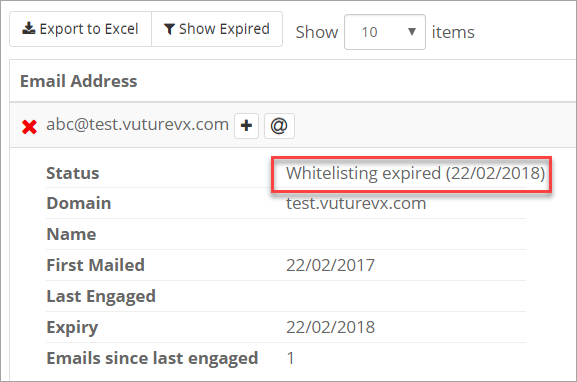
This status indicates that a whitelist date that was previously in force has expired. It expired on the date given in brackets. Possibly the contact was given a 12 month whitelist on first mailing and that 12 months has now expired. Or they engaged with your emails initially but have now stopped, and not engaged for more than 12 months.
2. New Contact
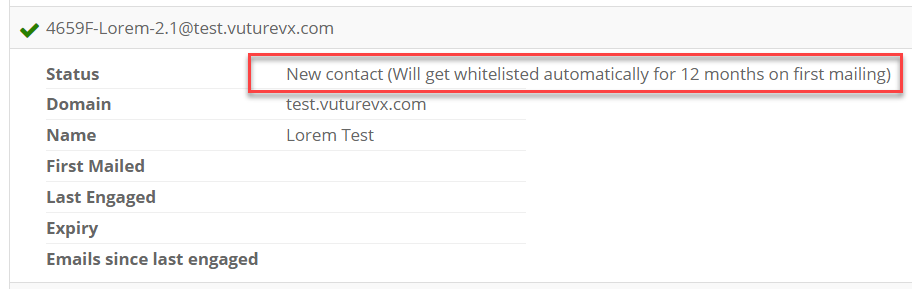
This status indicates that the contact has not been mailed before by you. They have been given an automatic whitelist of 12 months from the first mailing - which is likely to be 12 months from today if you are checking your email list before using it. The period of 12 months is configurable by you.
3. Automatically Whitelisted by Engagement
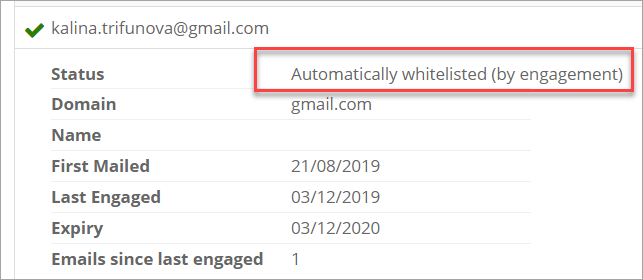
This status indicates that the contact has engaged with an email from you (opened an email) within the last 12 months and has therefore been given an automatic further 12 months of whitelisting. You will see from the image that the contact engaged on 3rd Dec 2019. Their whitelist has therefore been extended to 3rd Dec 2020 automatically.
4. Manually Whitelisted by Domain
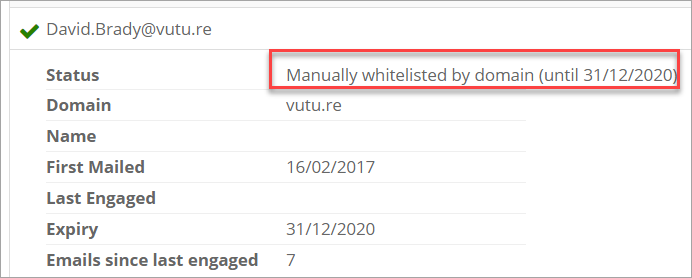
This status indicates that the contact has an email address belonging to a domain that has been manually whitelisted using the Whitelist Tool. You can see that they are not engaging, in fact have not engaged since they were first mailed, but a user has edited the whitelist date for the entire domain of vutu.re, and given them all a whitelist date of 31st December 2020.
5. Manually Whitelisted
A further status exists which is Manually Whitelisted. This means that a user has used the Whitelist Tool to give just one email address (not the entire domain) a manual whitelist date of some point in the future. You can extend a whitelist period for a number of months, or indefinitely (meaning it will never expire).
Editing Whitelist Expiry Dates
If your role allows, and you choose to extend the whitelist period for an email address, click on the + next to their email. If you choose to extend the whitelist period for an entire domain, click on the @ next to their email.
You can either extend a whitelist period for a fixed amount of time or whitelist indefinitely (will never expire). Indefinite whitelisting should be reserved for email addresses or domains that you are confident will never become spam traps.
Warning: You should only consider whitelisting entire domains if you are confident that all your contacts' email addresses associated to that domain are valid and free from spam traps. An example of an entire domain that could be safely whitelisted is your own firm's domain. Please do not consider whitelisting gmail, hotmail or similar.
Sending the Email
Once you finish editing the Checklist Tool, return to your mailing list(s) on the send screen. You can now send your email, knowing which contacts will and won't receive your mailing, based on Engagement.
FAQs
Q. Why does a contact who has previously engaged with an email from us, now show in the Checklist Tool as "new"?
A. A contact may show as "new" in the checklist tool if you have not had your historic data run, to populate the Email Whitelisting Tool. If this happens, ask your Account Manager to request that your historic data is run.
Q. How often is my historic data reloaded. Does it cache?
A. Your data will be automatically refreshed every 24 hours by default. The caching setting for this data can be set at Admin.System.Emails.Minutes to Reload Email Engagement Data.
