Checklist Tool, InterAction, Lists
Overview
For InterAction and Standalone clients only, we have added a new way to access the Checklist Tool. This is to allow clients to review a mailing list before clicking on Send Email. Using the Checklist Tool will allow you to see all the individuals on the mailing list, when they last engaged with your marketing, and (if you have automatic suppression switched on) who will be suppressed from this mail, when you send it, because they have not engaged inside the last period set by you.
The functionality of the Checklist Tool has not changed. This article simply describes a new way to access the tool. Once in the tool, you should follow the previous instructions for how to work with it.
For a detailed description and how to work with the Checklist Tool, there is a help desk article here.
Prerequisites
- Access for your Role to the Lists area. This is the area at the top of the Campaign screen. If you cannot see the Lists area, ask your Account Manager to enable Admin.Roles.Admin.Access to Email List Tab
Accessing the Checklist Tool
From the Campaign area you will see the Lists tab at the top left of the screen:
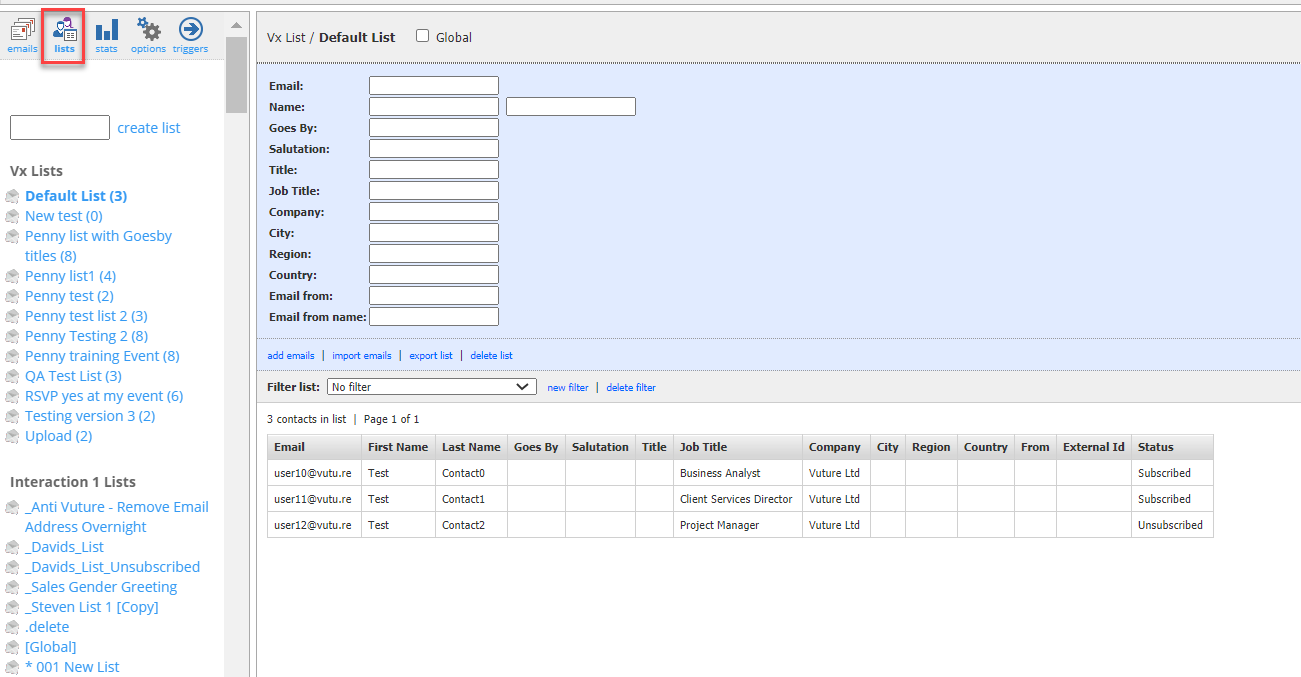
Clicking on the Lists tab will show you all the IA and Vx lists which are available. Select one list by clicking on it to highlight.
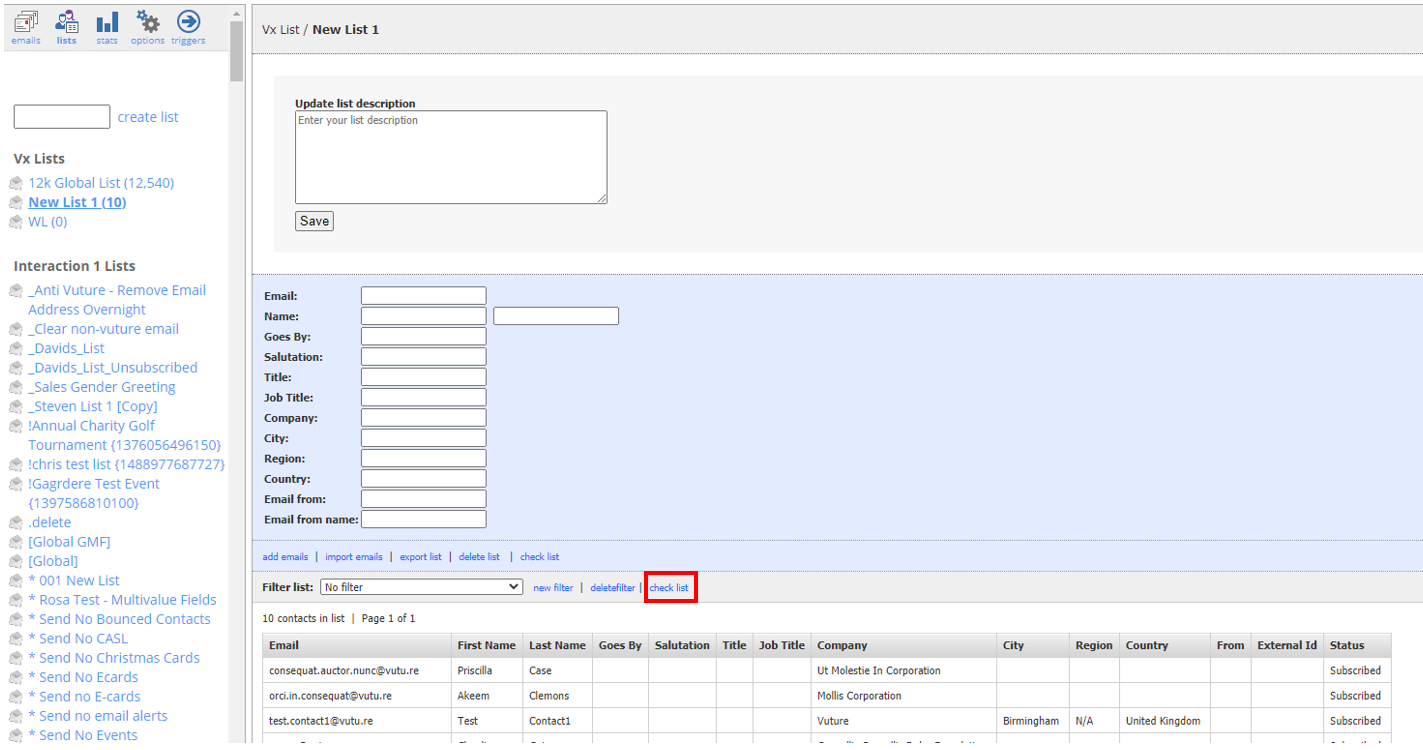
There is now a new link on the page, after | delete list. Click on the | check list link and from that point you can follow the instructions given in the main Help Desk article here.
