Overview
When sending an email you can choose to personalise the From Address that is displayed in the recipient's email client.
To use the additional "From Name only" feature described below, your Vuture Client Success Manager will need to enable "Admin.Roles.Emails.Personalise on From Name" for your role.
Contents
Introduction
By default all emails are sent using the From Address you select from the dropdown on the Send Email screen.
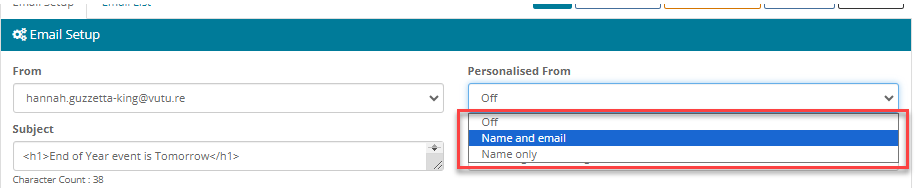
Next to the From Address is a drop down field called "Personalised From".
For InterAction lists, selecting this will use either the name only (see below), or the name and email address of the contact's Primary Sponsor on the list as the From Address when sending the email. This defaults to the selected From Address if the contact doesn't have a Primary Sponsor.
For Vuture lists (csv or Standalone), ticking this box will use the From Email and From Name in the uploaded CSV file, defaulting to the selected From Address if these are missing or blank.
Personalising on From Name only
There is a feature that allows you to choose to personalise on From Name only. This option constructs the From Address for each contact using the Email Address selected in the From Address dropdown but uses the Name of the primary sponsor in the case of InterAction lists, or the From Name field in the case of a Vuture list.
The advantage of this is that you can avoid Out of Office messages going back to a partner or fee-earner, but their name will be displayed in the From Address that the recipient sees.
Best Practice
1. Always use personalisation where you can (where you have the Sponsor name available)
The safest choice in the drop down list is Name only - this will show the Sponsor's name in the client's inbox, but allow all the Out of Office messages to go back to another inbox.
To use this feature your Vuture Client Success Manager will need to enable "Admin.Roles.Emails.Personalise on From Name" for your role.
This will change the send screen so that there is a drop-down instead of a tick box for the Personalised From option. This provides you with three choices:
- Off - no From personalisation will be used and all emails will come from the selection in the From drop-down
- Name and email - this is the same as ticking the Personalised From box previously and will personalise both the From Email and From Name
- Name only - this will only personalise the From Name and will use the same From Email Address for each contact (safest option to ensure Out of Office emails do not go back to partner's inbox)
2. Every active user record in InterAction should be connected to an InterAction contact
IA User records are set, or connected to, a contact record from within the Admin Client. In the event that the user record is not connected to a contact, and this user is a sponsor, then InterAction cannot associate a name and email address to the sponsor. This results in the WebAPI not returning data for the sponsoring user's contact, as none exist.
3. Using the From Name and From Job Title fields from the Insert Field dropdown (InterAction)
If you would like to use the From Name and From Job Title fields from the Insert Field dropdown (InterAction) and populate this info directly from InterAction, regardless of using personalised from then you would need to use the IA additional field ID (IA_fieldID).
