Keywords: Insert field drop-down, personalise, personalize emails, landing pages, subject line
Overview
Vuture allows personalisation fields to be used in email subject lines and the body of emails and landing pages. Many of these fields can be found within the Text Editor's 'Insert field' drop-down (see screenshot below), while others will need to be manually typed in to the Text Editor or subject line.
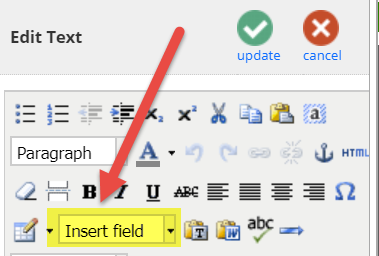
This article will walk you through the different types of personalisation fields and options available.
Contents
The standard fields that are available from the text editor and included in the 'Insert field' drop-down are:
{Email}
{First Name}
{Last Name}
{Goes By}
{Company}
{Job Title}
{From Name}
{From Email}
{From Job Title}
{Title}
{Date}
{DateISO} (e.g. 2018-07-06)
{DateTimeISO} (e.g. 2018-07-06 10:23)
The following address fields are available across all CRMs and can be manually typed into the text editor:
{City}
{State} or {County}
{Postalcode} or {Postcode}
{Country}
Personalising Subject Lines
For subject lines, the Standard Contact fields can be used, but must be manually typed into the subject line box on the email send screen.
InterAction Specific Personalised Fields
There are also additional InterAction specific contact fields that can be manually typed into the text editor:
{Address 1}
{Telephone}
{Phone}
{Mobile}
{Salutation}* - this is the field called "Title" in InterAction, e.g. Mr or Mrs
{Full Salutation}* - this is the field called "My Salutation : Use Firm" in InterAction
{Middle Name}*
{Suffix}*
{IA:ContactId} - this is replaced with the InterAction Long Format ContactId and can be useful if you need to dynamically include this in a link
* You also have the option of making the below InterAction Contact Fields available in the "Insert Field" drop-down of the Text Editor:
{Salutation}* - this is the field called "Title" in InterAction, e.g. Mr or Mrs
{Full Salutation}* - this is the field called "My Salutation : Use Firm" in InterAction
{Middle Name}*
{Suffix}*
Please contact your Account Manager or Vuture Support to include these fields in your Text Editor. They can do this by going to "Admin.System.Edit Options" and check off the following for each:
{Salutation}* - 'Admin.System.Edit Options.Include salutation field'
{Full Salutation}* - 'Admin.System.Edit Options.Include my/full salutation field'
{Middle Name}* - 'Admin.System.Edit Options.Include middle name field'
{Suffix}* - 'Admin.System.Edit Options.Include suffix field'
InterAction Additional Fields
Finally InterAction additional fields can be used as personalisation fields.
See this article for a guide on how to use additional fields for personalisation
Adding default values for personalisation fields
It is possible to format the values of an additional field placeholder in an email. The following options are available:
|
Formatting option
|
Expected output
|
| capitalise:'uppercase' | Fully capitalised |
| capitalise:'lowercase' | Fully lowercase |
| capitalise:'words' | Sentence case |
| default:'value' | If no value, the default should be written |
To use this functionality, you must add the “formatting option” inside your placeholder when you are editing the text of the email. As seen in the example below:
Dear {GoesBy | default: 'Colleague' },
Which would say Dear Colleague, if the GoesBy field in InterAction didn't have a value.
Please note this works for InterAction only. Vuture will need to turn on the following system configuration for this feature to work : "Admin.System.InterAction.Replacement on IA custom fields"
