Introduction
The Send to Alternate Email feature allows you to add alternate email addresses to the contact object in your CRM that can then be used by Vuture mailings.
A use case for this might be when a firm wishes to email all their Alumni, and send the email, not to their contacts’ primary email on the CRM, but to an alternate email address such as Home.
When an alternate email is selected on the Send Screen, this will use the alternate email address field instead of the primary email address for the send.
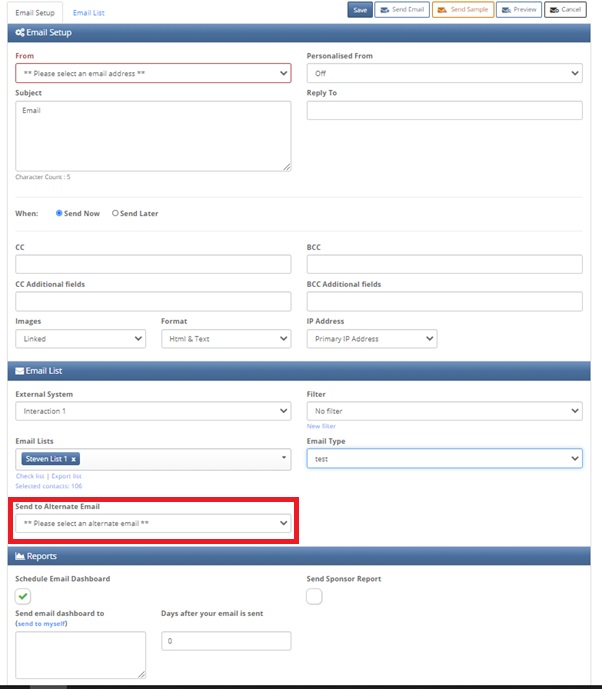
After syncing with the CRM If the alternate email is selected, but the alternate email field in the CRM (and in the Vuture database) is null or empty, then we will automatically default back to the primary email for that contact.
Prerequisites and Restrictions
- This feature is available for the following CRMs: Dynamics (365, Peppermint and 365 Peppermint), Intapp OnePlace, DealCloud, Upper Sigma. We also offer a different Alternate Email solution for InterAction, which is described in a separate article. InterAction clients should search for "Alternate Email" on the Help Desk to read this.
- The alternate email field can be any text field that is part of any entity that has a contact lookup
- The Send Screen will default to the primary email address. Users will need to select to use the Alternate email, at the point of send.
- The sync must be refreshed before a Send. Connector uses only local data or Contacts module, so even if a field exists in the CRM but the list was not synced with the CRM, at the point of sending we will send to primary email.
- If an alternate email gets bounced back then the global contact status will be marked as undelivered.
- If a contact updates their global unsubscribe then the global contact status will be marked as unsubscribed. So we will not be able to send an email to the primary email or any other alternate email for that contact as this contact status is undelivered/unsubscribed.
- Multiple alternate emails can be supported.
Setup for Vuture Team
Your CSM or Support will configure the new email address in your CRM Metadata Manager in Vuture.
It will be called 'AlternateEmail '. They will be able to add multiple text fields as alternate emails.
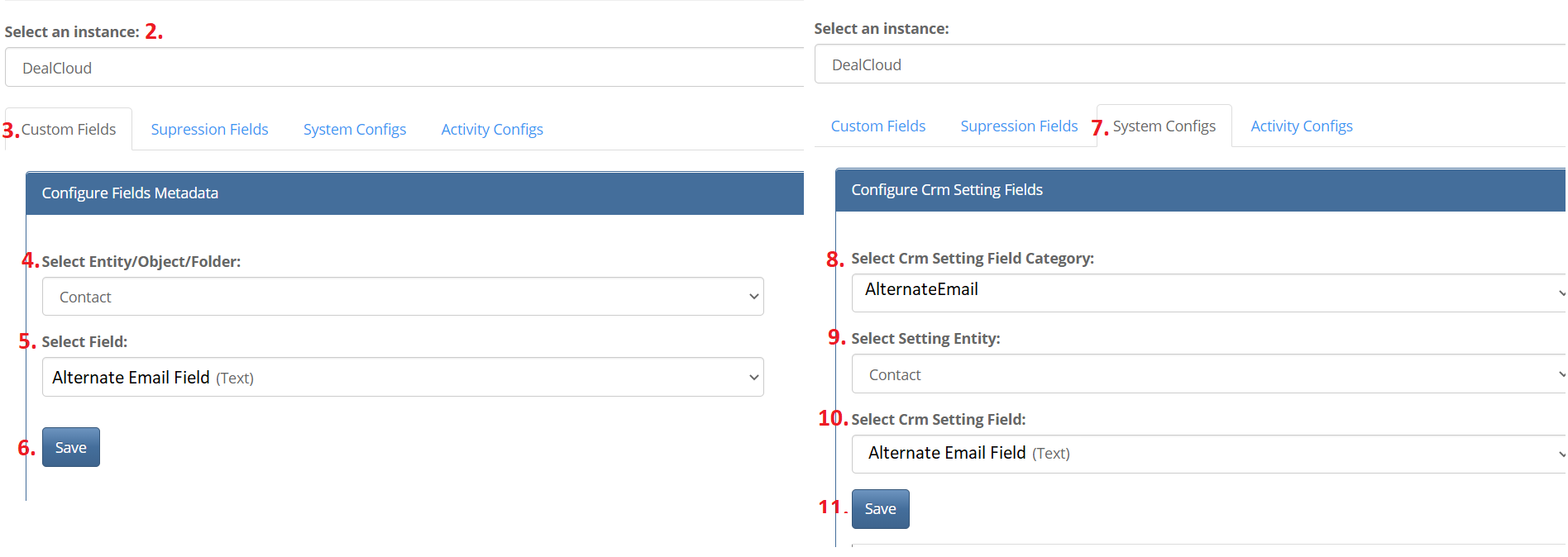
1. In CRM metadata manager
2. Select a connector CRM or Dynamics in the Select an instance: dropdown
3. Go to Custom Fields Tab
4. Select Contact object in the Select Entity/Object/Folder: dropdown
5. Select the alternate email field of type Text in the Select Field: dropdown
6. Click Save
7. Go to the System Configs tab
8. Select AlternateEmail from the Select Crm Setting Field Category: dropdown
9. Select Contact object in the Select Setting Entity: dropdown
10. Select the alternate email field of type Text in the Select Crm Setting Field: dropdown
11. Click Save
Please see an example of how the screen would look like with the numbered steps from the example above:
This needs to be repeated as many times as the number of alternate email fields that need to be added.
The alternate email field for ALL supported CRMs needs to be of type Text
The field can be part of any entity that has a Contact lookup (but most probably will be part of the Contact entity).
An additional note to consider: When setting up and testing prefilled 'Send to Alternate' forms, the Alternate Email may not initially appear as the Email Address. To ensure the Alternate Email displays on the prefill form, you must replace the Email field on the form with the field that holds the Alternative email value. It's also recommended to have both the Primary and Alternate emails on the form, even if the Primary is hidden.
