Overview
When sending an email you can choose to personalise the From Address that is displayed in the recipient's email client.
By default, all emails are sent using the From Address selected from the drop-down on the Send Email screen. This will result in every recipient having the same From name. You can choose to vary this. Next to the From Address is a drop-down field called "Personalised From".
Contents
Prerequisites
In order to see the Personalised From drop-down your Vuture Administrator will need to enable "Admin.Roles.Emails.Personalise on From Name" for your role.
You will also need to have the "From Email" and "From Name" columns included in your uploaded CSV list (See sample CSV at the bottom of this article). Please note: These columns will be displayed as "Sponsor Email" and "Sponsor Name" when viewed in the Contact Module.
Personalised From Options:
The personalised From options are:
This option does not personalise the From Address. Each email is sent using the From Address selected in the From drop-down field on the Email Send Screen.
- Name and email
This option personalises the From Address for each contact using the Email Address and Name of the From field in the uploaded CSV list.
- Name only
This option personalises the From Address for each contact using the Email Address selected in the From Address drop-down field on the Email Send Screen, but uses the Name of the From field in the uploaded CSV list.
Note: The advantage of the Name only option is that you can avoid Out of Office messages going a partner or fee-earner, since the partner or fee earner's email address will not be used. Only their name will be displayed in the From Address that the recipient sees.
- To edit the Email from fields
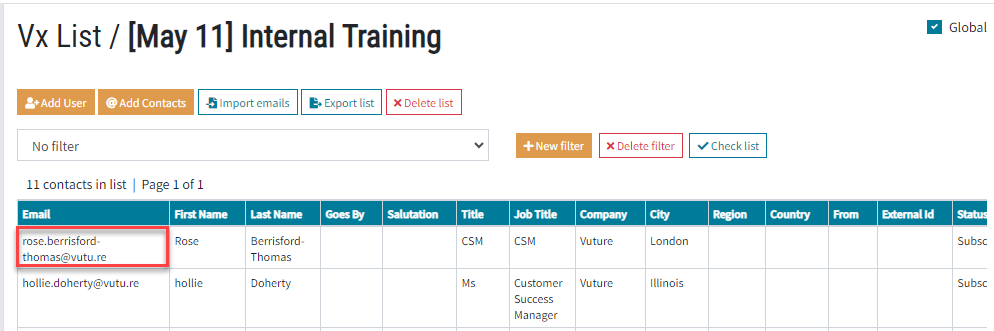
To Edit the Email from: or Email from name: fields you need to access the list in Lists Tab and select a contact.
This will display the following form, click on a contact to access the Contact Details screen.
.
Contact Details screen:
You will be taken to this form, click the Edit button to add the Email from address and the Email from name, click Save:
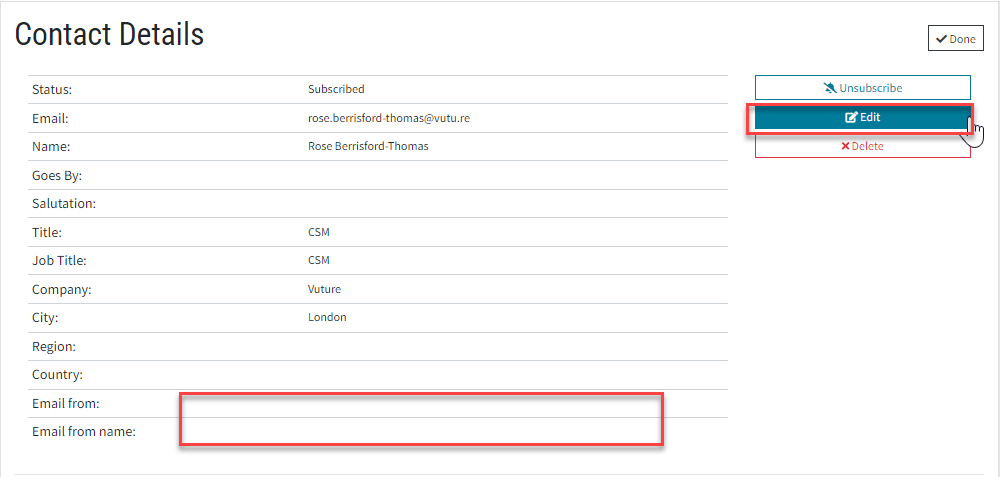
Completed Contact Details screen:
Click Done to complete the process.
Sending a Personalised from email screen:
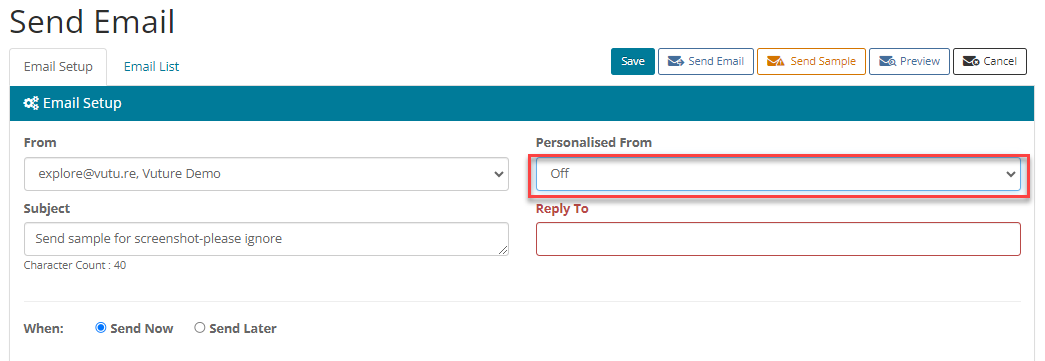
Reminder, if using the Contacts Module, the From Address and From Name will appear as Sponsor Email Address and Sponsor Name (see screenshot below).
Why is this feature important?
When sending an email, the recipient is more likely to open mail if they recognize the name of the sender. If you record the sponsor for each recipient in a Vuture list, and then choose Personalised From, then that is the name the recipient will see in their inbox.
Best practice around this feature
It is our recommendation that you enable this feature if it is not already enabled and use it where appropriate. A general information mailing might be better coming from a generic address, while a specific invitation to an event, where the topic is relevant to both invitee and sponsor, might be better coming from a personalised From address.
