Overview
Publicly available forms can be subject to bots and spam. There are different ways you can protect your form.
Contents
Prerequisite
Note: for Captcha or Spam checking to work, you must ask Support or your Customer Success Manager to enable Admin>System>Forms>Enable Spam Checking
If you add a hidden field in a form, a human being will not be able to complete this field as it is hidden, however a bot typically will because it only reads the HTML of the form. We can then identify any form submissions made by a bot. Effectively we can trap the bot.
This option still allows the bot to fill in the form but makes it easier for us to identify false submissions.
To add the hidden form please add the following code into your form. The VX field vx_FirstSecondOrThirdName is the data field that we use to identify the bots. It works automatically once you've added the code to your form.
<p class="single_line_text hidden">
<label for="Vx_FirstSecondOrThirdName"></label>
<textarea name="Vx_FirstSecondOrThirdName" id="Vx_FirstSecondOrThirdName"></textarea>
</p>
Also add the following code to your form’s styling:
.hidden { display: none; }
If someone completes this data field we will not write anything back to InterAction. We will still record the data in Vuture's database just in case.
Additionally, this can be saved into template so that it is active in each form by default. However, please note that the data-sitekey will change according to the Google account.
A CAPTCHA stands for "Completely Automated Public Turing test to tell Computers and Humans Apart". It is a type of challenge request used to identify whether a user is a human or a computer.
There are two different types of CAPTCHA. There follows lower down in this article a description of the original implementation; suitable for any user who has access to edit the html on a form or page.
There is also a new, more secure option which can only be configured by your Customer Success Manager. This is described in a Vuture Only article here.
Why are we offering this new, more secure solution?
This is a server side implementation of reCaptcha which cannot be bypassed by sending form submissions straight to the server, a method commonly used by spam bots.
What problem does it solve?
A site implementation can be bypassed. When set up, this new implementation will discard any form submission not accompanied by a valid reCaptcha token.
What are the differences between the two solutions?
Checking the legitimacy of a form response will be handled by Vuture. When a response is received by our system its reCaptcha token is verified by Google. Only submissions bearing a valid token are processed.
Google's easy to use CAPTCHA solution called reCAPTCHA can be implemented by following these step by step instructions:
- Visit Google's reCAPTCHA page.
- Log in to your Google account. If you don't have an account you'll need to set one up.
- Give your CAPTCHA a label and select the type of CAPTCHA you want to use. Google has an explanation of each type as follows:
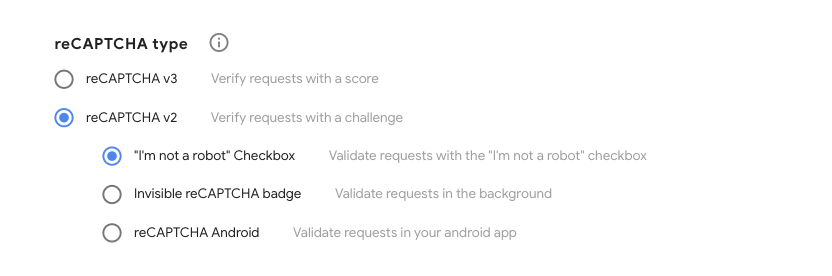
- Type in the domain where the CAPTCHA will be used.
- Click register
- Make a note of your verification keys
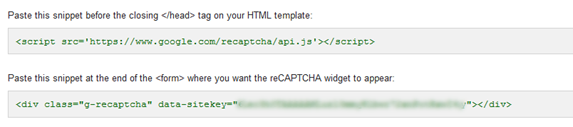
Note: As an alternative, to prevent unnecessary cookies from loading, the code could use
https://www.recaptcha.net/recaptcha/api.js
instead of
https://www.google.com/recaptcha/api.j
- Return to your form
- Add the Javascript code before the closing </head> tag in the HTML of the form page. Your role will need to have the HTML Admin feature to be able to do this.
- Add the reCAPTCHA key snippet before the closing </form> tag in the HTML of the form page. This will carry the widget code, shown above: "<div class="g-recaptcha" data-sitekey="xxxxx"></div>"
- You can either insert this directly or, if you need it applied to multiple forms, you can create an include file, e.g. _inc/ga-key.asp and insert the include file into the page. In that case your HTML might look like this:
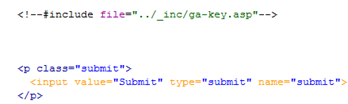
- Finally, we need to setup validation so we know when the reCAPTCHA has been clicked.
- Insert the following before the closing </head> tag:
<script src="../_js/jquery.min.js" type="text/javascript" charset="utf-8">
</script>
<script type="text/javascript">
    jQuery.noConflict();
    jQuery(document).ready(function() {

        jQuery("form").submit(function() {
            if (grecaptcha.getResponse().length === 0) {
                alert('The reCaptcha form was not completed.  Please try again.');
                return false;
            } else {
                return true;
            }
        });
    });
</script>
- Check that site has the jQuery plugin installed. This has to be added to your email campaign (you will need html access on your role or talk to your AM). The Front End team will have a copy of this file if required.
NOTE: This a common jQuery library file and the expression above will check that the reCAPTCHA has been checked only. This does not conflict with the normal validation on your form and they will run side by side.
Limit the allowed referrer URLs
- Go to Admin.System.Forms.AllowedReferrers
- Add the URL for each page that you have setup a Vuture form - you do not need to do this for forms created in Vuture's email module - only where you have setup Vuture forms on non-Vuture websites.
- The URLs should be separated with a comma
- Once that is done enable Admin.System.Forms.EnableSpamChecking - once you've enabled this we start to check all form submissions against the list above and block form submissions unless they come from one of these URLs or from a Vuture form in the email module.

Vuture can create specific spam check rules that will reject specific form submissions based on values in determined fields. Spam submissions tend to have common denominators, for example, an email domain ending in 'qq.com', the name field having numerical characters [0-9]. If a rule is created using this value, the system will reject any submission made in which the email field has the value 'qq.com'.
The system is not limited to one rule and can be adapted to have multiple conditions per rule.
To add spam check rules to your Vuture instance, please contact your Customer Success Manager. They will find instructions on how to proceed here.
