Important: When upgrading to the latest version of InterAction, you are required to uninstall the older version of InterAction server. This will remove the localMethods.xml file from your server. Please create a back-up of this file before upgrading and paste it back into the same location after the upgrade finishes.
Please note: There is a limitation that forms populate with the primary/business email address from InterAction. When using the send to alternate feature, the alternate email within InterAction is unable to populate on landing pages.
Overview
The Send to Alternate Email feature allows you to tag alternate email addresses in InterAction that can be used by Vuture mailings.
A use case for this might be when a firm wishes to email all their Alumni, and send the email, not to their contacts’ primary Business email on InterAction, but to an alternate email address such as Home.
The Alternate Email feature is set up by adding descriptions to each required alternate email type in InterAction and then adding those descriptions to your Vuture configuration.
Once this has been configured you can then choose from the email send screen which email address to use for a send. If the alternate email is not found for a contact it will fall back to the primary email address.
To ensure the correct use of the Alternate Email functionality, you will need to complete the following steps:
1. Add the Alternate Email code into InterAction
You will need to prepare your InterAction instance so that you can use the Alternate Email feature.
Please note, you might require assistance from your IT department for this step.
- Log onto the InterAction Application Server that Vuture connects to
- Using Windows Explorer, browse to the InterAction installation directory
- Edit localMethods.xml file which is located in ….Program Files\LexisNexis\InterAction\AppServer\iahome\etc\local
- Place the following code snippet into the file:
<methodDeclaration>
     <methodName>getContactAllAltEmail</methodName>
     <methodAgent>sql</methodAgent>
        <methodDescription>Returns SQL data in format specified</methodDescription>
     <parameters>
           <field required="y" type="char">contactID</field>
     </parameters>
     <sql> SELECT (list.LISTING_ID + 8589934592) as LongContactID,
           email.ELEC_ADDR as emailAddress,
           email.LABEL
           FROM INT_AUX_LISTING list
           Inner Join INT_AUX_LST_EADDR lemail
                        On lemail.LISTING_ID = list.LISTING_ID
                  Inner Join INT_AUX_ELEC_ADDR email
                        On email.ELEC_ADDR_ID = lemail.ELEC_ADDR_ID

            WHERE
           list.LISTING_ID = $(contactId) - 8589934592
     </sql>
        <databaseId>IA</databaseId>
        <publicAccessAllowed>false</publicAccessAllowed>
        <responseMimeType>text/xml</responseMimeType>
</methodDeclaration>

<methodDeclaration>
     <methodName>getContactAltEmailByLabel</methodName>
     <methodAgent>sql</methodAgent>
        <methodDescription>Returns SQL data in format specified</methodDescription>
     <parameters>
           <field required="y" type="char">contactID</field>
           <field required="y" type="char">AltEmailLabel</field>
     </parameters>
     <sql> SELECT (list.LISTING_ID + 8589934592) as LongContactID,
           email.ELEC_ADDR as emailAddress,
           email.LABEL
           FROM INT_AUX_LISTING list
           Inner Join INT_AUX_LST_EADDR lemail
                        On lemail.LISTING_ID = list.LISTING_ID
                  Inner Join INT_AUX_ELEC_ADDR email
                        On email.ELEC_ADDR_ID = lemail.ELEC_ADDR_ID

            WHERE
           list.LISTING_ID = $(contactId) - 8589934592
           and email.Label =  $(AltEmailLabel)
     </sql>
        <databaseId>IA</databaseId>
        <publicAccessAllowed>false</publicAccessAllowed>
        <responseMimeType>text/xml</responseMimeType>
</methodDeclaration>

<methodDeclaration>
     <methodName>getFolderContactsAltEmailByLabel</methodName>
     <methodAgent>sql</methodAgent>
        <methodDescription>Returns SQL data in format specified</methodDescription>
     <parameters>
           <field required="y" type="char">FolderID</field>
           <field required="y" type="char">AltEmailLabel</field>
     </parameters>
     <sql> Select (list.LISTING_ID + 8589934592) as LongContactID, email.ELEC_ADDR as emailAddress,
           email.LABEL
           From INT_AUX_LISTING list
           Inner Join INT_AUX_LST_EADDR lemail
                        On lemail.LISTING_ID = list.LISTING_ID
                  Inner Join INT_AUX_ELEC_ADDR email
                        On email.ELEC_ADDR_ID = lemail.ELEC_ADDR_ID

           Inner Join INT_AUX_DIR_LIST dlist
                        On dlist.LISTING_ID = list.LISTING_ID

           Where dlist.CONTAIN_DIR_ID = $(FolderId) - 8589934592
           and email.Label =  $(AltEmailLabel)
     </sql>
        <databaseId>IA</databaseId>
        <publicAccessAllowed>false</publicAccessAllowed>
        <responseMimeType>text/xml</responseMimeType>
</methodDeclaration>
- Save
- Refresh the Application Server Cache
- Check that the new methods can be accessed and return data by browsing to the following web client location:
2. Set up your alternate emails in InterAction
For information on how you can bulk change contacts in IA please see this article
Tag your clients and contacts on InterAction as follows:
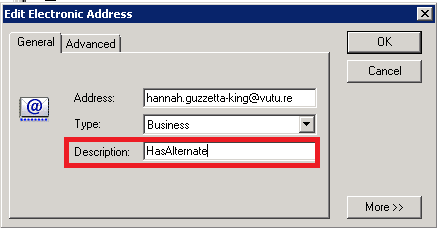
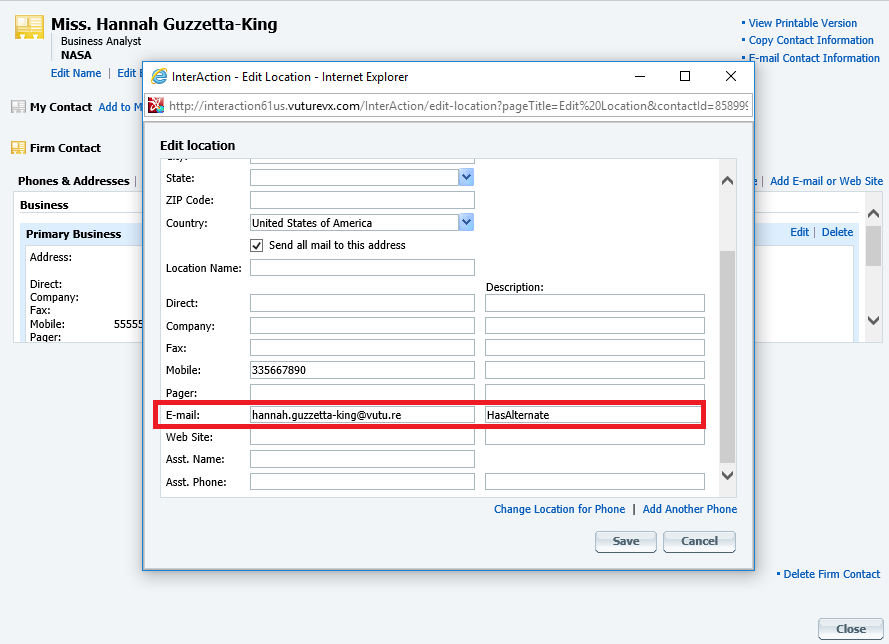
- For any contact who has an alternate email address, add a Description to the Primary Business email stating “Alternate Email Exists”. This will be Description 1 – and the wording could be for this: “Has Alternate”. Please note: adding the "HasAlternate" descriptor is optional. Its use will speed the send but is not indispensable for the feature to work.
This can be edited in the Windows client
Or through your web browser
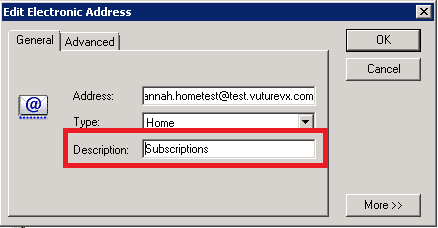
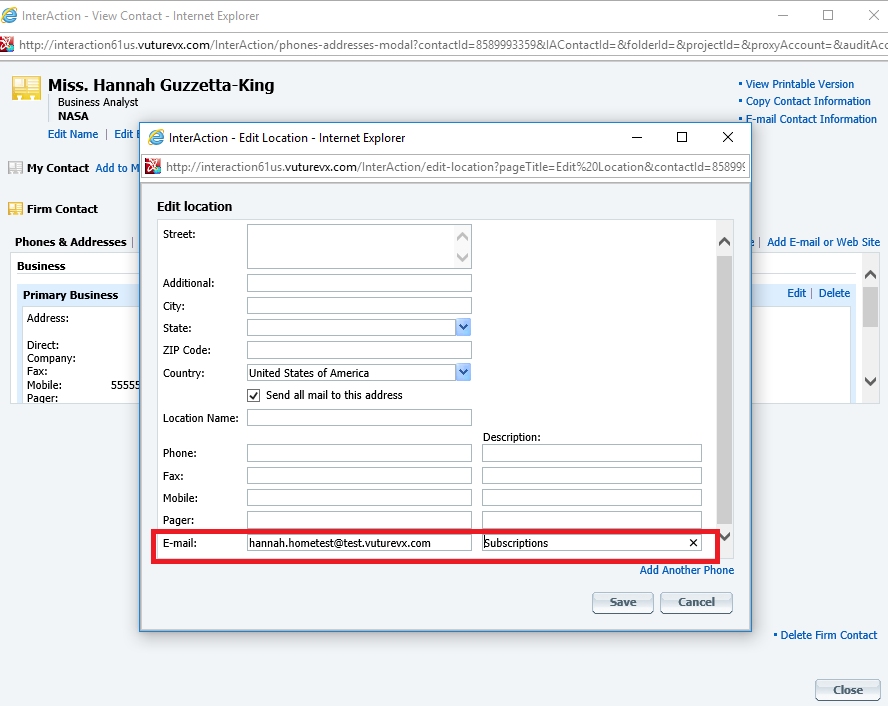
- Add a Description to the alternate email address(es) stating the use case for each alternate email address. This will be Description 2 – and the wording for these could be “Subscriptions” or “Event Invites” for example.
This can be edited in the Windows client:
Or through your web browser:
This step can be performed by the InterAction Database Administrator.
3. Set up your alternate email descriptors in Vuture
You will require your Account Manager's support for this step:
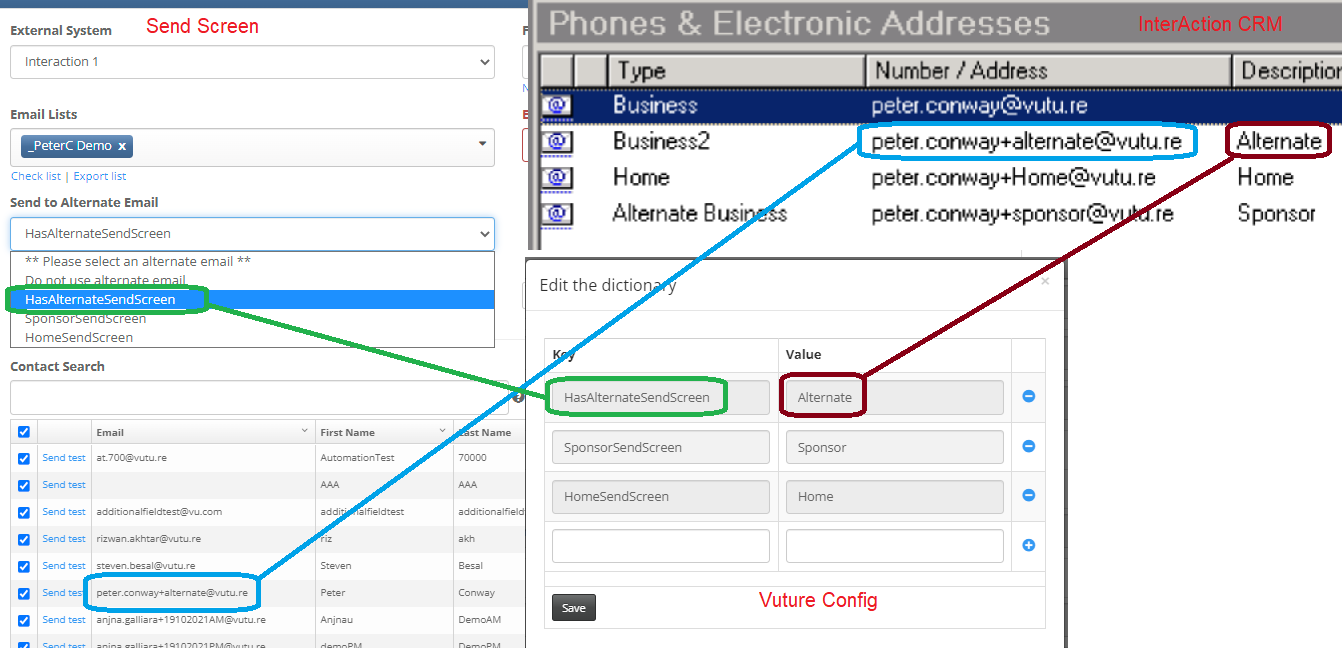
- Provide your Account Manager with a Key and a Value for each alternate address. 'Key' is how it displays in Vuture and 'Value' is what it's called in IA. For example, if an alternate email address is in "Paid Subscription" then that would be the "Key" and your description in the Home email address "Subscriptions" will be the value. The value field must be worded exactly as the description in InterAction.
- Your account manager will add these fields within "Admin.System.InterAction.AlternateEmailTag"
- Using alternate email is a role-based function, so you will have to enable it for your role in "Admin.Roles - Email Area"
4. Send to an alternate email address
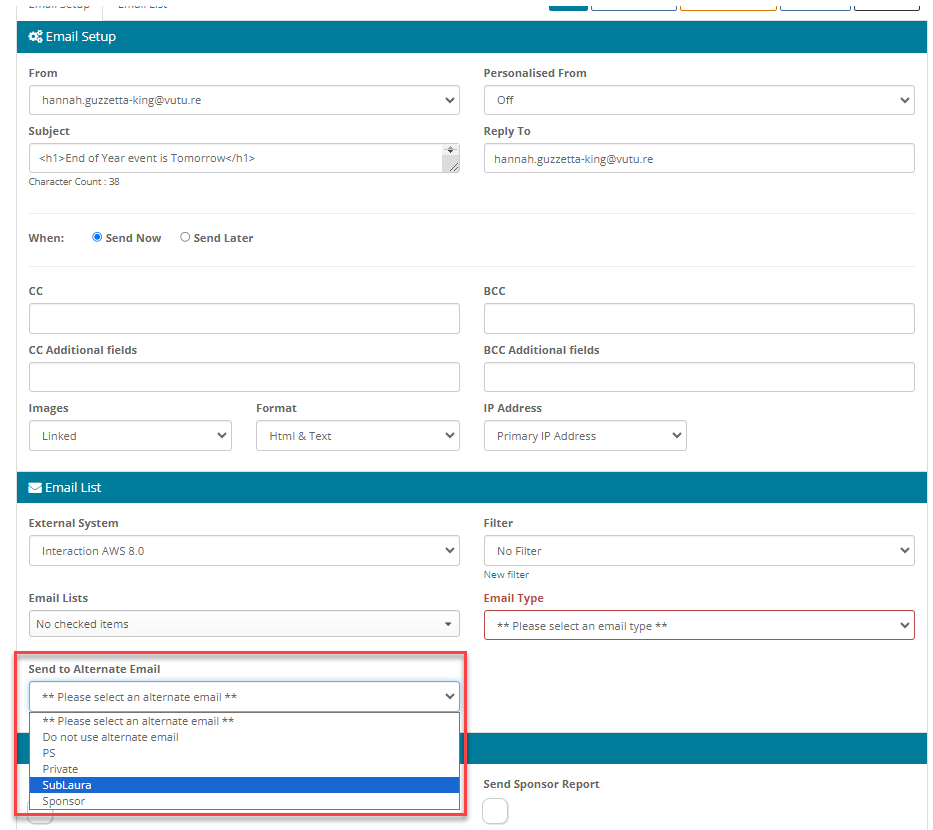
Once steps 1-3 have been completed you will be ready to send to an alternate email address. When you're ready, go to the send email screen, and click on the dropdown labeled "Send to alternate email". The options displayed are the "Keys" you previously defined (step 3). If you have enabled this feature for your role you must select an option in the dropdown before sending an email. If you don't want to send to an alternate option, then you can select "Do not send to alternate". The send will proceed as normal.
Once you have selected a "Key" continue with the send as you normally would. The email will be sent to the email address in InterAction with the value linked to the Key selected in its description.
For any email addresses in your list without a matching description, the communication will be sent to the primary address.
Please note, if you enable "Folder Specific" sends simultaneously with the Alternate email, then the Alternate email takes priority and replaces any folder specific email addresses if they have a description matching the Key selected.
Please note, Send to alternate email address is not currently possible with triggers.
Troubleshooting
If you're not able to send to alternate emails, check the following:
1. Ensure there are no extra spaces or double spaced lines when finished removing the above code.
- Restart the Interaction Service on the Interaction Server
- Refresh the Application Server Cache
- Retest using step 4
2. Some versions of InterAction may not need the GetAllContactAltEmails method. Delete that method from the LocalMethods.xml.
<methodDeclaration>
<methodName>getContactAllAltEmail</methodName>
<methodAgent>sql</methodAgent>
<methodDescription>Returns SQL data in format specified</methodDescription>
<parameters>
<field required="y" type="char">contactID</field>
</parameters>
<sql> SELECT (list.LISTING_ID + 8589934592) as LongContactID,
email.ELEC_ADDR as emailAddress,
email.LABEL
FROM INT_AUX_LISTING list
Inner Join INT_AUX_LST_EADDR lemail
On lemail.LISTING_ID = list.LISTING_ID
Inner Join INT_AUX_ELEC_ADDR email
On email.ELEC_ADDR_ID = lemail.ELEC_ADDR_ID

WHERE
list.LISTING_ID = $(contactId) - 8589934592
</sql>
<databaseId>IA</databaseId>
<publicAccessAllowed>false</publicAccessAllowed>
<responseMimeType>text/xml</responseMimeType>
</methodDeclaration>
3. Make sure the <declarations> is above <methodDeclaration> at the top of the code, and closes at the end after the last </methodDeclarations> </declarations>
4. Ensure the Select statements are not broken between lines when pasting in the code from step 1.
The following image explains how the Description and Email Addresses tie up between the Vuture config, InterAction and Send screens: