Single Sign-On is a premium feature - please contact your Account Manager for details
Overview
Access to the back-end of Vuture can be managed through Single Sign On (SSO) using SAML 2.0 and supports Identity Provider (IDP) initiated authentication.
- Users should still be set up in Vuture as normal and given the appropriate access levels but there is no need to send them a password
- For IDP, the identity provider (usually the client) will provide the user with a link which will authenticate the user and then pass them to the Vuture system
- The Vuture system will check their email address and if they exist in the Vuture system and are not disabled they will be logged in automatically
- By default it is still possible to log in using email address and password and Vuture administrators can still login using Vuture Single Sign On
You will see reference to the variable {instanceurl} at various points in this article. This is the URL of your Vuture instance (where you login to Vuture). For example:
clientname.vuture.net
clientname.vuturevx.com
Usually Vuture’s clients will go for the IDP option for SSO. In order to move forward with the implementation, we will need a SAML request with the following information:
Parameters required in the SAML Response
Email address is the unique identifier which has to be included in <saml:NameID>
| Attribute | Value |
| Binding | Redirect/POST |
| IDP signing certificate | xyz.crt or xyz.cer (security certificate to be provided to Vuture by the IDP) |
| NameID | Email address (unique identifier) |
| Assertion attribute format | urn:oasis:names:tc:SAML:2.0:attrname-format:basic |
| Assertion consumption service | https://{instanceurl}/api/sso |
| Service provider URL | https://{instanceurl} |
Protocol binding
- HTTP POST
- The form post to have a variable called binding with the value: urn:oasis:names:tc:SAML:2.0:bindings:HTTP-POST
Security
- Signed XML over SSL
- SAML response to be signed using private key and public key.
Implementation
Once you have configured your SSO provider
- Supply Vuture with the X.509 certificate in .cer format (base64 encoded)
- If you struggle to provide a certificate to us, we can typically extract it from the federationmetadata.xml, please supply Vuture with a link to it.
- Supply Vuture with the User Access URL / Idp Login Redirect Url
- Azure AD / Entra ID typically comes in the format:
https://myapps.microsoft.com/signin/xxxxxxxxhttps://launcher.myapps.microsoft.com/api/signin/xxxxxxxx- To find your User Access URL. Login to Entra ID/Azure --> Enterprise Applications --> (click your application) --> manage --> properties --> User access URL
- ADFS typically comes in the format:
https://fs.clientname.com/adfs/ls/IdpInitiatedSignOn.aspx?loginToRp=https://{instanceurl}https://adfs.clientname.com/adfs/ls/IdpInitiatedSignOn.aspx?loginToRp=https://{instanceurl}
- Okta typically comes in the format:
https://clientname.okta.com/app/clientname_vuture_1/xxxxxxxxx/sso/saml
- Ping One typically comes in the format:
https://auth.pingone.com/xxxxxxxxxxxxxxxxxxxxxxxxxxxx/saml20/idp/startsso?spEntityId=https://{instanceurl}/mvc/home
- Duo typically comes in the format:
https://sso-xxxxxx.sso.duosecurity.com/saml2/sp/xxxxxxxxxxxxx/sso
- The Vuture infrastructure team will then enable SSO on your Vuture instance
- Once complete, you should test SSO by clicking the link in the login page
-
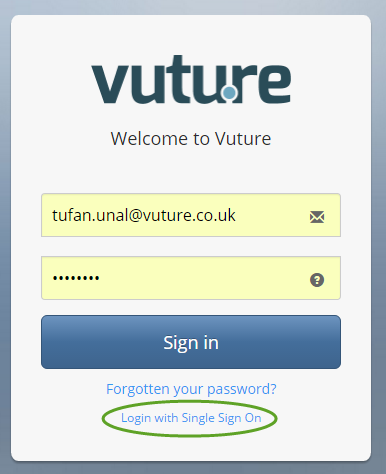
- If you want to force all users to use SSO by removing the option to login with username and password we can enable this setting for you - please let us know.
Maintenance
- The certificate used for SSO security typically needs to be renewed annually (this is usually customisable in your SSO providers settings).
- Please supply Vuture with the new certificate when certificate expiry is approaching.
- Vuture can use two certifcates side by side to enable a smooth transition to the new certificate.
Technical Details
IDP Initiated SSO Summary
1. IDP authenticates the user
2. IDP generates a SAML response and posts it to the SP Consumer URL
3. SP generates a cookie and user gains access
IDP Sample SAML Response
<samlp:Response xmlns:xsd="http://www.w3.org/2001/XMLSchema"" xmlns:xsi="http://www.w3.org/2001/XMLSchema-instance"" IssueInstant="2014-02-28T11:28:26Z" ID="eyab918d1b-b91a-4a59-aaa6-622652dc34b1" Version="2.0" xmlns:saml="urn:oasis:names:tc:SAML:2.0:assertion" xmlns:samlp="urn:oasis:names:tc:SAML:2.0:protocol" Destination="http://localhost:44032">;
  <saml:Issuer>Issuername/url</saml:Issuer>
  <Signature xmlns="http://www.w3.org/2000/09/xmldsig#">;
    <SignedInfo>
      <CanonicalizationMethod Algorithm="http://www.w3.org/2001/10/xml-exc-c14n#"" />
      <SignatureMethod Algorithm="http://www.w3.org/2000/09/xmldsig#rsa-sha1"" />
      <Reference URI="#eyab918d1b-b91a-4a59-aaa6-622652dc34b1">
        <Transforms>
          <Transform Algorithm="http://www.w3.org/2000/09/xmldsig#enveloped-signature"" />
          <Transform Algorithm="http://www.w3.org/2001/10/xml-exc-c14n#"" />
        </Transforms>
        <DigestMethod Algorithm="http://www.w3.org/2000/09/xmldsig#sha1"" />
        <DigestValue>a52dbfyQkmzsIzyCyUcchRzyj/Y=</DigestValue>
      </Reference>
    </SignedInfo>
    <SignatureValue>ijLNynExaU3GLFhDbsCArKygta/uWOOOUMkApKf+XCD21i3huo680QnO/AsLXWyldseo5zHCjkp/JFVUxMdiEa8sS61T0dBD2XObvKoSghoInUiN0n+/gO7W6tbnv1J3gKHOj0PCnW0OY5Oh25xsoUBU68ZuKlPZcto5YV4aJEU=</SignatureValue>
  </Signature>
  <samlp:Status>
    <samlp:StatusCode Value="urn:oasis:names:tc:SAML:2.0:status:Success" />
  </samlp:Status>
  <saml:Assertion Version="2.0" ID="09bf8824-fa62-46ad-9a85-8cb89768a3ed" IssueInstant="2014-02-28T11:28:26Z" xmlns:saml="urn:oasis:names:tc:SAML:2.0:assertion">
    <saml:Issuer>Issuer name /url</saml:Issuer>
    <saml:Subject>
      <saml:NameID
Format="urn:oasis:names:tc:SAML:1.1:nameid-format:unspecified"> abc@xyz.com</saml:NameID>
      <saml:SubjectConfirmation Method="urn:oasis:names:tc:SAML:2.0:cm:bearer">
        <saml:SubjectConfirmationData NotOnOrAfter="2014-02-28T11:33:26Z" Recipient="" />
      </saml:SubjectConfirmation>
    </saml:Subject>
    <saml:Conditions NotBefore="2014-02-28T10:28:26Z" NotOnOrAfter="2014-02-28T12:28:26Z">
      <saml:AudienceRestriction>
        <saml:Audience>YourAudience</saml:Audience>
      </saml:AudienceRestriction>
    </saml:Conditions>
    <saml:AuthnStatement AuthnInstant="2014-02-28T11:28:26Z" SessionIndex="9eda7722-01e0-4829-b44b-652278e377cd" SessionNotOnOrAfter="2014-02-28T12:53:26Z">
      <saml:AuthnContext>
        <saml:AuthnContextClassRef>urn:oasis:names:tc:SAML:2.0:ac:classes:unspecified</saml:AuthnContextClassRef>
      </saml:AuthnContext>
    </saml:AuthnStatement>
    <saml:AttributeStatement>
      <saml:Attribute Name="ifAny" NameFormat="urn:oasis:names:tc:SAML:2.0:attrname-format:basic">
        <saml:AttributeValue xsi:type="xsd:string">val1</saml:AttributeValue>
      </saml:Attribute>
      <saml:Attribute Name=" ifAny1" NameFormat="urn:oasis:names:tc:SAML:2.0:attrname-format:basic">
        <saml:AttributeValue xsi:type="xsd:string">val2</saml:AttributeValue>
      </saml:Attribute>
    </saml:AttributeStatement>
  </saml:Assertion>
</samlp:Response>
Azure AD / Entra ID Configuration
Vuture cannot assist with setting up your Azure AD / Entra ID environment but these guidelines can be followed for setting up the configuration
Identifier (Entity ID): https://
{instanceurl}Relay URL (Assertion Consumer Service URL): https://
{instanceurl}/api/sso
Sign on URL: leave blank
RelayState: RelayState (if left blank it should default to RelayState)
Logout URL: leave blank
In the Attributes & Claims Section:The following Attributes should be configured.
Unique User Identifier = user.email(The email address of the user as created in Vx)
FirstName = user.givenname
LastName = user.surname
ADFS Configuration
Vuture cannot assist with setting up your on premise ADFS environment but these guidelines can be followed for setting up the configuration
https://support.vutu.re/s/article/360020702318-How-to-configure-SSO-with-Microsoft-Active-Directory-Federation-Services-2-0-ADFS-2-0-Identity-Provider
Okta Configuration
Vuture cannot assist with setting up your Okta environment but these guidelines can be followed for setting up the configuration
Single sign-on URL: https://{instanceurl}/api/sso
Recipient URL: https://{instanceurl}/api/sso
Destination URL: https://{instanceurl}/api/sso
Audience URL (SP Entity ID): https://{{instanceurl}/api/sso
Default RelayState: RelayState (if left blank it should default to RelayState)
Name ID Format: Unspecified
Application username: Okta username
Update application username on: Create and update
Attribute Statements - leave blank
Group Attributive Statements - leave blank
https://help.okta.com/en-us/content/topics/apps/aiw-saml-reference.htm
