Update April 2021
Moved out of Beta and into General Release, is a new visual workflow for the trigger process. This does not affect the triggers' functionality. It is an update of the user interface and is designed to give a clear, clean, easy to use way to create new triggers and to manage them once created.
Ask your CSM to enable this for you at Admin.Roles.Spacelab Pages.Visual Workflow for Triggers. Enabling will cause a new link to appear - this link is a toggle switch which you can use to move between the old and new versions.
How to Access the new Triggers screen
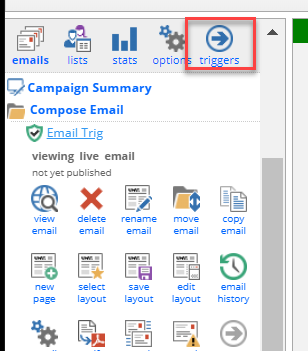
In a campaign, click on the link to Triggers at the top left of your screen:
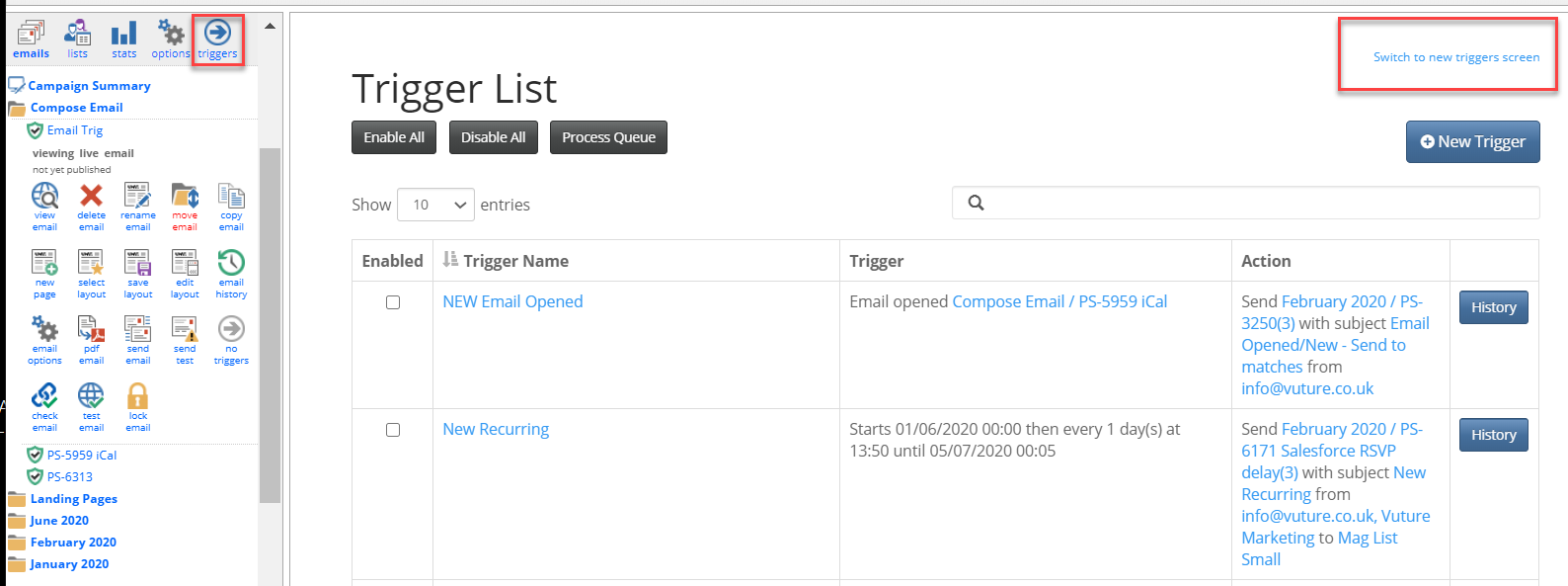
The triggers page will open, in the current format. To see the new-look Triggers list you will first need to click on Switch to new triggers screen.
New Icons
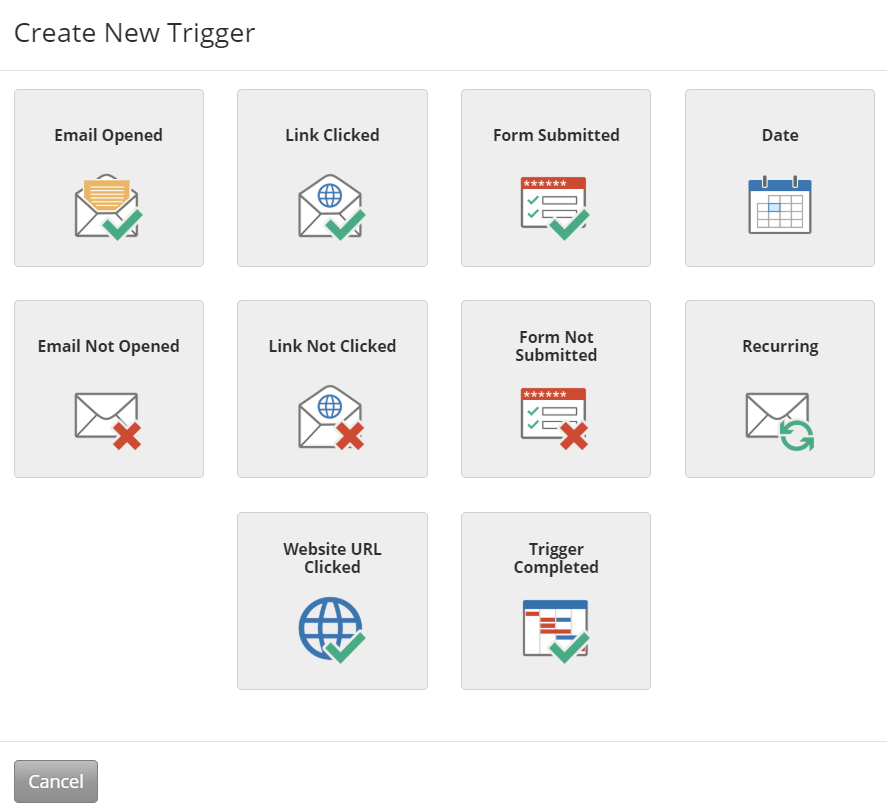
When selecting New Trigger you will see an updated set of icons to choose from. The icons have a green check mark to indicate a positive action such as Email Opened, and a red cross to indicate a negative action such as Email Not Opened.
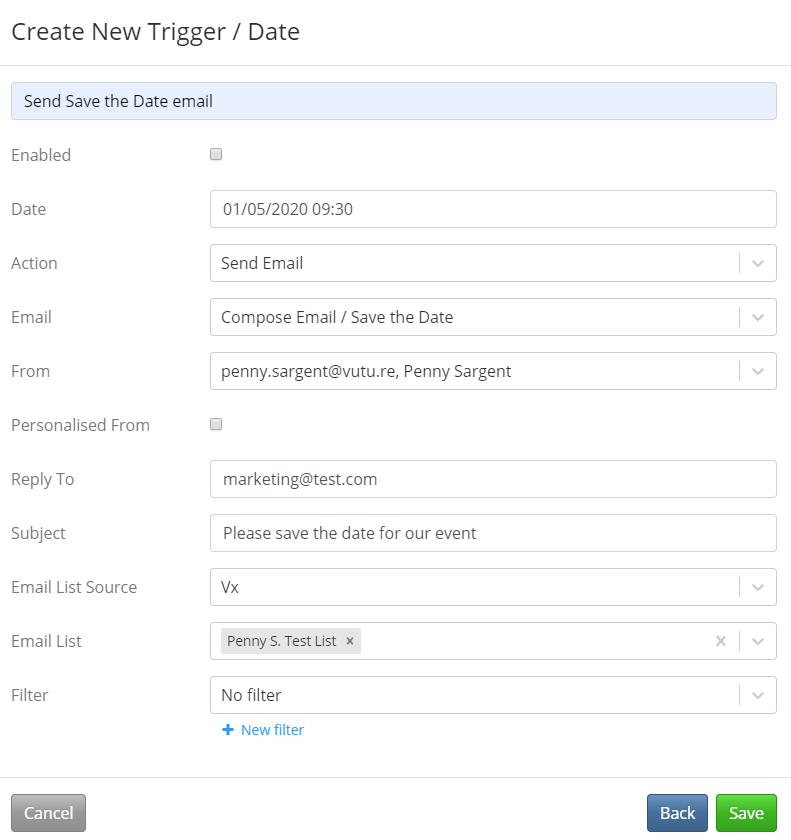
Create New Trigger
This screen has been updated to provide the same functionality as before, but with an improved appearance, and a new date and time picker.
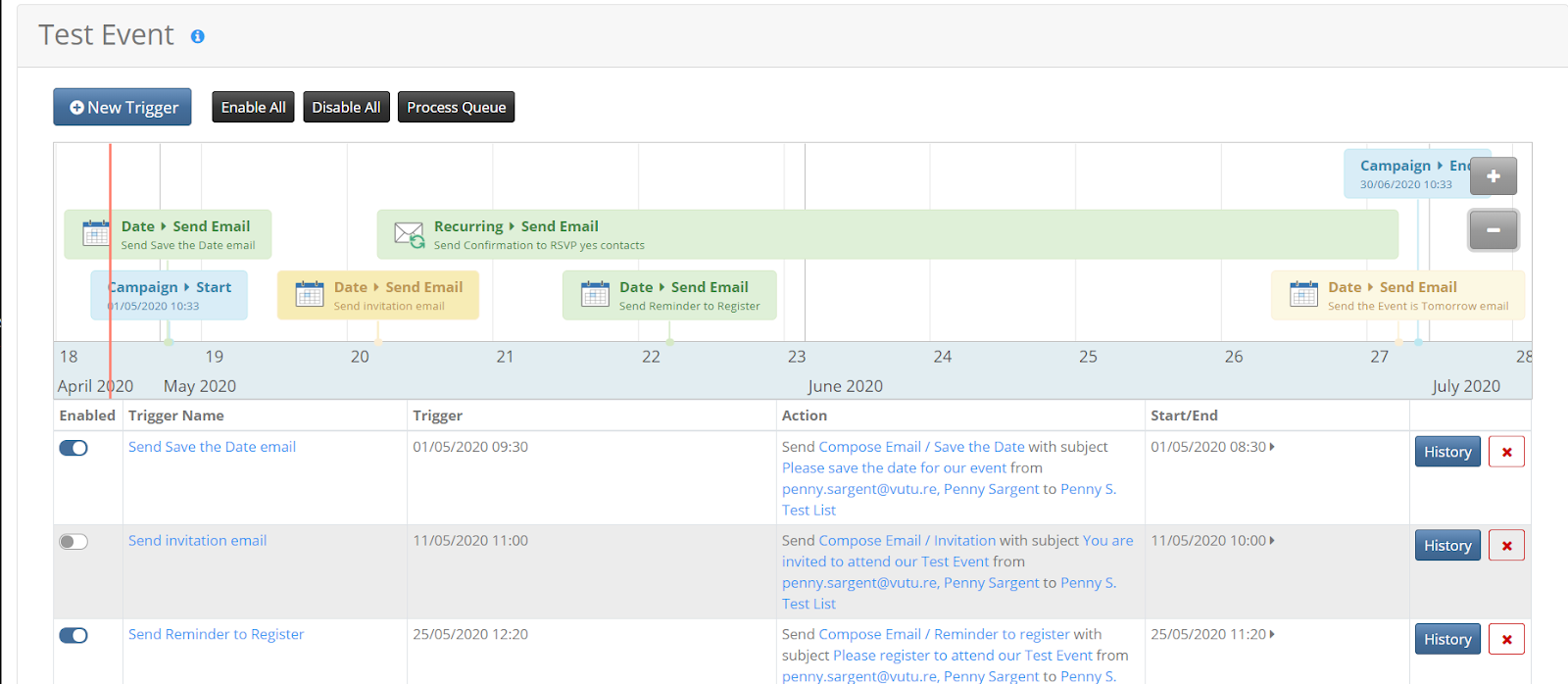
Calendar View
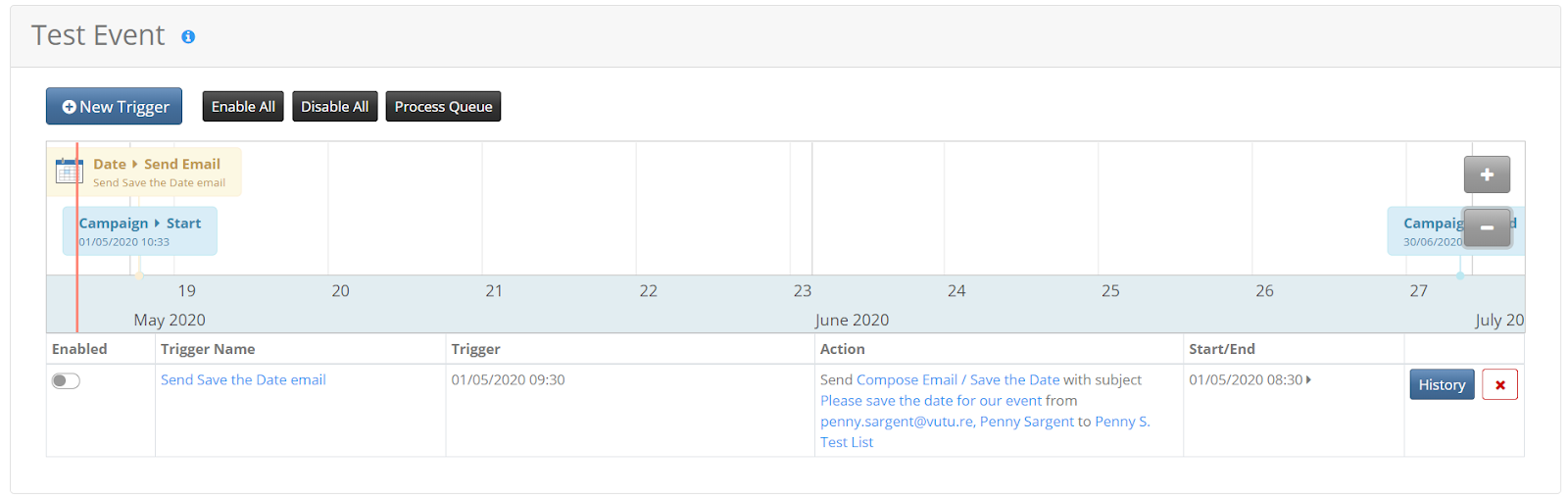
The Calendar timeline builds up a picture of the triggers as you set them up. There is a familiar List View in the table below the calendar.
Enabled and Disabled Triggers
Triggers shown in a green box are enabled and live. Triggers shown in a yellow box have not yet been enabled. If you see triggers in yellow, you will need to click on them to edit and mark them as enabled, before they will work.