Overview
This article covers: creating and editing forms, types of forms, confirmation notifications and form logic.
Whether it's signing up new contacts, updating contact preferences, or collecting event RSVPs, it's likely you will be using forms regularly to power your email program. Vuture forms can synchronise directly with your CRM or with Vuture’s Contact fields.
Contents
As part of your Vuture template we'll create default RSVP forms for events. Usually we'll create a "Prefilled" and "Blank Form" for you (we'll go into these in more detail later). You can use these default forms as a starting point which will speed up the overall set up of your event process.
You can also create your own forms, starting from a new page. You'll always need to start from a basic pre-made form, so don't worry about trying to find a way of creating from scratch.
If you're using standalone or a CRM other than InterAction you can find a full guide to creating forms here.
If you're using InterAction you can find a full guide to creating forms here.
Building your form
When adding a field, what you see will be slightly different based on whether you're using Vuture as a standalone platform, or via a CRM. If standalone you'll simply see a list of field types to add. If connected to a CRM, you'll see a dropdown to select a CRM field.
We'll leave the CRM specific fields until the next section, where we talk through linking the field back to your list.
For a full run-through of the standard Vuture fields available, click here. These, too, can be linked to a Vuture list to update contact information once a form is submitted.
Linking to your list using blank forms
Let's look at a standalone list first, i.e. one uploaded into Vuture from a CSV file. You can link contact fields to this list to update information whenever a form is submitted. For pre-filled forms, you'll be sending to an existing list. Therefore the data fields will link back to the list you're sending to.
You don't have to link to your list. You can still report on the answers submitted in the form without linking back to a list, it will just mean the contact record isn't updated.
Why should you link the list? By linking the list it’ll store any information you collect on your contacts against that contact. You will want to link the list if you are doing things like:
- Updating contact preferences
- Updating general contact information
- Collecting event specific responses, like food choices
Here's how you can do this with forms:
Standalone and non-InterAction guide:
When you're creating your fields, you need to make sure the field name is correct in field settings (this will update the 'Conditional field name' at the bottom of the side bar). The field name dictates which data field the information writes back to.
Note: for Vx, these fields will automatically be created against each contact in the destination list. If you have a CRM connector, you will need to create the custom field first, and then it will appear in the dropdown below.
Once you have created your form, jump into form settings and select the destination list in the add contacts to folder dropdown.
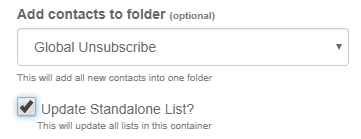
Tick the update standalone list box. This will do one of 4 things depending on your admin settings:
- Nothing
- Update the original list
- Update all container lists
- Update all global lists
Click here to find out more about the update standalone list function.
InterAction guide:
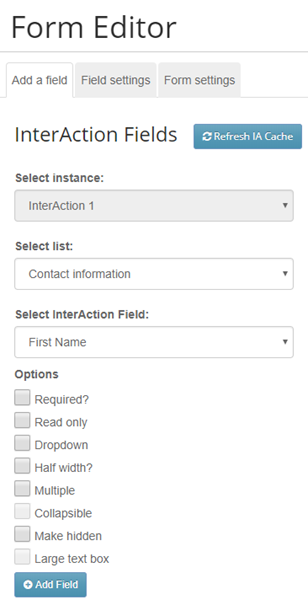
For InterAction integrated instances, you will simply need to select the destination list when creating a new field:
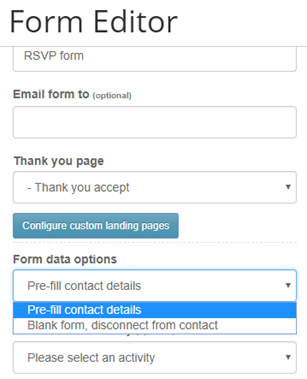
When setting up forms, you have two options, pre-filled forms or blank forms. The pre-filled forms pre-populate the form with data you currently store on that contact. So, for a contact who has already provided information such as their name and company, you save them from having to provide it again. They expect you to know this already, and it saves them time when filling out their preferences or responding to an event invitation. You can change the form type in form Settings > form data options.
You can lock a field down in a prefilled form i.e. Prevent it from being edited by making it read only in the field settings. You can also hide the field. This is useful if you want to store the source of the information e.g. include a source field with options such as website signup, email campaign and unknown in the hidden field.
Hidden fields can also be used as basic protection against sign-up bots. More information on this can be found here.
You can use blank forms when you're not emailing a contact directly. In most cases this would mean you don't already store any data for these individuals. Usually a blank form would either be used on a website, where you can't identify visitors in order to prefill the form, or where a form is forwarded on by the original contact.
As a rule, unless a prefilled form is emailed directly to a contact it won't collect data on contacts. Blank forms will.
Triggering personalised confirmation emails
To trigger a personalised confirmation email which uses the form data, there are two different methods:
Instant notification:
These are best for event confirmation emails, where it's important to convey information, but where reporting isn't as important.
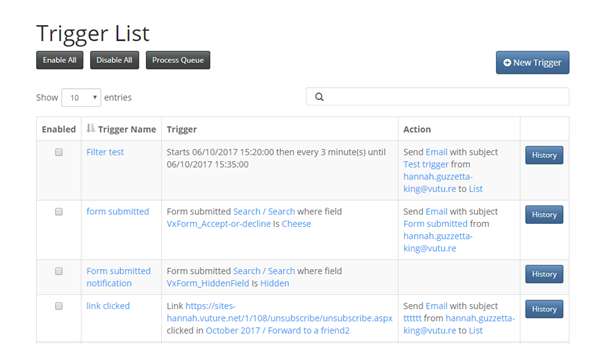
In this case, you're able to set-up a trigger based on a form submission and select 'send notification'. More information on this can be found in our triggers guide, here.
Within the notification email, you can add form fields directly as text using the format #{VxForm_FieldName} where the information in brackets exactly matches your 'Conditional Field Name'. This will fetch the information directly from the form itself.
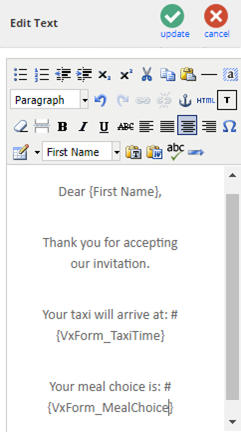
Note: notifications won't show up in your reporting dashboards. To report on whether a contact has received a notification, you'll need to go into the history for that trigger.[LB1]
Recurring email:
This method would be ideal for a welcome email, for example, because you can use standard personalisation, and you get full reporting on any emails sent. There are three steps here:
- Make sure the form is linked to a specific Vuture list, as described above.
- Create your email, using standard field personalisation
- Create a recurring trigger, click here for guide, which sends an email to anyone who is new to the list, with a maximum frequency of 60 minutes to avoid delays to process queues.
Form logic
Form Logic allows you to transform a basic Vuture form into an interactive form. This is done by using conditional rules to tell the Vuture form how to behave once a contact engages with it.
Please visit this page for troubleshooting and FAQ.
