If you would like to change how your contacts are updated, please contact your account manager.
Contacts can be updated in Vx lists through prefilled or blank forms. Based on your settings in "Admin.System.AddressBook.Multiple contact update algorithm", the core contact details for the contact will be updated in:
-
None – If selected it does not update any details within a CSV file.
-
List – If selected it will update the contact's details within just the list the form is linked to (default)
-
Container – If selected it will update the contact's details in all CSV lists within that container
-
Global – If selected it searches all CSV lists and updates the contact's details across the platform (in all containers).
Please note it only updates the core fields so any custom fields on a list do not get removed or edited; they remain in the original list. The core fields are [Email Address| First Name| Last Name| Company| Title |JobTitle| ContactId |Contact SourceId ]
Please note, if you upload a CSV list the details on that file will remain for that specific list until the user submits a form. Then whatever they enter will crosscheck all records and update if necessary.
Adding a contact to a Vx list through a blank form
You can add a new contact to a Vuture list using a blank form by configuring the Settings tab in the Form Editor so that:
- "Add contact to folder" contains the folder you wish them to be added to
- Tick "Update Standalone List" (note, this might be named differently, based on how you have chosen to name your Vuture lists)
Based on your settings, the contact details will be saved either globally, per container or per list. For example, in the image below, the contact fields will be updated globally.
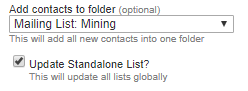
Correct configuration of First Name and Last Name fields in Vuture forms
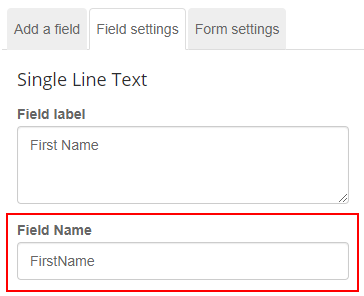
Please note, when using blank forms for Vuture lists (non-CRM), make sure the First Name and Last Name "Field Name" is written in the standard way:
- FirstName
- LastName
Writing them differently in the "Field Name" field will result in a new column being created on the List. You can use any format you choose in the Field Label (which the client will see on the form), as long as you name the field correctly in the Field Name.