There are three possible methods:
1. Using the Inspect command, you could look at the html code on the page to find the field ID (and the value ID as well if you need it). Watch the video below on how to use Inspect:
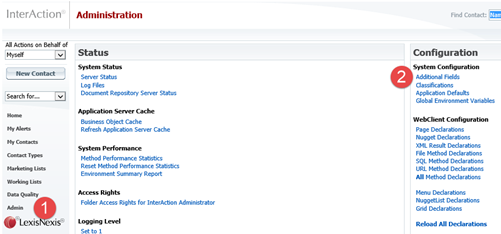
2. If you have Admin access (or you could ask for help from an Admin-level user) you can look it up in the InterAction Web Client:
- The IA field ID numbers in { } are found in the Admin area of the Web client.
- Log in with Admin access (1), navigate to the Additional Fields section (2) and then find your list name and note the top set of numbers for each Additional Field
3. If you do not have Admin access to InterAction and cannot ask an Admin user at your firm, you could use the Vuture report listing all Additional Field IDs like this:
Access your Vuture instance
Enter https://[your firm name}.vuture.net/proxy/[interaction1]/additionalFieldsReport in your browser where [xxx.vuture.net] is the name of your Vuture instance and [interaction1] is the name of your InterAction instance. This is usually interaction1 for most firms but if you have more than one instance of InterAction you may need to check with your Account Manager. You do not need any brackets - [ ] - they are just indicating the areas you need to change for you.
The result will be a list something like this:
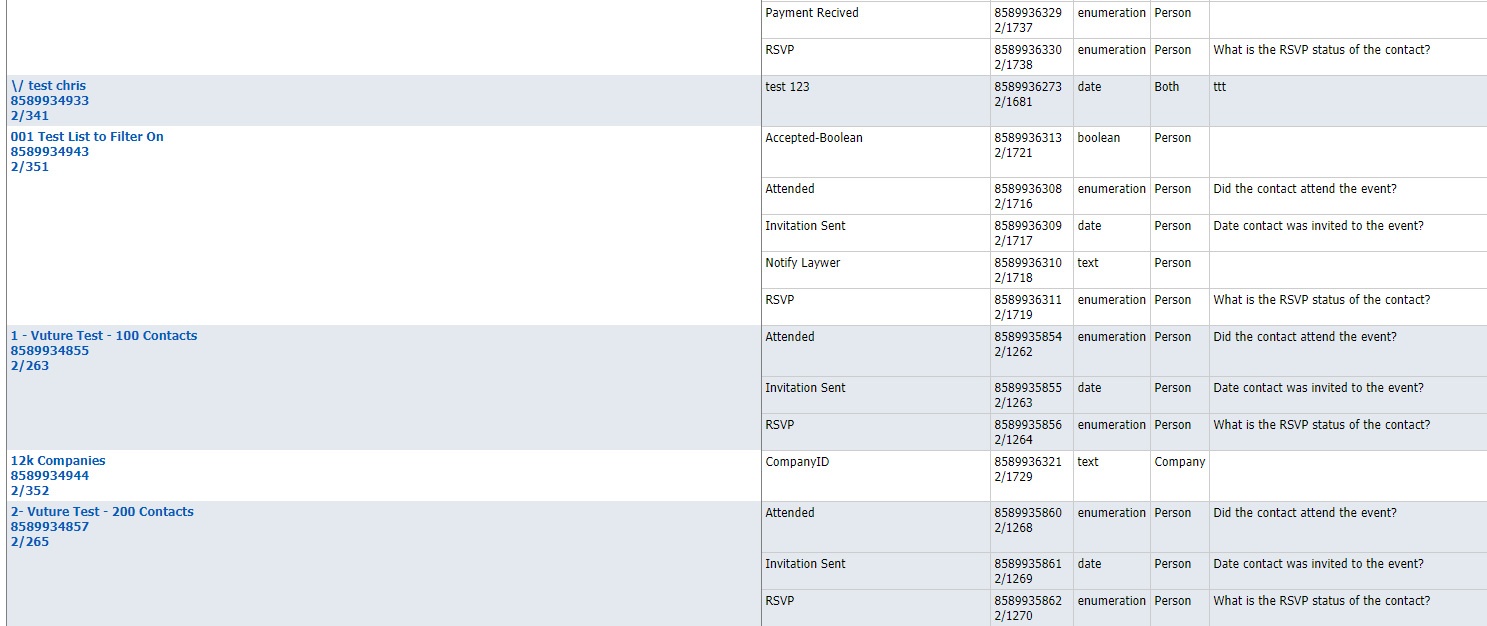
The additional field IDs are in the third column across from the left, the 10 digit number.
