This document explains how the new integration with ContactEase works in the different pickers across the Vuture platform (VXDEV-8902).
Pre-requisites
Add login details for ContactEase CRM in Admin.System.ContactEase
Enable Contacts Module Admin.System.Modules
Enable Send screen V2 Admin.System.Versions.Send Email Screen Version 2
Enable Admin.System.ContactEase.ContactEase Connector
Enable Admin.System.Emails.Preview as Contact
Enable Admin.Roles.Preview Email Spacelab Screen
Send Email Screen
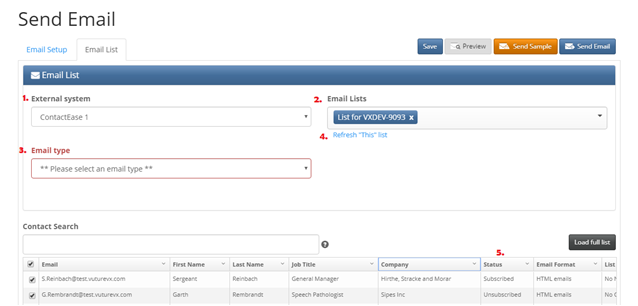
External System -The new CE integration is available in the External system picker on send email screen V2
Email Lists – only lists imported from the CRM in Contacts module will be displayed. Just one list can be selected at a time.
Email Type – The values come from the Suppressed values for Email type unsubscribes configured in the CRM Meta Data Manager.
Refresh this list - pulls from the CRM and updates the list in Send Email Screen (tblEmail)
Status column – can have two values: Subscribed and Unsubscribed, a contact will be shown as Unsusbscribed only when they have unsubscribed globally, if they have unsubscribed only from certain email types, they will be shown as Subscribed. This works the same in Contacts module.
NOTE: There’s no filtering for phase 1 of the new CE integration.
Test Email Screen (Preview As)
-
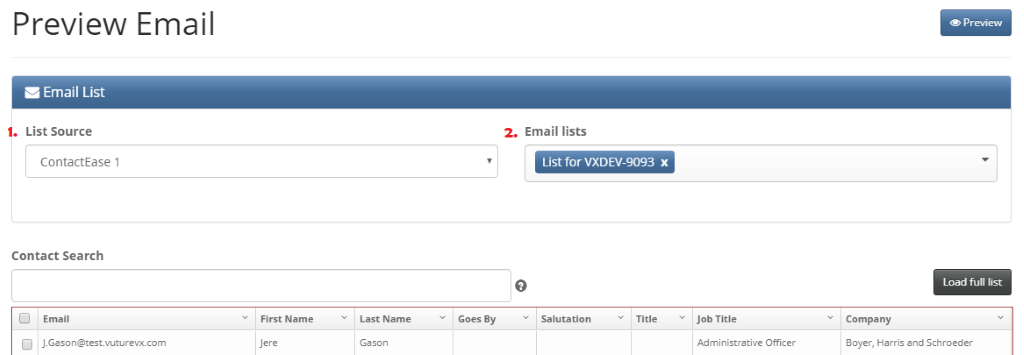
List Source - The new CE integration is available in the List source picker on the preview email screen.
-
Email Lists – only lists imported from the CRM in Contacts module will be displayed. Just one list can be selected at a time.
Campaign Summary
1. List Source - The new CE integration is available in the List source picker on the preview email screen.
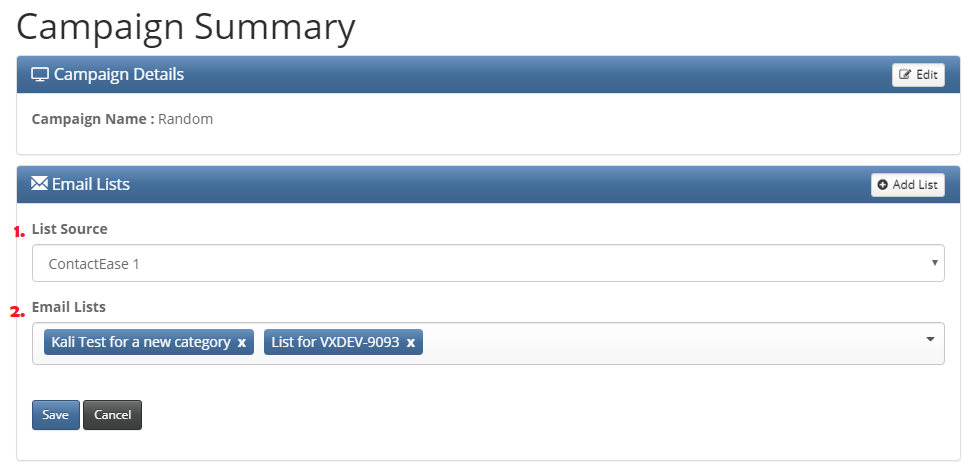
2. Email Lists – only lists imported from the CRM in Contacts module will be displayed. Multiple lists can be selected simultaneously.