This dashboard gives you an overview of the activity for an entire campaign sent via Vuture. Any email or form included in the Vuture campaign will be included in the report, for any crm.
You will be able to view in one dashboard all the form submissions as well as basic email metrics for all emails within the campaign.
To view this dashboard you must first enable it for your role. Ask your Account Manager to do this for you.
You can access the Campaign dashboard through "Dashboards" in your module selector or from within your Email Campaign, by clicking on the Stats icon at the top left of your screen.
Filters
When you open this dashboard you'll need to select a campaign from the menu on the left hand side.
You can also select a time frame to filter the results or leave the date field blank to see all data.
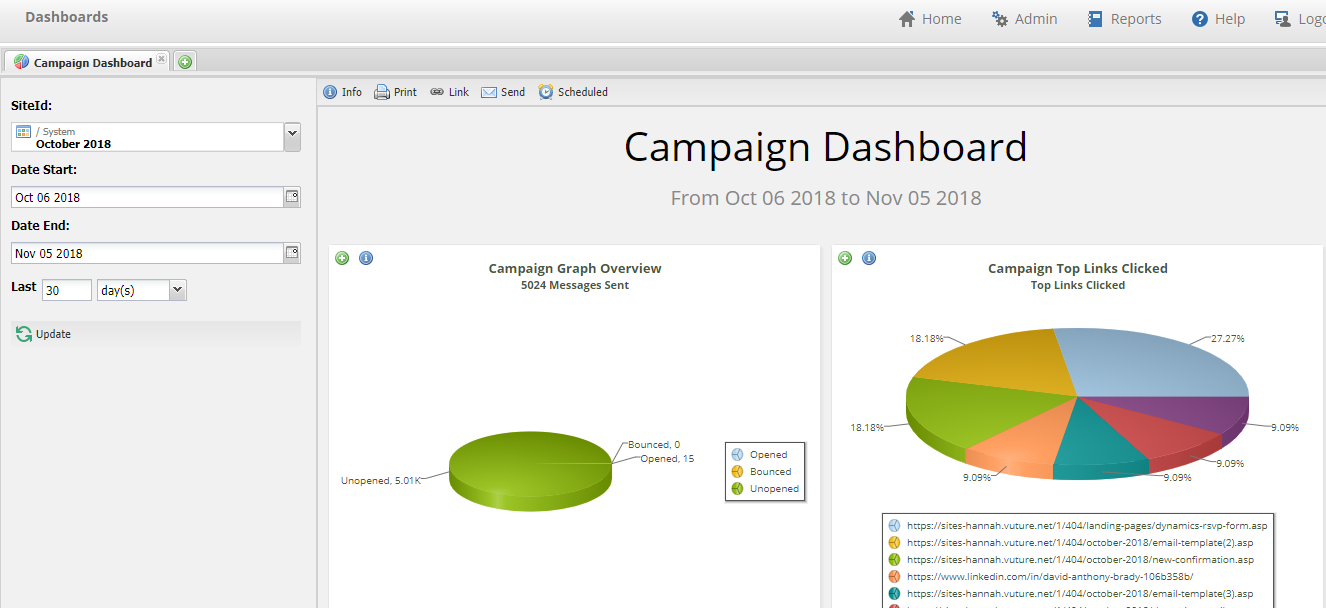
Below is a breakdown of each report in the dashboard and what the data shows. The number in brackets in the title is Vuture's report ID.
Sometimes the reports displayed in the dashboards are a summary or show only the top/bottom. If you click on the green plus sign on the top left of any report you can drill down to view a table with more data.
Reports in this dashboard
Campaign Graph Overview (161)
This report shows a pie chart with the number of recipients who have bounced, opened or not opened all the Sent emails within the campaign.
If you click on the plus sign for more information, you will see the report as a table.
Campaign Top links clicked (167)
This report shows the top links that were clicked in this campaign, in order of the number of clicks.
If you click on the plus sign for more information, you will see the report as a table.
High level stats (164)
These high level numbers show you the overall email stats for all Sent emails within the campaign.
Campaign Recipient Activity (165)
This report shows what every recipient has done with the emails received from this campaign.
If you click on the plus sign for more information, you will see the report as a table.
Campaign bouncebacks (171)
This report shows the recipients who bounced in this campaign. It gives further information about the contact and their company along with the details of why they bounced.
If you click on the plus sign for more information, you will see the full report as a table, and you will be able to export the table as a csv.
Form Submission Details By Campaign (169)
This report shows you the contacts that completed a form within this campaign, along with the details of their submission.
If you click on the plus sign for more information, you will see the full report as a table, which you will be able to export as a csv. This will combine and present the data for both pre-filled and blank forms in one event.
