Overview
The Key Client Report is an optional report for clients who have Vuture's premium Email Tagging and InterAction.
If you store your key clients in one or more InterAction folder you can synchronise the contacts in these folder with the Vuture system and generate a Key Client Data Report that includes only these contacts. This report gives you one row for each key client, with the date of the mailing, Subject Line, whether they opened, clicked, unsubscribed, or bounced, and the corresponding tags. For more information on what is included in this report, please review this article.
Contents
Requirements for setup
To set this up, we will need the InterAction Folder IDs you wish to sync with the Tagging data. If you have more than one InterAction Folder of Key Clients, please decide if you want to keep these segmented out or combine into one InterAction Folder. Depending on what you decide, this will determine the information we need from you below.
If you decide to keep these segmented into their respective folders, please fill in the below table.
| InterAction Folder Name | InterAction Folder ID | Unique Name for Key Client Type*
|
| | | |
| | | |
| | | |
* Create a Unique Name for the Key Clients in each folder, beginning with "Key Clients". For example, if the folder contains Key Clients for a specific Practice Area like "Energy", the "Unique Name for Key Client Type" would be "Key Clients - Energy". These unique "Key Client Types" will appear in the Key Client Report in a column named "Client Type". Please see an example attached with this column highlighted in green.
If you decide to keep the Key Clients under one folder, the Content Type will remain as "Key Clients". Please complete the table below if using one main Key Clients folder.
| InterAction Folder Name | InterAction Folder ID | Client Type |
| | | Key Clients |
Instructions for your Vuture Representative
To synchronise one or more Key Client InterAction folders:
- Create a new email campaign for managing your synchronised folders in a container with permissions limited to administrators. We recommend naming it something like: "Key Client Admin". You can use any email template. No emails will be sent from the campaign, it is just to manage the synchronisation.
IMPORTANT: Please provide the SiteId of the email campaign created to your Account Manager or Vuture Support who will update the system configuration setting "Admin.System.Reports.SiteId Target For Key Client Report Data" with this value. You can find this by looking in the browser address bar, when editing this campaign, for the number after intSiteId=
- Create a Content Type for each type of Key Client you want to report on. Do this from the email campaign you just created by clicking on "options" in the top left window and scrolling down and selecting "Configure Dynamic Data". On this screen enter a name to describe each Key Client type and click "Add" (don't tick the make available in all sites box). If you are grouping all Key Clients together you can just create a Content Type called "Key Clients". If you have more than one type of Key Client then create multiple Content Types but make sure they start wit the words "Key Clients", for example "Key Clients A" and "Key Clients B".
- Click "emails" at the top of the left panel to go back to your campaign. Then create a folder for each InterAction folder you want to synchronise by clicking on the "Compose Email" folder and then clicking "new folder". Name the folder to match the InterAction folder you are synchronising (this does not have to exactly match but should make it easy to know which IA folder you are syncing). Repeat the process for each InterAction Key Client folder you are syncing.
- Connect the Vuture folders to the InterAction folders by clicking on "options" at the top of the left panel and scrolling down to "Configure CRM Folder Sync".
Note that your role must have the feature "Admin.Roles.Admin.Manage Folder Sync" enabled - please contact your Account Manager or Vuture Support to enable this.
For each folder click on "Add New Sync Settings" and choose:
- One of the Vuture folders you created in step 3
- The corresponding Content Type you created in step 2 (you can have multiple folders that share a single Content Type or you can have individual Content Types per folder)
- The InterAction instance that you are synchronising with (if you have more than one InterAction connected to Vuture)
- The InterAction folder to be synchronised
- Once created you can do a manual synchronisation to test by clicking "Sync Now" next to the folder. Once completed you should see a list of Contacts in the folder in the Campaign View. "Disable" allows you to temporarily stop a folder from syncing without deleting it. "Edit" allows you to change the folder sync settings. "Delete" deletes the synchronisation link.
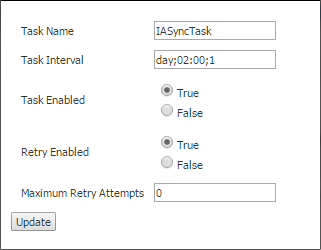
- To setup a scheduled daily synchronisation click "Edit" in the "Sync Schedule Task Settings" and enter the required interval in the format "day;02:00;1" where 02:00 is the daily sync time. Set "Task Enabled" to "True".
- Once the synchronisation is running the container and campaign Key Client reports will automatically use the synchronised Key Clients. See this article for details on the Key Client Reports.
