Keywords: Account Not Setup, You do not have access, Account is now locked, disabled account, maintenance mode, password reset email.
Overview
Below are links to common user access issues. Click on the link to take you through some simple troubleshooting steps you can follow.
Please note: You will need a Super Admin to action these steps. If you still have problems get in touch with support@vutu.re
Error message
Other common issues
Account not setup
The most common reason for this is that you haven't been given access to any packages.
- Admin>Containers and Users and search for your email. Ensuring that they tick show users in sub-containers
- Click Edit User
- Enable the relevant packages against your user account.
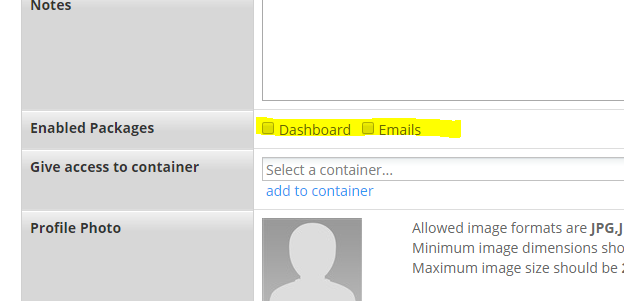
- If you still see this message, they should check whether your user account is enabled in the same screen.
Your Super Admin has not given you access to your CRM data.
- Have them go to Admin>Containers and Users and search for your email. Ensuring that they tick show users in sub-containers
- Click Edit User
- Under External systems they need to either tick the appropriate CRM or type in the name of the CRM account name.
- The easiest way to know what the account name is is for them to edit a different user (maybe themselves) and copy the CRM account name from there.
Sorry you do not have access to this container
You have not been given access to the container
- Have one of your Super Admins go to Admin>Containers and Users and search for your email. Ensuring that they tick show users in sub-containers.
- Click Edit User
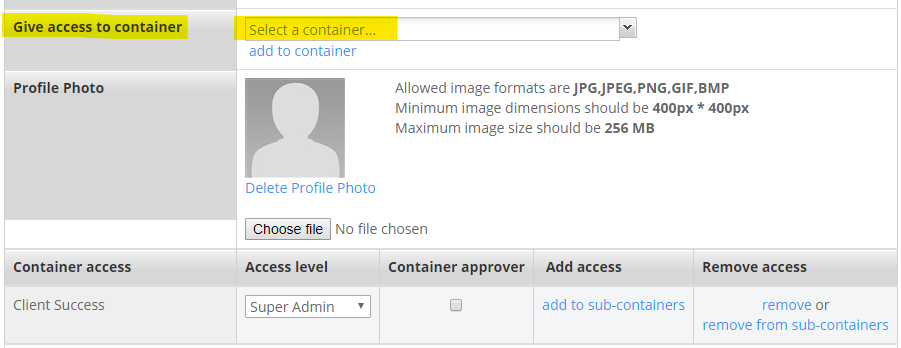
- Scroll to the bottom, where you can see the containers you have access to.
- From the drop down Give access to container Select the relevant container
- Click Add to container
The account is now locked
If you are trying to log in and you see the message the account is now locked you will need a Super Admin to unlock your account.
- Have one of your Super Admins go to Admin>Containers and Users and search for your email. Ensuring that they tick show users in sub-containers.
- Click Edit User
- Tick enable
Need more instructions? Click here for a more step-by-step article.
This container is in Maintenance Mode
- Have one of your Super Admins go to Admin>Containers and Users
- Click on the container you are trying to access.
- Click container settings
- Untick maintenance
User not seeing certain features
If another user is not seeing the same features as you, it is most likely that they have a different access level.
- If you are a Super Admin go to Admin>Containers and Users
- Check the Access Level on the user in question.
- You can either change the access level of the user or
- There is quite a bit of flexibility on what features are enabled or disabled for different access levels. Reach out to your Account Manager to discuss your options.
Not receiving password reset emails
If you have tried resetting your password and you are not receiving the reset emails follow these steps
- Check the emails are not in your spam folder or being caught up in a spam filtering system
- Check that the email you have typed in is correct. This one is especially important if you use multiple emails.
- Your user account may be disabled. Have one of your Super Admins check and follow these steps to re-enable.
