Contacts can subscribe and unsubscribe to specific Salesforce Campaigns through a Vuture preference form. This means that Vuture clients can track their clients' mailing preferences using lists instead of using the contacts' attributes.
Please note, in order to upgrade, your account manager must set Admin.System.Version.CrmFormFillModuleVersion to "2", Admin.System.Salesforce.Form Submission Version to "2 as well as have the form editor version 2 enabled
To include Lists as Preferences in your Vuture forms, please follow the steps below:
1. Associate your Campaigns to a specific "Record Type" in your CRM. Please make sure the campaign is active, that is, the box is checked. If this is not active the campaigns will not show in the Vuture form.
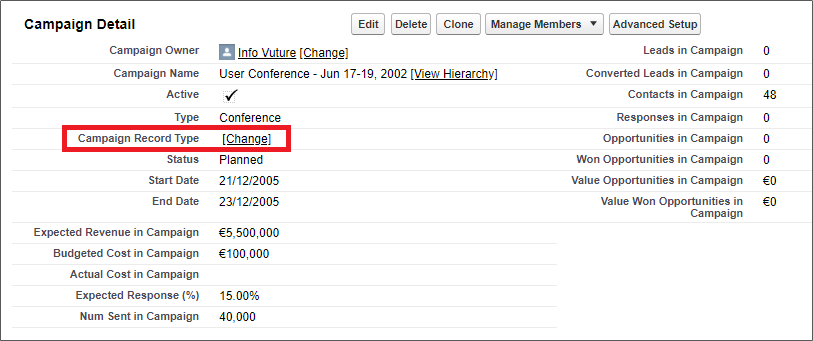
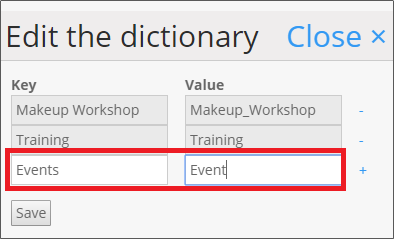
2. Provide the Record Type Name you want to include in your Vuture form, to your Account Manager. Please note, you can provide multiple record types. Your Account Manager will add this into Admin.System.Salesforce.Preferences by List Record Type Names. Click Save and "Verify fields are correct".
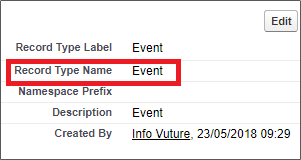
Your Account Manager will add these for you.
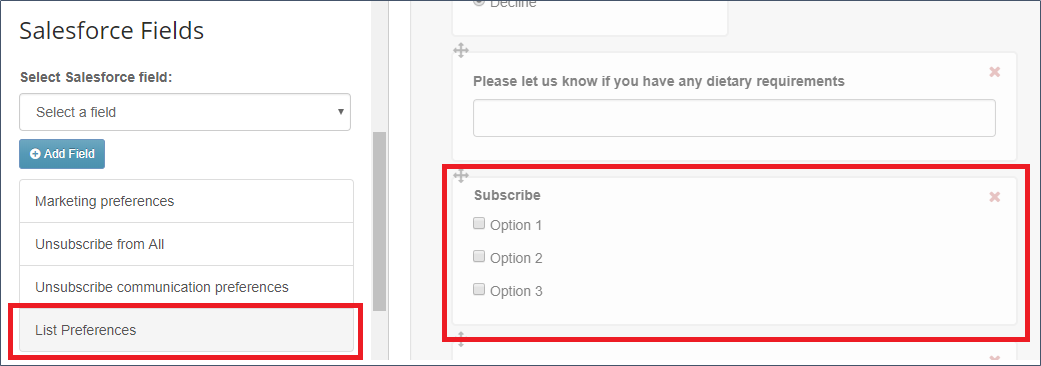
3. Now, you can add the preferences into a Vuture form. When you are editing your form, you can insert a new section called "List Preferences". This check-box style field will allow you to link each field option to a different Campaign.
How do contacts subscribe or unsubscribe?
- When a contact receives a pre-filled form, they will see a check-box against Campaigns they are already subscribed to. They can remove the tick and this will remove them from the Campaign
- When a contact ticks a box and submits the form, it will add them to the Campaign as well as the first list associated with the Campaign
- When an existing or new contact receives a blank form, they won't be able to see which options they are already subscribed to. If they were subscribed to "Option1" and they don't check the box before submitting the form, they will not be unsubscribed from "Option1". The un-subscribe will only occur with an actual un-check of a box.
